Finding the menu commands added by a plugin


So you installed a plugin, but now you cannot find out how to access the plugin in Softimage.

If the plugin added a menu command, and it’s a scripted plugin, we can find it by checking the plugin code (in the Plugin Manager > Tree, right-click the plugin and click Edit).

Find the definition of XSILoadPlugin.
In the XSILoadPlugin function, look for any calls to RegisterMenu.

def XSILoadPlugin( in_reg ): #{{{
	in_reg.Author = "kim"
	in_reg.Name = "EPSexportPlugin"
	in_reg.Email = ""
	in_reg.URL = ""
	in_reg.Major = 1
	in_reg.Minor = 0

	in_reg.RegisterProperty("EPSexport")
	in_reg.RegisterMenu(constants.siMenuMainFileExportID,"EPSexport_Menu",false,false)

	# register the export command
	# 	KA_EpsExport( Application.Selection, OutputFile, CullBackFaces, doInnerLines, doBorderLines, InnerLineThickness, BorderLineThickness, AutoDiscontinuity, Xres )
	in_reg.RegisterCommand("KA_EpsExport","KA_EpsExport")

	return true

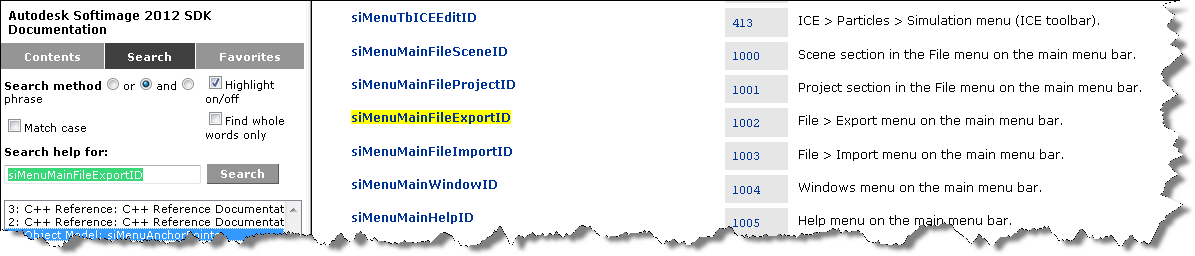
RegisterMenu uses what’s called a “menu anchor” to define a new menu command. In this example, the menu anchor is siMenuMainFileExportID.

Google the menu anchor or search the SDK docs, and you’ll find a page that describes the menu anchors:

Finding interior points with valence two


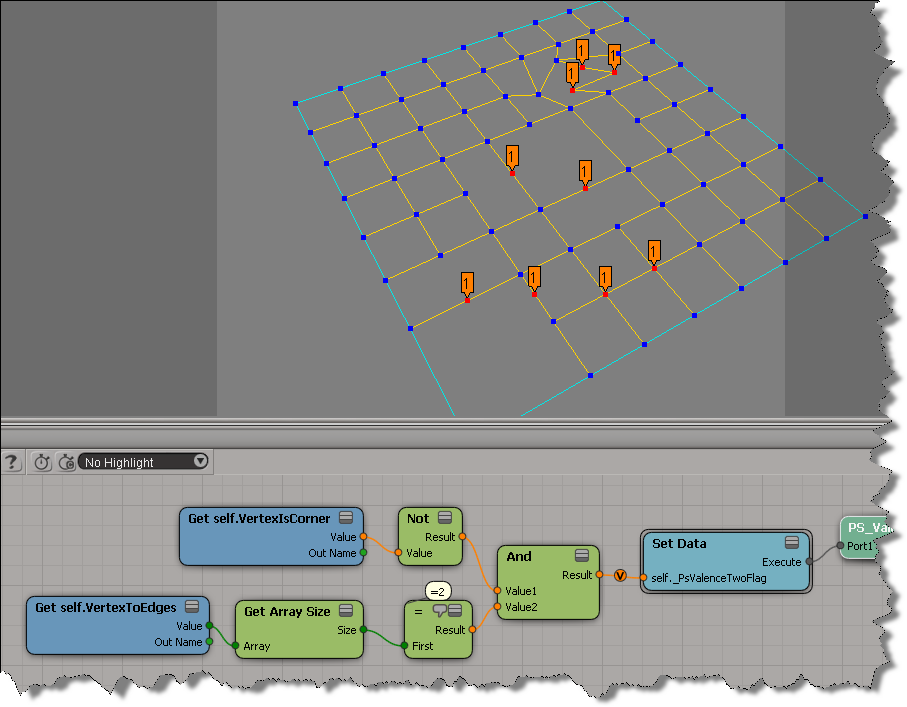
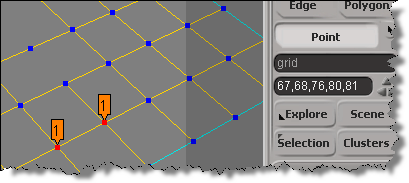
A point with “valence 2” is a point with two incident (neighbour) edges. You could write a script to find these points, but it’s even easier to do with ICE:
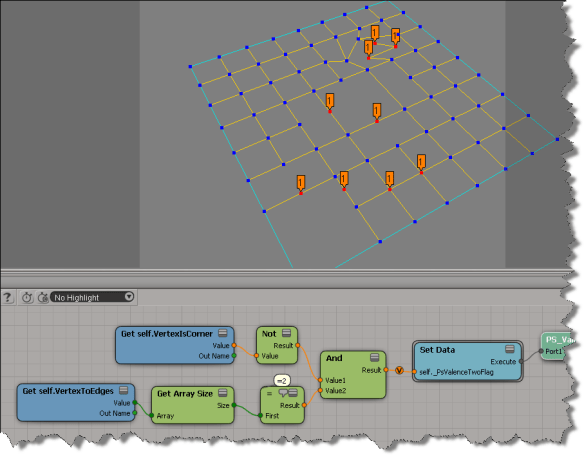
Notice that some of the tagged points look like they have more than 2 neighbour edges. What’s happening there is that there are several vertices on top of each other:

Here’s a Python script that builds the ICE tree and then uses it to select all the interior points with valence 2.
hat tip: Fabricio Chamon

I also did this as a custom filter, maybe I’ll post that later.

from siutils import si
from siutils import log		# LogMessage
from siutils import disp	# win32com.client.Dispatch
from siutils import C		# win32com.client.constants

#
# Build the ICE tree that finds the interior points with valence two
#
def BuildICETree( oObject ):
	oIceTree = si.ApplyOp("ICETree", oObject.FullName, C.siNode, "", "", 0)(0)
	oIceTree.Name = "PS_ValenceTwoFilter"

	oAnd = si.AddICENode("$XSI_DSPRESETS\\ICENodes\\CombineLogicNode.Preset", oIceTree )

	#
	# Get self.VertexIsCorner -> Not -> And
	#
	oNot = si.AddICENode("$XSI_DSPRESETS\\ICENodes\\NotNode.Preset", oIceTree )
	oGetVertexIsCorner = si.AddICENode("$XSI_DSPRESETS\\ICENodes\\GetDataNode.Preset", oIceTree )
	oGetVertexIsCorner.Parameters( "Reference" ).Value =  "self.VertexIsCorner"
	si.ConnectICENodes( oNot.InputPorts("Value"), oGetVertexIsCorner.OutputPorts( "value" ) )
	si.ConnectICENodes( oAnd.InputPorts( "Value1" ), oNot.OutputPorts("result") );

	#
	# Get self.VertexToEdges -> Get Array Size -> = -> And
	#
	oGetVertexToEdges = si.AddICENode("$XSI_DSPRESETS\\ICENodes\\GetDataNode.Preset", oIceTree )
	oGetVertexToEdges.Parameters( "Reference" ).Value =  "self.VertexToEdges"
	oArraySize = si.AddICENode("$XSI_DSPRESETS\\ICENodes\\GetArraySizeNode.Preset", oIceTree )
	oCompare = si.AddICENode("$XSI_DSPRESETS\\ICENodes\\CompareNode.Preset", oIceTree )

	si.ConnectICENodes( oArraySize.InputPorts("Array"), oGetVertexToEdges.OutputPorts("value") )
	si.ConnectICENodes( oCompare.InputPorts("first"), oArraySize.OutputPorts("size") )
	oCompare.InputPorts("second").Value = 2

	si.AddPortToICENode( oAnd.InputPorts("Value1"), "siNodePortDataInsertionLocationAfter")
	si.ConnectICENodes( oAnd.InputPorts("Value2"), oCompare.OutputPorts("result") )

	#
	# Set Data -> ICETree
	#
	oSetData = si.AddICECompoundNode("Set Data", oIceTree )
	si.SetValue( oSetData.FullName + ".Reference", "self._PsValenceTwoFlag", "")

	si.ConnectICENodes( oSetData.InputPorts("Value"), oAnd.OutputPorts( "result" ) )

	si.ConnectICENodes( oIceTree.InputPorts("port1"), oSetData.OutputPorts("Execute") )
	si.DisplayPortValues(oSetData.InputPorts( "Value" ), True, 0, True, "", 0, 0, 0, 1, False, True, 1, 0.5, 0, 1, False, 0, 10000, 1, False, False, 0, 10, False, True, False, 100)
	
	return oIceTree

#
# Select all points with the ICE attribute _PsValenceTwoFlag=True
#
def SelectInteriorPoints_with_ValenceTwo( oObject ):
	a = oObject.ActivePrimitive.ICEAttributes("_PsValenceTwoFlag")
	if a is not None:
		d = a.DataArray
		if len(d) > 0 and a.IsConstant == False:
			Application.SelectGeometryComponents( "%s.pnt[%s]" %( oObject.FullName, ",".join(["%s" %(ix) for ix in range(len(d)) if d[ix] == -1])  ) )


#--------------------------------------------------------------
# Select interior points with valence 2
#--------------------------------------------------------------


if si.Selection.Count > 0 and si.ClassName( si.Selection(0) ) != "CollectionItem" :
	oObject = si.Selection(0);
else:
	oObject = si.PickObject( "Pick object" )(2)

if oObject != None and oObject.IsClassOf( C.siX3DObjectID ):
	tree = BuildICETree( oObject )
	SelectInteriorPoints_with_ValenceTwo( oObject )
	si.DeleteObj( tree )

Scripting – Getting the target in a context menu callback


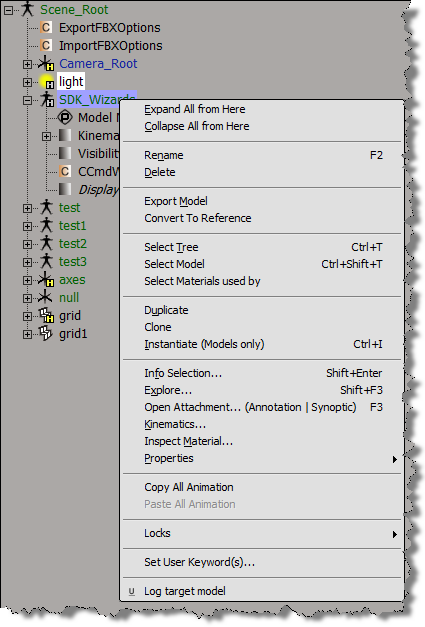
If you use AddCallbackItem to implement a contextual menu, then you can get the objects to which the context menu applies. A menu item callback gets a Context object from Softimage, and that Context contains a Target context attribute. Target specifies the selected objects, or the object under the mouse:

  • If more than one object is selected, then the Target attribute is a collection of all selected objects.
  • Otherwise, the Target attribute is a collection that contains just the object under the mouse.

Here’s a Python example of a context menu implemented with AddCallbackItem.

import win32com.client
from win32com.client import constants

null = None
false = 0
true = 1

def XSILoadPlugin( in_reg ):
	in_reg.Author = "blairs"
	in_reg.Name = "Test_CommandPlugin"
	in_reg.Major = 1
	in_reg.Minor = 0

	in_reg.RegisterCommand("Test_Command","Test_Command")
	in_reg.RegisterMenu(constants.siMenuSEModelContextID,"Model_Context_Menu",false,false)
	in_reg.RegisterMenu(constants.siMenuSEObjectContextID,"Object_Context_Menu",false,false)
	#RegistrationInsertionPoint - do not remove this line

	return true

def XSIUnloadPlugin( in_reg ):
	strPluginName = in_reg.Name
	Application.LogMessage(str(strPluginName) + str(" has been unloaded."),constants.siVerbose)
	return true

def Model_Context_Menu_Init( in_ctxt ):
	oMenu = in_ctxt.Source
	oMenu.AddCallbackItem( "Log target model", "SE_ContextCallback" )
	return true

def Object_Context_Menu_Init( in_ctxt ):
	oMenu = in_ctxt.Source
	oMenu.AddCallbackItem( "Log target object", "SE_ContextCallback" )
	return true
#
# Menu item callback
#
def SE_ContextCallback( in_ctxt ):
	target = in_ctxt.GetAttribute("Target")

	# Target attribute returns an XSICollection
	for o in target:
		Application.LogMessage( o.FullName )

ICE Trigonometry nodes: degrees or radians?


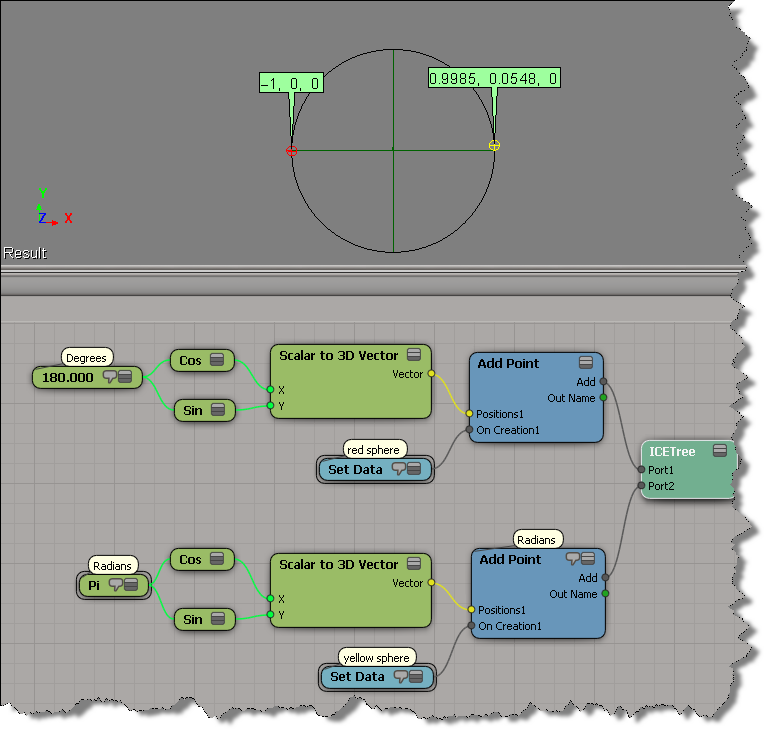
The docs don’t say whether the Trigonometry nodes like Cos and Sin work with degrees or radians, so you have to figure it out yourself. Fortunately, that’s pretty easy to do. You just check which of these returns -1: cos( 180 ) or cos( π) ?

I went a little overboard, but this shows that Cos and Sin expect angular measurements expressed in degrees.

This is based on some basic trigonometry, which can be pretty handy when working with ICE:

  • 2*π radians is equivalent to 360 degrees, so π is 180 degrees.
  • cos( θ ) is the X coordinate of a point on the unit circle, so we know that at 180 degrees (or π if using radians), Cos will return -1.

Aligning particles and making instances look at something


Dealing with particle orientation and rotation can be frustrating, especially when you’re first learning.

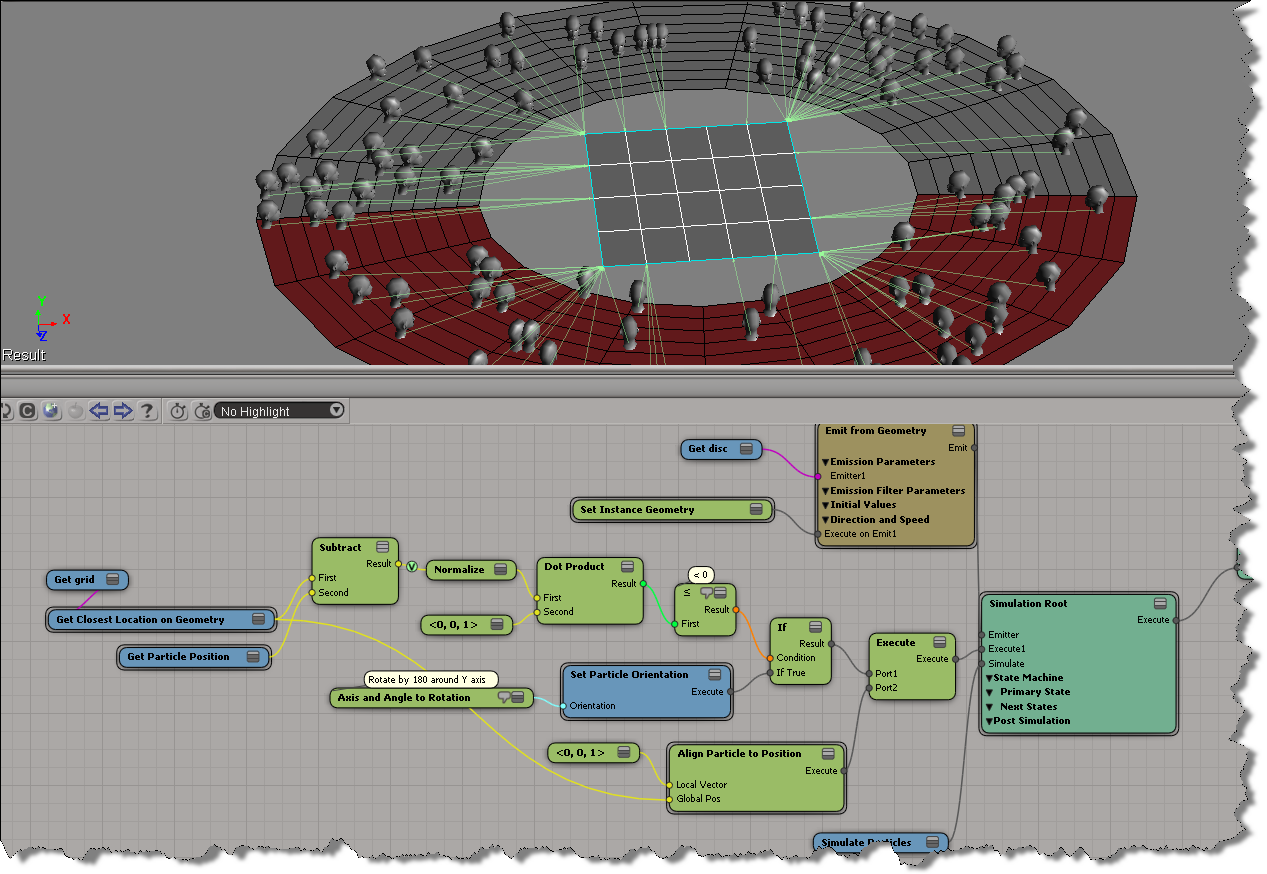
Here, I’ve got a bunch of faces instanced onto a disc, and I want all of them to to look the closest point on the grid that’s in the center of the disc. Because the initial local Z axis of some particles faces “away” from the grid, you get can some weird popping and flipping. Here’s an illustration of the problem from an earlier test, when I was aligning the faces to look at a specific point. Notice how only the instances on one side of the null have problems.

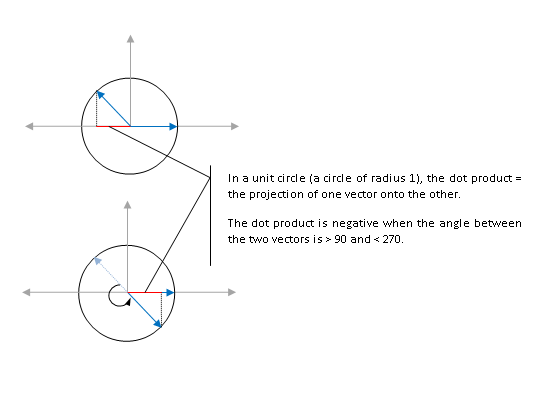
So, I use the dot product to determine whether the local Z axis faces “away” from the target grid, and if so, I make an adjustment of 180 degrees, and then the faces align nicely.

A negative dot product tells me that the angle between the local Z axis and the vector to the closest point on the grid is more than 90 and less than 270.

Making a Null follow a particle


Given a particle emission, how do you make a null (or some other 3d object, for that matter) follow a specific particle?

  1. Select the null.
  2. In the ICE toolbar, click Kinematics > Effects > Transform Objects by Particles.
  3. Pick the point cloud.

The null is now constrained to particle 0. There’s an ICETree on the null where you can change the particle index, to constrain the null to a particle with a different ID.

For a more detailed, low-level look into this, see the video ICE Kine – Drive from particles by Eric T.