Moving the timeline pointer back to frame 1 with xsibatch


UPDATE: In the comments, Vladimir suggests a better way to do this: use the scntoc. That way, the scene will always open at frame 1.
Use a text editor to add Application.SetValue(“PlayControl.Current”, 1) to the onload script. This script will run when you open the scene, and move the timeline pointer back to frame 1 to avoid the re-simulation.

   <PostLoadScript>
      <Language>Python</Language>
      <Function>postLoad</Function>
      <Script_Content>
	<![CDATA[
Application.SetValue("PlayControl.Current", 1)
	]]></Script_Content>
   </PostLoadScript>

After you save the scene, Softimage will write out the scntoc without the CDATA section (Softimage will replace special characters like < and ” with entities).

   <PostLoadScript>
      <Language>Python</Language>
      <Function></Function>
      <Script_Content>
	
Application.SetValue(&quot;PlayControl.Current&quot;, 1)</Script_Content>
   </PostLoadScript>


So you have a heavy simulation, and you saved the scene with the timeline pointer at frame 1000. Now when you open the scene, you have to sit and wait while the scene re-simulates.

You can fix this by using xsibatch to move the timeline pointer back to frame 1.

It’s probably a good idea to save heavy sim scenes with the timeline pointer at frame 1 😉

  • Save this JScript in a .js file.
    var sScene = "C:\\Users\\blairs\\Support\\Scenes\\Test.scn"
    OpenScene(sScene, null, null);
    SetValue("PlayControl.Current", 1, null);
    SaveScene();
    
  • In a command prompt, use xsibatch -processing -script to run the script:
    xsibatch -processing -script C:\Users\blairs\Documents\resetPlayControlCurrent.js
    

Now you can open your scene without it resimulating.
Tip for using Show Values with the Filter node


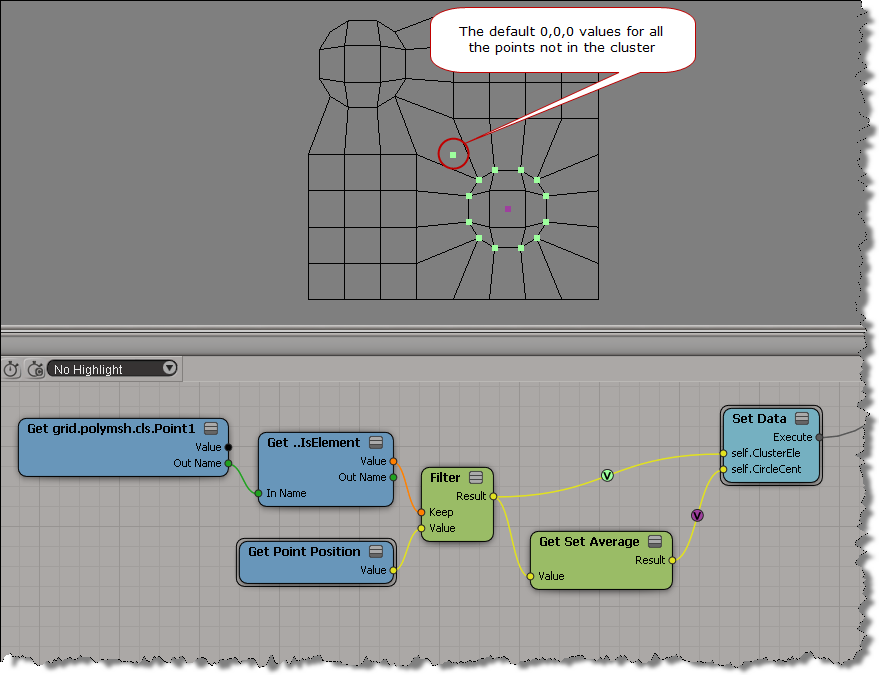
Use the SKip Default Values During Display or Show Values Computed at Current Frame options when you do a Show Values on the output of a Filter node.

With the default Show Values settings, you’ll see default values for the elements that didn’t pass the filter condition:

If you enable SKip Default Values During Display or Show Values Computed at Current Frame , then you see values for the filtered elements only:

Making circles on the surface of a mesh


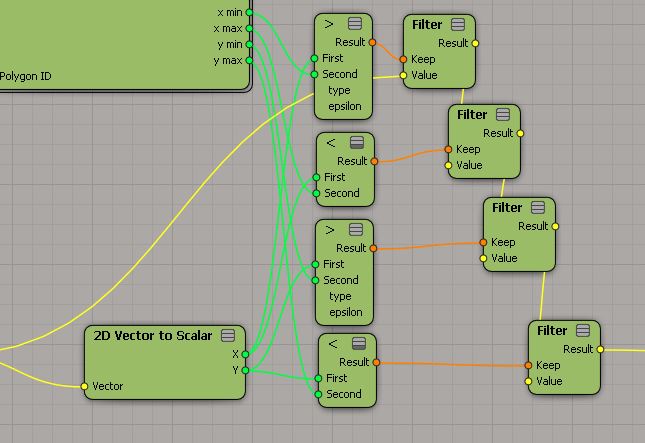
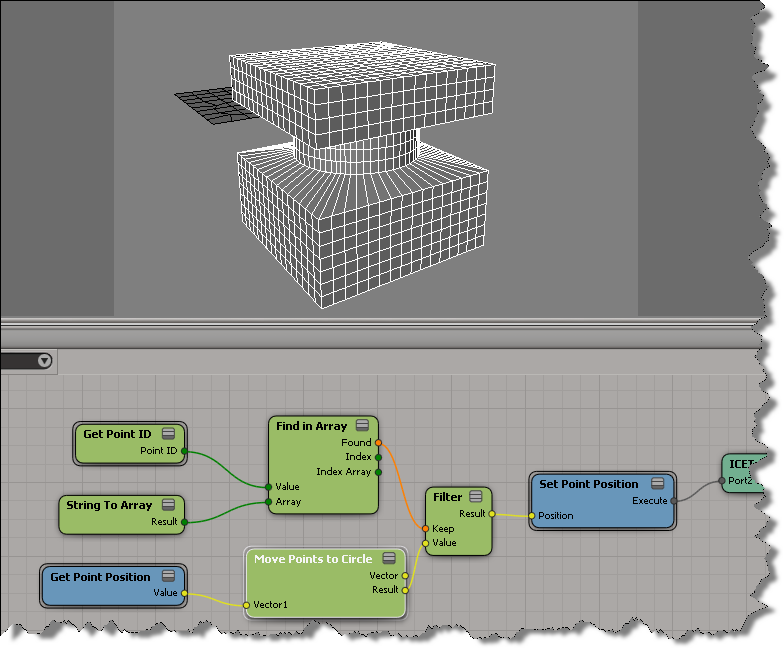
Taking a cluster of points and moving them on to a circle turned it to be easier than I thought… At first it seemed more complicated to get at the points, because sometimes the Show Values on the output of a Filter node is, let’s face it, misleading. Based on what a certain Show Values showed me, I started off using arrays instead of Filters, and that made the graph a little messier.

First, I calculate the point I want to use as the center of the circle. That gives me the first vector I need.

Subtracting the CC (circle center) vector from the PP (Point Position) vectors gives me a set of vectors that take me from the circle center to the points.

I just resize the PP-CC vectors to get point positions that fit on a circle:

Creating ICE Trees after you create a cluster


In brief: don’t click Create ICE Tree immediately after you create a cluster that you want to use in your ICE tree, because the ICE tree will be created on the cluster. And the ICE tree will be in the wrong place in the operator stack.

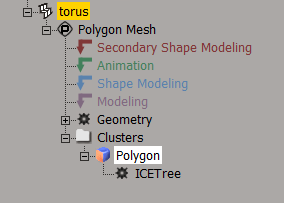
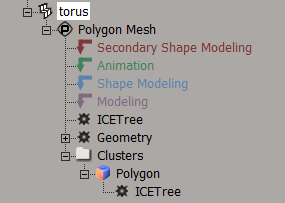
Check this out: in the ICE Tree view expolorer, I have two ICETree operators with the same name.

So, how did this happen? Like this:

  • Create a polygon cluster.
  • In the ICE Tree view, click Create ICE Tree (this creates an ICETree on the cluster, not on the mesh).
  • Select the mesh object.
  • In the ICE Tree view, click Create ICE Tree (this ICETree is on the mesh).

This can lead to problems when you use the cluster in the ICE tree. For example, if you use IsElement, it will return False for everything, and NbElements will return 0.

To understand why, take a look at the dump of the connection stack.

Line 6 is the ICETree on the cluster. That ICETree is below the ops that create the cluster, so you cannot use IsElement in that ICETree.

# sphere1.polymsh.modelingmarker
# sphere1.polymsh.ICETree (out)
# sphere1.polymsh.ICETree (in)
# sphere1.polymsh.cls.poly.clslist.Polygon.AddToClsOp (out)
# sphere1.polymsh.cls.poly.default_Polygon.SetClsOp (out)
# sphere1.polymsh.ICETree (in)
# Unnamed Operator (out)
# sphere1.polymsh.geom (in)

Using vector subtraction to move a point onto a circle


Circles, spheres, and radii…

For a couple of reasons, I was playing around a bit with spherifying/circulizing this weekend:

Based on this basic idea: “every point on a sphere/circle is the same distance from the center”, I was able to rough-out a couple of ICE trees:


Creating a circle on the surface of a mesh required just a little bit of 3d vector math. Here’s a little video that goes over using vector subtraction to move a point onto a circle. I spent more time setting up the “Show Values” in my demo then I did recording the thing.

http://vimeo.com/36286395

Instance master models and point clouds


Point clouds are just another type of 3D object, so you should be able to safely put them in an instance master, and have them show up in the instances.

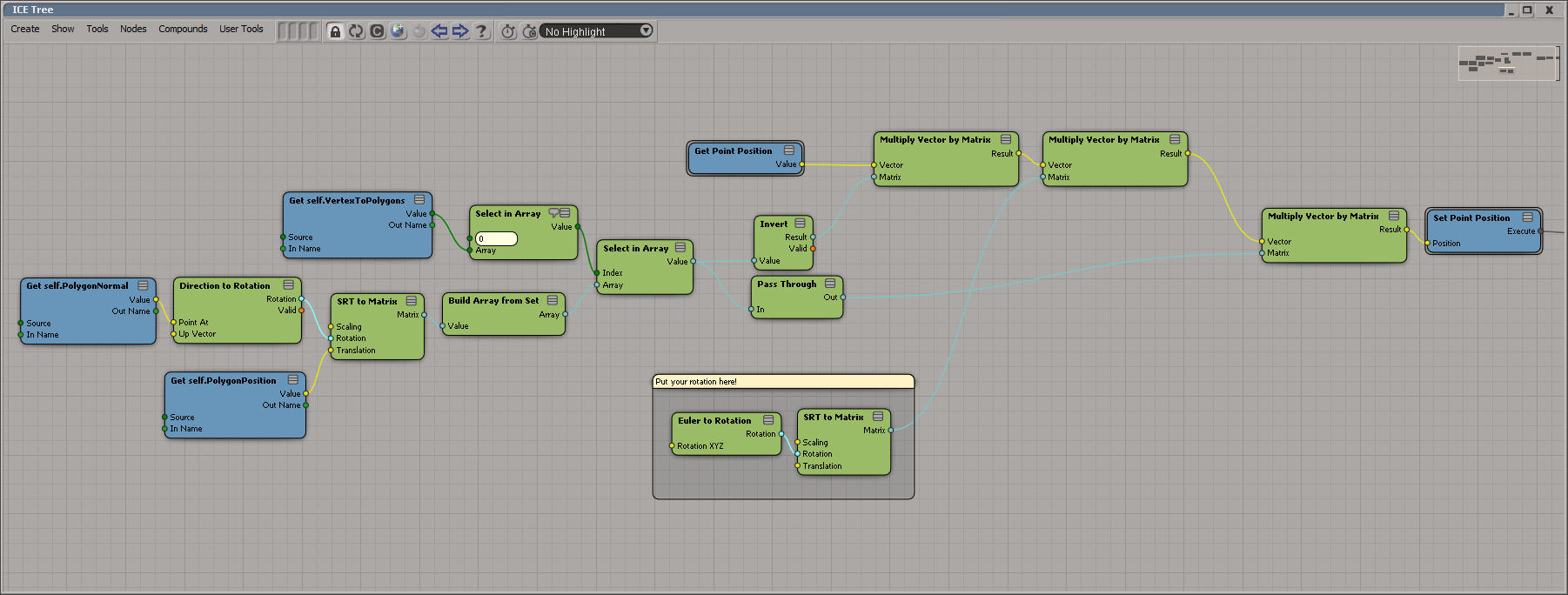
This ICE tree adds a point for each person in the instance master. Here I added some spheres, but I could just of easily instanced some geometry and put a halo over everyone’s head.

If the instance master model is not at (0 0 0), then when I parent the point cloud to the model, the point cloud gets a local pos offset. So, I can either manually reset the local pt cloud pos to 0 0 0, or handle it in the ICE tree (by undoing the local pos offset by multiplying by the inverse transfo matrix).