Installing the Autodesk Network License Manager (aka LMTOOLS)


You can use the Softimage Setup program to install the Autodesk Network License Manager (video). Just click Install Tools and Utilities.

Alternatively, if you don’t have the full Softimage Setup on your license server computer, then you can download a standalone installer for ADLM from http://usa.autodesk.com/getdoc/id=TS13737466

Subscription center update


Come Monday morning, you’ll be seeing some changes on the Sub Center when you log a support request.

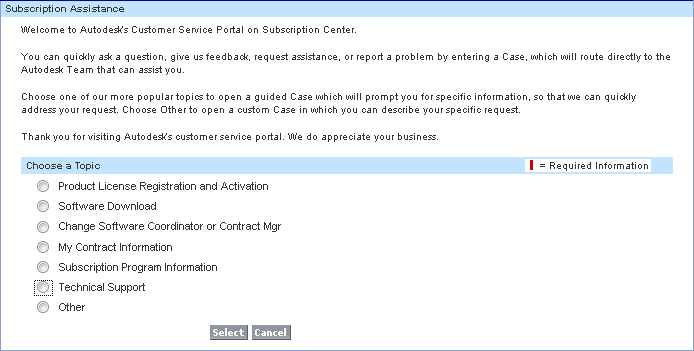
First, when you create a case, you’ll be asked to choose a topic. For example, license registration and activation or software download or technical support.

Your request will be routed the right person

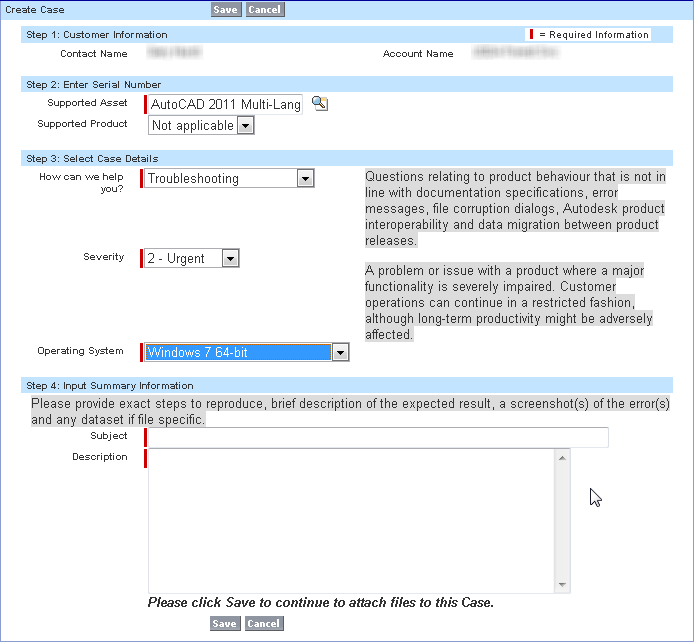
For technical support requests, there’s a simplified form to fill out. Note that there are now three possible Severity values:

  • 1 – Critical (catastrophic defect with no workaround)
  • 2 – Urgent (major functionality impaired)
  • 3 – Standard (limited or minor adverse affect)

The How can we help you? field defines the type of support case:

  • Troubleshooting Questions relating to product behavior that is not in line with documentation specifications, error messages, file corruption dialogs, Autodesk product interoperability, and data migration between product releases.
  • Installation and Licensing Inquiries about product installation process and options, system requirements, peripheral device setup, and FLEXIm installation and network deployment.
  • How To Inquiries about how to use the features and function within an installed Autodesk product where no operational problem or error message exists.
  • Enhancement An idea or suggestions for a new feature or documentation or a request for an enhancement to an existing feature or documentation.
  • Configuration Inquiries about product performance, security and administrative settings, file import and export questions, database connectivity and interoperability with the O/S network and peripherals.

The simplified tech support request form includes on-screen help text

ERROR : MSG 0.n error 011326: bad message received from host 1, 0xbad0bad


In a recent case, a customer getting a endless repetition of this error message when he used satellite rendering:

// ERROR : MSG  0.n  error  011326: bad message received from host 1, 0xbad0bad
...

By itself, this message doesn’t tell us much more than that something bad happened and now the master and the slave aren’t communicating.

  • MSG means this message is from the module that handles low-level message passing and thread management.
  • 0.n identifies the machine where the error occured. Machine 0 is the client machine where the render was started. The dot (.) separates the machine (host) number from the thread number.
  • Thread n is a special network communication thread that keeps contact with the satellilte machines if network parallelism is used.

Typically, the real error message is output just before all these bad message errors start. To catch this first error, we redirected the xsibatch output to a log file:

xsibatch.bat -render \\server\project\Scenes\test.scn" -verbose on > xsibatch.log

The initial error turned out to be a memory access error. More on that later.