Finding empty polygon meshes


Now that there are intrinsic ICE attributes like NbPoints and NbPolygons, there a couple of ways you can check for an empty mesh:

# Assume a polymesh is selected...
o = Application.Selection(0)

# Check the intrinsic ICE attribute
nb =  o.ActivePrimitive.ICEAttributes("NbPoints")
print nb.IsDefined and nb.DataArray[0] <= 0

# Check using the object model
print o.ActivePrimitive.Geometry.Points.Count <= 0

The typical way to package this up for users it to define a filter. Then a user just has to select the filter and press CTRL+A. Here’s the Match callback for a filter that finds empty polygon meshes. Note that I switched to checking the number of polygons. That way, if somehow there was something weird like a mesh with just one point, you’d still find it.

The intrinsic attribute NbPolygons should always exist, but just to be sure I check IsDefined, and if that is False, I fall back to checking Geometry.Polygons.Count.

# Match callback for the EmptyPolygonMesh custom filter.
def EmptyPolygonMesh_Match( in_ctxt ):
	Application.LogMessage("EmptyPolygonMesh_Match called",constants.siVerbose)

	o = in_ctxt.GetAttribute( 'Input' )
	if o.type == 'polymsh':
		nb =  o.ActivePrimitive.ICEAttributes("NbPolygons")
		return (nb.IsDefined and nb.DataArray[0] <= 0) or o.ActivePrimitive.Geometry.Polygons.Count <= 0
	else:
		return False

I packaged the filter as an addon. Get it here.

Tip – UI color widgets have a visual cue for gamma correction


In the Display > Color Management preferences, you can turn on gamma correction for UI widgets like the color chip. On the PPG, there’s a visual cue (a “dotted highlight”) that tells you whether gamma correction is on.

Gamma-corrected color widget:

Image

Regular color widget (no gamma correction):

Image

Also, you can right-click the color chip to toggle gamma correction on and off for that specific widget.

This is all in the docs, but I have to admit I found that out only after I noticed this on my own. Too bad, because if I had known this, I would have figured out sooner why my color chips looked so “faded”:

Image

(because at some unknown point in time I had enabled the display of gamma correction for UI widgets, and then set the Profile Source to “From LUT File”)

Importing multiple FBX files with drag-and-drop


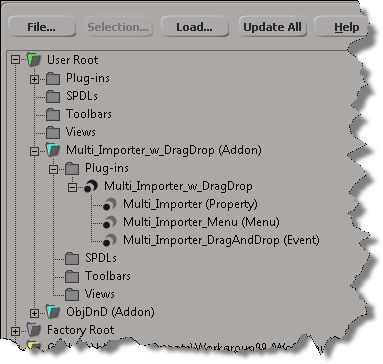
As an exercise, I updated Tim Crowson’s Multi_ImporterPPG addon with a DragAndDrop event, so you can import multiple files with a single drag-and-drop. You can download the modified version here.

Here’s the DragAndDrop event handler. The doit() function is also used by the Import menu command; I just had to generalize it a bit to work in either case (menu or drag-and-drop).

def Multi_Importer_DragAndDrop_OnEvent( in_ctxt ):

	action = in_ctxt.GetAttribute( "DragAndDropAction" )
	source = in_ctxt.GetAttribute( "DragSource" )

	if action == constants.siSourceDragAction:
		if re.search( r"\obj$", source, re.I ):
			in_ctxt.SetAttribute( "DragSourceSupported", True )
		elif re.search( r"fbx$", source, re.I ): 
			in_ctxt.SetAttribute( "DragSourceSupported", True )
		elif re.search( r"emdl$", source, re.I ): 
			in_ctxt.SetAttribute( "DragSourceSupported", True )
		elif re.search( r"lwo$", source, re.I ): 
			in_ctxt.SetAttribute( "DragSourceSupported", True )
		else:
			in_ctxt.SetAttribute( "DragSourceSupported", False )
		
	
	if action == constants.siSourceDropAction:

		Application.SetValue('preferences.Interaction.autoinspect', False, '')

		if not Application.ActiveSceneRoot.Properties( 'Multi_Importer' ):
			vtcol = Application.AddProp('Multi_Importer','Scene_Root')
			p = Application.Dictionary.GetObject( vtcol.Value("Value") )

			# Set the flag that hides certain parts of the PPG layout
			p.Parameters("bMenuCommand").Value = False

			# Inspect the PPG in modal mode
			Application.InspectObj( vtcol.Value("Value"), "", "", 4 )

			p.Parameters("bMenuCommand").Value = True
			
		p = Application.ActiveSceneRoot.Properties('Multi_Importer')

		options = { 
			'OBJgrouping' : p.Parameters('importOBJgrouping').Value,
			'OBJhrc' : p.Parameters('importOBJhrc').Value,
			'importOBJnormals' : p.Parameters('importOBJNormals').Value,
			'includeOBJmat' : p.Parameters('includeOBJMaterial').Value,
			'includeOBJuv' : p.Parameters('includeOBJUV').Value,
			'includeOBJwrap' : p.Parameters('includeOBJUVWrap').Value,
			'fbxScale' : p.Parameters('fbxScale').Value,
			'importEMDLasRef' : p.Parameters('importEMDLasRef').Value,
			'lwoScaleFactor' : p.Parameters('lwoScaleFactor').Value
			}
		
		doit( source, options )
	
	return True

Saturday Snippet: Getting a list of properties and methods with Python introspection


If you’ve ever wanted to get a list of properties and methods support by an object, here’s how.
Copied from the Softimage wiki

def GetFunctions( dynDisp ):
	"""returns a sorted and unique list of all functions defined in a dynamic dispatch"""
	dict = {}
	try:
		for iTI in xrange(0,dynDisp._oleobj_.GetTypeInfoCount()):
			typeInfo = dynDisp._oleobj_.GetTypeInfo(iTI)
			typeAttr = typeInfo.GetTypeAttr()
			for iFun in xrange(0,typeAttr.cFuncs):
				funDesc = typeInfo.GetFuncDesc(iFun)
				name = typeInfo.GetNames(funDesc.memid)[0]
				dict[name] = 1
	except:
		pass # Object is not the dynamic dispatch I knew
	ret = dict.keys()
	ret.sort()
	return ret

import pprint

funcs = GetFunctions(Application)
Application.LogMessage(pprint.pformat(funcs))

funcs = GetFunctions(Application.ActiveSceneRoot)
Application.LogMessage(pprint.pformat(funcs))

Friday Flashback #90


RIP xsibase.com

Here’s an xsibase article from a little over a decade ago…

XSI Base Team Visits Softimage Headquarters
A part of the XSI Base team visited the headquarters of Softimage in Montreal. Read what came out at this meeting and what we saw there.
August, 3rd, 2002, Written by Bernard Lebel
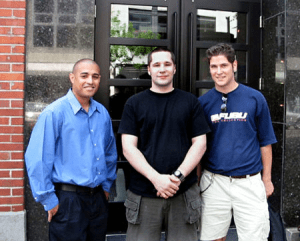
Will Mendez, Bernard Lebel, Raffael Dickreuter in front of the Softimage building.

As some of you know, XSI Base officials (Raffael Dickreuter – raffael3d, Bernard Lebel – Atyss, and Will Mendez – XSIWILL) went to Softimage Headquarters on July 19, 2002. We think that the users of XSI Base should be informed of what came out from this visit as it was intended to create links with Softimage officials.

Our host was Michael Sheasby, Director of Business Development. We visited the building, and we got lost in 10 seconds. The building is built like a kind of donut, though it is split in many sections. It was designed by Daniel Langlois himself, founder of Softimage. It has a very modern design, with lots of glass and aluminium. Lots of sun too that comes inside. The roof is made in glass in the middle of the “donut”, so the sun lights everything in the middle.

Unfortunately the building was almost empty, because it was 2 days before Siggraph and everybody had left to prepare the event. But we saw many known names next to offices.

We met with Pierre Tousignant and said a quick hello to Theo Diamantis (who tried to speak Spanish with Will).

There was a lot of things that Michael couldn’t discuss, for obvious reasons. We had the great privilege of seeing the Manta storyboards. However, even if all of them were on the wall, we couldn’t see the end. Michael started to tell us the story, but when he reached the last boards he nearly threw us out of the office! It’s strange, because he told us that the Manta project will never be finished.

Softimage Headquarters in Montreal

So finally we sat in a conference room and had a good meeting with Michael. Here’s what came out of it as far as XSI Base is concerned:

– Micheal had the kindness of revealing a feature of XSI 3.0 (he asked to not publish it until Siggraph, but now….). You see, they replaced the particle system in this release. Now, you can freeze the particle simulation, put bones inside and envelope it, in order to animate it. Basically you can animate the particle cloud like enveloped geometry. That’s all he said, so don’t email us to try to learn more.

– You might know that a good resource page is on its way for the forum. Since Raffael wants this page to be fully compatible with the Net View (so you can access it through XSI), he had to know if it was feasible. It is, and Softimage assured us that they would collaborate on any issue we have with this system.

– Softimage will collaborate to the creation of the resource page, by providing informations about schools, products and other useful informations.

– We are now part of the media group. Now, whenever Softimage has an annoucement or press release to make, we are among the first to learn about it, thus we can inform you about Softimage news.

– Softimage will give us the details about how to become a Softimage Certified Instructor, as several people asked for this information. We will then share it with you.

– Softimage gave us merchandise (mostly Manta posters) so we can distribute these to the users, through activites (like the monthly contest).

In the end, it was a very interesting meeting, we established a collaboration with Softimage (though we remain independant). Softimage gave us their full support for what we asked, and the XSI Base users will benefit from this.

Using the Select Case node to make multi-way decisions


Here’s my addendum to Manny’s nice video on CrowdFX and goals. I use a CrowdFX setup with multiple emitters and multiple goal groups to illustrate the usage of the Select Case node. If you’re already familiar with scripting or programming, the Select Case is nothing new, it’s just like the switch statement in C/C++. But if you’re not a programmer, this will [I hope] help you understand when and how to use Select Case.

http://vimeo.com/50758123

Introduction to Arnold


I see the October term at fxphd includes ARN101: Introduction to Arnold. The course uses Softimage (yay!) and you get access to Arnold.

I’ve never tried fxphd. It’s not exactly cheap ($359 US for 3 courses, $399 US for 2 courses) so I assume it must be pretty good 😉

ARN101: Introduction to Arnold
Professor: Ulf Lundgren
Software Version:
Original Run Date: October 2012
This course is targeted at anyone who may already be familiar with rendering and lighting but who wants to move over to Arnold; or just wants to know how Arnold can help in production.

Taught by Ulf Lundgren, the goal of the course is to get you up to speed in Arnold and help you understand the differences when using Arnold compared to other Render engines. Prior experiences of rendering and lighting is a plus but not necessary since this course should still help you get on your way to amazing renders.

Workflow, rendering optimization, basic shaders, usefull lighting riggs, sss, volumetrics, linare workflow, Aov and practical work-flow tools might not sound all that sexy but you’ll come to love the results. Furthermore this course is designed to mix more theoretical classes with in-depth case studies of Arnold working on real projects, giving a better understanding of how to use Arnold in production. This course gives you a very good understanding of how to do both full CG projects as well as taking you through all the steps of a production for using Arnold to integrate CG into a live action plate.

Even though the course is using Softimage as it’s main application all the classes are kept generic and should be as relevant for any implementation of Arnold; be it Maya, Softimage or feature implementations in Houdini or Light Wave. No knowledge of Softimage should be needed. Course members will be able to have access to the the Arnold renderer software, thanks to a partnership with Solid Angle.

Ulf Lundgren is a VFX supervisor and director at Lost Liner Productions in Stockholm Sweden. He’s worked on a number of international feature films and well known commercials like Harry Potter 1 and 2, Golden Compass, James Bond Die another day and Xbox Mosquito before starting his own studio and tackling the Swedish movie scene of ghosts and Zombies.

class syllabus

Class 1: A brief history of Arnold and how it integrates into a production workflow and the good vs bad when comparing Arnold with other renderers.
Class 2: How to setup and render with a linear workflow using color managment in Arnold, followed by and an in depth look at all the types of lights Arnold has to offer.
Class 3: An in depth look at shading with Arnold and how to use the different types of shaders in production.
Class 4: An in depth look at render effects and settings and learn how to export ASS files to do batch rendering of sequences using kick.
Class 5: Shading for production, a case study of how to create shaders for all objects in a scene.
Class 6: Working efficiently with Arnold, optimizing renders and setting up a good workflow.
Class 7: Case studies of how to do lighting and shading in a full CG productions.
Class 8: A case study of how to do lighting and shading for live action integration. Part 1. Using lightprobes and other on-set data to better integrate the CG elements into the plate.
Class 9: A case study of how to do lighting and shading for live action integration. Part 2. Rendering with AOV’s and how to best use them in compositing.
Class 10: Wrap up any questions from the forums.