
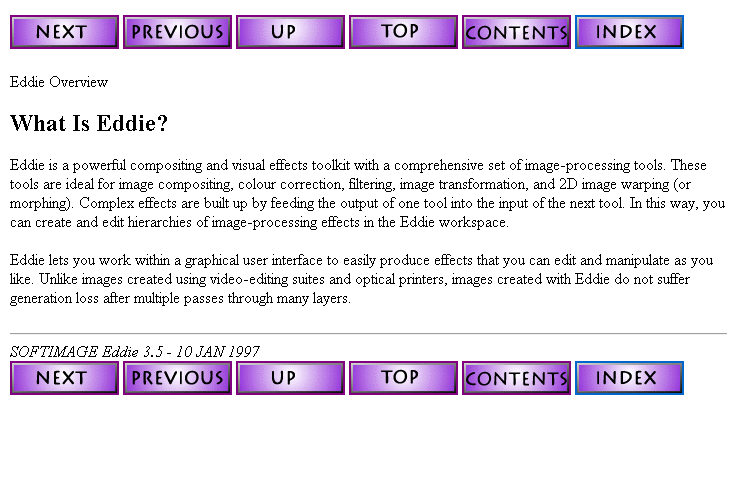
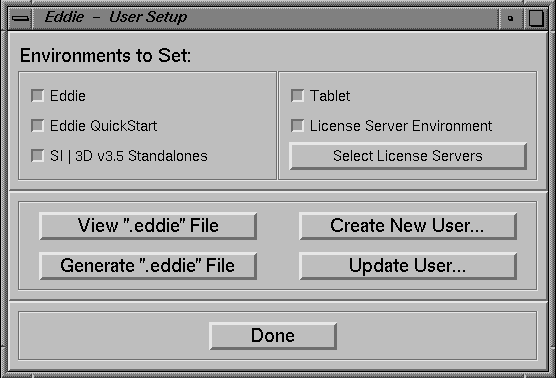
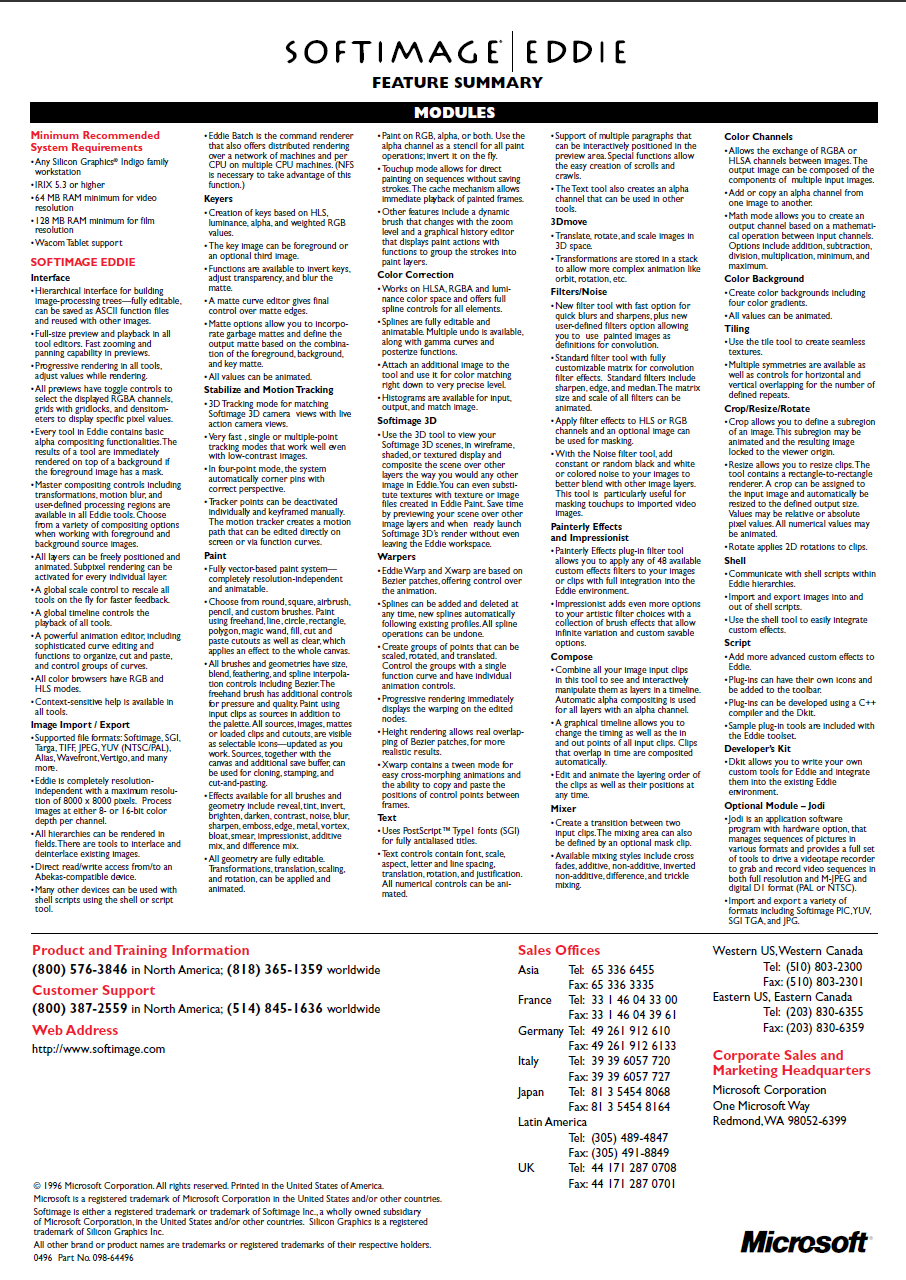
As I remember it, Eddie was one of the first Softimage products to have an HTML version of its documentation (the screenshot below is not from the first version that was ever converted, but a one a few years later). The Eddie doc team (Maryanne and Dominic) used a tool called Harlequin WebMaker to produce this [admittedly] primitive HTML doc, which included virtually no screenshots. In fairness, 1997 was just a few years removed from the no-website, print-only docs era 😉
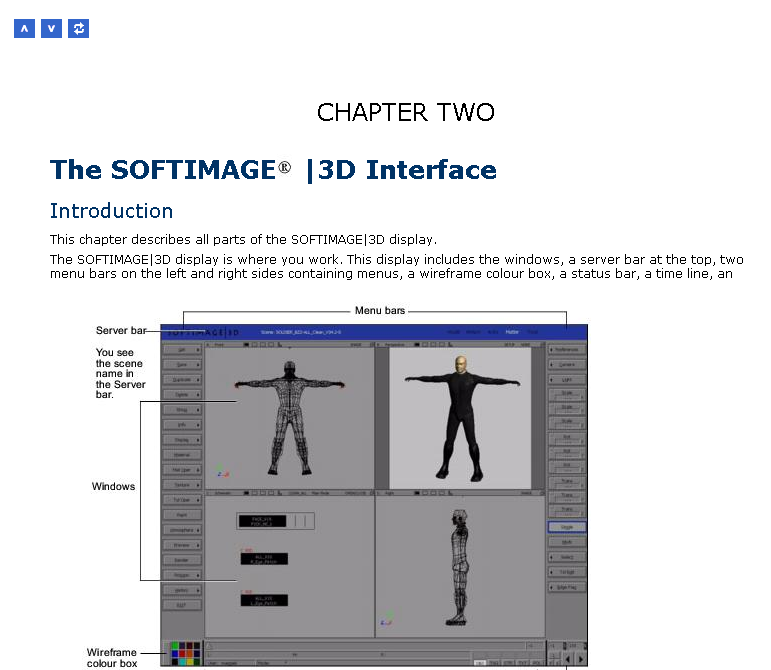
The Eddie team may have asked me for help at some point, but somehow I got using WebMaker, maybe for the old DKit docs. Eventually I convinced the 3D team to let me convert their reference manual (a later version of that is shown below in a fancy new frameset). There was some resistance at first, because generating HTML was an unknown, un-scoped task with a lot of possible pitfalls. I convinced them by agreeing to take care of all the tedious labor involved. And there was a lot of tedious labor, more than you would think for such simple output, mostly because 1)you had to workaround a lot of limitations in the generator, 2) the source FrameMaker docs weren’t designed for HTML generation.

By the late 1990s, my HTML docs for Saaphire and the Softimage SDK looked like this. My menu tree was some JScript I downloaded from the web and adapted.
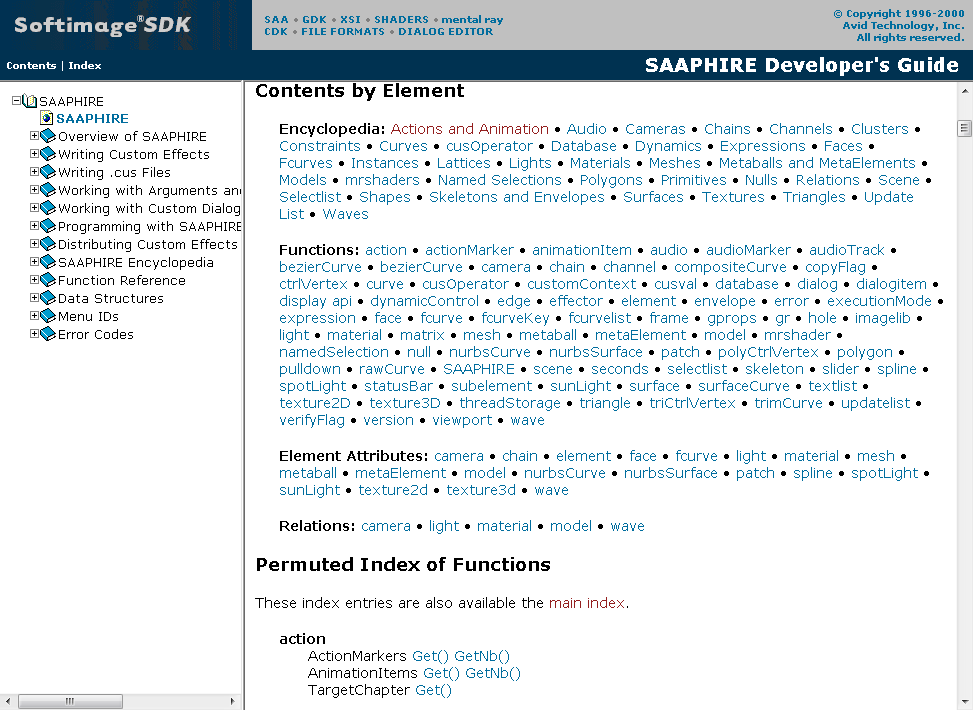
By 2000, the HTML user docs had improved markedly. At this point, the 3D doc team was using WebWorks Publisher (which had a fancy Java TOC/Index that won’t load into my IE8).
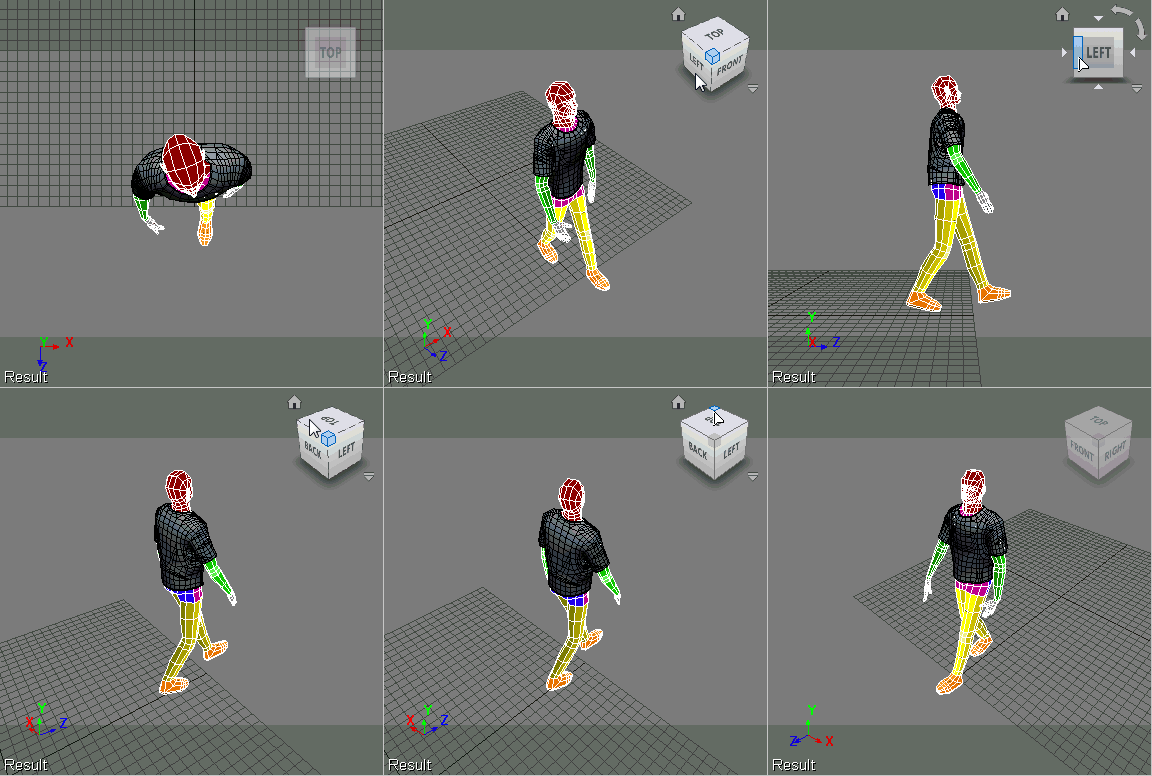
Finally, here’s a screenshot of the Object Models docs from just before the XSI 1.0 release. These docs were generated by a perl program that parsed XML markup embedded in comments in the source files, and then used XSLT to generate the HTML. When I set up that system, it was a requirement that the doc be embedded in the code. I used XML because I was a budding markup geek, and I wanted complete flexibility. It wasn’t my intention to have the devs edit the XML themselves. I figured I’d being doing most of that, but then I left Softimage and they got stuck editing XML markup.

If you’re curious, here’s what the XML looked like:
// <object id="Application" base="SIObject" introduced="1.0">
//
// <description>
// The Application object is the base class for the <object idref="XSIApplication"/> object. This object
// provides some general information about the Application and <object idref="XSIApplication"/> provides
// additional Softimage-specific methods and properties.  Script writers normally do not deal with an instance
// of Application; instead they use the global object called "Application", which is actually an instance
// of XSIApplication. <br/>
//
// From Netview there is no global object available of type XSIApplication so normally the script creates
// this object (by creating the COM object with ProgID "XSI.Application") and then calls
// <object idref="SIObject.Application"/> on the returned object to retrieve an instance of XSIApplication.
// This approach is demonstrated in the examples in for the XSIApplication object.
// </description>
//
// <seealso>
// <object idref="XSIApplication"/>
// </seealso>
//
// <properties>
//
//  <!-- property - - - - - - - - - - - - - - - - - - - - - - - - -->
// <property id="Application.StatusBar">
// <description>Sets the status bar text using a <link idref="String"/> value.</description>
// <examples>
// <example>
// <code lang="vbscript"><![CDATA[
// ' Change the display text in the status bar
// Application.StatusBar = "Hello world"
// ]]></code>
// </example>
// </examples>
// </property>
//
// </properties>







 eX-SI
eX-SI 