Download it at www.autodesk.com/softimage-documentation
In 2012 AP, you can create groups for your ICE compound PPGs:

Editing the .xsicompound XML may still be the fastest way to do the grouping for large number of parameters. Especially if you’re a markup geek.
The SDK includes a new GetICECompoundPortProperties command that I think makes it possible to write a plugin that pops up a “group editor”. I’m thinking a grid control where you can edit the groups for all parameters, and then call EditExposedParamInICECompoundNode to apply the changes.
Before I knew about this new GetICECompoundPortProperties, I had started writing such a plugin only to find myself blocked because I couldn’t get all the port properties. I had managed to get the groups by parsing through the PPGLayout items, but now that will be even easier with GetICECompoundPortProperties.
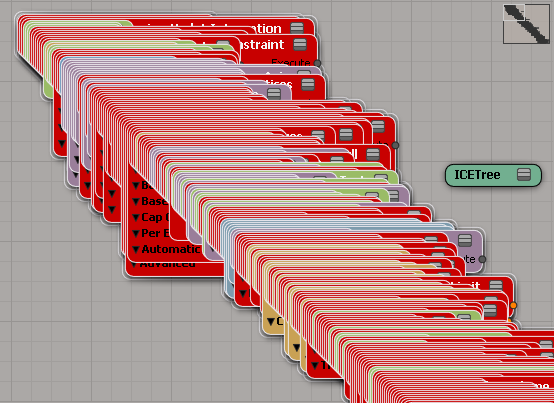
After seeing Vladimir Jankijevic’s screenshot of an ICE tree with all factory nodes and compounds, I decided to try writing a script that creates all the factory nodes and compounds.
So, it takes forever to create all the ICE nodes, at least 10 to 15 minutes or so. At first I thought my script had crashed Softimage (until I used Process Monitor, which showed me that Softimage was still chugging away loading compounds and presets). Dragging and dropping all the compounds from Windows Explorer wasn’t any faster.
I did learn something about Python from this exercise. To find all the .xsicompound files, I used a Python snippet I found on stackoverflow (lines 10-15 below). See the yield statement on line 15? That makes the function a generator function, which means the function returns one item at a time, so you can process items right away without waiting for the function to build the whole list of all files.
o = Application.GetPrim("PointCloud", "", "", "")
tree = Application.CreateSimulatedICETree(o, "siNode", "")(0)
Application.LogMessage( tree )
import os, fnmatch
from siutils import siut # XSIUtils
from siutils import si # Application
from siutils import C # win32com.client.constants
def find_files(directory, pattern):
for root, dirs, files in os.walk(directory):
for basename in files:
if fnmatch.fnmatch(basename, pattern):
filename = os.path.join(root, basename)
yield filename
d = siut.BuildPath( si.InstallationPath( C.siFactoryPath ), "Data", "Compounds" );
#
# Compounds
#
for filename in find_files(d, '*.xsicompound'):
print 'Found .xsicompound:', filename
Application.AddICECompoundNode(filename, tree)
#
# Private Compounds
#
for filename in find_files(d, '*.xsicompoundp'):
print 'Found Private .xsicompoundp:', filename
Application.AddICECompoundNode(filename, tree)
#
# Presets (compiled nodes)
#
d = siut.BuildPath( si.InstallationPath( C.siFactoryPath ), "Data", "DSPresets", "ICENodes" );
for filename in find_files(d, '*.preset'):
# There's one compound that generates an error
try:
Application.AddICENode(filename, tree)
except:
si.LogMessage( "AddICENode failed for " + filename )
As I remember it, Eddie was one of the first Softimage products to have an HTML version of its documentation (the screenshot below is not from the first version that was ever converted, but a one a few years later). The Eddie doc team (Maryanne and Dominic) used a tool called Harlequin WebMaker to produce this [admittedly] primitive HTML doc, which included virtually no screenshots. In fairness, 1997 was just a few years removed from the no-website, print-only docs era 😉
The Eddie team may have asked me for help at some point, but somehow I got using WebMaker, maybe for the old DKit docs. Eventually I convinced the 3D team to let me convert their reference manual (a later version of that is shown below in a fancy new frameset). There was some resistance at first, because generating HTML was an unknown, un-scoped task with a lot of possible pitfalls. I convinced them by agreeing to take care of all the tedious labor involved. And there was a lot of tedious labor, more than you would think for such simple output, mostly because 1)you had to workaround a lot of limitations in the generator, 2) the source FrameMaker docs weren’t designed for HTML generation.
By the late 1990s, my HTML docs for Saaphire and the Softimage SDK looked like this. My menu tree was some JScript I downloaded from the web and adapted.
By 2000, the HTML user docs had improved markedly. At this point, the 3D doc team was using WebWorks Publisher (which had a fancy Java TOC/Index that won’t load into my IE8).
Finally, here’s a screenshot of the Object Models docs from just before the XSI 1.0 release. These docs were generated by a perl program that parsed XML markup embedded in comments in the source files, and then used XSLT to generate the HTML. When I set up that system, it was a requirement that the doc be embedded in the code. I used XML because I was a budding markup geek, and I wanted complete flexibility. It wasn’t my intention to have the devs edit the XML themselves. I figured I’d being doing most of that, but then I left Softimage and they got stuck editing XML markup.
If you’re curious, here’s what the XML looked like:
// <object id="Application" base="SIObject" introduced="1.0"> // // <description> // The Application object is the base class for the <object idref="XSIApplication"/> object. This object // provides some general information about the Application and <object idref="XSIApplication"/> provides // additional Softimage-specific methods and properties. Script writers normally do not deal with an instance // of Application; instead they use the global object called "Application", which is actually an instance // of XSIApplication. <br/> // // From Netview there is no global object available of type XSIApplication so normally the script creates // this object (by creating the COM object with ProgID "XSI.Application") and then calls // <object idref="SIObject.Application"/> on the returned object to retrieve an instance of XSIApplication. // This approach is demonstrated in the examples in for the XSIApplication object. // </description> // // <seealso> // <object idref="XSIApplication"/> // </seealso> // // <properties> // // <!-- property - - - - - - - - - - - - - - - - - - - - - - - - --> // <property id="Application.StatusBar"> // <description>Sets the status bar text using a <link idref="String"/> value.</description> // <examples> // <example> // <code lang="vbscript"><![CDATA[ // ' Change the display text in the status bar // Application.StatusBar = "Hello world" // ]]></code> // </example> // </examples> // </property> // // </properties>
Here’s a video that uses ICE to demonstrate how to figure out whether a polygon faces in a certain direction, as described in Mathematics for Computer Graphics by John Vince
The Dot Product in Back-Face Detection
A standard way of identifying back-facing polygons relative to the virtual camera is to compute the angle between the polygon’s surface normal and the line of sight between the camera and the polygon. If this angle is less than 90◦ the polygon is visible; if it is equal to or greater than 90◦ the polygon is invisible.
Now online:
Still to come: downloads for local install will be made available.
New in the 2012 Advantage Pack: PPG logic for ICE compounds.
In the compound properties, there’s a PPG Logic button that opens up a script editor where you can define some PPG callbacks:
from siutils import log # LogMessage
def OnInit( ):
log("Modulate_by_Fcurve_OnInit called")
oPPG = PPG
oLayout = oPPG.PPGLayout
#
# Clamp exposed port
#
def Clamp_OnChanged():
log( PPG.Clamp.Value )
#
# Input Range Start exposed port
#
def Input_Range_Start_OnChanged():
log( "Input Range = ( %.2f, %.2f )" % (PPG.Input_Range_Start.Value, PPG.Input_Range_End.Value ) )
#
# Input Range End exposed port
#
def Input_Range_End_OnChanged():
log( "Input Range = ( %.2f, %.2f )" % (PPG.Input_Range_Start.Value, PPG.Input_Range_End.Value ) )
The “PPG logic” is saved in the element of the .xiscompound file.
Sign in to the Subscription Center and get it now.
autodesk.com/subscriptionlogin
You don’t need a new serial number. The Advantage Pack (aka 2012 AP) runs with your 2012 license. So, if you have a Network license, just point 2012 AP to your license server. If you have a Standalone license, enter your 2012 serial number at startup.
Use the same product key as 2012: 590D1
The 2012 AP will install in a folder named Softimage 2012.SAP.
For example: C:\Program Files\Autodesk\Softimage 2012.SAP.
The ViewCube supports “animated transitions”, which are the smooth changes between different viewing angles.

There’s a hidden (aka officially unsupported) preference that extends animated transitions to everything, like the F and A shortcut keys for framing objects.
SetValue "Preferences.camera.animate", 1
There’s also another [hidden unsupported] preference to change the camera transition speed for this hidden feature:
SetValue "Preferences.camera.animateduration", 0.25
Value is in seconds. Default is 0.5, and be careful not to set it too high by accident…
Note On Linux, there’s a viewport glitch with this preference, so I wouldn’t use it.