Friday Flashback #160


From 2001, a Gamasutra review of Softimage XSI 1.0. First, the verdict:
gamasutra_xsi1_verdict
And now a few choice quotes:

Softimage. For years those three little syllables rolled off the tongues of 3D artists everywhere with wonder. But then something happened. 3D Studio became 3D Studio Max. PowerAnimator became Maya. And Softimage … well, Softimage remained the same.

From the moment XSI arrives it screams it’s something different.

…Softimage XSI’s largest and nearly fatal flaw…You cannot create polygonal objects of any real use with the program as it now stands.

To most 3D artists, the word “Softimage” is synonymous with animation.

What’s better than having Mental Ray as your renderer?

If I were reviewing it for a film application, it would be a five-star product, no question. If all you are interested in is creating a prerendered cinematic, then definitely give XSI a good, long look. But its utter lack of polygon tools hurts this product too deeply for me to give it any kind of recommendation.

And now the review itself, with four XSI 1.0 screenshots:

Product Review: Softimage XSI 1.0

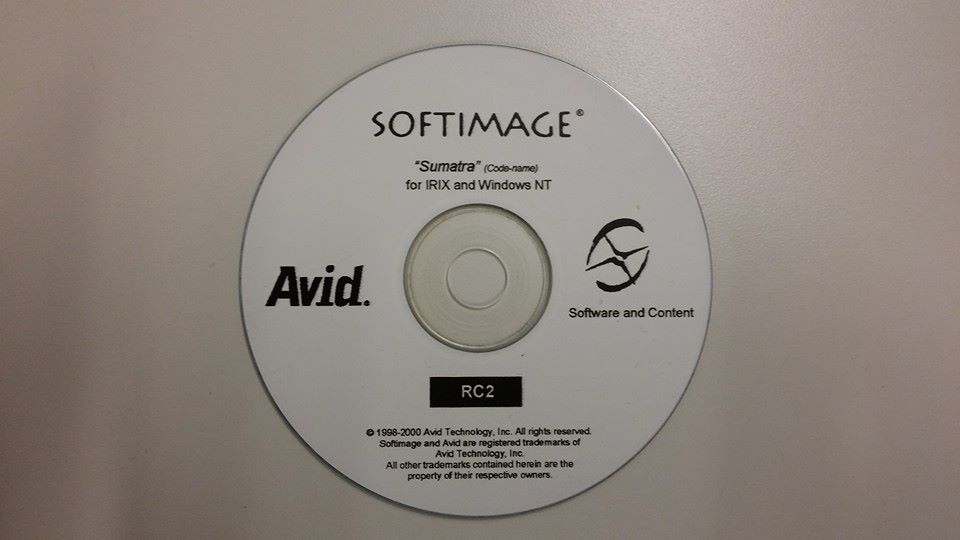
Softimage. For years those three little syllables rolled off the tongues of 3D artists everywhere with wonder. But then something happened. 3D Studio became 3D Studio Max. PowerAnimator became Maya. And Softimage … well, Softimage remained the same. Of course, it went through incremental updates, with feature additions and interface enhancements, but the core remained the same solid foundation on which hundreds of games and movies have been produced. While not necessarily a bad thing, the “buzz” was with Max and Maya. But there was this word whispered in quiet corners of studios and art departments around the world: “Sumatra.” And it wasn’t just a request for the intern to pick up some Starbucks. Sumatra was Softimage’s oft-delayed next-generation 3D production tool, and it has finally arrived in a big way. Sumatra, now known by the somewhat less exciting name of Softimage XSI, builds on its strong heritage, and adds exciting new functionality. Drawing on the expertise of Softimage while adding the talents of Avid’s engineers, XSI is definitely going to turn a few heads.

From the moment XSI arrives it screams it’s something different. Rather than the limp cardboard most packages ship in, Softimage XSI arrives in a strong particle board box that will easily stand up to the daily abuse it will take on your desktop. Installation is as simple as any Windows product. SoftImage XSI ships with a full copy of SoftImage 3.9 (more on this later), and comes on a total of 6 separate CDs, including Phoenix Tools ParticleSuite and ClothExtreme. Liscencing is equally as simple, once the license is received. Softimage uses the FlexLM system, and can be serviced via a network server or the ubiquitous parallel port dongle. Happily, it did not balk at being included in a chain of dongles for Maya and Max.

When you first start XSI, you realize it is not your average Windows application. It appears as if Avid’s Macintosh legacy has heavily influenced the interface. Whether it’s a plus or a minus for you, the only standard Windows features I could see were the title and menu bars. Even the file dialogs use Softimage’s Unix/Mac-blended UI design. This unique UI did cause one minor technical problem: as Softimage starts, it sizes itself to your current resolution — ignoring the Windows Taskbar. Setting the Taskbar to Autohide seemed to be the best solution.

The UI itself is divided into five main areas. By default, Softimage gives you the standard top/front/side/perspective that every 3D program offers. Users can also change these to any number of editors and windows, such as the Animation Editor or Schematic View. Taking up the most real estate are the workspace viewports. To the left is the Toolbar area, which is divided into Modeling, Animation, and Rendering tool sets. This is where you readily access most of your commands. The top is the main menu bar, where you access all the general functions of the program, as well as the toolsets of the Model, Animate, and Render menus without having to switch modules. The bottom contains all the timeline and command line functions. Strangely, this is also where you access all the animation editing tools. I say strangely because it was literally the last place I looked for them while going over the program the first time. Finally, the right hand of the screen contains the Main Command Area. This ominous-sounding control panel contains everything from layer controls and selection filtering to transformation and grouping tools.

One very unique feature I have come to love is the concept of “sticky” hotkeys. By quickly tapping a key, you enter into a mode or tool. Tapping the key again returns you from that mode. In addition, if you simply hold a key down, you remain in that tool or mode only as long as that key is depressed. For instance, pressing the “m” key will allow you to quickly grab and move a vertex or CV. Or by simply tapping it, you enter into a true sub-object editing routine. This is much quicker than the standard method of having to enter into a sub-object mode for every little tweak, and I find myself missing it when I’m working outside of XSI.

I can’t say I liked the interface as a whole, though. It obviously tries to retain the feeling of previous versions of Softimage while adding workflow enhancements and access to new tools. Anyone who has become accustomed to the standard Windows interface will most likely have trouble. However, artists who have never ventured outside of Softimage should have no trouble whatsoever.

The other UI element you will encounter most often is the Property editor. The Property editor offers access to every bit of data available on any object. It is organized into “pages” which users can organize in myriad ways, and it is necessary to do so for many objects in order to keep track of the most-used channels on an object. The Property editor is also one of the most convenient ways to access the construction history on an object, called the Operator Stack. Everything you do to an object, from applying a deformer to moving a vertex creates an operator, and can be easily accessed and keyframed through the Property editor.

One interesting thing I noticed about the interface is that the actual execution is extremely fast. Flying around fully shaded complex models was a breeze. And playing animations had fully skinned characters updating in all windows, fully shaded, in real time. Whether this is due to the skills of the Softimage engineers or left-over insight from when Microsoft owned Softimage is unknown, but it is impressive.

Modeling

Softimage has an extensive and robust set of tools for modeling NURBS surfaces. This is a welcome change from the days of Softimage 3.x, where the NURBS modeling features were decidedly subpar. In particular, I found the Curve Net and Continuity Manager to be particularly powerful and useful tools in creating seamless, detailed organic surfaces. In addition, surface fillets, surface blends, bi-rail surfaces and four-sided surfaces provide a complete suite of tools for creating anything you may desire — using NURBS.

stripinis_01
Though lacking in polygonal modeling tools, XSI’s NURBS modeling allows for the quick creation of organic forms.

This is where we come to Softimage XSI’s largest and nearly fatal flaw. You cannot create polygonal objects of any real use with the program as it now stands. While you have access to a variety of polygon primitives, the only way to edit them is pulling on vertices or using deformers. This is, without a doubt, unacceptable for in-game model creation. This is the main reason for the inclusion of Softimage 3D, which has a full suite of polygon editing and creation tools. In particular, I found their UV editing tools to be quite excellent. Luckily, Softimage XSI can easily import Softimage 3D scenes completely intact, including any polygonal objects.

stripinis_02
The XSI Interface with an imported polygonal model from Softimage 3D.

While using Softimage 3D is quite a powerful solution to XSI’s polygonal shortcomings, forcing game artists to learn two programs to create assets is a hindrance to Softimage XSI gaining ground with companies dedicated to Max, Maya, Lightwave, or Mirai. To artists already using Softimage 3D, this should be no big deal, and may actually help in the process of switching to Avid’s next-generation offering.

Animation

To most 3D artists, the word “Softimage” is synonymous with animation. Softimage first introduced most of the indispensable tools and techniques for modern computer animation. From IK to constraints, function curves to dope sheets, Softimage’s touch is felt industry-wide in every package. They hope to continue that tradition of innovation and revolution with nonlinear animation.

Nonlinear animation is nothing new to game artists. We’ve been doing it for years without even realizing we were revolutionizing the very process of animating. To the uninitiated, nonlinear animation (NLA) is the process by which different motion assets can be strung together, blended, combined, and generally messed with in every conceivable combination, all in a nondestructive fashion. You access XSI’s NLA features through the Animation Mixer. This interface is similar to nonlinear editors such as Adobe Premiere or (this should come as no surprise) Avid Media Composer. Clips can be created and saved to libraries or simply cut and pasted within an active animation asset. The simplest application of this technology is to use in-game animation assets to string cutscenes together quickly, and to keep the motions “in-character.” But this is missing the true power of NLA.

stripinis_03
The XSI Interface with an imported polygonal model from Softimage 3D.

By overlaying and blending multiple clips, an artist can create seamless transitions between separate actions, or layer animations on top of each other. Once the possibilities of these functions are fully realized, animators will be drooling to get their hands on these tools.

For instance, no longer will animators slave away trying to get all the start and end poses of their animations exactly the same. You can simply save the pose as an Action Clip and bring it in at the beginning and end of your cycles to have perfect match-up. Hand-creating transition animations is also greatly helped by the blending functions. Take your walk cycle and your run cycle, overlay them by the proper amount, and keyframe the influence to get your transition animation.

But wait, there’s more! Because the animation blending only takes into account the transformation channels you want it to and only on the objects you want it to, you can create whole new assets from old ones. For instance, once you have animated and perfected your generic walk cycle, you can simply save out arm poses for various weapons or props and create consistent animations. And then apply those same arm poses to the run cycle. And then to the jump animation, the idle animation, and so on. By keeping these assets non-linear, you can seemingly tweak one animation for an excessive amount of time because you get so many real assets out of it.

NLA is a truly revolutionary tool and will be welcomed by artists everywhere. It will be interesting to see how this technology develops in the coming years. XSI already offers a robust NLA tool suite, and looks to be an industry leader in this exciting technology.

Other than the NLA tools, XSI offers nothing too revolutionary to its animation tool set. This is not a complaint by any means. The NLA tools are truly amazing, and Softimage already had a robust tool set. Noticeably lacking, however, was the dope sheet. A frequently (and obviously) overlooked tool, this holdover from the days of traditional animation will be sorely missed, and will hopefully make a return in a later release.

Softimage XSI uses very solid IK routines. What’s amazing is that XSI builds the IK directly into the skeletal chains, which makes rigging skeletons quick and simple. I’m a control freak, and don’t like being removed from the rigging process, but I can see the appeal for many artists.

Because the IK is built into the skeletal chains, an animator can use forward kinematic techniques to pose the skeleton without having to do any wacky constraint tricks. Simply select the bone and rotate it. If you’re an animator, I know you’re smiling with glee right now.

SoftImage XSI does contain some very useful curve reduction tools. Combine these motion curve reduction abilities with the Animation Mixer, and you have an extremely powerful tool for editing motion capture. Imagine bringing in a captured motion, smoothing out the kinks and pops, and then adding in new motions to the captured data in a nondestructive fashion.

In addition to its inherited IK skeletal chains, character setup is aided by a brush motif suspiciously similar to Artisan in Alias|Wavefront’s Maya. Here, however, bone assignment is clearer with a full-color interface. I did find XSI’s brush tool to be a lot less refined than Maya’s, however, and it definitely takes some getting used to. I’m excited to see this interface spreading, as it is the most artist-friendly innovation in years.

Scripting

Like 3D Studio Max and Maya, Softimage XSI incorporates scripting into its core operations. Unlike 3D Studio Max and Maya, XSI does not rely on a proprietary language. Instead, it relies on ActiveX so anything supporting ActiveX will work, including VBScript, Jscript, PerlScript, and Python. The significant implications of this, in addition to being able to call on the expertise of programmers who are likely already fluent in ActiveX scripting, is its integration with Windows. Imagine a script that can e-mail you when it finishes rendering, or if something goes wrong. The simplest actions unavailable in other packages can be accomplished easily through these Windows tie-ins, such as playing a sound when a function is complete. Since almost all functions in XSI are accessible through scripting. it will surely become as useful to XSI users as it has to Maya and 3D Studio Max users.

Rendering

Softimage has deeply incorporated Mental Images’ Mental Ray renderer into XSI. While I know that to many games artists rendering is completely pointless, I would be not do this program justice without mentioning this aspect. After all, for many games today, a major selling point is their prerendered video sequences. For those who do not know, Mental Ray is a very powerful shader-based renderer, with full raytracing support. Softimage XSI allows you to create and render shaders visually through the Render Tree. A daunting and expansive tool, the Render Tree allows the user to create powerful surfaces based on any number of shading models, from Phong and Blinn to anisotropic and Strauss.

Of course, no mention of XSI’s implementation of Mental Ray would be complete without mentioning Render Region, XSI’s interactive rendering tool. By simply dragging a rectangle in any viewport, you create a variable-resolution rendering that updates interactively as you adjust material properties. This is an amazing tool that allows you to experiment and tweak lights and shaders and all their associated properties to perfection.

stripinis_04
What’s better than having Mental Ray as your renderer? Having it be interactive, which XSI offers.

The images produced with Mental Ray are of astounding quality. It is renowned in the film industry for its crisp, clear raytracing, beautiful shadowing, and wonderful volumetric effects. Any company relying on rendered cutscenes or images for their game will find the possibilities that Mental Ray offers them intriguing

The Verdict

This is the hard part. I now have to give Softimage XSI a star rating. My problem is I really liked it. And If I were reviewing it for a film application, it would be a five-star product, no question. If all you are interested in is creating a prerendered cinematic, then definitely give XSI a good, long look. But its utter lack of polygon tools hurts this product too deeply for me to give it any kind of recommendation. It has enormous potential, but there really is no excuse for offering a product without polygon tools at this stage in time to the game development market. I sincerely look forward to seeing where Avid takes Softimage in the near future; they have a great history, and XSI provides a solid foundation. Now it’s time for them to build.

Softimage XSI 1.0

Price
Softimage XSI Essentials: $7,995
Softimage XSI Advanced: $11,995

System Requirements
For Windows 2000/NT (SP 4 or higher); workstation with Intel Pentium or higher; compatible OpenGL-accelerated graphics card with a minimum 8MB RAM; 128MB RAM required, 256MB RAM recommended; 195-360 MB disk space. N32 libraries and patches; SGI workstation with MIPS R10000 or higher processor; 128MB RAM required, 256MB RAM recommended; 645MB disk space. Both platforms require a three-button mouse and CD-ROM drive.

Pros
1. Excellent animation tools.
2. Nonlinear animation tools.
3. Powerful NURBS modeling.

Cons
1. No polygon tools.
2. Unconventional interface.
3. No polygon tools.

Friday Flashback #159


Before Sumatra became XSI, XSI was .XSI the file format, an ASCII-based, .x-like file format for game developers.

… the .XSI file format and real-time viewer will give game developers a seamless environment for faster prototyping and more accurate exchange of data between their Windows-based PC development platform and target Windows CE-based game consoles. The .XSI real-time viewer will be available to developers in September 1999, and will ship, with source code, as part of Microsoft Windows CE authoring tools.

Here’s a news release from late 1999 that mentions “.XSI” 18 times, and “game” 27 times.

gdk1

Avid Technology to design new Dreamcast game authoring tools

Reporter: Jim Cordeira
Date: 8-10-99

Avid Technology Inc.’s subsidiary, Softimage® Co., has entered into a strategic agreement with Microsoft Corp. to design and deliver tools for authoring Microsoft Windows CE-based games for the Sega Dreamcast console.

Softimage will provide game developers with an ASCII-based file format called .XSI. The .XSI file format is based on Microsoft’s popular .x file format which is already used extensively in conjunction with the Softimage® GDK (game development kit) game core module.

Softimage will also develop a real-time viewer for .XSI files, which will serve as a key prototyping component of a Windows CE-based games authoring environment. Together, the .XSI file format and real-time viewer will give game developers a seamless environment for faster prototyping and more accurate exchange of data between their Windows-based PC development platform and target Windows CE-based game consoles. The .XSI real-time viewer will be available to developers in September 1999, and will ship, with source code, as part of Microsoft Windows CE authoring tools.

Seamless Authoring Pipeline Between Windows NT and Windows CE Game Consoles

Many of the leading game developers are long time users of the Softimage® 3D and Softimage GDK premier tools for creating high-quality geometry, textures and animation for use in games. To prototype game play using high-quality complex scenes, game authors are faced with a daunting and time consuming task of converting data files to and from real-time, console-compatible formats and sizes. The .XSI file format will provide game developers with a flexible conduit for importing, exporting and editing game data. The .XSI viewer will allow game developers to quickly and easily view their 3-D game data in a real-time environment without having to leave their development platform. For the first time, game developers can have a seamless authoring pipeline between their Windows NT-based development platform and the Sega Dreamcast game console.

“Our goal is to help game developers optimize their authoring environment,” said Chris Phillips, director of Business Development, Consumer Devices Group at Microsoft. “The .XSI file format and viewer will become a critical part of the toolset for creating and prototyping Windows CE-based games for the SEGA Dreamcast. The .XSI real-time viewer and .XSI file format will greatly accelerate the development of next-generation games.”

“At Softimage, we understand the difficulties inherent in developing next-generation games,” adds Softimage Director of Product Marketing, John McQueen. “We have foreseen the needs of games developers and are developing viable, tightly-integrated prototyping and authoring tools that will improve game development environments.”

The .XSI Viewer

The .XSI viewer will include source code, enabling game developers to modify and enhance both Softimage 3D exported data as well as the .XSI parser or data reader. The .XSI file format contains a variety of new templates offering data interchange solutions for high-end features shared between the Softimage 3D program and any game engine.

The .XSI Viewer allows scene display using Microsoft Direct3D Immediate Mode, enabling the display of complex scenes with high refresh rates. It will accurately display .XSI data, including geometry, textures and hierarchical shape and transformation animation in an optimized environment with interactive navigation controls.

The development and distribution of the .XSI file format and viewer will result in an environment in which developers initiate game development with entirely new features, including advanced graphics technology and algorithms using the Direct3D Immediate Mode API. .XSI will also accelerate on-going development on all manner of Windows CE platforms, including Sega’s Dreamcast console.

— Jim Cordeira

Friday Flashback #158


ProcessRender
Back in early 2002, Softimage introduced a new family of processing and rendering products: BatchUniversal, Batch, and mental ray standalone. The pricing, from today’s viewpoint, seems awfully high:

  • BatchUniversal is available in volume at prices as low as $2,750 US MSRP, for dual processors.
  • mental ray v.3.0 stand-alone licenses are available in volume for as low as $950 US MSRP per processor.
  • SOFTIMAGE|XSI Batch v.2.0 is available for order now with scheduled shipment in March 2002, and will be offered at volume prices as low as $1,495 US MSRP, for dual processors.

Here’s a screen capture of softimage.com from Feb 2002:
processing_rendering_family_comparison

Friday Flashback #157


1999 ad for SOFTIMAGE|3D: Art is Self-Expression
3Dad

Art is Self-Expression
It’s the artist, not the tools. It’s the process involved in
realizing a creative idea, not the CAD-accurate modeling
or the obligatory check-off feature list.

Discover why SOFTIMAGE|3D is used by the world’s greatest
Digital Artists to produce critically-acclaimed animation in
television, games, and feature films. Make contact.

Friday Flashback #154


What was happening on the XSI list 13 years ago?

In the past few weeks, I’ve compiled annual summaries for five different lists, so here’s one more, this time for Jan 2001 on the XSI mailing list.

I pulled a listing of the Jan 2001 posts out of the wayback machine, and stuffed them into a word cloud. There were a lot of names I recognized; many of them still posting on the list. Do you see yours? 🙂
xsi-list-jan-2013

There were almost a thousand posts. Here’s the top topics of discussion:

  • Hmmm – Back at work NO LICENSES!!!!! 44
  • import export? 19
  • lic problems 16
  • Is it just me…? 16
  • Walk cycle in the animation mixer 14
  • Scripting book 14
  • refresh problem …. 13
  • Home Studio 12
  • XSI 1.5 available for download 11
  • FW: making walls? 10
  • bump map problem 9
  • Camera preset .. 9
  • symmetry – modelling 9
  • No Subject 8
  • colored shadows? how? 8
  • Doing character stuff… 8
  • Disappearing Particles. 7
  • Chortle 7
  • import export? 7
  • WISHLIST for 2.0 7
  • key 7
  • Pentium4 6
  • colored shadows!!! Works great! 6
  • Bump Map 6
  • BONNE ANNEES 6
  • XSI SDK again!! 6
  • shapes and adding deformers AFTER en 6
  • SOFTIMAGE should buy Rhino: NURBs Bo 6
  • desperately seeking FUR 6
  • shrinking at joint 6
  • TRIMS and others 6
  • LAST ONE::: Hmmm – Back at work NO LICENSES!!!! 6

XSI 1.5 inspired a lot of discussion, there were many small threads about that update:

  • XSI 1.5 available for download
  • Measuring length of a curve in 1.5?
  • installing 1.5
  • [1.5 does it really exist?] Dahhhhh
  • 1.5 Anyone? YES ITS COMMING :-))
  • 1.5
  • 1.5 CRASHES
  • 1.5 Anyone?
  • XSI 1.5 available for download
  • XSI 1.5 is here at last!!
  • 1.5 CRASHES
  • 1.5 Anyone?
  • Fix in 1.5?
  • installing 1.5
  • Status : 1.5 ???
  • [Fix in 1.5?]
  • #28 on page 146 of 1.5 Tutorial Book! –
  • 1.5 Anyone? YES ITS COMMING :-))
  • #28 on page 146 of 1.5 Tutorial Book!
  • Status : 1.5 ???
  • Fix in 1.5?
  • 1.5 does it really exist?

Top posters

  • Kim Aldis (124)
  • André Adam (42)
  • Stefan Andersson (37)
  • Meg Ward (30)
  • Arvid Björn (28)
  • Pierre Duranleau (21)
  • Chet Kenisell (19)
  • Thomas Groppi (17)
  • Thierry Baret (15)
  • Chris Marshall (15)

Friday Flashback #152


Kaboom! “In SOFTIMAGE|3D, the Effects > Kaboom custom effect in the Motion module allows you to explode complete hierarchies using dynamics and collision detection. Now you too can create your own earth-shattering kabooms!”

1997 screenshot
kaboom

Exploding Hierarchies with Kaboom

The Effects > Kaboom custom effect in the Motion module allows you to explode complete hierarchies using dynamics and collision detection. Now you too can create your own earth-shattering kabooms!

Features include:

  • Speed.
  • Complete interactivity. Move the source of the blast around and the pieces rearrange themselves.
  • Collision detection: bouncing and sliding.
  • Hierarchies: explode a whole hierarchy instead of individual objects.
  • Non-polygon mesh objects are treated as solid objects.

Using the Kaboom Effect

The Kaboom effect explodes the currently selected hierarchy. Dynamic calculations are done on the object, including gravity, wind, and collision detection with a ground plane. Objects can collide with the ground plane (from either side), bounce, and slide (continuous contact). Polygon mesh objects can be exploded into their constituent polygons.

Here’s an example of how to use the Kaboom effect:

  1. Get a primitive cube.
  2. Choose the Effect > Subdivision command in the Model module to subdivide the cube into polygons. Use the default values: 4, 4, 4.
  3. Choose the Polygon > BreakUp command in the Model module to “separate” the cube into polygons.
  4. Translate the cube upward so that it is completely above Y=0.
  5. Get a primitive grid.
  6. Choose the Effects > Kaboom command in the Motion module. The Kaboom dialogue box appears:
  7. Accept the default values and click Ok.
  8. You are prompted to select the ground object (click the grid).
  9. You are prompted to select the hierarchy to explode (click the cube).
  10. Play back the animation. The cube explodes and collides with the ground.

For a full description of parameters, see this command’s description in the Reference Guide.

Tips for Using the Kaboom Effect

  • If you are exploding polygon meshes, make sure to use the Polygon > BreakUp command in the Model module on them first (or PolygonDetach); otherwise the polygons stay connected.
  • If the Explode Meshes option is selected, polygon meshes are exploded into individual polygons. If Explode Meshes is deselected, polygon meshes are treated as solid objects. All other object types (NURBS, patches, nulls, etc.) are always treated as solid objects.
  • Don’t worry about deselecting Collision Detection for greater speed: it doesn’t slow things down much (if at all).
  • Deselect Tumble Rate unless it is required: it slows things down by at least half.
  • Polygon grouping is logical, not topological. This means that polygons are grouped according to their order in the model, not according to the geometry of the model.
  • The Collision Detection for the ground is based on the Y height of the object selected for the “ground” object: the plane at this height is used as the ground plane. The collision detection is not based on actual geometry.
  • The ground plane is double-sided-you can bounce an object off it from above or below.

Things to Try

  • Use a strong Pull value with a slow speed: it tears objects apart.
  • Move the Kaboom effect icon around and watch the blast rearrange interactively.
  • Use a negative value for the Falloff power: the blast strength increases with distance from the icon.
  • Use no Blast Strength (value of 0) and a slow Speed to “collapse” your model.
  • Create a strong blast with a 0 distance Falloff, high Bounce, some Tumble, and very little Slide, and place it above an object that is close to the floor. You’ll get a nice “splashing” effect.