Part 1 of 2. A video walkthrough of how to use ICE modeling to create copies of an object and place them at specific positions on another object (in this case, on the polygon centers).
http://vimeo.com/33667035
Uses: Create Copies from Polygon Mesh, Transform per Copy, Get Copy Index, Build Array from Set, NbPolygons, PolygonPositions
Category Archives: ICE
Filtering object selection by volume
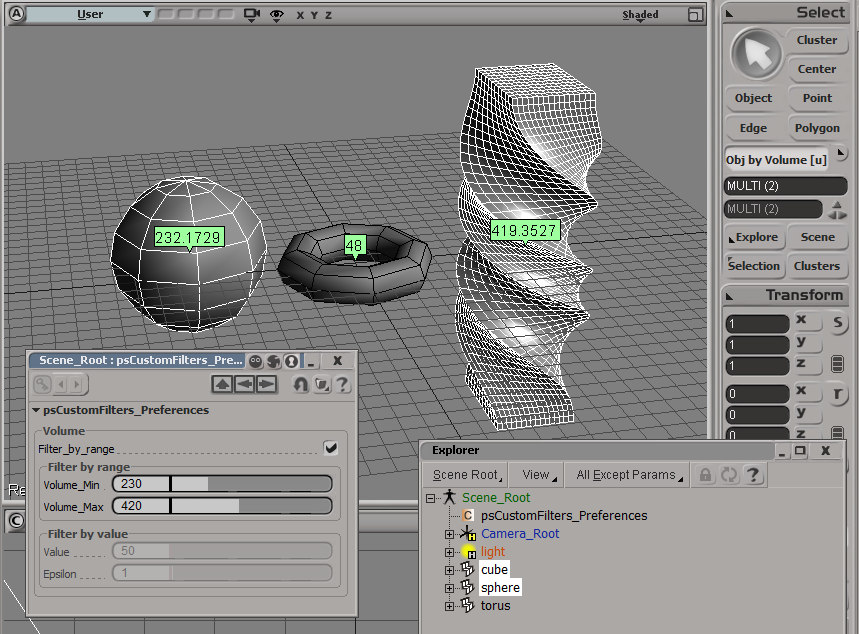
Here’s an addon that uses the ICE Volume attribute to filter object selections. The Volume attribute is always defined (so you don’t need to Show Values or anything for this filter to work).
Note that you have to freeze scaling to get the right volume for an object.
For simplicity, I’m using a custom property (on the scene root) to hold the preferences for the filter.

The filter itself is simple. It just gets the Volume attribute value and compares it to the range of values specified in the PPG.
# Match callback for the psCustomFilters custom filter.
def ObjbyVolume_Match( in_ctxt ):
Application.LogMessage("ObjbyVolume_Match called",constants.siVerbose)
in_object = in_ctxt.GetAttribute( "Input" );
obj = Get3DObject( in_object );
if ( Application.ClassName(obj) != "X3DObject" ):
return false;
v = obj.ActivePrimitive.ICEAttributes("Volume").DataArray[0]
filterProp = GetFilterProp( )
if filterProp.Filter_by_range.Value == True:
bMatch = filterProp.Volume_Min.Value <= v <= filterProp.Volume_Max.Value
else: # Filter by value with an epsilon
min = filterProp.Value.Value - filterProp.Epsilon.Value
max = filterProp.Value.Value + filterProp.Epsilon.Value
bMatch = min <= v <= max
return bMatch
Screenshots of the week
ICE Topology and parametric equations (Warning math here!)
by Daniel Brassard
All kinds of good stuff going on here…


Use Cross-product and dot product to test if particles inside curve
by Mathaeus

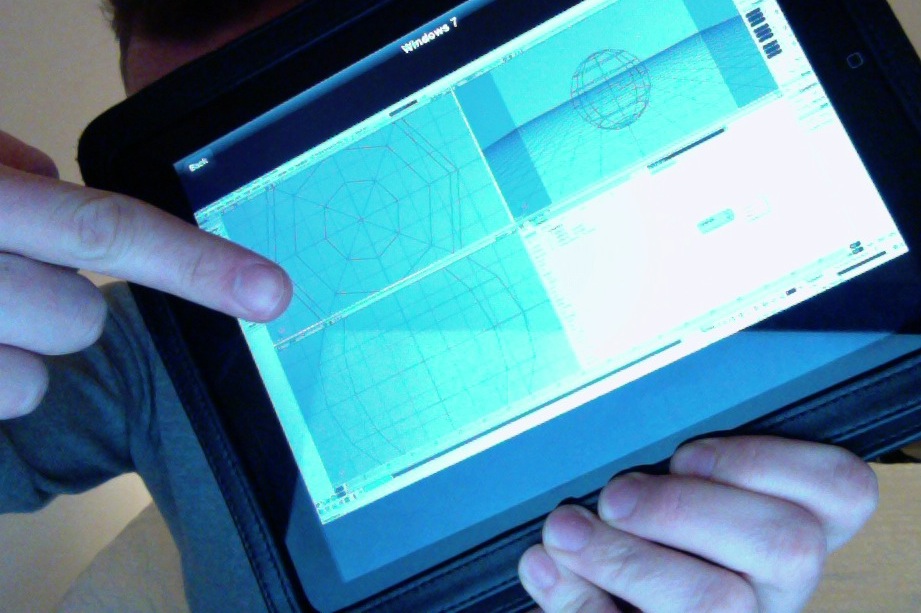
Softimage running on an iPad with the Parallels Mobile App
by andy_nicholas

Softimage running under Parallels Desktop on a Mac
Andy Nicholas

Scripting – Applying an ICE compound to multiple objects
UPDATE: Script updated to work in 2013
Here’s a script for applying an ICE compound to many objects in one go.
The script pops up a browser where you select a compound, and then the selected compound is applied to all selected objects (or, if a group is selected, to all members of the group.
I posted something similar before, but that was part of an add-on that adds new menu commands for applying ICE operators.
from siutils import si # Application
if Application.Version().split('.')[0]>= "11":
si = si() # win32com.client.Dispatch('XSI.Application')
from siutils import log # LogMessage
from siutils import C # win32com.client.constants
from siutils import disp # win32com.client.Dispatch
siut = disp('XSI.Utils')
sifact = disp('XSI.Factory')
siuitk = disp('XSI.UIToolkit')
sisel = si.Selection
#
# Pop up a browser to select a compound
#
def getCompound():
initialDir = siut.BuildPath( si.InstallationPath( C.siUserPath ), "Data", "Compounds" )
oFileBrowser = siuitk.FileBrowser
oFileBrowser.DialogTitle = "Select compound to apply"
oFileBrowser.InitialDirectory = initialDir
oFileBrowser.Filter = "All Files (*.*)|*.*||"
oFileBrowser.ShowOpen()
return oFileBrowser.FilePathName
#
# Apply op to
# - the selected objects
# OR
# - the members of a selected group
#
def getTargetObjects():
objects = disp( "XSI.Collection" )
if sisel.Count == 0:
log( "Please select either some objects or a group" )
elif sisel(0).IsClassOf( C.siGroupID ):
objects = sisel(0).Members
else:
objects = sisel
return objects
#
# Do it...
#
objects = getTargetObjects()
sCompound = getCompound()
if sCompound != "" and objects.Count > 0:
for o in objects:
si.ApplyICEOp( sCompound, o.FullName )
Tip: Inspecting compounds in a PPG
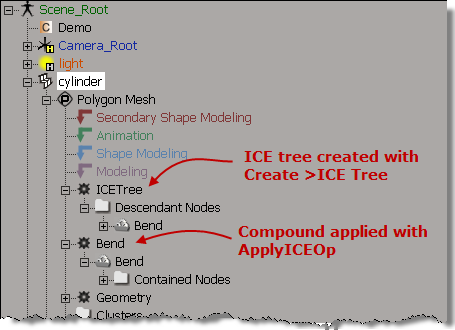
If you use ApplyICEOp to apply a compound, then you can open the compound PPG by clicking the ICE tree operator icon in the explorer. For example, in this screenshot, clicking the Bend operator icon opens the Bend PPG (Bend is an ICE compound).
If you create the ICE tree yourself and hook up the compound, you don’t get this behavior. That’s because ApplyICEOp knows what compound is being applied, so it can nest the compound node directly under the ICE operator node, and the operator PPG can inspect the compound parameters.
While versus Repeat
Just like in programming, Repeat can be considered a generalization of While (K&R: the for loop is a generalization of the while).
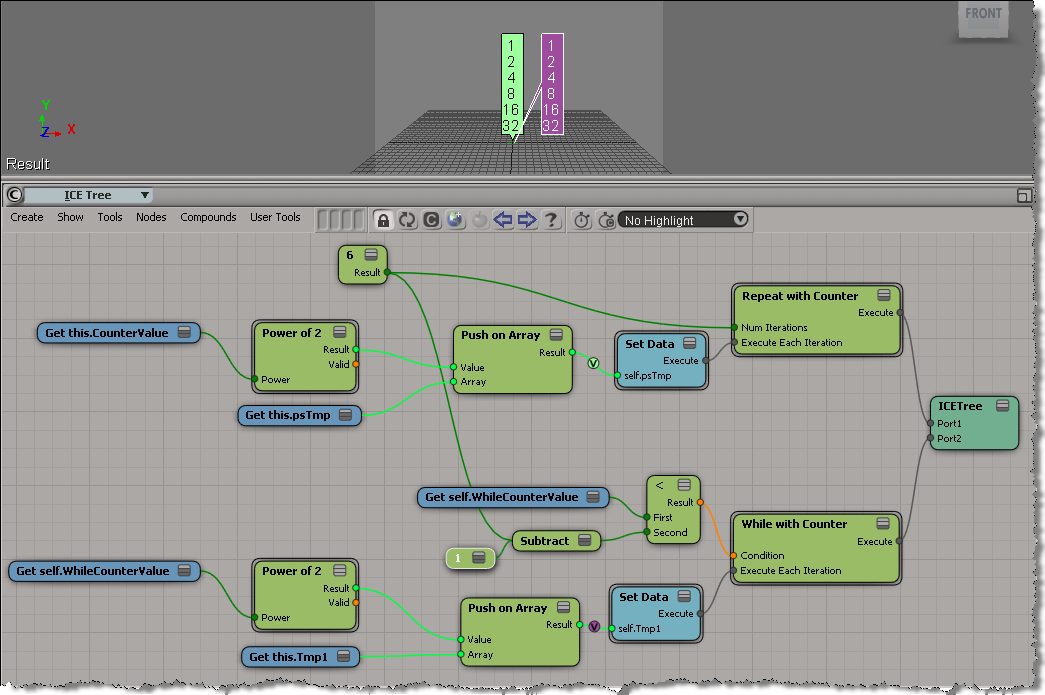
The difference between While with Counter and Repeat with Counter is that when you use While with Counter, the counter doesn’t necessarily control the number of loop iterations. Typically you would use some boolean condition (for example, number of polygons reduced by more than 50%) to control the number of loops, rather than an incremented counter. The counter is a convenience, there for you to use inside the while loop.
Here’s a rather artificial example of equivalent While and Repeat loops. The While loop uses a counter inside the loop, and also in the condition. Note that I had to subtract one for the While loop, because inside While with Counter, the counter is incremented after the loop is executed.
In this example, it would be simpler to just use the Max Repeats:
Beware of ICE optimizations
It seemed like such a nice, simple way to filter polygons:
- Use ICE to check the polygon area and then set a boolean attribute.
- Write a custom subcomponent filter to filter based on that ICE attribute.
With ICE, it’s pretty easy to check if the PolygonArea is within a certain range:
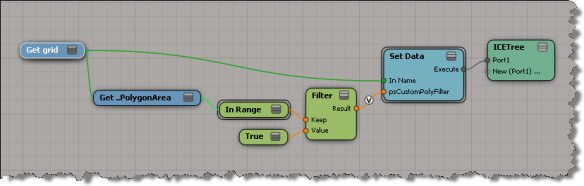
But, beware of ICE optimizations!
Because that ICE attribute isn’t used anywhere else in the scene, ICE doesn’t evaluate that tree, so my boolean attribute is never defined, and my custom filter therefore fails. I have to do something like Show Values to force evaluation:
Note: In Show Values, I used Show Values for Tagged Components Only to cut down the visual clutter.
FWIW, here’s a Python example of a custom subcomponent filter:
# psCustomFilter Plug-in
# Initial code generated by Softimage SDK Wizard
# Executed Wed Nov 23 11:31:56 EST 2011 by blairs
#
# Tip: To add a command to this plug-in, right-click in the
# script editor and choose Tools > Add Command.
import win32com.client
from win32com.client import constants
from siutils import si # Application
from siutils import sidesk # Desktop
from siutils import sidict # Dictionary
from siutils import sifact # XSIFactory
from siutils import simath # XSIMath
from siutils import siproj # ActiveProject2
from siutils import sisel # Selection
from siutils import siuitk # XSIUIToolkit
from siutils import siut # XSIUtils
from siutils import log # LogMessage
from siutils import disp # win32com.client.Dispatch
from siutils import C # win32com.client.constants
null = None
false = 0
true = 1
def XSILoadPlugin( in_reg ):
in_reg.Author = "blairs"
in_reg.Name = "psCustomFilter Plug-in"
in_reg.Major = 1
in_reg.Minor = 0
in_reg.RegisterFilter("psCustomFilter",constants.siFilterSubComponentPolygon)
#RegistrationInsertionPoint - do not remove this line
return true
def XSIUnloadPlugin( in_reg ):
strPluginName = in_reg.Name
Application.LogMessage(str(strPluginName) + str(" has been unloaded."),constants.siVerbose)
return true
# Match callback for the psCustomFilter custom filter.
def psCustomFilter_Match( in_ctxt ):
Application.LogMessage("psCustomFilter_Match called",constants.siVerbose)
# Return value indicates if the input object matches the filter criterias.
return true
# Subset callback for the psCustomFilter custom filter.
def psCustomFilter_Subset( in_ctxt ):
log("psCustomFilter_Subset called",constants.siVerbose)
out_coll = disp( "XSI.Collection" )
in_coll = in_ctxt.GetAttribute( "Input" )
for item in in_coll:
log( item )
polys = []
for p in item.SubComponent.ComponentCollection:
log( p.Index )
attr = p.Parent.ICEAttributes("psCustomPolyFilter")
if not attr.IsDefined:
log( "Cannot apply filter. psCustomPolyFilter attribute is not defined" )
if attr.IsDefined and attr.DataArray[ p.Index ] == -1:
#log( "%d : %s" % ( p.Index, attr.DataArray[ p.Index ] ) )
polys.append( p.Index )
if len(polys) > 0:
out_coll.Add( item.SubComponent.Parent3DObject.ActivePrimitive.Geometry.CreateSubComponent(C.siPolygonCluster, polys ) )
in_ctxt.SetAttribute( "Output", out_coll )
# Return value indicates if a subset of the input objects matches the filter criterias.
return true
In a nutshell: ICE and the Post-Simulation region
Here’s a quick demo of the Post-Simulation region, and how it relates to an ICE simulation. In this video, I use a lattice deformation to demonstrate why you might put something in the Post-Simulation region.
In a nutshell: ICE and the construction stack
If you’re using Add Point, does it matter where you put your ICE tree in the construction stack? Do you understand the different construction stack regions and how they relate to the evaluation of ICE trees?
This video gives a quick answer to those questions.
Downloading and using undocumented compounds
A few tips for figuring out how to use a compound you downloaded that has no documentation.
Inspired by this thread on xsibase about scatter compounds.
With experience, you can usually figure out where to create the ICE tree and what to plug into the compound. But if you’re stuck, here’s a few of tips:
- Check out the error messages. Hover the mouse over the compound (not over a port) to see the first error message. To see all error messages, right-click over the node and choose Show Messages.
- What attributes are unresolved? For example, if the node is red because of the ID attribute, then you probably need to put the compound on a point cloud, not a geometry.
- Check out what’s going on inside the compound. If you see Add Point, then the compound needs to be applied to a point cloud.