All Softimage 2011 network licenses include five Batch


As of the 2011 release, there is no longer separate “Softimage” and “Softimage Advanced” products. There is just one “Softimage” product:

  • A network license of Softimage 2011 includes five Batch licenses.
  • A standalone licenses of Softimage 2011 does not include any Batch licenses.

So, for example, if you had a network license of Softimage 2010 under Subscription, then your Softimage 2011 network license now includes five Batch licenses.

What is logged in SoftimageLicense.log when Softimage cannot connect to the license server


This is what you’ll see in SoftimageLicense.log if Softimage cannot connect to the license server.
For example, if ADSKFLEX_LICENSE_FILE is pointing to the wrong server, you’ll see this sequence of errors in the log:

  • Cannot connect to server
  • License check out failed
  • The desired vendor daemon is down
  • License check out failed
6016	2010/03/15	12:40:22	Reason=Fatal error
6016	2010/03/15	12:40:22	ComputerName=MTL-EXAMPLE
6016	2010/03/15	12:40:22	OS=6.0.6001.Service Pack 1
6016	2010/03/15	12:40:22	File=AdlmIntNWFBLicense.cpp,Line=684
6016	2010/03/15	12:40:22	VendorID=3 [FLEXLM-NW]
6016	2010/03/15	12:40:22	VendorError=-15 [Cannot connect to server]
6016	2010/03/15	12:40:22	FLEXLM-NW=v11.6.1.3 build 72149 x64_n6
6016	2010/03/15	12:40:22	Reason=Fatal error
6016	2010/03/15	12:40:22	ComputerName=MTL-EXAMPLE
6016	2010/03/15	12:40:22	OS=6.0.6001.Service Pack 1
6016	2010/03/15	12:40:22	File=AdlmIntNWFBLicense.cpp,Line=667
6016	2010/03/15	12:40:22	AdlmIntError=20 [License check out failed]
6016	2010/03/15	12:40:41	Reason=Fatal error
6016	2010/03/15	12:40:41	ComputerName=MTL-EXAMPLE
6016	2010/03/15	12:40:41	OS=6.0.6001.Service Pack 1
6016	2010/03/15	12:40:41	File=AdlmIntNWFBLicense.cpp,Line=684
6016	2010/03/15	12:40:41	VendorID=3 [FLEXLM-NW]
6016	2010/03/15	12:40:41	VendorError=-97 [The desired vendor daemon is down]
6016	2010/03/15	12:40:41	FLEXLM-NW=v11.6.1.3 build 72149 x64_n6
6016	2010/03/15	12:40:41	Reason=Fatal error
6016	2010/03/15	12:40:41	ComputerName=MTL-EXAMPLE
6016	2010/03/15	12:40:41	OS=6.0.6001.Service Pack 1
6016	2010/03/15	12:40:41	File=AdlmIntNWFBLicense.cpp,Line=667
6016	2010/03/15	12:40:41	AdlmIntError=20 [License check out failed]

Finding the SoftimageLicense.log file


The SoftimageLicense.log file is located in the %TEMP% folder. To find or open the log file, you can simply type %TEMP% in the Windows Search box, in File > Open dialogs, or in the Windows Explorer address bar. The environment variable is automatically expanded to its full value (which is something like “C:\Users\blairs\AppData\Local\Temp”) when you press ENTER.

For example, click the Windows button, type %TEMP%\SoftimageLicense.log in the search box, and then press Enter (or click SoftimageLicense.log in the search results).

Installing Softimage on the same Vista/Windows 7 computer as the license server


As many Softimage customers now know, when you install both Softimage and the license server on the same Vista or Windows 7 computer, you cannot use the computer name to specify the location of the license server.

In previous posts, I said that in this case, you had to either use the IP address, or install the IPv6 update.

But it turns our there is a simpler way: use the IP address 127.0.01. There’s no need to install the IPv6 update.

To update your setenv.bat to use 127.0.0.1:

  1. Start the User Tool (click Start > All Programs > Autodesk > Autodesk Softimage 2010_SP1 x64 > UserTools).

  2. In the list of Configuration Files, click Setenv.bat (Environment Script).

  3. Click Edit File.

  4. Scroll down and edit the line that sets _ADSK_LicServers:

    rem License servers specified from the setup. Format: [port1]@host1[;[port2]@host2]...
    set _ADSK_LicServers=@127.0.0.1
    
  5. Click Save and Close.

The case of the missing protocol file


So, a customer called to report another no interactive network license available problem. We quickly narrowed it down to a problem with the license server: it wouldn’t start. Start Server said “Server started successfully”, but Perform Status Enquiry said FLEXnet Licensing error:-15,570. Everything about the license file checked out ok: it had the right MAC address, it had the right computer name, it had the right license features. But still the server wouldn’t start.

I was already WebEx’d into the customer’s computer, so I downloaded Process Monitor and used it to track what LMTOOLS was doing when I clicked Start Server.

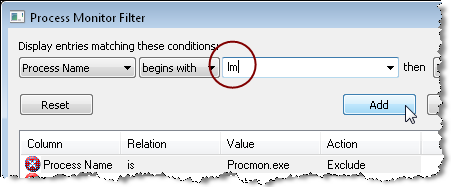
When you click Start Server, lmtools.exe starts the service lmgrd.exe, so I filtered for all Processes that started with “lm”.

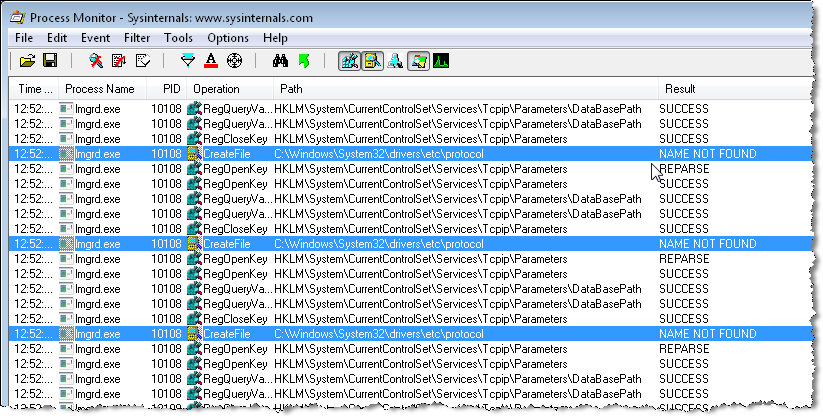
Scrolling down through the log, I soon saw a possible problem: repeated NAME NOT FOUND entries for the same file:

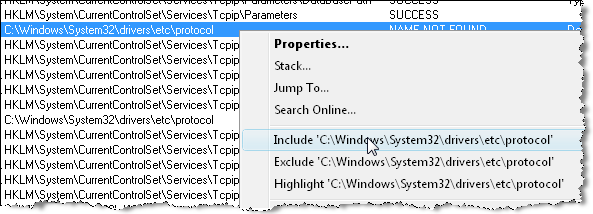
To check whether LMTOOLS eventually did find the protocol file, I right-clicked “C:\windows\system32\drivers\etc\protocol” and clicked Include, to include only the log entries for the protocol file.

And sure enough, the protocol file was never found. So I copied over the protocol file from my system, and then I was able to start the license server.

Without Process Monitor, the only clue I had was this one line in the LMTOOLS debug log file:

(lmgrd) Failed to open any default TCP port.

ADSKFLEX_LICENSE_FILE value in the registry


Softimage saves the location of the license server in the registry. On Vista, the location is saved in the ADSKFLEX_LICENSE_FILE value:

HKEY_CURRENT_USER\Software\FLEXlm License Manager

On my XP system, the value is saved under HKEY_LOCAL_MACHINE.

Over time, you may end up with some obsolete license server locations saved in the registry. For example, if you replace your license server, the location of the old server is still in the registry.

So whenever you cannot get a license, and everything else seems to check out ok, open up regedit and clear the ADSKFLEX_LICENSE_FILE value, to make sure Softimage is connecting to the right license server.

I had a support case the other week where the customer wrote

xsibatch cannot get a license, even though setenv.bat an exact copy of the setenv.bat from a machine where xsibatch can get a license.

It turned out the problem was because of ADSKFLEX_LICENSE_FILE. After he deleted that value, xsibatch connected to the license server specified by setenv.bat and got a license.

Transferring your license to a new license server


You will have to contact the Business Center to transfer your license to the new license server.

A network license is tied to the Ethernet address (aka MAC address or physical address) of a network adapter on the license server computer. So you need a new license if you move your license server to a different computer.

After you set up the new license server, update the setenv.bat files on your workstations to point to the new license server.

Note that on the workstations, the location of the old license server persists in the registry value HKEY_CURRENT_USER\Software\FLEXlm License Manager\ADSKFLEX_LICENSE_FILE. It’s a good idea to clear that value, to make sure XSI.exe and xsibatch.exe don’t try to use the old server.

FLEXnet Licensing error:-125,147: A PACKAGE component must be specified


You can almost always safely ignore this error. In LMTOOLS, Perform Diagnostics reports this error because LMTOOLS does not fully understand the new “package” license file format.

In a license file, a PACKAGE is a container for the actual licenses. LMTOOLS incorrectly treats the PACKAGE as a license, so you get an error (and in the Perform Status Enquiry output, you get what looks like double the actual number of licenses, because the packages are treated like actual licenses).

When I’m helping customers, I rarely use Perform Diagnostics. For general license troubleshooting, I prefer to use Perform Status Enquiry (Server Status tab).

Read on only if you’re interested in the gory details of the .lic file…

For example, in a license file you have this:

PACKAGE 78900SFTIMA_F adskflex 1.000 COMPONENTS="84100SFTIMA_2010_0F \
    78800SFTIMA_7_5F" OPTIONS=SUITE SUPERSEDE ISSUED=12-Aug-2009 \
    SIGN="12B2 E17F D7D2 604D AF1E 76A4 688B 89CB 6DBD 5597 16B6 \
    4116 E855 ABB0 D2F9 01AE EDB9 7B92 9BF8 D829 EF4D E6B7 0EBD \
    F95A 7752 0C2F 95DB F9D9 0B9A 27CE" SIGN2="1276 FD9E A12B 86D7 \
    B9E5 F193 9CB0 8528 21A6 101C 949F 4CAD 4666 0D72 6D9D 022F \
    5EC7 5534 4E20 A90F B6CB D5D4 F4BF 5067 1E6A DCE5 77A2 5EF0 \
    8F36 D066"
  • 78900SFTIMA_F is the package.
  • 84100SFTIMA_2010_0F is the Softimage 2010 license.
  • 78800SFTIMA_7_5F is the Softimage 7.5 license.

In the Perform Diagnostics output, you get an error for the package:

"78900SFTIMA_F" v1.000, vendor: adskflex
  License server: mtl-example
  floating license  starts: 1-jan-1990,   expires: 12-aug-2010
  Requests from the same USER/HOST do not consume a new license

This license cannot be checked out because:
A PACKAGE component must be specified.
Feature:       78900SFTIMA_F
License path:  C:\Program Files\Autodesk Network License Manager\SFTIMA2010.lic;
FLEXnet Licensing error:-125,147

But for the actual licenses (aka features), you get this:

This license can be checked out
-----------------------------------------------------
"84100SFTIMA_2010_0F" v1.000, vendor: adskflex

Softimage and the Autodesk Education Suite for Entertainment Creation


The Autodesk Education Suite for Entertainment Creation includes Softimage, but not the 5 Batch licenses.

The suite license includes an 85519ESEC_2010_0F token that can be used to run Softimage (or Maya or Max or MotionBuilder or SketchBook), but it won’t run xsibatch.

Here’s what you would see in the LMTOOLS log file if you started Softimage on one machine and then tried to run xsibatch on another machine:

15:10:33 (adskflex) OUT: "85520ESEC_F" blairs@machine1
15:10:33 (adskflex) OUT: "85519ESEC_2010_0F" blairs@machine1
15:15:26 (adskflex) DENIED: "85520ESEC_F" blairs@Machine2 (Licensed number of users already reached. (-4,342))
15:15:26 (adskflex) DENIED: "85519ESEC_2010_0F" blairs@Machine2 (Licensed number of users already reached. (-4,342))

WTFFFFFFFF ?


Just before the Christmas break, I had a case where LMTOOLS reported FFFFFFFF as the Ethernet address, even though ipconfig /all showed a valid Physical address for the network adapater. Because of this, the license server wouldn’t start.

FFFFFFFF (eight F’s) is the broadcast address.

I tried a number of things, like resetting the TCP/IP stack with netsh with no success. I spent quite a bit of time on google, but most of the information was old and no longer applicable.

Eventually I figured out the problem, and was able to reproduce on my machine at home. It was the MAC Bridge Miniport: when I bridged my two network connections, then LMTOOLS thought the MAC address was FFFFFFFF.


To unbridge a network adapter:

  1. From the Control Panel, open Network Connections.
  2. Right-click your local area connection and click Remove from Bridge.
  3. Right-click the Network Bridge and click Disable.