Getting all visibility.viewvis parameters


From a discussion on the mailing list today, a few of the different ways to get every instance of a specific parameter, and some [crude] timing of the different methods.

I was also glad to see confirmation that using wildcards like “*.visibility” pick up everything (because I’ve never got any variation of “*#3dobject” to pick up all objects).

si = Application
import time
from win32com.client import Dispatch as disp
from win32com.client import constants as c


t = time.clock()
oObj = disp("XSI.Collection")
oObj.Items = "*.visibility"
for o in oObj:
	v = o.viewvis.Value
print 'XSICollection.Items  : count=%s, time=%s' % ( oObj.Count, time.clock() - t )


t = time.clock()
oObj.Items = "*.visibility.viewvis"
for o in oObj:
	v = o.Value
print 'XSICollection.Items  : count=%s, time=%s' % ( oObj.Count, time.clock() - t )


t = time.clock()
items = si.ActiveSceneRoot.FindChildren2()
for obj in items:
    vis = obj.GetPropertyFromName2("Visibility")
    v = vis.viewvis.value
print 'GetPropertyFromName2 : count=%s, time=%s' % ( items.Count, time.clock() - t )


t = time.clock()
items = si.ActiveSceneRoot.FindChildren2()
for obj in items:
    v = obj.Properties('visibility').Parameters('viewvis').Value   
print 'Properties.Parameters: count=%s, time=%s' % ( items.Count, time.clock() - t )


t = time.clock()
items = si.ActiveSceneRoot.FindChildren2()
for item in items:
    si.Tag(item.fullname + '.visibility.viewvis', c.siTag1)
print 'Tag()                : count=%s, time=%s' % ( items.Count, time.clock() - t )

t = time.clock()
items = si.ActiveSceneRoot.FindChildren2()
for item in items:
	p = item.Properties( "Visibility" ).Parameters( "viewvis" )
	p.Tags = c.siTag1
print 'Parameter.Tag        : count=%s, time=%s' % ( items.Count, time.clock() - t )


t = time.clock()
val = si.ActiveSceneRoot.TaggedParameters(c.siTag1, False)
for v in val:
    v = v.value
print 'TaggedParameters     : count=%s, time=%s' % ( items.Count, time.clock() - t )

Notice how turning off command logging speeds up those two commands:

# XSICollection.Items  : count=4367, time=1.18428964264
# XSICollection.Items  : count=4367, time=1.00415073153
# GetPropertyFromName2 : count=4367, time=2.07334397855
# Properties.Parameters: count=4367, time=4.38064481075
# Tag()                : count=4367, time=20.6681847681
# Parameter.Tag        : count=4367, time=5.11316244631
# TaggedParameters     : count=4367, time=0.705648810261
Application.SetValue("preferences.scripting.cmdlog", False, "")
# XSICollection.Items  : count=4367, time=1.16849869148
# XSICollection.Items  : count=4367, time=0.988541493731
# GetPropertyFromName2 : count=4367, time=2.03344763365
# Properties.Parameters: count=4367, time=4.33773781962
# Tag()                : count=4367, time=7.47015675041
# Parameter.Tag        : count=4367, time=4.99573667863
# TaggedParameters     : count=4367, time=0.687065751859

Getting selected text from the script history


Here’s how to get the selection from the script history. This is how the Repeat command works.

def GetScriptHistoryView():
	oLayout = Application.Desktop.ActiveLayout

	# See if the script history is a view of it's own
	oViews = oLayout.Views.Filter( "Script History" )
	if oViews.Count == 0:
		oViews = oLayout.Views.Filter( "Script Editor" )

	return oViews(0)

oLog = GetScriptHistoryView()
text = oLog.GetAttributeValue( "historyline" ) if oLog else "<Nothing>"
print text

Saturday Snippet: Selecting a range of polygons by polygon index


Given a selected polygon, add the next 5 polygons to the selection. For example, if polygon 22 is selected, then add polygons 23,24,25,26, and 27 to the selection.

You can do this without using any loops, by using a string expression for the polygon components.

Here’s some JScript that shows two ways to do it. Method 1 uses a string expression. Method 2 is a loop, which can either use the Polygons collection or a string expression.

var o = Selection(0).SubComponent.Parent3DObject
var p = Selection(0).SubComponent.ComponentCollection(0)
var LAST = o.ActivePrimitive.Geometry.Polygons.Count;

// Method 1
// SelectGeometryComponents("grid.poly[22-27]", null, null);

var sPoly = ".poly["+p.Index+"-"+Math.min( p.Index+5,LAST-1 )+"]"
//SelectGeometryComponents( o.FullName + sPoly );
//Selection.SetAsText( o.FullName + sPoly  );

// Method 2
//for ( var i = p.Index+1 ; i < Math.min( p.Index+5,LAST ) ; i++ )
//{
//	ToggleSelection( o.ActivePrimitive.Geometry.Polygons(i) );
// -or-
//	ToggleSelection( o.FullName + ".poly["+i+"]" )
//}

Here’s some Python that does something similar but different:

si = Application
o = si.Selection(0).SubComponent.Parent3DObject
p = si.Selection(0).SubComponent.ComponentCollection(0)
LAST = o.ActivePrimitive.Geometry.Polygons.Count

s = ".poly[%s-%s]" % ( p.Index, min( p.Index+5,LAST-1 ) )
si.SelectGeometryComponents( s )

Saturday Snippet: Getting data from a DataArray2D ICE attribute


I wanted to do this JScript, but I had to do it in Python first, to establish that it was actually possible (with JScript, you’ve got to mess around with VBarrays and such).

# Using one of the CrowdFX sample scenes:
Application.SelectObj("Pedestrian_Mesh.Actor_Copies", None, None);
o = Application.Selection(0)

a = o.ActivePrimitive.Geometry.GetICEAttributeFromName("Materials")
print len(a.DataArray2D)
print len(a.DataArray2D[0] )
print a.DataArray2D[0][0]
for s in a.DataArray2D[0][0]:
    print s

# 1
# 1
# (u'', u'Sources.Materials.PedestrianLib.Shoes', u'Sources.Materials.PedestrianLib.Hair', u'Sources.Materials.PedestrianLib.Legs', u'Sources.Materials.PedestrianLib.Skin', u'Sources.Materials.PedestrianLib.Shirt')
# Sources.Materials.PedestrianLib.Shoes
# Sources.Materials.PedestrianLib.Hair
# Sources.Materials.PedestrianLib.Legs
# Sources.Materials.PedestrianLib.Skin
# Sources.Materials.PedestrianLib.Shirt

After I had it working in Python, I was able to figure it out in JScript:

// Using one of the CrowdFX sample scenes:
SelectObj("Pedestrian_Mesh.Actor_Copies", null, null);
o = Selection(0);

a = o.ActivePrimitive.Geometry.GetICEAttributeFromName("Materials");

x = new VBArray( a.DataArray2D ).toArray();
y = new VBArray( x[0] ).toArray();
for ( var i = 0; i < y.length; i++ )
{
    LogMessage( y[i] );
}

Saturday snippet – ShaderDef attributes


Getting shaderdef attributes.

si = Application
#sdef = si.GetShaderDef( "Softimage.BA_particle_density3.1.0" )

sdefs = si.ShaderDefinitions
print sdefs.Count # 1390

for sdef in si.ShaderDefinitions:
	print sdef
	for n,v in map( None, sdef.Attributes.Names,sdef.Attributes.Values ):
		print "   %s=%s" % (n,v)

For most shaderdefs, the only attributes are “shaderlocation” and “thumbnail”.
Softimage.BA_particle_density is one of the few that has anything more interesting. If a Softimage.BA_particle_density shader exists in the scene, you’ll get this:

# Softimage.BA_particle_density3.1.0
#    shaderlocation=3
#    thumbnail=particle.bmp
#    {C535FA4D-E44A-45EB-AEE0-9F9AAEA91745}=None
#    {20ECB4F8-A4A1-44FE-956A-0F6E98D541A8}=Color,Id,PointVelocity,Orientation,Size,PointPosition,Age,AgeLimit,StrandPosition,StrandVelocity,StrandSize,StrandOrientation,StrandColor

If you look at the BA_particle_density3 spdl, you’ll see that that last attribute corresponds to the “ICEattribute” entry for the output parameter. That ICEattribute tells Softimage to pull date from the ICE tree during rendering.

SPDL
Version = "2.0.0.0";
Reference = "{047CA80F-9EED-4507-9F83-4BB77C01DFC1}";
PropertySet "BA_particle_density3_params"
{
	Parameter "out" output
	{
		title = "BA_particle_density3 output parameter";
		guid = "{0B955B1D-CCBA-4B68-9CD3-ABE9467D665D}";
		ICEattribute = "Color,Id,PointVelocity,Orientation,Size,PointPosition,Age,AgeLimit,StrandPosition,StrandVelocity,StrandSize,StrandOrientation,StrandColor";

Saturday Snippet: russian roulette


I commented out the things that would actually “shoot a bullet”.

CrashXSI() is an actual Softimage command, but it doesn’t do anything in a release build.

import random

# bullets
def crashxsi():
	Application.LogMessage( "Bang!" )
	Application.CrashXSI()
	
def blank():
	Application.LogMessage( "Try again" )
	
def losework():
	Application.LogMessage( 'NewScene( "", False )' )
	#Application.NewScene( "", False )
	
def quitxsi():
	Application.LogMessage( "Application.Quit()" )
	#Application.Quit()


#load chambers
chambers = {1: blank,
			2: crashxsi,
			3: quitxsi,
			4: blank,
			5: blank,
			6: losework
			}
	
#spin and shoot
chambers[ random.randint(1,6) ]()

Wednesday word cloud: Softimage scripting commands


This word cloud shows the scripting names of the commands in Application.Commands (Softimage 2013 SP1)
CommandScriptingNames_2013sp1
You can see that some scripting names are repeated quite a few times:

  • ApplyTopoOp (66)
  • ApplyOp (47)
  • ApplyGenOp (44)
  • ToggleValue (43)
  • ApplyShader (37)

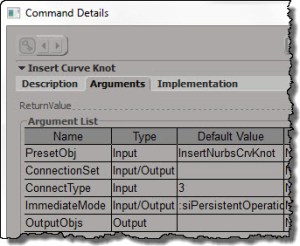
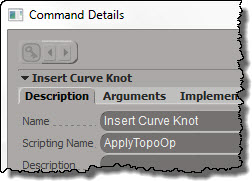
Some scripting commands, like Insert Curve Knot, are instances of a generic command like ApplyTopoOp:
InsertCurveKnotDescription
but with hard-coded arguments:
InsertCurveKnotArguments

See also Why ApplyOp doesn’t pop up a PPG.

Here’s a list of the TopoOp commands:

for c in Application.Commands:
	if c.ScriptingName == "ApplyTopoOp":
		print "%s : %s" % (c.ScriptingName, c.Name )
		
# ApplyTopoOp : Apply Topology Operator
# ApplyTopoOp : Insert Curve Knot
# ApplyTopoOp : Subdivide Edge
# ApplyTopoOp : Raise Nurbs Curve Degree
# ApplyTopoOp : Extrude Comp. Axis
# ApplyTopoOp : Filter Polygons
# ApplyTopoOp : Collapse
# ApplyTopoOp : Inset Polygons
# ApplyTopoOp : Subdivide Polygon
# ApplyTopoOp : Slice Polygons
# ApplyTopoOp : Offset Polygons
# ApplyTopoOp : Dice Object
# ApplyTopoOp : Surface Snip
# ApplyTopoOp : Invert Selected Polygons
# ApplyTopoOp : Delete Trim
# ApplyTopoOp : Duplicate Polygons Along Curve
# ApplyTopoOp : Curve Remove Knot
# ApplyTopoOp : Extrude Component Along Normal
# ApplyTopoOp : Dissolve Component
# ApplyTopoOp : Boolean Difference
# ApplyTopoOp : Boolean Union
# ApplyTopoOp : Boolean Intersection
# ApplyTopoOp : Local Subdivision
# ApplyTopoOp : Insert Surface Knot
# ApplyTopoOp : Remove Surface Knot
# ApplyTopoOp : Polygon Reduction
# ApplyTopoOp : Bevel
# ApplyTopoOp : Delete Component
# ApplyTopoOp : Quadrangulate
# ApplyTopoOp : Dissolve & Clean Adjacent Vertices
# ApplyTopoOp : Symmetrize Polygons
# ApplyTopoOp : Disconnect Component
# ApplyTopoOp : Set Curve Knot Multiplicity
# ApplyTopoOp : Bridge Edges
# ApplyTopoOp : Apply DelMeshPoint
# ApplyTopoOp : Invert All Normals
# ApplyTopoOp : Curve Inverse
# ApplyTopoOp : Surface Shift
# ApplyTopoOp : Curve Shift
# ApplyTopoOp : Surface Curve Shift
# ApplyTopoOp : Surface Swap
# ApplyTopoOp : Filter Edges
# ApplyTopoOp : Curve Reparameterize
# ApplyTopoOp : Surface Reparameterize
# ApplyTopoOp : Add Edge
# ApplyTopoOp : Add Polygon
# ApplyTopoOp : Nurbs Curve Delete Point
# ApplyTopoOp : Nurbs Surface Delete Point
# ApplyTopoOp : Mesh Surface Delete Point
# ApplyTopoOp : Surface Open/Close
# ApplyTopoOp : Curve Open/Close
# ApplyTopoOp : Delete Edge
# ApplyTopoOp : Surface Stitch
# ApplyTopoOp : Surface Extend to Curve
# ApplyTopoOp : Surface Clean
# ApplyTopoOp : Curve Stitch
# ApplyTopoOp : Curve Clean
# ApplyTopoOp : Surface Curve Inverse
# ApplyTopoOp : Extrude Component Along Curve
# ApplyTopoOp : Weld Edges
# ApplyTopoOp : Filter Points
# ApplyTopoOp : Weld Points to Target
# ApplyTopoOp : Delete Particle
# ApplyTopoOp : Trim by Projection
# ApplyTopoOp : Dice Polygons
# ApplyTopoOp : Bridge Polygon	

Writing a python script for processing scenes with xsibatch


Here’s the basic skeleton of a Python script that calls xsibatch -processing -script on all scene files in a given folder.

Python command line:
The python script takes two arguments: the root folder for the location of the scene files, and the name of the script file to run with xsibatch -script.

python process_scenes.pys --dir ""C:\Program Files\Autodesk\Softimage 2013 SP1\Data\XSI_SAMPLES\Scenes" --script "test.pys"

process_scenes.pys:
The python script takes care of finding all the scene files, and then running xsibatch -processing -script on each .scn file.

import os
import fnmatch
import subprocess
import sys
import getopt

XSI_BINDIR=r"C:\\Program Files\\Autodesk\\Softimage 2013 SP1\\Application\\bin"

opts, extraparams = getopt.getopt(sys.argv[1:], "d:s:", ["dir=","script="]) 

#
# Get root directory to scan for scene files
#
SCENES_DIR="C:\\Program Files\\Autodesk\\Softimage 2013 SP1\\Data\\XSI_SAMPLES\\Scenes\\OLD"
SCRIPT="test1.pys"

for o,p in opts:
  if o in ['-d','--dir']:
     SCENES_DIR = p
  elif o in ['-s','--script']:
     SCRIPT = p

#
# Generator function for finding files
#
def find_files(directory, pattern):
     for root, dirs, files in os.walk(directory):
         for basename in files:
             if fnmatch.fnmatch(basename, pattern):
                 filename = os.path.join(root, basename)
                 yield filename

#
# Open each scene file and run the specified script
#
for scn in find_files(SCENES_DIR, '*.scn'):
	sXsiBatch = "%s\\xsibatch" % XSI_BINDIR
	subprocess.call( [ sXsiBatch, '-processing', '-script', SCRIPT, '-args', '-sSceneName', scn ] )

Softimage script test.pys:
A simple test script to run with xsibatch. Note that because the function is named “main”, I don’t have to specify that on the xsibatch command line. I just have to specify the arguments.

def main( sSceneName ):
	LogMessage( sSceneName )	

Saturday Snippet – Building a cross-platform path


…and exporting the selected objects to an ASS file.

from win32com.client import constants as C

filename = XSIUtils.BuildPath( 
	Application.InstallationPath( C.siProjectPath ),
	'Arnold_Scenes',
	'[Scene].[Frame].ass' )
Application.SITOA_ExportScene( 1,1,1,True,True,filename)
# Application.SITOA_ExportScene(1, 1, 1, True, True, "C:\\Users\\Steve\\My Project\\Arnold_Scenes\\[Scene].[Frame].ass")

Shortcuts and default properties for custom parameters


Custom properties and the PPG object provide shortcuts for direct access to parameters.

For custom properties, that means you can type the shortcut oProp.SomeParam instead of oProp.Parameters(“SomeParam”). Note that that in this case, the default property is Name: if you print oProp.SomeParam, you get the name of the parameter.

from win32com.client import constants as C
si = Application

p = si.ActiveProject.ActiveScene.Root.AddCustomProperty( "Test" )
x = p.AddParameter2("X",C.siString,"a;b;c;d",None,None,None,None,C.siClassifUnknown,C.siPersistable)

print p.X
print p.X.IsEqualTo( p.Parameters("X") )
print x.IsEqualTo( p.X )

# Test.X
# True
# True

For the PPG object, the shortcut is even more of a convenience. To access a parameter named “Param”, you can type PPG.Param instead of PPG.Inspected(0).Param. And when you use the PPG.Param shortcut, the default property is Value.

So you can do this:

PPG.Param = 'hello;world'

There’s no need to type “PPG.Param.Value”, unless you’re doing something like this:

list = PPG.Param.Value.split(';')