JScript Array.push on Linux = Object doesn’t support this property or method


On Linux, Array.push will give you this error: “// ERROR : Object doesn’t support this property or method.” That’s because Softimage ships with an older version of JScript (5.1) on Linux.

You can add the following to your JScript to add a push method to the Array object:

// Add a push method to the JScript Array Object
// (Array.Push was added in Jscript 5.5 but we cannot rely on this)
// @cc_on
// @if (@_jscript_version < 5.5)
var push = function(){
	for( var i = 0; arguments[ i ] != null; i++ )
		this[this.length++] = arguments[ i ];
	return( this );
	}
Array.prototype.push = push;
// @end

Specifying the help file location in SPDL


In 2011 and later, you can’t use OriginPath to find the location of the inspected shader/texture. Instead, use ShaderDef.DefinitionPath.
ShaderDef.DefinitionPath will return something like:

' INFO : C:\Users\blairs\Autodesk\Softimage_2012_SP1\Addons\baVolume\Application\spdl\BA_fluid.spdl

So you could do something like this in your SPDL file to specify the location of your help:

	Sub OnInit()
		setAlpha_OnChanged()
		Set ppi =PPG.Inspected(0)
		s = ppi.ShaderDef.DefinitionPath
		sHelp = Left( s, InStr( 1, s, "spdl" ) - 1 ) + "../help/index.htm"
		PPG.PPGLayout.SetAttribute siUIHelpFile, sHelp
	End sub

Toggling LUT on and off for the render region


Here’s a simple self-installing plugin that adds a “Toggle LUT” command to the viewport Display menu. You can use this hide/show gamma correction in the render region while you’re working on the lighting of your scene (eg for film work, to toggle between the linear display and the “print space” lut).

To install this plugin, copy the code and save it in a .py file in the Application\Plugins folder of the User location or a workgroup. Then either restart Softimage or use the Plugin Manager to load the new plugin. After the plugin is loaded, you can use File > Keyboard Mapping to assign a shortcut key to the ToggleLut command.

# ToggleLUT
# Initial code generated by Softimage SDK Wizard
# Executed Wed Jun 15 05:51:55 EDT 2011 by blairs
import win32com.client
from win32com.client import constants

null = None
false = 0
true = 1

def XSILoadPlugin( in_reg ):
	in_reg.Author = "blairs"
	in_reg.Name = "ToggleLUT"
	in_reg.Major = 1
	in_reg.Minor = 0

	in_reg.RegisterCommand("ToggleLUT","ToggleLUT")
#	in_reg.RegisterMenu(constants.siMenuVMCameraID,"Camera_Toggle_LUT",false,false)
	in_reg.RegisterMenu(constants.siMenuVMDisplayID,"Display_Toggle_LUT",false,false)
	#RegistrationInsertionPoint - do not remove this line

	return true

def XSIUnloadPlugin( in_reg ):
	strPluginName = in_reg.Name
	return true

def ToggleLUT_Init( in_ctxt ):
	oCmd = in_ctxt.Source
	oCmd.Description = ""
	oCmd.ReturnValue = true

	return true

def ToggleLUT_Execute(  ):

	rr = Application.Preferences.GetPreferenceValue("Display.color_management_render_region")
	Application.Preferences.SetPreferenceValue("Display.color_management_render_region", not(rr) )

	return true

def Display_Toggle_LUT_Init( in_ctxt ):
	oMenu = in_ctxt.Source
	oMenu.AddCommandItem("ToggleLUT","ToggleLUT")
	return true

New view attributes in 2012


For the Scene Layer Manager, there is a selectedlayer attribute.

For the Schematic view, there are two view attributes: AnchorPointID and Target.
Target is available for the node context menu only.

Here’s some code from the new Schematic example in the XSI SDK workgroup:

def XSILoadPlugin( in_reg ):
	#...
	in_reg.RegisterMenu(C.siMenuSchematicNodeContextID,"LogNodeInfo_Menu",False,False)	
	#...

def LogNodeInfo_Menu_Init( in_ctxt ):
	oMenu = in_ctxt.Source
	oMenu.AddCallbackItem("Log Node Info","log_info_cb")	
	return True

def log_info_cb( ctxt ):

	Application.LogMessage("log_info_cb called")

	# Returns the view object or a list with the view object and the target node (siMenuSchematicNodeContextID only)		
	target = ctxt.GetAttribute('Target')
	anchorPtID = ctxt.GetAttribute('AnchorPointID')
	# ...

Displaying topics from compiled help files (CHM)


Using an undocumented preference value, you can use the undocumented XSIUtils.DisplayHtmlHelp method to open compiled help files. To find the undocumented preference value, I had to go into the Softimage source and find the implementation of DisplayHtmlHelp().

Prior to 2012, DisplayHtmlHelp worked with CHM files, since the Softimage help itself was compiled. But as of 2012, DisplayHtmlHelp now works with HTML files by default.

// Set the helplocationtype to CHM
var tmp = Preferences.GetPreferenceValue( "General.helplocationtype" );
Preferences.SetPreferenceValue( "General.helplocationtype", 3 );

// Open a specific topic in a compiled help file
var s = "C:\\Program Files\\7-Zip\\7-zip.chm::/fm/plugins/7-zip/options.htm";
XSIUtils.DisplayHtmlHelp( s );

// IMPORTANT: Restore pref after
Preferences.SetPreferenceValue( "General.helplocationtype", tmp );

Overriding local mental ray settings for a pass


I was recently asked how an xsibatch script could override local mental ray settings for a pass (the user was using xsibatch -script to force certain settings before kicking off a render).

You just have to get Pass.Properties(“mental ray”).
That will give you either the shared renderer property, or the local one if the pass has a local copy.


p = Application.ActiveProject.ActiveScene.ActivePass
mr_prop = p.Properties("mental ray")

# a local mentalray property has one Owner
# a shared mentalray property is owned by the PassContainer (Passes)
# and the passes that don't have a local copy
if mr_prop.Owners.Count == 1:
	Application.LogMessage( "Local" )

# or you could check LocalProperties
if p.LocalProperties("mental ray") != None :
	Application.LogMessage( "Local" )

Checking if an ICE node is part of a connected branch


Here’s a little recursive function that checks whether the selected ICE node is part of a branch that is connected to the terminal ICE Tree node.

I used IsConnected to check whether a node is connected to some other node, and then I traverse the output ports, getting the connected nodes, until I reach the ICE Tree node (or not).

var o = Selection(0);
//LogMessage( o.IsConnected );
LogMessage( "isBranchConnected()="+isBranchConnected(o) );


// Given an ICE node, check if the node is part
// of a branch connected to the ICE Tree node
function isBranchConnected( oNode )
{
	if ( !oNode.IsConnected )
	{
		return false;
	}
	else if ( oNode.Type == "ICETree" )
	{
		return true;
	}
	else
	{
		oEnum = new Enumerator( oNode.OutputPorts ) ;
		for (;!oEnum.atEnd();oEnum.moveNext() )
		{
			var oSelItem = oEnum.item() ;
			oEnum1 = new Enumerator( oSelItem.ConnectedNodes ) ;
			for (;!oEnum1.atEnd();oEnum1.moveNext() )
			{
				var oSelItem1 = oEnum1.item() ;
				return isBranchConnected( oSelItem1 );
			}
		}
	}
}

And here’s a Python version. With Python, I always have the nagging feeling that my code code be better.

# Given an ICE node, check if the node is part
# of a branch connected to the ICE Tree node
def isBranchConnected( oNode ):
	if not oNode.IsConnected : 
		return False
	elif oNode.Type == "ICETree" :
		return True;
	else:
		for port in oNode.OutputPorts:
			for node in port.ConnectedNodes:
				return isBranchConnected( node )


o = Application.Selection(0);
Application.LogMessage( "isBranchConnected()=" + str(isBranchConnected(o)) );

Changing the mini-dopesheet Show Keys settings


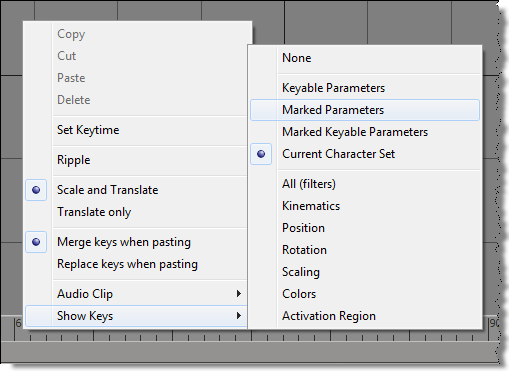
To change the type of keys shown in the mini-dopesheet in the timeline, you set the same preferences used by the full dopesheet:

// Marked Parameters
Preferences.SetPreferenceValue( "dopesheet.timeline_display_keys",2 );

//Current Character Set
Preferences.SetPreferenceValue( "dopesheet.timeline_display_keys", 11 );

So, to toggle between Show Keys > Marked Parameters and Show Keys > Current Character Set, you could do something like this:

var x = Preferences.GetPreferenceValue( "dopesheet.timeline_display_keys" );
x = ( x==2 ) ? 11 : 2;
Preferences.SetPreferenceValue( "dopesheet.timeline_display_keys", x );

Getting model.Mixer.CompoundContainer.mixer.normalize with the OM (or how I learned to love the SDK Explorer)


In this video, I show a few common techniques for finding your way through the Object Model (OM) hierarchy with the help of the SDK explorer.
In summary, here are some of the most common ways to navigate an object hierarchy:

  • Object Model methods/properties, like Model.Mixer or Mixer.Transitions.
  • Parameters and Properties collections
  • NestedObjects

http://vimeo.com/23877816

Here’s the JScript from the video:

// I want to get this: "MocapMan.Mixer.CompoundContainer.mixer.normalize"

// One step at a time
var mdl = Dictionary.GetObject("MocapMan");

var oMixer = mdl.Mixer;
var oCompounds = oMixer.NestedObjects("Compounds");
var oAnimation = oCompounds.NestedObjects( "Animation" );
var oCompoundContainer = oAnimation.NestedObjects( "CompoundContainer" );
var oMixer = oCompoundContainer.NestedObjects( "Mixer" );
var n = oMixer.NestedObjects( "Normalize" );

LogMessage( n.Value );

// All on one line:
var n = mdl.Mixer.NestedObjects("Compounds").NestedObjects("Animation").NestedObjects("CompoundContainer").NestedObjects("Mixer").NestedObjects("Normalize");
LogMessage( n.Value );

// Or something a little less ... nested:
var n = Dictionary.GetObject( mdl.Mixer.FullName + ".CompoundContainer.mixer.normalize" );

Python snippets. Had to re-dispatch to get it to work.

import win32com.client

mdl = Application.Dictionary.GetObject("MocapMan")

n = mdl.Mixer.NestedObjects("Compounds").NestedObjects("Animation").NestedObjects("CompoundContainer").NestedObjects("Mixer").NestedObjects("Normalize")
n = win32com.client.Dispatch(n)

Application.LogMessage( Application.ClassName(n) )
Application.LogMessage( n.Value )


n = Application.Dictionary.GetObject( mdl.Mixer.FullName + ".CompoundContainer.mixer.normalize" );
n = win32com.client.Dispatch(n)
Application.LogMessage( n.Value )

Finding image clip connections in render trees


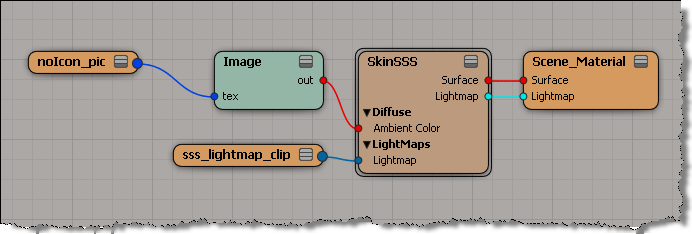
Here’s a little Python snippet that finds out where image clips are plugged in.

mat = Application.Dictionary.GetObject("Sources.Materials.DefaultLib.Scene_Material")

images = mat.Shaders(0).ImageClips
for img in images:
	for p in img.GetShaderParameterTargets():
		print img.Name + " : " + p.fullname

This script will print out this:

# noIcon_pic : Sources.Materials.DefaultLib.Scene_Material.Image.tex
# sss_lightmap_clip : Sources.Materials.DefaultLib.Scene_Material.SkinSSS.light

for this render tree: