Saturday Snippet: Getting data from a DataArray2D ICE attribute


I wanted to do this JScript, but I had to do it in Python first, to establish that it was actually possible (with JScript, you’ve got to mess around with VBarrays and such).

# Using one of the CrowdFX sample scenes:
Application.SelectObj("Pedestrian_Mesh.Actor_Copies", None, None);
o = Application.Selection(0)

a = o.ActivePrimitive.Geometry.GetICEAttributeFromName("Materials")
print len(a.DataArray2D)
print len(a.DataArray2D[0] )
print a.DataArray2D[0][0]
for s in a.DataArray2D[0][0]:
    print s

# 1
# 1
# (u'', u'Sources.Materials.PedestrianLib.Shoes', u'Sources.Materials.PedestrianLib.Hair', u'Sources.Materials.PedestrianLib.Legs', u'Sources.Materials.PedestrianLib.Skin', u'Sources.Materials.PedestrianLib.Shirt')
# Sources.Materials.PedestrianLib.Shoes
# Sources.Materials.PedestrianLib.Hair
# Sources.Materials.PedestrianLib.Legs
# Sources.Materials.PedestrianLib.Skin
# Sources.Materials.PedestrianLib.Shirt

After I had it working in Python, I was able to figure it out in JScript:

// Using one of the CrowdFX sample scenes:
SelectObj("Pedestrian_Mesh.Actor_Copies", null, null);
o = Selection(0);

a = o.ActivePrimitive.Geometry.GetICEAttributeFromName("Materials");

x = new VBArray( a.DataArray2D ).toArray();
y = new VBArray( x[0] ).toArray();
for ( var i = 0; i < y.length; i++ )
{
    LogMessage( y[i] );
}

Saturday Snippet: Getting the object under the mouse in a context menu callback


For most context menus, the Target attribute contains both the selected objects (if any) and the object under the mouse.

def MyCustomMenu_Init( in_ctxt ):
    oMenu = in_ctxt.Source
    oMenu.Filter = "camera"
    oMenu.AddCallbackitem("Custom Camera Tool","MyCameraTool")
    return true

def MyCameraTool(in_ctxt):
    obj = in_ctxt.GetAttibute("Target")
    Application.LogMessage(obj)

I’m pretty sure I’m the one who dug up that info and put it in the docs (on the Menu Item Callback page). I did not, however, write this bit, which to my ear does not sound good at all:

If your menu is attached to a contextual menu, the currently selected objects are passed in to your callback. The target object under the cursor is also passed in as part of the selected objects. However if no objects are selected, then only the target is passed in. The objects can be retrieved through the Context.GetAttribute method with “Target” specified as the value for the AttributeName parameter. The selected/target objects are not passed in to the callback of a custom menu item attached to a regular menu.

I prefer something more like this:

For context menus, the callback gets the currently selected objects and the object under the mouse. You can get these target objects from the Target attribute with Context.GetAttribute.

Saturday snippet – ShaderDef attributes


Getting shaderdef attributes.

si = Application
#sdef = si.GetShaderDef( "Softimage.BA_particle_density3.1.0" )

sdefs = si.ShaderDefinitions
print sdefs.Count # 1390

for sdef in si.ShaderDefinitions:
	print sdef
	for n,v in map( None, sdef.Attributes.Names,sdef.Attributes.Values ):
		print "   %s=%s" % (n,v)

For most shaderdefs, the only attributes are “shaderlocation” and “thumbnail”.
Softimage.BA_particle_density is one of the few that has anything more interesting. If a Softimage.BA_particle_density shader exists in the scene, you’ll get this:

# Softimage.BA_particle_density3.1.0
#    shaderlocation=3
#    thumbnail=particle.bmp
#    {C535FA4D-E44A-45EB-AEE0-9F9AAEA91745}=None
#    {20ECB4F8-A4A1-44FE-956A-0F6E98D541A8}=Color,Id,PointVelocity,Orientation,Size,PointPosition,Age,AgeLimit,StrandPosition,StrandVelocity,StrandSize,StrandOrientation,StrandColor

If you look at the BA_particle_density3 spdl, you’ll see that that last attribute corresponds to the “ICEattribute” entry for the output parameter. That ICEattribute tells Softimage to pull date from the ICE tree during rendering.

SPDL
Version = "2.0.0.0";
Reference = "{047CA80F-9EED-4507-9F83-4BB77C01DFC1}";
PropertySet "BA_particle_density3_params"
{
	Parameter "out" output
	{
		title = "BA_particle_density3 output parameter";
		guid = "{0B955B1D-CCBA-4B68-9CD3-ABE9467D665D}";
		ICEattribute = "Color,Id,PointVelocity,Orientation,Size,PointPosition,Age,AgeLimit,StrandPosition,StrandVelocity,StrandSize,StrandOrientation,StrandColor";

Saturday Snippet: russian roulette


I commented out the things that would actually “shoot a bullet”.

CrashXSI() is an actual Softimage command, but it doesn’t do anything in a release build.

import random

# bullets
def crashxsi():
	Application.LogMessage( "Bang!" )
	Application.CrashXSI()
	
def blank():
	Application.LogMessage( "Try again" )
	
def losework():
	Application.LogMessage( 'NewScene( "", False )' )
	#Application.NewScene( "", False )
	
def quitxsi():
	Application.LogMessage( "Application.Quit()" )
	#Application.Quit()


#load chambers
chambers = {1: blank,
			2: crashxsi,
			3: quitxsi,
			4: blank,
			5: blank,
			6: losework
			}
	
#spin and shoot
chambers[ random.randint(1,6) ]()

Wednesday word cloud: Softimage scripting commands


This word cloud shows the scripting names of the commands in Application.Commands (Softimage 2013 SP1)
CommandScriptingNames_2013sp1
You can see that some scripting names are repeated quite a few times:

  • ApplyTopoOp (66)
  • ApplyOp (47)
  • ApplyGenOp (44)
  • ToggleValue (43)
  • ApplyShader (37)

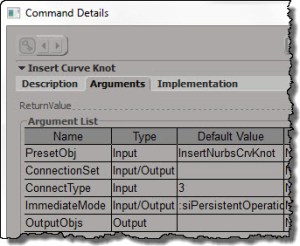
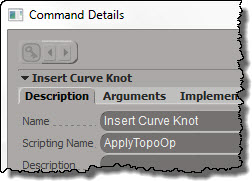
Some scripting commands, like Insert Curve Knot, are instances of a generic command like ApplyTopoOp:
InsertCurveKnotDescription
but with hard-coded arguments:
InsertCurveKnotArguments

See also Why ApplyOp doesn’t pop up a PPG.

Here’s a list of the TopoOp commands:

for c in Application.Commands:
	if c.ScriptingName == "ApplyTopoOp":
		print "%s : %s" % (c.ScriptingName, c.Name )
		
# ApplyTopoOp : Apply Topology Operator
# ApplyTopoOp : Insert Curve Knot
# ApplyTopoOp : Subdivide Edge
# ApplyTopoOp : Raise Nurbs Curve Degree
# ApplyTopoOp : Extrude Comp. Axis
# ApplyTopoOp : Filter Polygons
# ApplyTopoOp : Collapse
# ApplyTopoOp : Inset Polygons
# ApplyTopoOp : Subdivide Polygon
# ApplyTopoOp : Slice Polygons
# ApplyTopoOp : Offset Polygons
# ApplyTopoOp : Dice Object
# ApplyTopoOp : Surface Snip
# ApplyTopoOp : Invert Selected Polygons
# ApplyTopoOp : Delete Trim
# ApplyTopoOp : Duplicate Polygons Along Curve
# ApplyTopoOp : Curve Remove Knot
# ApplyTopoOp : Extrude Component Along Normal
# ApplyTopoOp : Dissolve Component
# ApplyTopoOp : Boolean Difference
# ApplyTopoOp : Boolean Union
# ApplyTopoOp : Boolean Intersection
# ApplyTopoOp : Local Subdivision
# ApplyTopoOp : Insert Surface Knot
# ApplyTopoOp : Remove Surface Knot
# ApplyTopoOp : Polygon Reduction
# ApplyTopoOp : Bevel
# ApplyTopoOp : Delete Component
# ApplyTopoOp : Quadrangulate
# ApplyTopoOp : Dissolve & Clean Adjacent Vertices
# ApplyTopoOp : Symmetrize Polygons
# ApplyTopoOp : Disconnect Component
# ApplyTopoOp : Set Curve Knot Multiplicity
# ApplyTopoOp : Bridge Edges
# ApplyTopoOp : Apply DelMeshPoint
# ApplyTopoOp : Invert All Normals
# ApplyTopoOp : Curve Inverse
# ApplyTopoOp : Surface Shift
# ApplyTopoOp : Curve Shift
# ApplyTopoOp : Surface Curve Shift
# ApplyTopoOp : Surface Swap
# ApplyTopoOp : Filter Edges
# ApplyTopoOp : Curve Reparameterize
# ApplyTopoOp : Surface Reparameterize
# ApplyTopoOp : Add Edge
# ApplyTopoOp : Add Polygon
# ApplyTopoOp : Nurbs Curve Delete Point
# ApplyTopoOp : Nurbs Surface Delete Point
# ApplyTopoOp : Mesh Surface Delete Point
# ApplyTopoOp : Surface Open/Close
# ApplyTopoOp : Curve Open/Close
# ApplyTopoOp : Delete Edge
# ApplyTopoOp : Surface Stitch
# ApplyTopoOp : Surface Extend to Curve
# ApplyTopoOp : Surface Clean
# ApplyTopoOp : Curve Stitch
# ApplyTopoOp : Curve Clean
# ApplyTopoOp : Surface Curve Inverse
# ApplyTopoOp : Extrude Component Along Curve
# ApplyTopoOp : Weld Edges
# ApplyTopoOp : Filter Points
# ApplyTopoOp : Weld Points to Target
# ApplyTopoOp : Delete Particle
# ApplyTopoOp : Trim by Projection
# ApplyTopoOp : Dice Polygons
# ApplyTopoOp : Bridge Polygon	

Writing a python script for processing scenes with xsibatch


Here’s the basic skeleton of a Python script that calls xsibatch -processing -script on all scene files in a given folder.

Python command line:
The python script takes two arguments: the root folder for the location of the scene files, and the name of the script file to run with xsibatch -script.

python process_scenes.pys --dir ""C:\Program Files\Autodesk\Softimage 2013 SP1\Data\XSI_SAMPLES\Scenes" --script "test.pys"

process_scenes.pys:
The python script takes care of finding all the scene files, and then running xsibatch -processing -script on each .scn file.

import os
import fnmatch
import subprocess
import sys
import getopt

XSI_BINDIR=r"C:\\Program Files\\Autodesk\\Softimage 2013 SP1\\Application\\bin"

opts, extraparams = getopt.getopt(sys.argv[1:], "d:s:", ["dir=","script="]) 

#
# Get root directory to scan for scene files
#
SCENES_DIR="C:\\Program Files\\Autodesk\\Softimage 2013 SP1\\Data\\XSI_SAMPLES\\Scenes\\OLD"
SCRIPT="test1.pys"

for o,p in opts:
  if o in ['-d','--dir']:
     SCENES_DIR = p
  elif o in ['-s','--script']:
     SCRIPT = p

#
# Generator function for finding files
#
def find_files(directory, pattern):
     for root, dirs, files in os.walk(directory):
         for basename in files:
             if fnmatch.fnmatch(basename, pattern):
                 filename = os.path.join(root, basename)
                 yield filename

#
# Open each scene file and run the specified script
#
for scn in find_files(SCENES_DIR, '*.scn'):
	sXsiBatch = "%s\\xsibatch" % XSI_BINDIR
	subprocess.call( [ sXsiBatch, '-processing', '-script', SCRIPT, '-args', '-sSceneName', scn ] )

Softimage script test.pys:
A simple test script to run with xsibatch. Note that because the function is named “main”, I don’t have to specify that on the xsibatch command line. I just have to specify the arguments.

def main( sSceneName ):
	LogMessage( sSceneName )	

Saturday Snippet – Building a cross-platform path


…and exporting the selected objects to an ASS file.

from win32com.client import constants as C

filename = XSIUtils.BuildPath( 
	Application.InstallationPath( C.siProjectPath ),
	'Arnold_Scenes',
	'[Scene].[Frame].ass' )
Application.SITOA_ExportScene( 1,1,1,True,True,filename)
# Application.SITOA_ExportScene(1, 1, 1, True, True, "C:\\Users\\Steve\\My Project\\Arnold_Scenes\\[Scene].[Frame].ass")

Shortcuts and default properties for custom parameters


Custom properties and the PPG object provide shortcuts for direct access to parameters.

For custom properties, that means you can type the shortcut oProp.SomeParam instead of oProp.Parameters(“SomeParam”). Note that that in this case, the default property is Name: if you print oProp.SomeParam, you get the name of the parameter.

from win32com.client import constants as C
si = Application

p = si.ActiveProject.ActiveScene.Root.AddCustomProperty( "Test" )
x = p.AddParameter2("X",C.siString,"a;b;c;d",None,None,None,None,C.siClassifUnknown,C.siPersistable)

print p.X
print p.X.IsEqualTo( p.Parameters("X") )
print x.IsEqualTo( p.X )

# Test.X
# True
# True

For the PPG object, the shortcut is even more of a convenience. To access a parameter named “Param”, you can type PPG.Param instead of PPG.Inspected(0).Param. And when you use the PPG.Param shortcut, the default property is Value.

So you can do this:

PPG.Param = 'hello;world'

There’s no need to type “PPG.Param.Value”, unless you’re doing something like this:

list = PPG.Param.Value.split(';')

Beneath the hood: why ApplyOp doesn’t pop up a PPG


Let’s take a look at a question that was posted recently on the Softimage mailing list:

From: softimage-bounces@listproc.autodesk.com [mailto:softimage-bounces@listproc.autodesk.com] On Behalf Of Adam Sale
Sent: Tuesday, January 08, 2013 3:40 PM
To: softimage@listproc.autodesk.com
Subject: Force ppg to open on script launch

I’m a little confused as to why the following does not work:
– Get a sphere
– Run Deform > Smooth
– PPG appears and all is good.

Now, take the generated command and run it through the script editor

ApplyOp(“Smooth”, “torus”, 3, siPersistentOperation, null, 0);

This time, no PPG appears.

Any idea why? And is there a way to force a ppg launch when I tun the command from a button or from the script editor?

Thanks 🙂
Adam

Matt Lind explained why on the list, but I’ll take a little more detailed look into how commands like Smooth work.

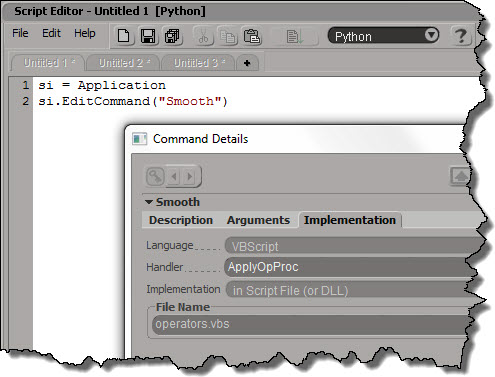
Deforms like Smooth (and Relax and Push and Bend and others) are commands that are mapped to a special handler function in $XSI_HOME\Application\DSScripts\operators.vbs.

Smooth_Implementation

The ApplyOpProc provides special-case handling for applying operators, and also takes care of popping up a PPG after the operator is applied.

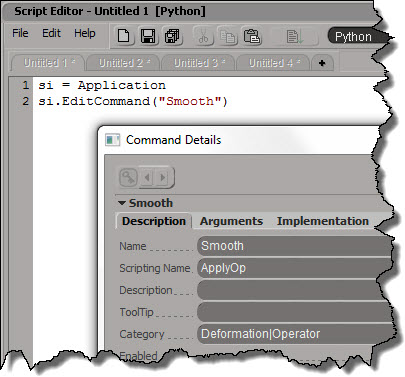
Don’t try to run “Smooth”; you’ll just get an error. It’s scripting name is actually ApplyOp.
Smooth_Description

ApplyOp is also implemented by a VBScript handler in operator.vbs. This time, it’s ApplyOpFunc, and ApplyOpFunc does not inspect the created operators.

If you want to apply a Smooth operator from your script, and pop up the PPG after, here’s one way to do it:

si = Application
si.AutoInspect( si.ApplyOp("Smooth", si.Selection, 3, "siPersistentOperation", "", 0) )