Using Generate Sample Set to avoid the Repeat node


Hat tip to Oleg who posted this tip on the mailing list some time ago.

The basic ideas is that instead of looping over an array with a Repeat with Counter, you use Generate Sample Set to get a data set, and you do everything in a per-generated element context.

GenerateSampleSEt_vs_Repeat

As an example, let’s revisit the problem of taking one array and creating a new array where each element is the sum of the elements before it.

Array_accumulation

The old way, with a Repeat with Counter node, looks like this:
RepeatWithCounter

Using Generate Sample Set, you can work with a data set and use that to access the array elements:
GenerateSampleSet

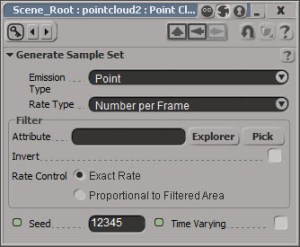
Generate Sample Set is set up to give an exact number of samples:
GenerateSampleSet-PPG

Beneath the hood: why ApplyOp doesn’t pop up a PPG


Let’s take a look at a question that was posted recently on the Softimage mailing list:

From: softimage-bounces@listproc.autodesk.com [mailto:softimage-bounces@listproc.autodesk.com] On Behalf Of Adam Sale
Sent: Tuesday, January 08, 2013 3:40 PM
To: softimage@listproc.autodesk.com
Subject: Force ppg to open on script launch

I’m a little confused as to why the following does not work:
– Get a sphere
– Run Deform > Smooth
– PPG appears and all is good.

Now, take the generated command and run it through the script editor

ApplyOp(“Smooth”, “torus”, 3, siPersistentOperation, null, 0);

This time, no PPG appears.

Any idea why? And is there a way to force a ppg launch when I tun the command from a button or from the script editor?

Thanks 🙂
Adam

Matt Lind explained why on the list, but I’ll take a little more detailed look into how commands like Smooth work.

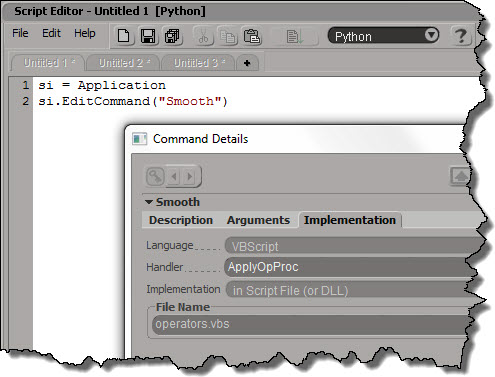
Deforms like Smooth (and Relax and Push and Bend and others) are commands that are mapped to a special handler function in $XSI_HOME\Application\DSScripts\operators.vbs.
Smooth_Implementation

The ApplyOpProc provides special-case handling for applying operators, and also takes care of popping up a PPG after the operator is applied.

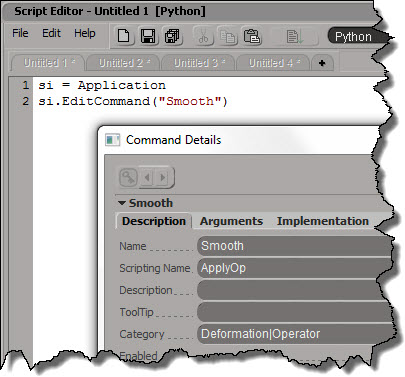
Don’t try to run “Smooth”; you’ll just get an error. It’s scripting name is actually ApplyOp.
Smooth_Description

ApplyOp is also implemented by a VBScript handler in operator.vbs. This time, it’s ApplyOpFunc, and ApplyOpFunc does not inspect the created operators.

If you want to apply a Smooth operator from your script, and pop up the PPG after, here’s one way to do it:

si = Application
si.AutoInspect( si.ApplyOp("Smooth", si.Selection, 3, "siPersistentOperation", "", 0) )

Brush properties saved in scene file


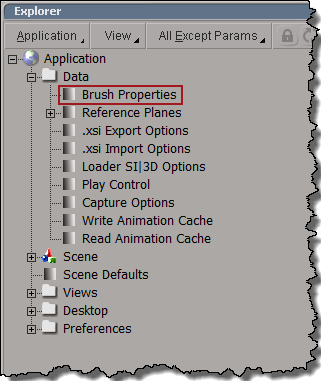
Brush properties are stored in the scene file. Who knew? I certainly didn’t. Given where Brush Properties appear in the explorer, I didn’t expect them to be saved in a scene file.
DataBrushProperties

What happened was that I loaded up a customer scene, activated the vertex paint brush, and it didn’t work. But I had just been painting vertex colors before I loaded their scene! I didn’t think to check the brush properties until later, so I spent a bit of time scratching my head over this…until finally I noticed that Selection was set to Use, not Ignore.

BrushProperties

I tested this by saving scenes with different brush settings, and then reloading them. And different brush settings came in with each scene.

Checking the environment of a running program


Sometimes when you’re troubleshooting, it’s a good idea to check the environment in which Softimage is running.
You can check specific environment variables in the script editor like this:

import os
print os.getenv( "XSI_USERHOME" )
print os.getenv( "TEMP" )

or like this:

print XSIUtils.Environment("XSI_BINDIR")

But I would typically use Process Explorer to see the full environment:
ProcessExplorer_Environment
or Process Monitor (in Process Monitor, you just have to find the Process Start operation for XSI.exe and double-click it).
ProcessMonitor_Environment

Tip – Matching multiple regular expressions in a search


You can use the braces {} to match two or more regular expressions. For example, in the Preset Manager, {*vector*,*matrix*} will filter for all nodes/compounds that contain “vector” or “matrix”.

That’s a lot of regex typing to filter the ICE presets.

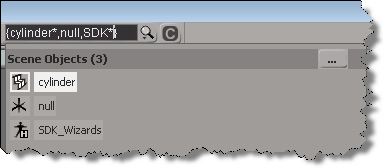
You can also use the braces in the scene search. There seems to be one little gotcha, you’ve got to use some wildcard character otherwise you won’t get a match. For example, {cylinder,null} doesn’t match anything, but {cylinder*,null} or {cylinder,null*} does.

See also:
Tip – Use wildcards to find the logic ICE nodes
Tip – Using the * wildcard for filtering in the ICE preset manager

CER uptime and session count stats


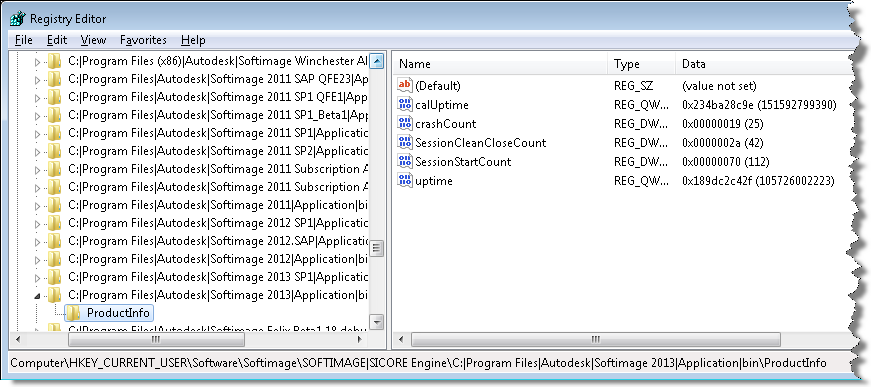
You can always find interesting stuff if you poke around in the registry. For example, the Customer Error Report (CER) mechanism logs some basic usage stats into the registry, under the keys like

HKEY_CURRENT_USER\Software\Softimage\SOFTIMAGE|SICORE Engine\C:|Program Files|Autodesk|Softimage 2013|Application|bin\ProductInfo

  • calUptime is the cumulative amount of time that Softimage has been open. By cumulative, I mean it is the total uptime for all Softimage sessions, ever.
  • upTime is the process uptime (not including any idle time). Again, this is a cumulative total.
  • crashCount is the number of crashes caught by CER.
  • SessionStartCount is the total number of Softimage sessions.
  • SessionCleanCloseCount is the total number of clean exits with no crash. You’ll notice in my case that the crashCount + SessionCleanCloseCount doesn’t equal the total number of sessions. That’s because CER doesn’t catch all crashes, and CER doesn’t catch things like the XSI.exe process being ended in the Task Manager.

* I believe that the uptime totals are in 100-nanosecond intervals.