Using the Schematic view to understand ICE scene setups


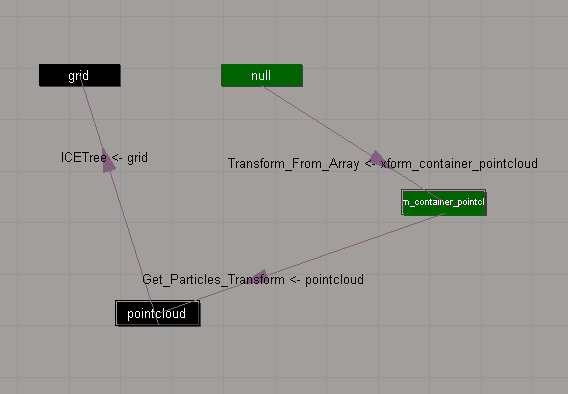
The Schematic view can show you the ICE scene references that “connect” different objects in a scene.

In this example:

  • ICETree on pointcloud has a scene reference to grid
  • Transform_From_Array on null has a scene reference to xform_container_pointcloud.
  • Get_Particles_Transform on xform_container_pointcloud has a scene reference to pointcloud.

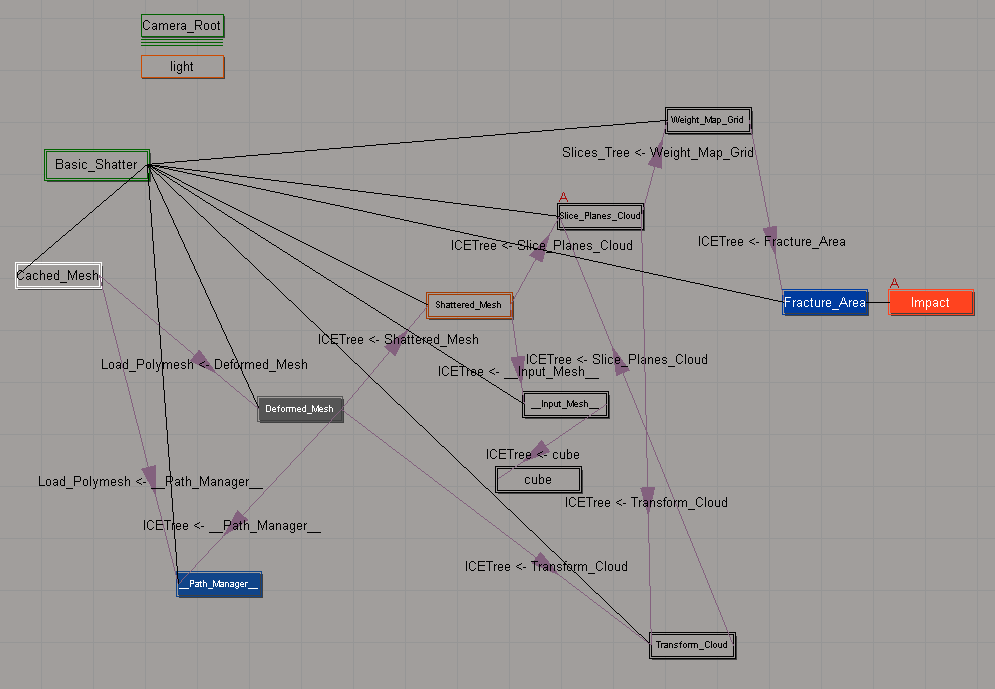
Here’s a slightly more complicated schematic, for the Modeling_Basic_Shattering sample scene:

Tip for using Show Values with the Filter node


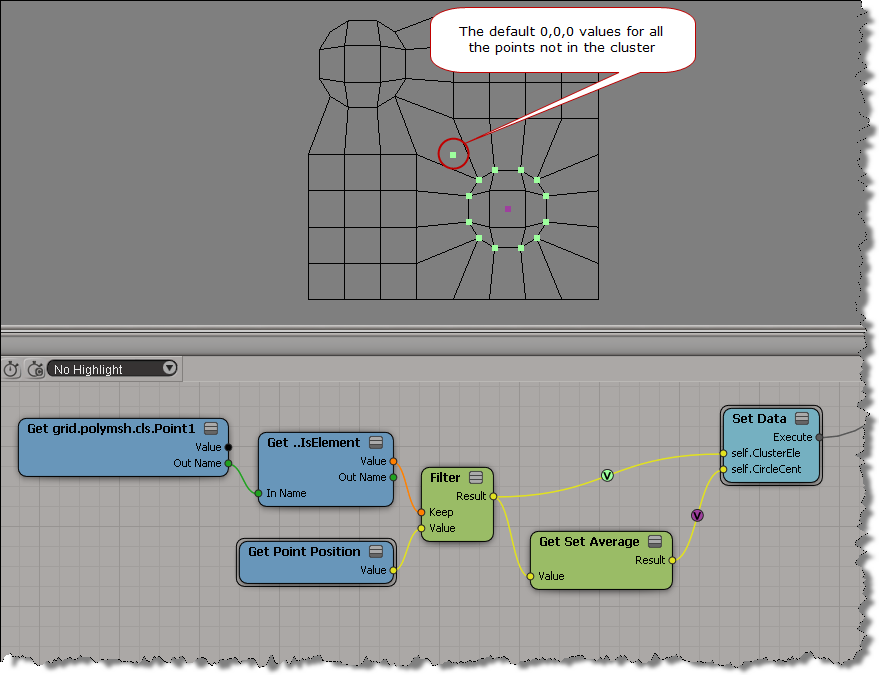
Use the SKip Default Values During Display or Show Values Computed at Current Frame options when you do a Show Values on the output of a Filter node.

With the default Show Values settings, you’ll see default values for the elements that didn’t pass the filter condition:

If you enable SKip Default Values During Display or Show Values Computed at Current Frame , then you see values for the filtered elements only:

Scene Search – searching for objects by type


In this video, I take a look at how to use Search for type to find objects based on their type. For example, you can find all models by searching for “#model”, or all polygon meshes by searching for “polymsh”.

I also show how to use the Scene Explorer to find the type of an object.

http://vimeo.com/35625525

Note: You can’t use the “ICETree” type to find all ICETree operators, that was a disappointment.

WARNING : 3000 – Objects were not saved normally


Occasionally I’ll see reports of this kind of error. Sometimes I see it when I’m investigating some other problem in a scene.

// WARNING : 3000 - Save: [1] objects were not saved normally
// WARNING : 3000 - -- [Framebuffer<1004>] was saved, but is disconnected from the scene. (Floating object)

You can use Dictionary.GetObject to get the floating object and interrogate it:

var x = Dictionary.GetObject( "Framebuffer<1004>" );
LogMessage( ClassName(x) );
LogMessage( x.Parent );
// INFO : C:\Program Files\Autodesk\Softimage 2012.SAP\Application\bin\XSI.exe
LogMessage( x.Parent3DObject == null );
// INFO : True
LogMessage( x.Owners.Count );
// INFO : 0
LogMessage( x.RenderChannel );
// INFO : Normal
//LogMessage( x.GetResolvedPath(0) );
// ERROR : 21000 - Unspecified failure - [line 15]

And you could even delete the floating object before you save the scene:

DeleteObj( Dictionary.GetObject( "Framebuffer<1004>" ) );

However, there is a scene debugging preference that allows you to “skip the loading of floating objects”. This preference was added back in 2004 or so to deal with “ghost models” (which are basically floating or disconnected objects).

You could also try printver -cleanfloating to remove floating objects. I don’t know if that still works, I haven’t used it three or four years.

Another thing you can try is to merge your scene into a new scene. The warning could be a “false positive”. If the warning is gone after the merge, then it was indeed a false positive (which means that something, such as the schematic view, was still holding on to a reference to a deleted object).

Tip: Getting links to specific help pages


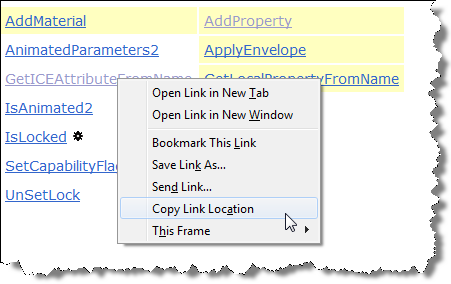
The online help docs use framesets, which can make it tricky to get the right URL when you want to save or send a link to a certain page. Often you end up with a link to index.html, which is just the page that holds the HTML frameset.

Here’s a few different ways to get a link to a page:

In Firefox:

  • Click the Show in Contents icon (top-right) then right-click entry in TOC and click Copy Link Location .
  • Click the Up icon (top-right). This usually takes you to a page with a list of links to the topics in this section. Right-click the link and click Copy Link Location.
  • Click the Previous page icon (<), then right-click Next (>) and click Copy Link Location.
  • Right-click the page, click This Frame > Page Info, and copy the Address URL

The SDK docs don’t have the navigation buttons, so in general you have to get the link from This Frame > Page Info.

For something like an Object Model method or property, you can get the link from the object reference page (because it has a table of links to all methods and properties).

Tip: Inspecting compounds in a PPG


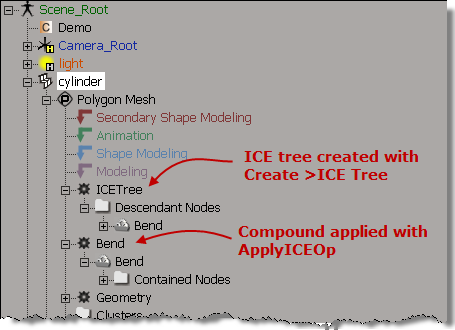
If you use ApplyICEOp to apply a compound, then you can open the compound PPG by clicking the ICE tree operator icon in the explorer. For example, in this screenshot, clicking the Bend operator icon opens the Bend PPG (Bend is an ICE compound).

If you create the ICE tree yourself and hook up the compound, you don’t get this behavior. That’s because ApplyICEOp knows what compound is being applied, so it can nest the compound node directly under the ICE operator node, and the operator PPG can inspect the compound parameters.

Troubleshooting 101: runonce.bat


Basic troubleshooting for when you cannot start Softimage, or you get strange errors at startup, or you cannot perform basic tasks such as creating primitives or duplicating objects. Or for fixing Softimage after you run a registry cleaner.

Run runonce.bat to re-register the Softimage DLLs and SPDL files (SPDL files describe the parameters of objects and operators in Softimage).

runonce.bat does a lot of what happens during installation and it is a lot faster than removing and then reinstalling Softimage.

http://vimeo.com/32563418

runonce.bat mentions on xsibase, si-community, the AREA, and the XSI list