The case of the scene that wouldn’t play back


or how I learned to love binary search…


In this case, a customer uploaded a scene that always crashed at a certain point in the playback.

After poking around the scene for awhile, I deleted a model and that fixed the crash. The only problem was that the model contained a thousand (1000) objects, so deleting the model wasn’t really a solution. So my next step was to isolate the problem use a “divide and conquer” approach. Sort of like a binary search:

  • delete half of the objects (eg objects 1 to 500)
  • play back
    • if crash, then the problem is one of the objects in the second half (501 to 1000)
    • else the problem is one of the objects in the first half (1 to 500)
  • Repeat as required… at most 10 times (1000,500,250,125,62,31,16,8,4,2,1)

In the end, I narrowed it down to a single mesh object. We weren’t able to save that mesh (it had to be deleted and then recreated), but we did save the scene.

wikipedia:

A binary search halves the number of items to check with each iteration, so locating an item (or determining its absence) takes logarithmic time. A binary search is a dichotomic divide and conquer search algorithm.

Dividing and conquering the problem space:

Adding a button to save preference changes


Softimage saves your preferences to %XSI_USERHOME%\Data\Preferences\default.xsipref when you exit Softimage.
If you want to save your current preferences, you can use the Preferences.SaveChanges() method.

Just drag this JScript to a toolbar to create a script button.

// JScript
Preferences.SaveChanges();

For example, you could create a button on the Custom tab of the main shelf (View > Optional Panels > Main Shelf):


You probably want to make the button a Script Command (external file), so you can assign a keyboard shortcut to it.

User locations for 32- and 64-bit Softimage


If you have both 32- and 64-bit Softimage installed, both versions will use the same User location. If you want separate User locations, you could modify the XSI.bat file that launches Softimage.

For example, setenv.bat defines an XSI_CPU environment variable, so you can check that and then reset XSI_USERHOME:

@echo off
call "C:\Program Files (x86)\Autodesk\Softimage 2012.SAP\Application\bin\setenv.bat"
if "%XSI_CPU%"=="nt-x86-32" set XSI_USERHOME=%XSI_USERHOME% (x86)
start "" "C:\Program Files (x86)\Autodesk\Softimage 2012.SAP\Application\bin\XSI.exe" %*

This will give you a User location like
C:\Users\blairs\Autodesk\Softimage_2012_Subscription_Advantage_Pack (x86)

Setting workgroups at startup


Here’s a simple, low-tech way to connect to specific workgroups at startup:

Instead of xsibatch -w or xsi -w, you could modify setenv.bat to create another .xsipref file in %XSI_USERHOME%\Data\Preferences. Whatever is in that file will override what is in default.xsipref.

So, for example, you could do this:

echo data_management.workgroup_appl_path	= C:\Users\blairs\MyWorkgroup >  %XSI_USERHOME%\Data\Preferences\workgroups.xsipref

or you could use an environment variable:

echo data_management.workgroup_appl_path	= %MY_XSI_WORKGROUPS%  >  %XSI_USERHOME%\Data\Preferences\workgroups.xsipref

This does require you to edit setenv.bat, which isn’t so useful if you have a lot of seats. In that case, if you use a network deployment, you could deploy a %XSI_BINDIR%\SiteDeploy.bat file and use that to echo out the workgroup preference.

Quick peek under the covers: Send To functionality


Send To isn’t really something you can implement yourself. It’s a combination of application code, plugins, and an inter-application hub.

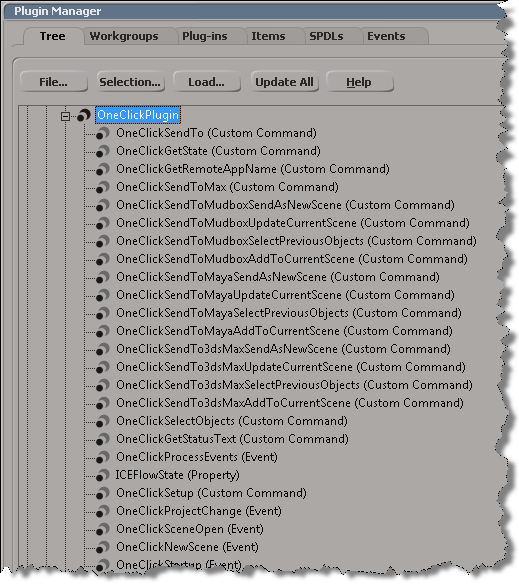
OneClick plugins take care of the Send To commands. In Softimage, you can use the Plug-in Manager to check out the OneClick plugin (it’s under the Factory location):

In Maya, there’s also a OneClick plugin. It’s not set to auto-load, so if you have problems connecting to Maya, try going into the Maya Plugin Manager and loading OneClick.mll.

The inter-application hub that handles things like finding running instances of an application, starting applications, and passing messages between applications. The inter-application hub uses a set of XML configuration files to describe the applications available on the local system.

You can find these .syncfg files in %PROGRAMDATA%\Autodesk\Synergy.

For supported inter-application workflows, these .syncfg files determine what Send To menu commands are available. For example, Softimage will check for .syncfg files for Maya, 3ds Max, and Mudbox, and if it finds the right versions, add the Send To commands to the File menu.

The .syncfg files are created and destroyed as you install and remove Autodesk applications.

On older versions of Windows where the location of the .syncfg file contains non-ascii characters, you may need to set the SYNHUB_CONFIG_PATH environment variable to specify the location.

IMO, you shouldn’t be messing about with the .syncfg files themselves, despite what this KB article says. For example, you can’t get Mudbox 2012 to send to Softimage 2011 by hacking the .syncfg files…Softimage 2011 just doesn’t support the Mudbox workflow, that was introduced later.

Tip: Selecting objects from inside an ICE Tree view


ICE tree views are typically locked, so that they don’t constantly update while you’re working with a scene and selecting different objects. But what do you do if you want to select an object referenced in the ICE tree? Do you have to hunt down the object in the explorer?

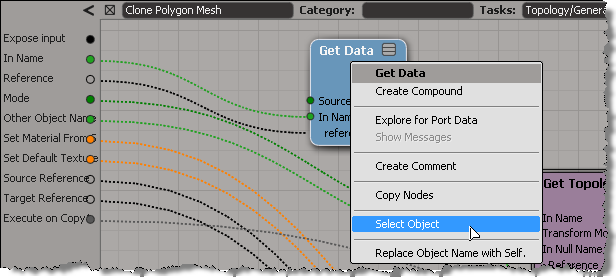
Nope. As of 2011.5, you can right-click a Get Data node to select the referenced object.

This works with the self, this_model and this_parent tokens too.

It also works on an Get Data inside a compound, if the Get Data In Name is connected to a valid reference. So, you don’t need to exit a compound just to select an input object.

hat tip: Guillaume Laforge

Tip: Using ICE to drive the OpenGL vertex color display


Courtesy of Vladimir Jankijevic, here’s ” a really handy way of showing
arbitrary colors on a polygon mesh in the viewport, without having to create
a vertex property.”

  • Create an ICE tree that sets self.Color in a per-point context.
  • In the Material node property editor, set Vertex Color Display Property
    to Color.

Screenshot by Vladimir Jankijevic:

Another screenshot of the same thing:

Crash recovery in Softimage


Successfully saved scene before system failure
When Softimage crashes, it tries to save a crash recovery file. When you start up Softimage again, it asks you if you want to recover (“Improper exit detected. Do you want to recover?”)

If the crash recovery file isn’t usable, Softimage will try to load an AutoSave file, if there are any available (see this softimage-blog article on AutoSave).

Crash recovery files (and auto save files) are located in the [hidden] system\USER folder of the active project. For example:

C:\Users\blairs\Documents\Support_Project\system\blairs

where

  • Support_Project is the PROJECT name.
  • C:\Users\blairs\Documents\Support_Project is the project location.
  • blairs is the USER name.

Crash recover creates:

  • A system\blairs\CrashSave file
  • A system\blairs\CrashBackup folder with AutoSave files (AutoSave files are scene files without the .scn)

NOTE There’s a Scene Debugging preference for turning Crash Recovery on or off.

Scene defaults for primitives and operators


Here’s a bit of trivia for ya…

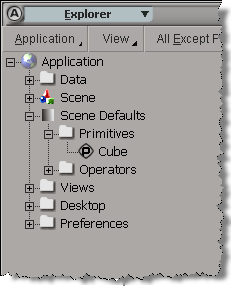
The first time you create a primitive, or create an operator, Softimage creates a property under the Scene_Defaults. This property serves as a “cache” for the default values in the PPG for a primitive or operator. Each time you create a new primitive (or operator), it will take the default PPG values from the Scene_Defaults. So for example, after you create one primitive cube, you could go to the Scene_Defaults and change the default cube size to 1.

These scene defaults are not saved with the scene, which limits their usefulness.
There may have been grander ambitions for the Scene_Defaults back in the very early days, but they were abandoned and it remains an incomplete, undocumented feature.