Animated transitions in the viewport


The ViewCube supports “animated transitions”, which are the smooth changes between different viewing angles.
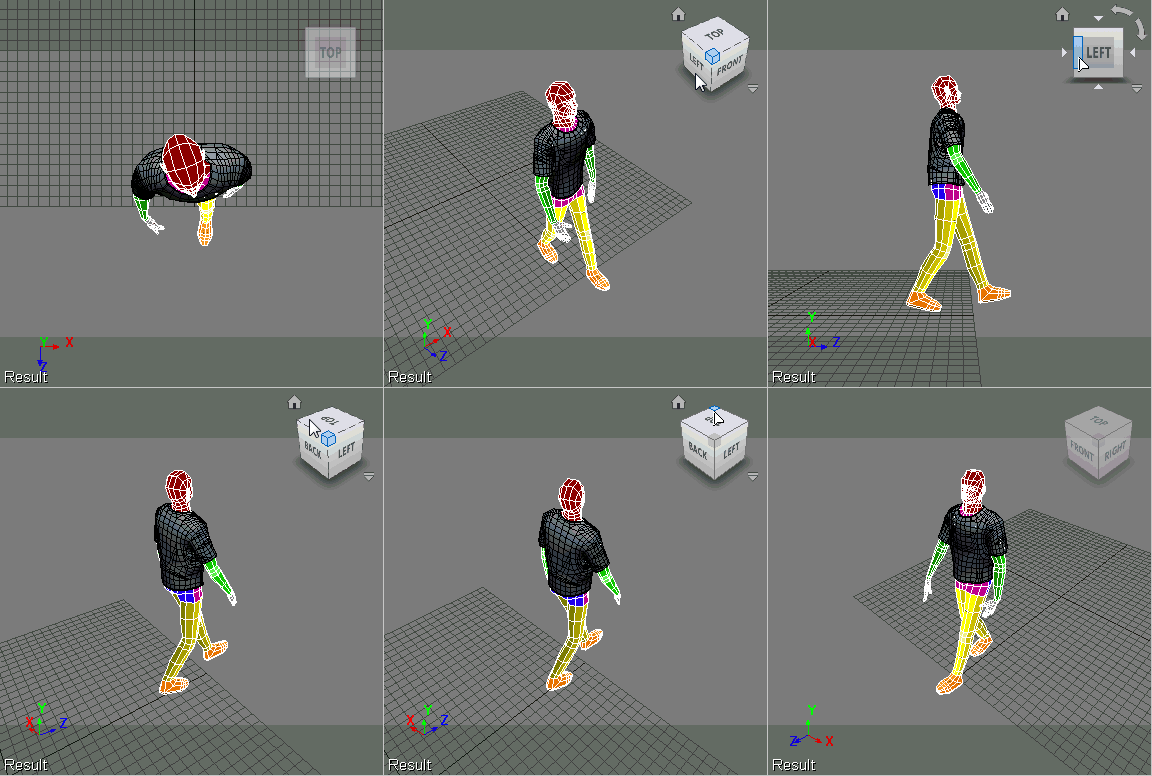
There’s a hidden (aka officially unsupported) preference that extends animated transitions to everything, like the F and A shortcut keys for framing objects.

SetValue "Preferences.camera.animate", 1

There’s also another [hidden unsupported] preference to change the camera transition speed for this hidden feature:

SetValue "Preferences.camera.animateduration", 0.25

Value is in seconds. Default is 0.5, and be careful not to set it too high by accident…

Note On Linux, there’s a viewport glitch with this preference, so I wouldn’t use it.

1 easy step to dealing with the e-mail flood – STOP ORGANIZING, START SEARCHING


I flirted briefly with some zero inbox schemes, but it’s too much work. I can’t be bothered with categorizing, labeling, and sorting my mail into folders, so I rely on Windows search.

So I’m totally down with this nytimes article, especially Step 1.

But the problem with a lot of organizational systems is that they replace one anxiety (“My stuff’s not organized”) with another (“My stuff’s not organized according to this specific system”).

Not to get too Zen here, but maybe the best system is no system. Or, put another way, the best system requires the least behavior modification.


1. STOP ORGANIZING, START SEARCHING I saw the best minds of my generation destroyed by e-mail folders and labels. Those tools held so much promise: they were rational ways to divide your e-mail into logical chunks.

But their upkeep could be their undoing. What if one message did not get placed in the right folder? What if a message was not archived properly and disappeared in a routine purge of e-mail data? Maintaining a label or folder regimen requires constant and furious vigilance. Fortunately, technology has rendered folders and labels, if not useless, severely diminished in their importance and promise.

When you are looking for something, you are often looking for one thing: A flight confirmation number, an invitation to dinner, a bank statement. Almost all e-mail programs and operating systems now have a powerful search feature that can pull up any message that contains the word, number or phrase you are looking for. Windows 7’s universal search will find any e-mail stored on your computer; so will Mac OS X’s Spotlight. All of the major Web mail services will allow you to find a message based on sender, subject or body text.

Keeping a folder may be a good idea when there’s more than one thing to look for — when you have e-mails related to a specific long-term project like family vacations or home renovations — but for the most part, you can leave your in-box messy.

Side note: Bear in mind that the search solution will not work as well for e-mail stored on your smartphone. If you are an iPhone user, for example, Apple’s mail app lets you search only what is in the “to,” “from” and “subject” fields. What is in the body of the e-mail remains unknown. If you are using a Web mail provider like Gmail, you can search for words in the body by using the Google app or navigating to the mobile site.

via 5 Easy Steps to Stanch the E-Mail Flood – NYTimes.com.

Enabling and disabling satellites


There was a thread on xsibase the other day about using a batch file to turn satellite rendering on or off by changing the .ray3hosts file.

Instead of overwriting the .ray3hosts file, another way to do would be to have two versions of the .ray3hosts file, and use MI_RAY_HOSTSFILE to switch between them.

For example, you would create a batch file on your desktop that does this:

@echo off
call "C:\Program Files\Autodesk\Softimage 2012.SAP\Application\bin\setenv.bat"

rem Override the default MI_RAY_HOSTSFILE
set MI_RAY_HOSTSFILE=%XSI_USERHOME%\.ray3hosts-disabled

start "" "C:\Program Files\Autodesk\Softimage 2012.SAP\Application\bin\XSI.exe" %*

.ray3hosts-disabled would either not exist, or have different satellites listed. Softimage will try to load the specified file, and would not fall back on the other .ray3hosts file.

Netview and Internet Explorer 9


I’ve posted before that Netview uses the version of Internet Explorer installed on your system. It turns out that, as of IE8, it’s not quite that simple. Thanks to Luc-Eric for pointing this out.

Netview is a hosted version of the Internet Explorer WebControl, and by default, the WebControl displays pages in IE7 Standards mode.

To force Netview to use IE9 mode, you can either set a registry entry

HKEY_LOCAL_MACHINE (or HKEY_CURRENT_USER)
     SOFTWARE
          Microsoft
               Internet Explorer
                    Main
                         FeatureControl
                              FEATURE_BROWSER_EMULATION
                                   xsi.exe = (DWORD) 000090000

or add this meta tag to your HTML page:

<meta http-equiv="X-UA-Compatible" content="IE=9" > 

I tested the registry entry, and after I set it, this browser detect page correctly said I was using IE9 (before I set the registry, it said I was using IE7).

Also, after setting the registry entry, Netview scored 140 at http://html5test.com/ (before I set the registry, Netview scored 40). Note that IE9 itself scores 141.

Server is unreachable. Marked as invalid for the next 300 seconds


By default, any network drive that times out is “marked as invalid” for 5 minutes (300 seconds), and you’ll see a message like this in the script log:

# INFO : 4000 - Server '\\server' is unreachable. Marked as invalid for the next 300 seconds

The timeout interval is controlled by the environment variable SI_FILEPATH_ACCESSRETRYDELAY.

Setting SI_FILEPATH_ACCESSRETRYDELAY to 0 will force Softimage to always try to access the files on the network drive. That might be useful if your network has extremely poor reliability.

From an XSI mailing list thread about this message, here’s a bit more info about how Softimage resolves paths:

XSI first checks the last path that an image has been found. This
might be offline drive X:. If a drive times out, we don’t try to
check that location for a while because otherwise it’d be really slow.
At this point, XSI resort to searching for the file from the user
path, using its search logic.
So that warning isn’t a problem – unless your “user path” was really
set to X:, in which case, go fix the path in the external file list.
The path where XSI finds the image is called the “resolved path”.

–Luc-Eric

The case of the pass that wouldn’t duplicate


In this case, CTRL+D on a pass would appear to work, but the pass wouldn’t show up in the explorer.

The problem turned out to be in the Duplicate options (the Hierarchy pref was set to None: hat tip to Chinny for spotting that). To duplicate passes, Hierarchy has to be set to Share Parent.

We confirmed this by looking at what was logged in the script history.

The problem is the 4th argument to Duplicate. That’s the Hierarchy argument, and 0 means siNoParent.
So the Duplicate command was creating a pass with no parent, so the new pass was just sort of “floating” around in the scene, until it was discarded during a save operation.

// Duplicate a pass but don't give it a parent
var x = Duplicate("Passes.Default_Pass", null, 2, 0, 1, 0, 0, 1, 0, 1, null, null, null, null, null, null, null, null, null, null, 0);

// It was created, but not placed in the pass list:
LogMessage( x.Count );
LogMessage( x(0).FullName );
InspectObj( x(0) );

Creating a batch file for rendering frame sets with xsibatch


Here’s a quick and dirty way to get a batch file that renders a scene in chunks (by “chunks” I mean something like “10 frames at a time”).

var start = 1;
var end = 76;
var step = 10;

var sCmdLine = "call \"%BATCH%\" -render \"%SCN%\"";

LogMessage( "set BATCH=" + Application.InstallationPath( siFactoryPath ) + "\\Application\\bin\\xsibatch.bat" );
LogMessage( "set SCN=" + Application.ActiveProject.ActiveScene.FileName.Value );
for ( var i=start; i<end; i=i+step )
{
	var x = i + step-1;
	x = (x > end) ? end : x;
	LogMessage( sCmdLine + " -frames " + i + "-" + x );
}

This will give you:

// INFO : set BATCH=C:\Program Files\Autodesk\Softimage 2012 SP1\Application\bin\xsibatch.bat
// INFO : set SCN=C:\Users\blairs\Documents\Support\My_Support\Scenes\PolygonReduction_CAV.scn
// INFO : call "%BATCH%" -render "%SCN%" -frames 1-10
// INFO : call "%BATCH%" -render "%SCN%" -frames 11-20
// INFO : call "%BATCH%" -render "%SCN%" -frames 21-30
// INFO : call "%BATCH%" -render "%SCN%" -frames 31-40
// INFO : call "%BATCH%" -render "%SCN%" -frames 41-50
// INFO : call "%BATCH%" -render "%SCN%" -frames 51-60
// INFO : call "%BATCH%" -render "%SCN%" -frames 61-70
// INFO : call "%BATCH%" -render "%SCN%" -frames 71-76

Now all you have to do is paste it into a text editor, do a search and replace to get rid of the “// INFO : ” (that’s the dirty part), and you’ve got a batch file that you can use to render your scene.

Python version:

from siutils import si		# Application
from siutils import siproj	# ActiveProject2
from siutils import siut	# XSIUtils
from siutils import C		# win32com.client.constants

start = 1
end = 76
step = 10

sCmdLine = 'call "%BATCH%" -render "%SCN%"'
print "set BATCH=" + siut.BuildPath( si.InstallationPath( C.siFactoryPath ), "Application", "bin", "xsibatch.bat" )
print "set SCN=" + si.ActiveProject.ActiveScene.FileName.Value
for i in range(start,end,step):
	x = i + step-1
	x = end if (x > end) else x
	print "%s %s %s %s %s" % (sCmdLine, " -frames ", i, "-",x )