Software Retirement Notice for XSI 7.01 and earlier


From http://autodesk.com/softimagemanualactivation

Software Retirement Notice
In order to maintain a high level of support for our Autodesk® Softimage® software customers moving forward, please be advised that historical versions of Softimage products (versions prior to Autodesk Softimage 7.5) will be retired effective August 1, 2011. If you intend to move a historical version of Softimage from one workstation to another, please do so prior to the retirement date to make sure that you will be able to re-activate your license.

To learn more about getting current with Softimage, please visit: http://www.autodesk.com/softimage.

Exporting FBX to Maya


My understanding is that Crosswalk FBX exports the frame rate and time slider information from Softimage, but that the FBX import plugins don’t currently support that.

  • In Maya 2012, you’ll have to change the frame rate before you import the FBX file. You can set the Maya frame rate in Window > Settings/Preferences >Preferences >Settings >Working Units-Time.
    Note that the frame rate is reset when you restart Maya or start a new scene.
  • In the Maya Import dialog box, when you click a .FBX file, look at Options > File Type Specific Options > Statistics.
    You’ll see something like this (note that File frame rate is not correctly parsed by the importer):

    System frame rate: 24 ***Warning: Frame rates do not match***
    File frame rate: 30
    
  • Note also there is Fill timeline option under File Type Specific Options > Extra Options. This will update the Maya timeline range to match the range of animation in the FBX file.

Student licenses for Softimage


The free three-year Student licenses that you can get at the Autodesk Education Community have some restrictions. First, you cannot use them for commercial purposes. If you try to load assets created with the Student version into the Commercial or Educational Institution version of Softimage, you’ll get this warning:

---------------------------
Autodesk® Softimage® 2012
---------------------------
This file was created using a Student Version of Softimage. Use of this data by an educational institution or for commercial purposes is a violation of your Softimage License Agreement.
---------------------------
OK   Cancel   
---------------------------

Also, you cannot batch render Student-version scenes:

// INFO : Student Version created file will not be loaded in batch mode
Failed to load :   Error code: 8004000C.
// ERROR : 2000 - Failed to load :   Error code: 8004000C.
//
// WARNING : 3030-FILE-OpenScene - Command was cancelled.
OpenScene(null, false, true);
Command failed, returned -2146827065
// FATAL : Could not load scene to render.

Tip – In a Softimage command prompt, you can use printver to check whether a scene was created with the Student version:

%XSI_BINDIR%\printver -l  C:\Users\Stephen\Documents\Test\Scenes\Scene_from_Student_version.scn

This Scene is a Student Version
This Scene was built with version: 9.5.184.0
History (from oldest to newest)
9.5.184.0::Regular Save
End of History

If you need to batch render assets from a Student version (for example, if students used the Student version at home to do their homework, and now want to batch render with the Educational Version), then try this:

  1. Start Softimage with a commercial or EDU Institution license.
  2. Load the scene (that was saved from the free Student version). You will get a warning:
    This file was created using a Student Version of Softimage. Use of this data by an educational institution or for commercial purposes is a violation of your Softimage License Agreement.
  3. Create a new model and move the assets under the new model.
  4. Export the model.
  5. File > New.
  6. Import the model.

Scene debugging tips


Here’s some tips on what to do when Softimage crashes while loading a scene.
http://vimeo.com/24287233

To debug scene load problems:

  1. Create a new scene.
  2. Set a viewport to Explorer or Netview, and maximize the viewport.
  3. In the Data Management preferences, enable the scene debugging preferences:
  4. Disable all geometry operators on load
  5. Detect corrupted polygon meshes and clusters upon load/freeze
  6. Skip loading of floating objects
  7. Merge the scene. If you still cannot load the scene, then the scene is probably corrupted. Check the Backups folder in your project: by default, Softimage keeps the last four versions of your scene in the Backup folder of the project.
  8. If the scene loads, you try to isolate the problem. For example, delete half the scene elements and save the scene. Then try to open this new scene. If that scene crashes, merge it into a new scene again, delete half the scene elements, and save the reduced scene. Repeat until you find the problem.

Tip An alternative to the “maximizing the explorer and merging the scene” trick is to simply mute your viewports and then open the scene. Either way, you prevent Softimage from trying to update the OpenGL viewports, which prevents Softimage from evaluating operators.

Friday Flashback #20


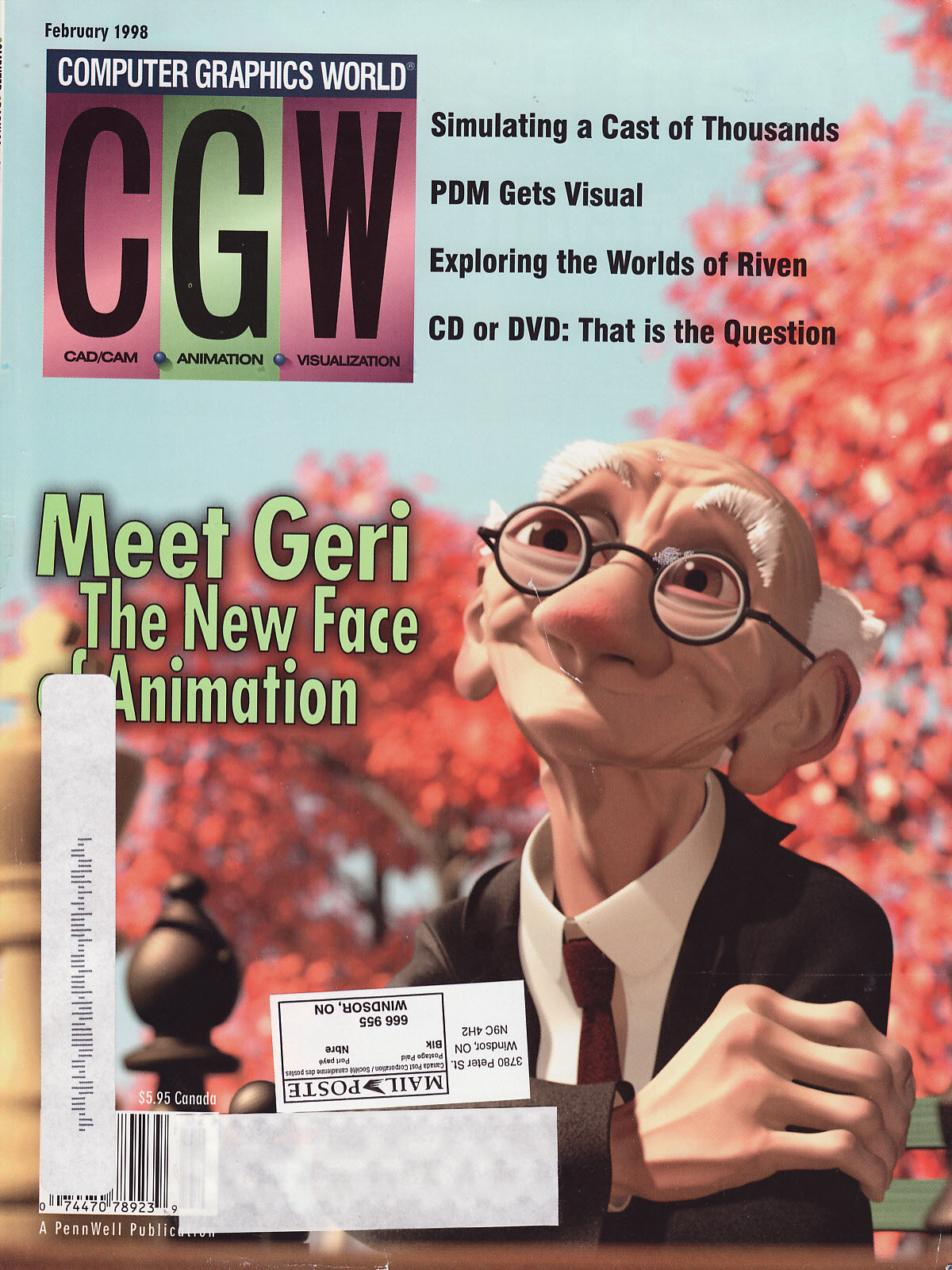
While I was cleaning out my basement, I found Computer Graphics World, Feb 1998, sitting on top of my pile of decades-old Sports Illustrateds.

On the cover, Geri from Pixar was created using a new surface modeling technology called “subdivision surfaces”.

In the Spotlight, “Maya…appears to have positioned itself as a true competitor with the likes of major players such as Softimage…”


Click to view full page from CGW

Formerly code-named Digital Studio, Softimage/DS is “a complete turnkey system [that] costs approximately $100,000”


Click to view full page from CGW

Feature article: Unraveling Riven
To achieve the “next level of graphic reality…Cyan switched from Mac-based Vision3D from Strata, which was used to develop Myst, to the SGI version of Softimage 3D.”

This huge set, which consists of more than 2 million faces and 20,000-plus models, required two hours just to load in Softimage.