2012 Autodesk Entertainment Creation Suites win Silver Edge Award


via Computer Graphics World – CGW Reveals Its Silver Edge Awards, Names First Winners.

Computer Graphics World (www.cgw.com) has unveiled its Silver Edge Awards, a designation presented to companies whose product represents the best of show at the industry’s leading conferences and exhibitions, including Game Developers Conference, NAB Show, and SIGGRAPH.

“There are a number of products—software, hardware, or possibly something that falls into a totally different category—that cause excitement and buzz at a trade show, or have the potential to greatly impact the industry. We wanted to formally recognize these cutting-edge offerings following the industry’s most important exhibitions, naming them as a CGW Silver Edge Award winner,” says chief editor Karen Moltenbrey.

Service packs and disconnected shaders


This post is about the latest 2011 service packs:

  • Softimage 2011 SP2
  • Softimage 2011 Subscription Advantage Pack SP1

and the “disconnected shader” issue.

How do I use the Service Pack to fix shader corruption?

The Service Pack repairs corrupted shaders, but it cannot re-connect shaders, so you will still have disconnected shaders. But the shader corruption will be removed.

To repair corrupted shaders:

  1. Open a scene or import a model.
    If a scene or model is already corrupted, you may see warnings in the history log when you open the asset. Softimage repairs the corruption while loading the asset.
  2. Save the asset to remove any corruption.
    If a scene/model is corrupted, you’ll see warnings in the history log when you save it.
    Softimage repairs the corruption while saving the asset.
  3. Load the asset again. The corruption is removed, and you can work with the scene as usual.
    Now you need to repair the disconnected render trees.
    Watch for any errors or warnings when you save the scene again.

IMPORTANT: If problems still occur when working with external material libraries, change them to be internal.

What causes the problem, and when can it happen?

  • The problem can occur anytime you do anything that requires Softimage to create a shaderdef (the internal master definition of a shader).
    For example, when you load a scene, import a model, import a mat lib, load a preset, and so on. Any action that creates a shader.
  • Shader corruption can happen in Softimage 2011 and Softimage 2011.5 (SAP) problem.
    It won’t happen in 2010 (or in 2012, 2011 SP2, or 2011.5 SAP SP1).
  • It doesn’t matter what version of Softimage was used to create the asset. The problem can happen when the asset is loaded into 2011 or 2011.5.

What does the Service Pack fix?

The Service Pack repairs corrupted shaders, but it does not re-connect shaders in render trees.

In some situations, corrupted shaders may not be repaired.

For example, if the shader definition is unknown (for example, an Arnold shader) or if the shaderdef was not persisted for the shader (can happen through the loading and saving of a scene with a corrupted shader—at some point you could have a scene that contains the shader but no shaderdef).

To remove these corrupted shaders, you can use shift-delete if delete is not working.

Why a SP instead of a HF?


If you’re wondering why we released a service pack instead of another hot fix, here’s an explanation from Luc-Eric, our sw dev mgr:

The thinking is that the scene corruption hot fixes are important enough that you should delete other version of 2012 Softimage 2011 and just have this one. With a service pack versioned, you can tell that you have the fixes installed, otherwise there is no telling if you are you using “the good” or “the bad” version of 2012 2011, because we’re just distributing hotfixes as zip with loose DLLs and you can’t tell if you’ve installed it correctly. Hotfixes are normally for things that are important, but not absolutely essential. I think this one is critical.

edit: fixed typo in version number

Autodesk® Softimage® 2011 Service Pack 2 available for download


via Autodesk – Autodesk Softimage Services & Support – Autodesk® Softimage® 2011 Service Pack 2.

The Softimage 2011 Subscription Advantage Pack version of this service pack is available from the Subscription Center.

These service packs are basically a repackaging of HotFix3 into a service pack.
From the README:

Coexistence
Softimage 2011 SP2 is a full build and can co-exist with Softimage 2011 and Softimage 2011 SP1.
Neither Softimage 2011 nor Softimage 2011 SP1 is required to be uninstalled first.

Licensing

Softimage 2011 SP2 uses the same license as Softimage 2011. When installing Softimage 2011 SP2:
– Enter the product key 590C1 and your Softimage 2011 serial number, and then click Next.
– If you have a Network license, click Configure to switch to the Network licensing method.

Documentation

Softimage 2011 SP2 includes full English and Japanese documentation

The full list of fixes is as follows:

FELX-1993: Scene Corruption and Failed Imports Using Models Containing Corrupted Materials
FELX-1991: Repair Shader corruption for previously persisted scenes
IMPORTANT: If problems still occur when working with external material libraries, change them to be internal.

Also included are the fixes that are found in HOTFIX 1 and 2 which addressed the following issues:

FELX-1702: Disconnected shaders when importing Referenced Model
FELX-1651: Scene Corruption due to Material
FELX-785: 3rd party renderers crash on Linux
FELX-670: Custom renderer DirtyList isn’t cleared properly
FELX-120: UVunfold fails to load when in suite license mode
FELX-88: Scene corruption – Softimage crashes when you try to load scene after saving it
UDEV00258435: Saved scene is corrupt

Calling PickObject() from C++


CValue out;
CValueArray pick_args(2);

pick_args[0] = L"Pick an object";
pick_args[1] = L"Pick an object";
Application().ExecuteCommand( L"PickObject", pick_args, out);
		
CValueArray array = (const CValueArray &)out;				
LONG button = (LONG)array[0];
X3DObject pickedObject(array[2]);

Application().LogMessage( pickedObject.GetFullName() );

The case of the capture viewport that was in the wrong place


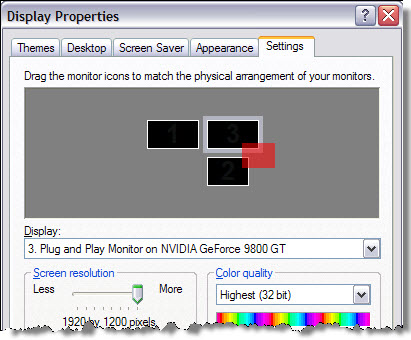
In this case, the customer reported that when he did a viewport capture, the capture area wasn’t in the right place. In this screenshot of his display properties, the red area is where the viewport capture happened:

There’s no way to set the position of the viewport capture window (it is all done automatically), so these kinds of problems are most likely a problem with the monitor setup configuration. The customer disabled his third monitor, and the capture viewport worked. So he then lined up all three monitors in a row, and then the viewport capture worked.