From Siddharth, our man in Mumbai, a good tutorial on creating a particle grow effect with ICE.
Particle grow effect tutorial
Reply

From Siddharth, our man in Mumbai, a good tutorial on creating a particle grow effect with ICE.
This issue came across my desk several times recently:
I have a point cloud of instanced geometry, and I do a Color Attribute lookup in my point cloud material.
But the colors don’t show up in the render.
When you use instance geometry, you have to use the Color Attribute node in the material applied to the instance geometry, not the material applied to the point cloud.

The context for custom menu callbacks gives you access to the current view instance, so you can use the selection view attribute to get the selected ICE nodes. See line 35 in the example.
import win32com.client
from win32com.client import constants

null = None
false = 0
true = 1

def XSILoadPlugin( in_reg ):
	in_reg.Author = "blairs"
	in_reg.Name = "My_ICETreeUserTool_Plugin"
	in_reg.Major = 1
	in_reg.Minor = 0

	in_reg.RegisterMenu(constants.siMenuICEViewToolsID,"My_ICETreeUserTool_Menu",false,false)
	#RegistrationInsertionPoint - do not remove this line

	return true

def XSIUnloadPlugin( in_reg ):
	strPluginName = in_reg.Name
	Application.LogMessage(str(strPluginName) + str(" has been unloaded."),constants.siVerbose)
	return true

def My_ICETreeUserTool_Menu_Init( in_ctxt ):
	oMenu = in_ctxt.Source
	oMenu.AddCallbackItem("My ICE Tree User Tool","OnMyICETreeUserTool")
	return true

def OnMyICETreeUserTool( in_ctxt ):
	itv = in_ctxt.GetAttribute("Target")

	LogMessage( 'View: ' + itv.Name )

	# get the selected nodes
	nodes = itv.GetAttributeValue('selection')
	LogMessage( 'Selected nodes: ' + nodes )

To get a Python module like PIL to work with the Python installed with Softimage, you will need to edit the registry. I tested this on my system, where I do not have any Python installed, except the Python installed with Softimage.
The PIL installer is looking in the registry for that Python install path, so we must edit the registry to put in the path to the Softimage Python.
You can use regedit to add the registry entry
HKEY_LOCAL_MACHINE\SOFTWARE\Python\PythonCore\2.6\InstallPath
Then set the “(Default)” value to
C:\Program Files\Autodesk\Softimage 2011 Subscription Advantage Pack\Application\python
If you do have an external Python installed, you can just temporarily change the “(Default)” value to point to the Softimage install of Python.

Hat Tip: leendert68
Also: mabxsi suggests an alternative approach that avoids editing the registry
Splash screens through the years…
I couldn’t find anything older than these:
 SOFTIMAGE|3D 4.0 |
 SOFTIMAGE|SDK 3.9.2 |
Not much changed from 1.5 to 3.5:
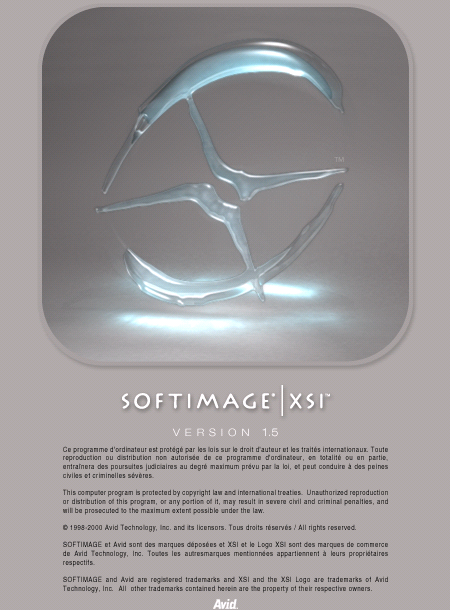 SOFTIMAGE|XSI v1.5 |
 SOFTIMAGE|XSI v2.0 |
 SOFTIMAGE|XSI v3.5 |
4.2 and 5.11 were pretty much the same too:
 SOFTIMAGE|XSI v4.2 |
 SOFTIMAGE|XSI v5.11 |
It was Mr Hoodie for 6.x
 SOFTIMAGE|XSI 6.02 |
7.0 was the last version of SOFTIMAGE|XSI.
After that, it was “Autodesk Softimage”.
 SOFTIMAGE|XSI v7.01 |
 SOFTIMAGE|XSI v7.5 |
And then the corporate branding…

Softimage 2010

Autodesk Softimage 2011

Autodesk Softimage 2012
To get Python back, you need to run runonce.bat.
If you get an error that looks like this when you load a scene or import a model
ERROR : 2000 - Unable to create object [CLSID\{XXXXXXXX-XXXX-XXXX-XXXX-XXXXXXXXXXXX}], Cleanup will be performed.
it’s often because you’re missing a shader or plugin (usually an older version that used spdl for registration).
Softimage prints this error message when it cannot create an instance of some object that was persisted in the scene file. In some cases, Softimage will know which DLL it was looking for, and you’ll get a message like this:
ERROR : 2000 - Unable to create object [CLSID\{A8BF89CA-1025-11D2-B5FD-006094EB029C}] : %SUMATRAPATH%\moaudio.dll, Cleanup will be performed.
In the moaudio.dll case, you can run runonce.bat to fix the problem. Otherwise, the error may indicate a corruption of the object.
Done with ICE
 eX-SI
eX-SI 