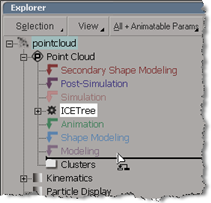
 While I was writing the KB article TS14853090, I noticed that if I held down Shift+Alt, I could drag an operator to an empty Modeling stack.
Moving an operator to an empty Modeling stack
2

While I was writing the KB article TS14853090, I noticed that if I held down Shift+Alt, I could drag an operator to an empty Modeling stack.
On Windows, Python 2.6.4 is automatically installed with Softimage 2011. You don’t need to install Python or pywin32 yourself, unless you need to use a different version of Python.
If you need to use a different version of Python, then you can turn off the Use Python installed with Softimage preference.

This is what you’ll see in SoftimageLicense.log if Softimage cannot connect to the license server.
For example, if ADSKFLEX_LICENSE_FILE is pointing to the wrong server, you’ll see this sequence of errors in the log:
6016	2010/03/15	12:40:22	Reason=Fatal error
6016	2010/03/15	12:40:22	ComputerName=MTL-EXAMPLE
6016	2010/03/15	12:40:22	OS=6.0.6001.Service Pack 1
6016	2010/03/15	12:40:22	File=AdlmIntNWFBLicense.cpp,Line=684
6016	2010/03/15	12:40:22	VendorID=3 [FLEXLM-NW]
6016	2010/03/15	12:40:22	VendorError=-15 [Cannot connect to server]
6016	2010/03/15	12:40:22	FLEXLM-NW=v11.6.1.3 build 72149 x64_n6
6016	2010/03/15	12:40:22	Reason=Fatal error
6016	2010/03/15	12:40:22	ComputerName=MTL-EXAMPLE
6016	2010/03/15	12:40:22	OS=6.0.6001.Service Pack 1
6016	2010/03/15	12:40:22	File=AdlmIntNWFBLicense.cpp,Line=667
6016	2010/03/15	12:40:22	AdlmIntError=20 [License check out failed]
6016	2010/03/15	12:40:41	Reason=Fatal error
6016	2010/03/15	12:40:41	ComputerName=MTL-EXAMPLE
6016	2010/03/15	12:40:41	OS=6.0.6001.Service Pack 1
6016	2010/03/15	12:40:41	File=AdlmIntNWFBLicense.cpp,Line=684
6016	2010/03/15	12:40:41	VendorID=3 [FLEXLM-NW]
6016	2010/03/15	12:40:41	VendorError=-97 [The desired vendor daemon is down]
6016	2010/03/15	12:40:41	FLEXLM-NW=v11.6.1.3 build 72149 x64_n6
6016	2010/03/15	12:40:41	Reason=Fatal error
6016	2010/03/15	12:40:41	ComputerName=MTL-EXAMPLE
6016	2010/03/15	12:40:41	OS=6.0.6001.Service Pack 1
6016	2010/03/15	12:40:41	File=AdlmIntNWFBLicense.cpp,Line=667
6016	2010/03/15	12:40:41	AdlmIntError=20 [License check out failed]
 The SoftimageLicense.log file is located in the %TEMP% folder. To find or open the log file, you can simply type %TEMP% in the Windows Search box, in File > Open dialogs, or in the Windows Explorer address bar. The environment variable is automatically expanded to its full value (which is something like “C:\Users\blairs\AppData\Local\Temp”) when you press ENTER.
For example, click the Windows button, type %TEMP%\SoftimageLicense.log in the search box, and then press Enter (or click SoftimageLicense.log in the search results).

This weekend, the Sub Center and related sites such as registeronce will be down for a maintenance upgrade.
The scheduled downtime is from 12 Friday 4PM PDT to 14 Sunday 5PM PDT.
In EST, that’s from 7PM Friday till 8PM Sunday.
The new Create Service Request form will include several changes. First, when you fill in the form, you’ll be asked to pick your Issue from a drop-down list. For example, the Issue might be “Software won’t Start, Crashes or Hangs” or “Need technical assistance with Licensing” or “Suggesting a Change in the product”.
Next, and more interesting (at least to me), is that when you submit your SR (service request), the system will automatically search the autodesk.com KB for the answer to your question. Whatever you type in the Summary box will be used as the search text.

As many Softimage customers now know, when you install both Softimage and the license server on the same Vista or Windows 7 computer, you cannot use the computer name to specify the location of the license server. In previous posts, I said that in this case, you had to either use the IP address, or install the IPv6 update. But it turns our there is a simpler way: use the IP address 127.0.01. There’s no need to install the IPv6 update. |
To update your setenv.bat to use 127.0.0.1:
Start the User Tool (click Start > All Programs > Autodesk > Autodesk Softimage 2010_SP1 x64 > UserTools).
In the list of Configuration Files, click Setenv.bat (Environment Script).
Click Edit File.
Scroll down and edit the line that sets _ADSK_LicServers:
rem License servers specified from the setup. Format: [port1]@host1[;[port2]@host2]...
set _ADSK_LicServers=@127.0.0.1
Click Save and Close.
On the AREA forums, a user reported that when he tagged a rig and then applied a .motor Motion file, the rig ended up thousands of units away from the global origin. If you looked only in the viewport, it would be like the rig disappeared.
It turned out to be the Windows Regional Settings: another case where having the comma as a decimal separator and the period as the digit grouping symbol caused problems with numeric calculations.
So, a customer called to report another no interactive network license available problem. We quickly narrowed it down to a problem with the license server: it wouldn’t start. Start Server said “Server started successfully”, but Perform Status Enquiry said FLEXnet Licensing error:-15,570. Everything about the license file checked out ok: it had the right MAC address, it had the right computer name, it had the right license features. But still the server wouldn’t start.
I was already WebEx’d into the customer’s computer, so I downloaded Process Monitor and used it to track what LMTOOLS was doing when I clicked Start Server.
When you click Start Server, lmtools.exe starts the service lmgrd.exe, so I filtered for all Processes that started with “lm”.
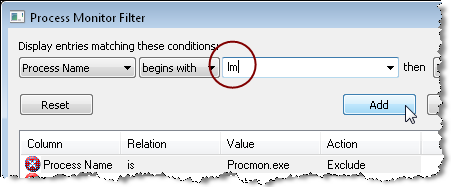
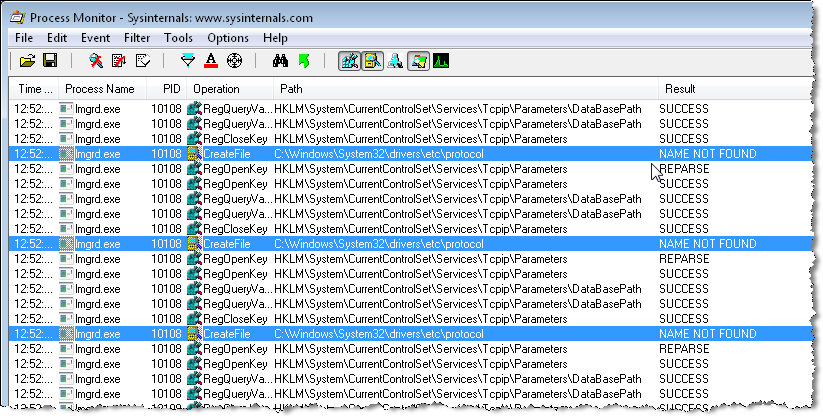
Scrolling down through the log, I soon saw a possible problem: repeated NAME NOT FOUND entries for the same file:
To check whether LMTOOLS eventually did find the protocol file, I right-clicked “C:\windows\system32\drivers\etc\protocol” and clicked Include, to include only the log entries for the protocol file.
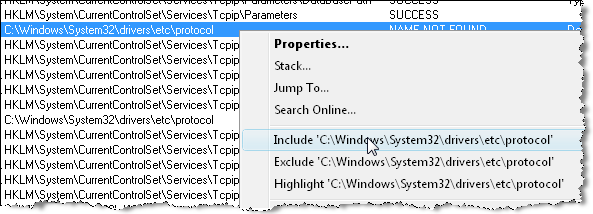
And sure enough, the protocol file was never found. So I copied over the protocol file from my system, and then I was able to start the license server.
Without Process Monitor, the only clue I had was this one line in the LMTOOLS debug log file:
(lmgrd) Failed to open any default TCP port.

|
How do you get rid of a reference material library when you don’t need it anymore in a scene? If you try to delete it, you just get this message “ERROR : Invalid procedure call or argument: ‘DeleteObj’ “. To delete a reference material library, you have to unlock it first: – Open the explorer. |
Notes
Three easy steps:
You can get the 64-bit versions (Linux and Windows) of Python for Softimage here.
The most recent install of pywin32 determines which version of Python is available in Softimage. If your version of pywin32 doesn’t match up to an installed version of Python, then Python won’t show up in Softimage.
 eX-SI
eX-SI 