To get this script to work in 2011 and later, you need to do this to find the Blinn shaders:
// Get a collection of all Blinn nodes
var sProgID = "Softimage.material-blinn.1.0"
var oShaderDef = Application.GetShaderDef( sProgID ) ;

var oBlinnCollection =  oShaderDef.ShaderInstances ;
if (debug) LogMessage( "Found " + oBlinnCollection.Count + " Blinn shaders" );
The rest of the script can stay the same.
Note: I split the script into two parts below, for the purposes of this blog post. Just combine them to get the full script.
Here’s a script that shows how to replace every Blinn shader in a scene with a Phong shader.
There’s other ways to do it, but I used the connection stack.
var debug = 0;
// Class ID of the Blinn shader in XSI
var sClassID = "{8FAC63AC-E392-11D1-804C-00A0C906835D}";
SetValue("preferences.scripting.cmdlog", false, null);
// Get a collection of all Blinn nodes
var oBlinnCollection = FindObjects( null, sClassID );
if (debug) LogMessage( "Found " + oBlinnCollection.Count + " Blinn shaders" );
// Loop over the Blinn collection and replace all Blinn nodes with Phongs
var s = new Date();
oEnum = new Enumerator( oBlinnCollection ) ;
for (;!oEnum.atEnd();oEnum.moveNext() )
{
var oBlinn = oEnum.item() ;
// try catch will skip over any TransientObjectContainer.Blinn shaders we find
try
{
var oMaterial = oBlinn.Owners(0);
}
catch(e)
{
LogMessage( "Skipping " + oBlinn );
continue;
}
LogMessage( "Replacing " + oBlinn );
blinn2phong( oMaterial, oBlinn );
}
var e = new Date();
LogMessage( "Finished replacing Blinn shaders. Elapsed time: " + (e-s)/1000 + "s" );
function blinn2phong( oMaterial, oBlinn )
{
// Create a new Phong node
var oPhong = CreateShaderFromPreset("$XSI_DSPRESETS\\Shaders\\Material\\Phong.Preset", oMaterial, null);
// Get the node connections from the ConnectionStack
// And then insert the Phong node
var oDR = XSIUtils.DataRepository ;
var strOpInfo = oDR.GetConnectionStackInfo( oBlinn );
var oTopNode = ParseXML( strOpInfo ) ;
var oConnections = oTopNode.childNodes ;
if ( oConnections.length == 0 )
{
LogMessage( "Cannot replace the Blinn node " + oBlinn + " .It has no connections." );
}
else
{
for ( var i = 0 ; i < oConnections.length ; i++ )
{
var oConnection = oConnections(i) ;
strtype = SafeGetNodeValue( oConnection, "type", "Unknown" ) ;
strobj = SafeGetNodeValue( oConnection, "object", "Not Connected" ) ;
localparam = SafeGetNodeValue( oConnection, "localparameter", " " ) ;
destparam = SafeGetNodeValue( oConnection, "remoteparameter", " " ) ;
if ( strtype == "in" )
{
var oParam = oPhong.Parameters( localparam );
if ( oParam == null )
{
LogMessage( "Cannot connect " + strobj + " to Phong." + localparam + ". That parameter does not exist.", siWarning );
}
else
{
//SIConnectShaderToCnxPoint("Sources.Materials.Proteus_Body_MatLib_Proteus.MAT_Brass11.Image5", oPhong + ".ambient", false);
SIConnectShaderToCnxPoint( strobj, oParam );
if( debug ) LogMessage( "IN: " + strobj + ", " + oParam );
}
}
if ( strtype == "out" )
{
var oTarget = Dictionary.GetObject( strobj );
var oParam = oTarget.Parameters( destparam );
//SIConnectShaderToCnxPoint("Sources.Materials.Proteus_Body_MatLib_Proteus.MAT_Brass11.Phong1", "Sources.Materials.Proteus_Body_MatLib_Proteus.MAT_Brass11.Mix_2colors.base_color", false);
SIConnectShaderToCnxPoint( oPhong, oParam );
if( debug ) LogMessage( "OUT: " + oPhong + ", " + oParam );
}
}
}
}
The bling2phong() function is based on the code that builds this HTML page in the SDK Explorer:
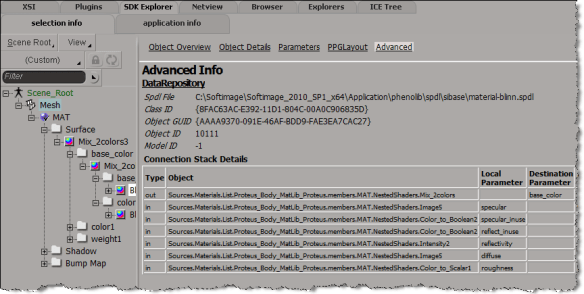
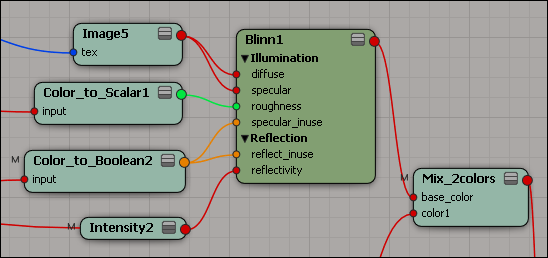
Notice how the Connection Stack Details give you everything you need to replace a Blinn node with some other node in the render tree:

See below the cut for the code for the helper functions ParseXML() and SafeGetNodeValue().
Continue reading →

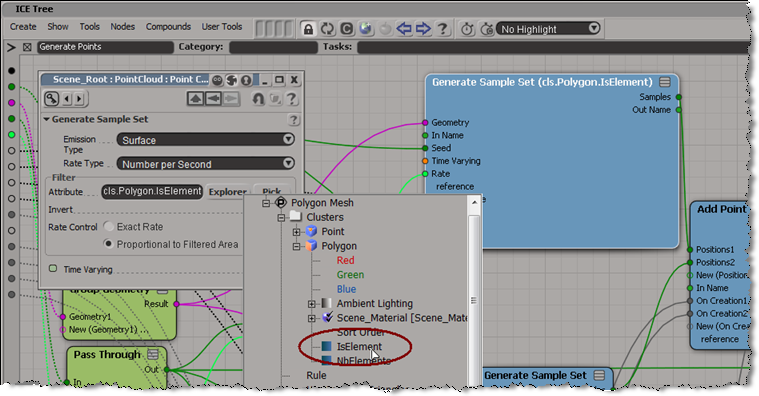
 You can display sprites (an image sequence) on ICE particles.





 eX-SI
eX-SI 