Finding the SoftimageLicense.log file


The SoftimageLicense.log file is located in the %TEMP% folder. To find or open the log file, you can simply type %TEMP% in the Windows Search box, in File > Open dialogs, or in the Windows Explorer address bar. The environment variable is automatically expanded to its full value (which is something like “C:\Users\blairs\AppData\Local\Temp”) when you press ENTER.

For example, click the Windows button, type %TEMP%\SoftimageLicense.log in the search box, and then press Enter (or click SoftimageLicense.log in the search results).

Subscription Center down for maintenance this weekend


This weekend, the Sub Center and related sites such as registeronce will be down for a maintenance upgrade.
The scheduled downtime is from 12 Friday 4PM PDT to 14 Sunday 5PM PDT.
In EST, that’s from 7PM Friday till 8PM Sunday.

The new Create Service Request form will include several changes. First, when you fill in the form, you’ll be asked to pick your Issue from a drop-down list. For example, the Issue might be “Software won’t Start, Crashes or Hangs” or “Need technical assistance with Licensing” or “Suggesting a Change in the product”.

Next, and more interesting (at least to me), is that when you submit your SR (service request), the system will automatically search the autodesk.com KB for the answer to your question. Whatever you type in the Summary box will be used as the search text.

Installing Softimage on the same Vista/Windows 7 computer as the license server


As many Softimage customers now know, when you install both Softimage and the license server on the same Vista or Windows 7 computer, you cannot use the computer name to specify the location of the license server.

In previous posts, I said that in this case, you had to either use the IP address, or install the IPv6 update.

But it turns our there is a simpler way: use the IP address 127.0.01. There’s no need to install the IPv6 update.

To update your setenv.bat to use 127.0.0.1:

  1. Start the User Tool (click Start > All Programs > Autodesk > Autodesk Softimage 2010_SP1 x64 > UserTools).

  2. In the list of Configuration Files, click Setenv.bat (Environment Script).

  3. Click Edit File.

  4. Scroll down and edit the line that sets _ADSK_LicServers:

    rem License servers specified from the setup. Format: [port1]@host1[;[port2]@host2]...
    set _ADSK_LicServers=@127.0.0.1
    
  5. Click Save and Close.

The case of the disappearing rig


On the AREA forums, a user reported that when he tagged a rig and then applied a .motor Motion file, the rig ended up thousands of units away from the global origin. If you looked only in the viewport, it would be like the rig disappeared.

It turned out to be the Windows Regional Settings: another case where having the comma as a decimal separator and the period as the digit grouping symbol caused problems with numeric calculations.

The case of the missing protocol file


So, a customer called to report another no interactive network license available problem. We quickly narrowed it down to a problem with the license server: it wouldn’t start. Start Server said “Server started successfully”, but Perform Status Enquiry said FLEXnet Licensing error:-15,570. Everything about the license file checked out ok: it had the right MAC address, it had the right computer name, it had the right license features. But still the server wouldn’t start.

I was already WebEx’d into the customer’s computer, so I downloaded Process Monitor and used it to track what LMTOOLS was doing when I clicked Start Server.

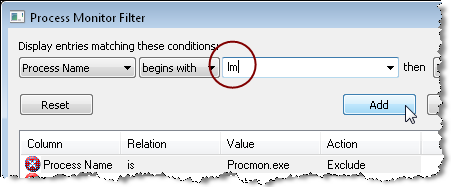
When you click Start Server, lmtools.exe starts the service lmgrd.exe, so I filtered for all Processes that started with “lm”.

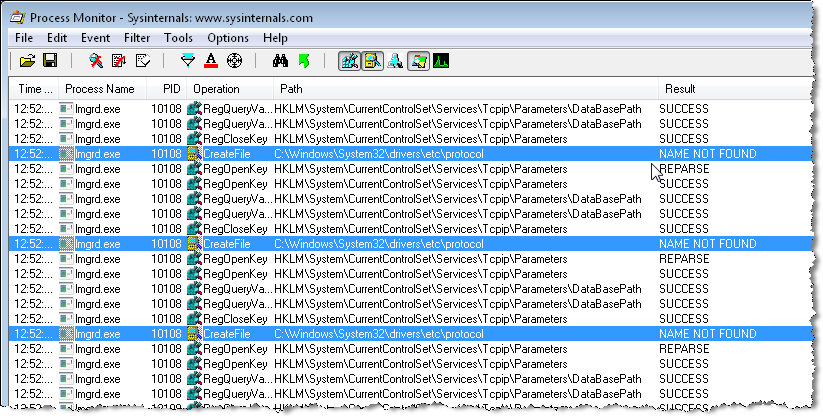
Scrolling down through the log, I soon saw a possible problem: repeated NAME NOT FOUND entries for the same file:
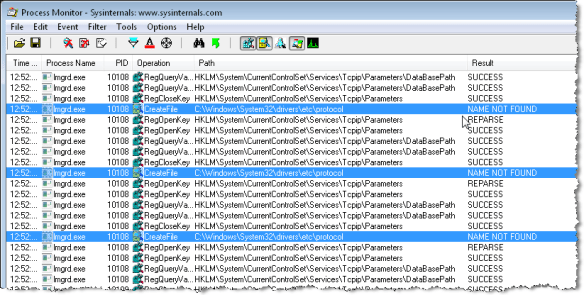
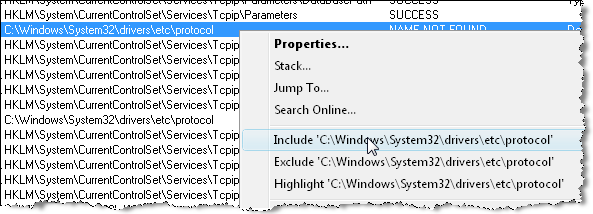
To check whether LMTOOLS eventually did find the protocol file, I right-clicked “C:\windows\system32\drivers\etc\protocol” and clicked Include, to include only the log entries for the protocol file.

And sure enough, the protocol file was never found. So I copied over the protocol file from my system, and then I was able to start the license server.

Without Process Monitor, the only clue I had was this one line in the LMTOOLS debug log file:

(lmgrd) Failed to open any default TCP port.

Deleting reference material libraries


How do you get rid of a reference material library when you don’t need it anymore in a scene? If you try to delete it, you just get this message “ERROR : Invalid procedure call or argument: ‘DeleteObj’ “.

To delete a reference material library, you have to unlock it first:

– Open the explorer.
– Change the scope to Materials.
– Right-click the reference material library, click Locks, and then click Unlock all levels.
– Now you can delete the reference material library.

Getting Python to show up in Softimage


Notes

  • Softimage does not support Python 3, so install Python 2.6.x or earlier.
  • We recommend using pywin32 212 (there’s a problem with 214 can cause a crash on exit).

Three easy steps:

  1. Install Python.
  2. Install the corresponding version of pywin32.
    For example, if you installed Python 2.5 on 32-bit Windows, then install pywin32-212.win32-py2.5.exe.
  3. Check that the Python path is included in your PATH system environment variable.
    If your PATH doesn’t include the Python install folder, then Python won’t show up in Softimage.

You can get the 64-bit versions (Linux and Windows) of Python for Softimage here.

The most recent install of pywin32 determines which version of Python is available in Softimage. If your version of pywin32 doesn’t match up to an installed version of Python, then Python won’t show up in Softimage.

Sprite sequences on ICE particles


You can display sprites (an image sequence) on ICE particles.

Just set up a render tree on the point cloud that uses an image sequence, and then use an ICE attribute to drive the Time Source of the image sequence.

First, here’s a basic render tree for the point cloud:

In the ICE Tree for the point cloud, you can set up an attribute that will be used as the Time Source for the image sequence. For example, suppose you wanted to randomly display a sprite from a sequence. In the ICE Tree, you could put a random number in an attribute for each particle.

Then you could use that attribute to drive the Time Source of the image sequence: