Subscribe to the Softimage KB


Here’s the RSS feed for the Softimage Knowledge Base on autodesk.com:

http://usa.autodesk.com/adsk/servlet/syn/rss?siteID=123112&id=2334144&linkID=12544120

You can subscribe to the KBs for other products like Maya, Mudbox, and MotionBuilder. Go here to get the RSS feeds for those and other products.

I subscribe to the RSS feed for AutoCAD, because they always have the latest info on licensing.

Getting Softimage 2010


For the 2010 release, you will get a 2010 serial number.

When Softimage 2010 is released, the download version will probably be available a couple of days before the physical shipments go out. So customers on Subscription can go to the Subscription Center to download 2010 and get their 2010 serial numbers.

When the physical shipments go out, you’ll get an e-mail notification that includes your 2010 serial number. The 2010 box will also include your serial number.

Getting your serial numbers from the Subscription Center


If you are on Subscription, you’ll be able to get your 2010 serial numbers from the Subscription Center.

  1. Log in to the Subscription Center.
  2. Click Contract Administration.
    Subscription Center main page

    Subscription Center main page

  3. On the Contract Administration page, click Coverage Report.
    Coverate Report

    Coverage Report

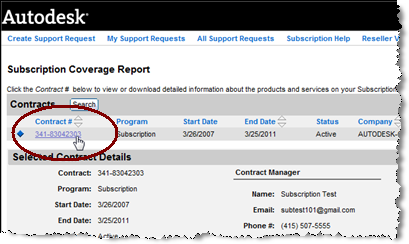
  4. On the Suscription Coverage Report page, click a Contract #.
    Subscription coverage report

    Subscription coverage report

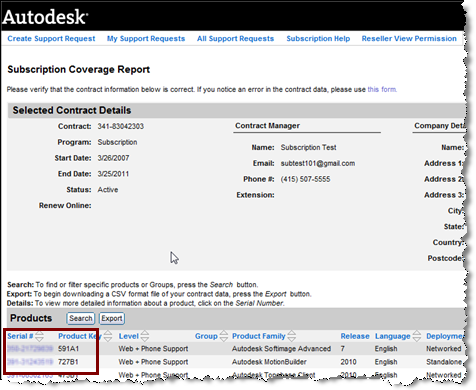
  5. Under the Products section of the Subscription Coverage Report, you’ll find your serial numbers.
    Serial numbers for a selected contract

    Serial numbers for a selected contract

Turning on mental ray diagnostics from the command line


In Softimage, you can enable the diagnostics in the Render Manager, by going to the Diagnostics tab and selecting the Information and Progress check boxes. If you’re working on the command-line with xsibatch, you may not want to start up Softimage just to select those check boxes. So, here’s how to do from the command line: just add -script and -verbose “on” to the xsibatch command line.


xsibatch -render "\\server\project\Scenes\Example.scn" -frames 1 -script verbosity.js -verbose "on"

where verbosity.js is a script that looks like this:

// Information and Progress
Dictionary.GetObject("Passes.mentalray").Parameters("VerbosityLevel").Value = 60;

If you set the VerbosityLevel to 252, you will get the Basic and Detailed Debug log messages too.

Toxik 2009 standalone licenses on 64-bit Windows


Now that I’m part of Autodesk, all kinds of calls come through to my phone. For example, the other day I took a Toxik 2009 support call. The customer couldn’t get his license to work and I was the sixth person he had spoken to, so I helped him out.

The problem was that he was installing Toxik 2009 on 64-bit Windows:

  • Toxik 2009 standalone licensing does not work on 64-bit Windows. You need to contact your reseller or ABC and get a network license.
  • The LMTOOLS that ships with Toxik does not work on 64-bit Windows. Download the latest version of AdlM and use it instead.

Softimage 2010 Pricing and Availability


See the press release for Softimage 2010 pricing.

Note that the specified prices (SRP and upgrade) for Softimage 2010 Windows are for a standalone licenses. Network licenses are more expensive than standalone licenses.

Also, Linux licenses are always network licenses. That is why the press release shows a price difference between Softimage 2010 Windows and Linux: the Windows price is for a standalone license, and the Linux price is for a network license.

Softimage Advanced licenses are always network licenses (since Advanced includes Batch licenses, you need floating licenses to be able to use your Batch licenses on render nodes).

Creating an alpha channel with a black-and-white image


The other day I happened upon this old tutorial (circa XSI 3.01) from Rob Wuster about “creating an alpha channel with an extra B/W image”. Here’s a quick update to make it work with a more recent version of XSI (eg Softimage 7.5).

You need to plug the Mix 2 Colors into an image layer. To create the image layer, I added the texture by clicking Modify > Texture > Add > Image.

Using Mix 2 Colors to fake an alpha channel

Using Mix 2 Colors to fake an alpha channel

This will give you the same effect shown in the tutorial:

Black-and-white image stamped on a texture

Black-and-white image stamped on a texture

Changing the default Project folders


The default directory structure for new Projects is specified by a set of values in the registry.

Look under the key HKEY_LOCAL_MACHINE\SOFTWARE\Softimage\SOFTIMAGE Application\C:|Softimage|Softimage_7.5|Application|bin\Default Directory Structure.

You can add new directories by adding a new string value to the Default Directory Structure registry key.

A plug-in that updates the default directory structure was posted to the XSI Mailing list .

Also posted in the Autodesk KB.

See Also: