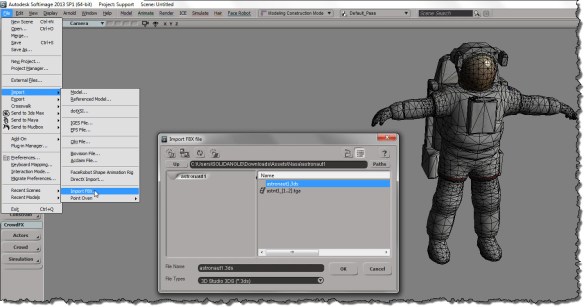
SOFTIMAGE|3D version 3.8 CD cover from 1998 (picture courtesy of Alexei Godek; polaroidization by me)
Assigning a per-object random value with ICE
Suppose you want to use an ICE attribute to drive some behavior in the render tree. For example, you may want to introduce some randomization to a procedural texture. Here’s one way to go about it.
First, create an ICE attribute on each object. You’ll use this object as the seed for the Random Value node (you need a different seed for each object, otherwise you’ll get the same “random” number for each object).
si = Application
i = 0
for o in si.Selection:
a = o.ActivePrimitive.Geometry.AddICEAttribute("_seed1", 2, 1, 1 )
a.DataArray = [ (i) ]
i = i + 1
Now apply a simple ICE compound to each object.
All the compound does is feed the seed into a Random Value node, and store the random value in another ICE attribute.
Wednesday word cloud: Top Reasons to Buy Autodesk Entertainment Creation Suites
From the top reasons to buy brochure (PDF).

Hmm, Softimage is mentioned just about as much as the other products.
If I remove product names and some other words, to leave only the other reasons, I get this:

Deleting particles by ID
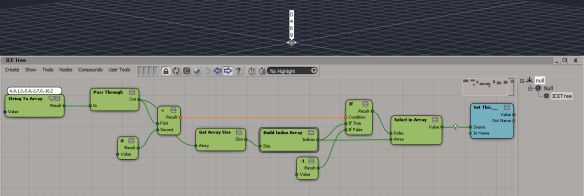
Let’s say you wanted to delete certain points for some reason; maybe they were misbehaving or something. You could just stick the IDs into an array and feed that into Find in Array, like so:
This is an answer to a question on si-community, which timed out on me when I clicked Submit. So now it’s my post for today. After struggling with Maya nParticles for an hour, I can’t think hard anymore.
Using an ICE attribute to drive a procedural texture
Here’s a simple example of using an ICE attribute to drive a procedural texture. In this case, I’m using a random integer to drive the number of repeats of a checkerboard:
To set it up, I ran this script to programmatically add an ICE attribute. Unfortunately, I found I had to add an ICE tree to get the attribute to show up in the render tree.
import random
si = Application
for o in si.Selection:
# Long, Single, Singleton
a = o.ActivePrimitive.Geometry.AddICEAttribute("_random", 2, 1, 1 )
a.DataArray = [ (random.randint(1,8))]
si.ApplyOp("ICETree", o, "siNode", "", "", 0)
Then in the render tree I used Integer Attribute node to get the attribute value. This same material is applied to every cube in my example.

And if you wanted to update the ICE attribute later, eg increase the range of random values, you could do something like this:
import random
si = Application
for o in si.Selection:
a = o.ActivePrimitive.Geometry.ICEAttributes("_random")
a.DataArray = [ (random.randint(1,12))]
Screenshots of the week
sparta-like particle editing in softimage
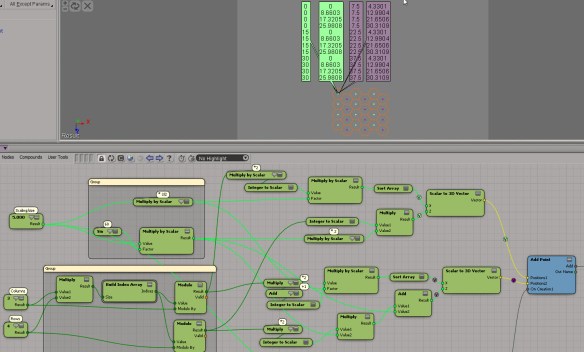
Point position from group
by Vincent Ullmann

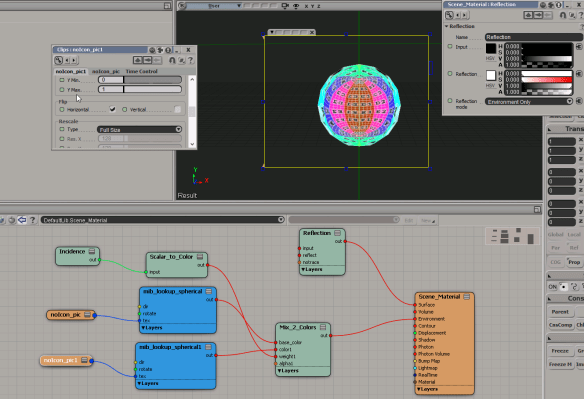
lambert shading
by Mr.Core

Creating strands between two different objects
by Ola Madsen

Create hexa tesselation
by msktkhs
“Be further divided into two right-angled triangle is divided into six triangles hexagons, X direction will take time to get to that direction cos60 * 4, Y is I will be next to the point sin60 * 2 too (laughs)”

Nodes for whirlpool spiral
by msktkhs

Saturday Snippet: russian roulette
I commented out the things that would actually “shoot a bullet”.
CrashXSI() is an actual Softimage command, but it doesn’t do anything in a release build.
import random
# bullets
def crashxsi():
Application.LogMessage( "Bang!" )
Application.CrashXSI()
def blank():
Application.LogMessage( "Try again" )
def losework():
Application.LogMessage( 'NewScene( "", False )' )
#Application.NewScene( "", False )
def quitxsi():
Application.LogMessage( "Application.Quit()" )
#Application.Quit()
#load chambers
chambers = {1: blank,
2: crashxsi,
3: quitxsi,
4: blank,
5: blank,
6: losework
}
#spin and shoot
chambers[ random.randint(1,6) ]()
Friday Flashback #104
Yay! Two years worth of friday flashbacks!!
Friday Flashback #1 was posted on 14 Jan 2011.
Today’s flashback is courtesy of Chris Marshall. Thanks Chris!
It’s a slideshow so wait a sec…
Getting PointPositions from a group
For this post, I took an explanation from an ICE developer, and added some illustrations and bit of my own explanatory text…
When you reference Group.PointPosition, ICE resolves the graph assuming the Get Data node outputs an array of 3DVectors in the context of the first primitive in the group. So, in this example, TRex is the first member of the group, so the context of Group.PointPosition is Array of 3D Vector per point of Trex.Trex:
In this case, the Array of 3D Vector is an array of four elements (the number of meshes in the group).
The indexset used (per point of Trex.Trex in this case) is reduced to its smallest size (the number of 0D from the geometry in the group with the least amount of points). The cube has 8 points, so you end up with 8 points for each group member. Since there are four groups members, you get 32 total points.

Here’s an alternate way to illustrate that. The Trex has 1814 points, but because of how Group.PointPosition is resolved by ICE, you get a filtered size of 8.

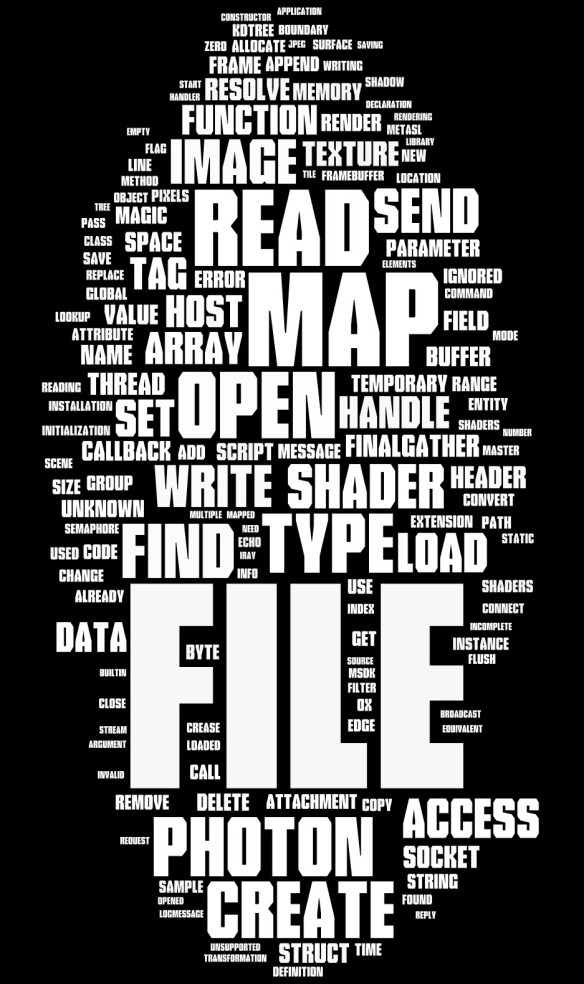
Wednesday word cloud: Softimage scripting commands
This word cloud shows the scripting names of the commands in Application.Commands (Softimage 2013 SP1)

You can see that some scripting names are repeated quite a few times:
- ApplyTopoOp (66)
- ApplyOp (47)
- ApplyGenOp (44)
- ToggleValue (43)
- ApplyShader (37)
Some scripting commands, like Insert Curve Knot, are instances of a generic command like ApplyTopoOp:

but with hard-coded arguments:

See also Why ApplyOp doesn’t pop up a PPG.
Here’s a list of the TopoOp commands:
for c in Application.Commands: if c.ScriptingName == "ApplyTopoOp": print "%s : %s" % (c.ScriptingName, c.Name ) # ApplyTopoOp : Apply Topology Operator # ApplyTopoOp : Insert Curve Knot # ApplyTopoOp : Subdivide Edge # ApplyTopoOp : Raise Nurbs Curve Degree # ApplyTopoOp : Extrude Comp. Axis # ApplyTopoOp : Filter Polygons # ApplyTopoOp : Collapse # ApplyTopoOp : Inset Polygons # ApplyTopoOp : Subdivide Polygon # ApplyTopoOp : Slice Polygons # ApplyTopoOp : Offset Polygons # ApplyTopoOp : Dice Object # ApplyTopoOp : Surface Snip # ApplyTopoOp : Invert Selected Polygons # ApplyTopoOp : Delete Trim # ApplyTopoOp : Duplicate Polygons Along Curve # ApplyTopoOp : Curve Remove Knot # ApplyTopoOp : Extrude Component Along Normal # ApplyTopoOp : Dissolve Component # ApplyTopoOp : Boolean Difference # ApplyTopoOp : Boolean Union # ApplyTopoOp : Boolean Intersection # ApplyTopoOp : Local Subdivision # ApplyTopoOp : Insert Surface Knot # ApplyTopoOp : Remove Surface Knot # ApplyTopoOp : Polygon Reduction # ApplyTopoOp : Bevel # ApplyTopoOp : Delete Component # ApplyTopoOp : Quadrangulate # ApplyTopoOp : Dissolve & Clean Adjacent Vertices # ApplyTopoOp : Symmetrize Polygons # ApplyTopoOp : Disconnect Component # ApplyTopoOp : Set Curve Knot Multiplicity # ApplyTopoOp : Bridge Edges # ApplyTopoOp : Apply DelMeshPoint # ApplyTopoOp : Invert All Normals # ApplyTopoOp : Curve Inverse # ApplyTopoOp : Surface Shift # ApplyTopoOp : Curve Shift # ApplyTopoOp : Surface Curve Shift # ApplyTopoOp : Surface Swap # ApplyTopoOp : Filter Edges # ApplyTopoOp : Curve Reparameterize # ApplyTopoOp : Surface Reparameterize # ApplyTopoOp : Add Edge # ApplyTopoOp : Add Polygon # ApplyTopoOp : Nurbs Curve Delete Point # ApplyTopoOp : Nurbs Surface Delete Point # ApplyTopoOp : Mesh Surface Delete Point # ApplyTopoOp : Surface Open/Close # ApplyTopoOp : Curve Open/Close # ApplyTopoOp : Delete Edge # ApplyTopoOp : Surface Stitch # ApplyTopoOp : Surface Extend to Curve # ApplyTopoOp : Surface Clean # ApplyTopoOp : Curve Stitch # ApplyTopoOp : Curve Clean # ApplyTopoOp : Surface Curve Inverse # ApplyTopoOp : Extrude Component Along Curve # ApplyTopoOp : Weld Edges # ApplyTopoOp : Filter Points # ApplyTopoOp : Weld Points to Target # ApplyTopoOp : Delete Particle # ApplyTopoOp : Trim by Projection # ApplyTopoOp : Dice Polygons # ApplyTopoOp : Bridge Polygon