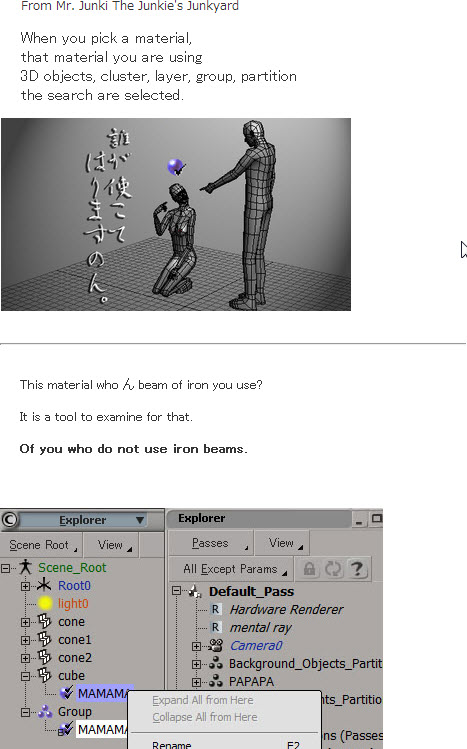
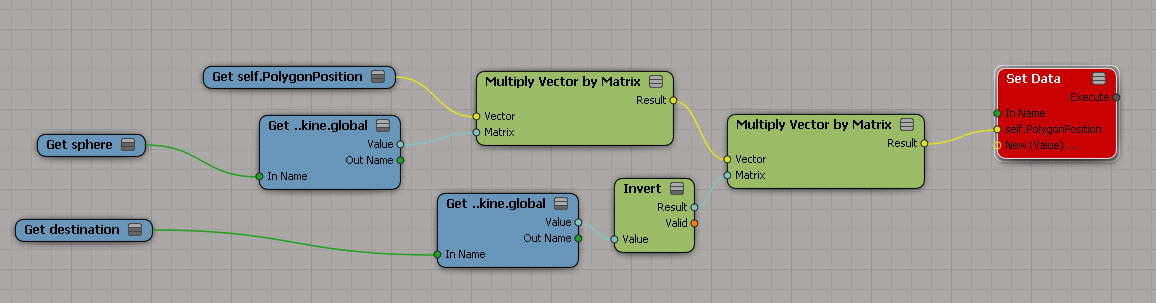
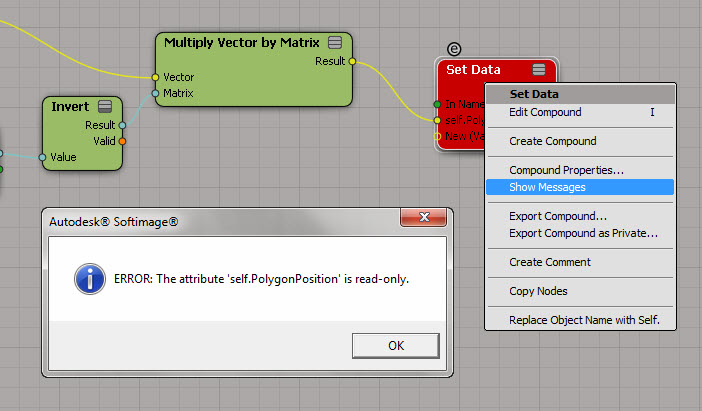
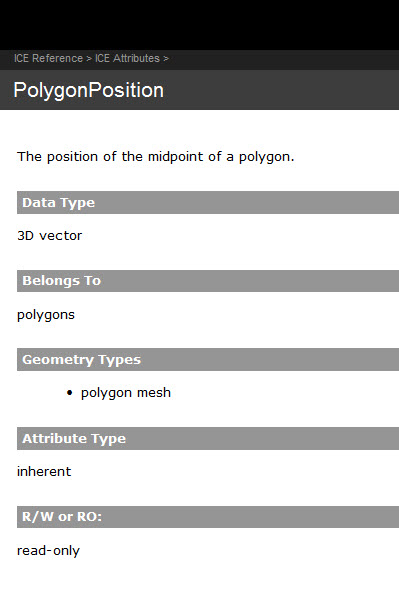
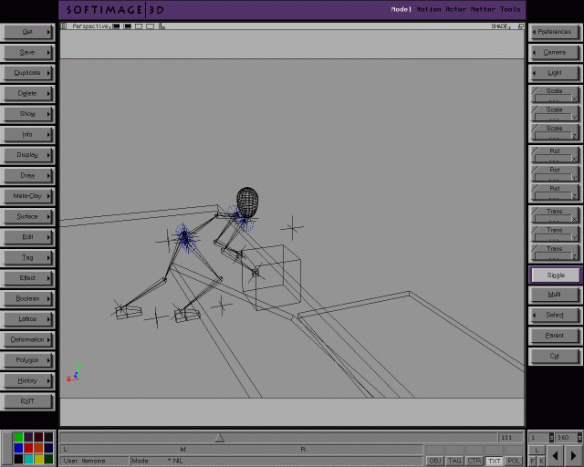
A screenshot from back in 2001, if not earlier (the last modified timestamp on the file was 16 Oct 2001).

There’s something kinda Sisyphusian about that simple scene 🙂

It’s getting to be that time of year when people start asking about the next version…
You can probably get a pretty good idea of when to expect Softimage 2014 by looking backwards. So, here’s the dates that previous versions were announced and released (data gathered via google).
| Release | Announced | Released |
|---|---|---|
| 2013 | 27 March 2012 | 12 April 2012 |
| 2012 | 01 March 2011 | 07 April 2011 |
| 2011 | 15 March 2010 | 06 April 2010 |
| 2010 | 03 August 2009 | 14 Sept 2009 |
| 7.5 | 23 Feb 2008 | 23 Feb 2008 |

Here’s a relatively simple ICE tree that arranges hexagons on the XZ plane. The “difficult” part was creating the arrays of position coordinates. For that I used the standard modulo technique. It’s funny, it all makes perfect sense when you’re plugging stuff together, but afterwards it’s hard to make heads or tail of what you did 🙂

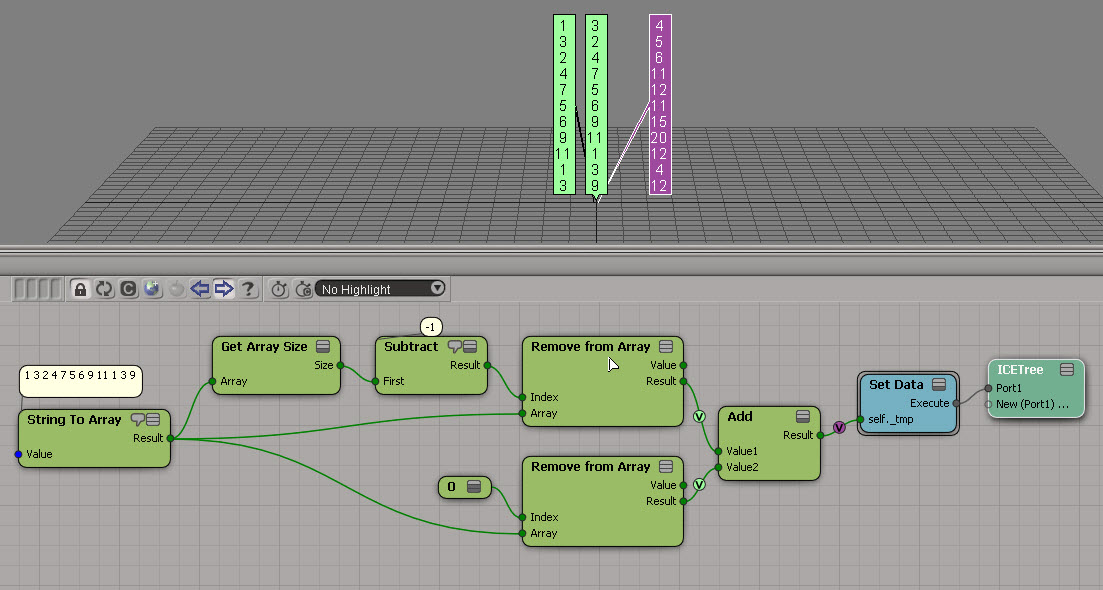
To understand what’s going on here, it helps to look at the final arrays that are built:

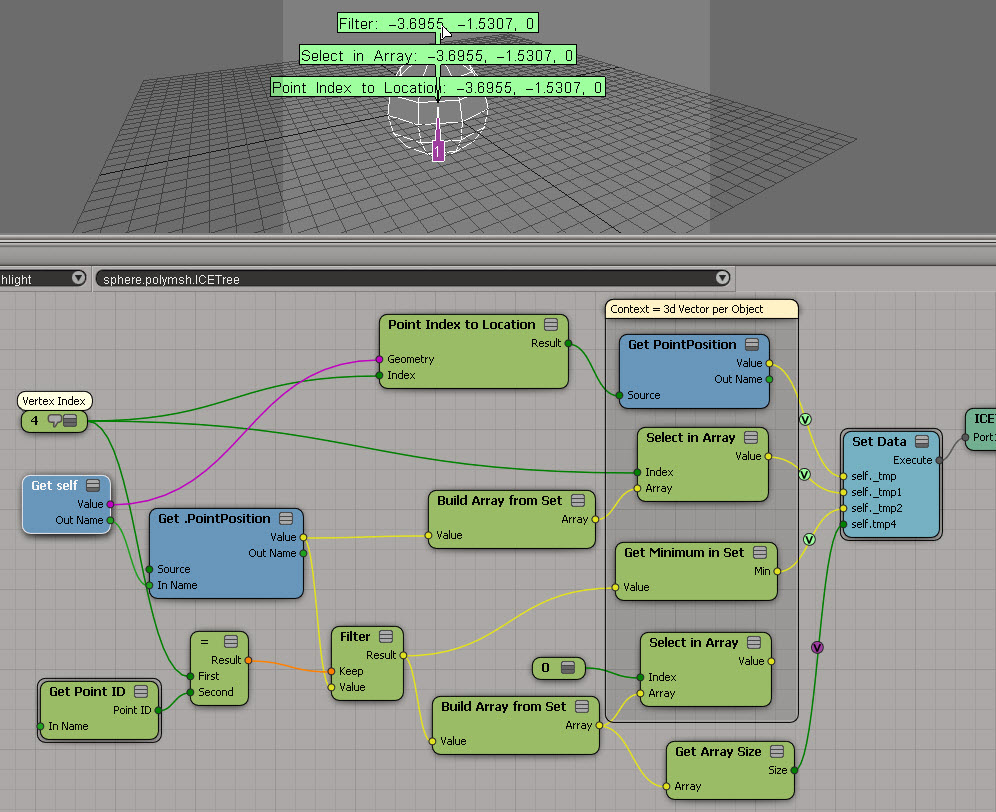
The math for arranging the hexagon tiles is pretty simple. I started with a simple test point cloud to make sure I understood what I needed to do. After that, it was just a question of setting up the arrays.

If you want to take a look at the ICE trees, here’s some compounds. Note that this isn’t a finished piece of work. It’s more of a draft version. For example, my hexagon has a side length of 5 and that’s hardcoded into the ICE tree right now.
Hexagon_Tiler.xsicompound
Hexagon_Math_Tester.xsicompound
Let’s build a regular hexagon!
In this example, I take the vector (5,0,0) and rotate it by 60 degrees, then 120, then 180, and so on, until I have the 6 points of the hexagon. In ICE, that equates to getting an array of rotations, stuffing that into Rotate Vector, and getting an array of positions back.
Notice how the length of each side is the same (5), as is the distance of each point from the local origin.

Before I jumped into building the polygon, I first did a quick test with a point cloud, to make sure I understood how to add points in the right places. In general, I think it’s good practice to do some kind of “proof of concept” before you really dive into the details.

Not everyone knows it, but the ability to import 3ds files, which was removed in XSI 7.01, came back in Crosswalk 2012.
Just click File > Import > Import FBX, and then click 3D Studio 3DS (*.3ds) in the File Types list.
For example, you could download a 3ds model of an astronaut from the NASA 3d Models page, and import it into Softimage.
LKLightning 2.0 Tutorial 01 – Swirling7
Display debug per-object attribute on distant point cloud
by Fabricio Chamon

Moving cached geometry
by Alok Gandhi

Reflections
by NNois

Turbulize Null position
by Helli

Splitting edges
by iamVFX, julian johnson


For most context menus, the Target attribute contains both the selected objects (if any) and the object under the mouse.
def MyCustomMenu_Init( in_ctxt ):
oMenu = in_ctxt.Source
oMenu.Filter = "camera"
oMenu.AddCallbackitem("Custom Camera Tool","MyCameraTool")
return true
def MyCameraTool(in_ctxt):
obj = in_ctxt.GetAttibute("Target")
Application.LogMessage(obj)
I’m pretty sure I’m the one who dug up that info and put it in the docs (on the Menu Item Callback page). I did not, however, write this bit, which to my ear does not sound good at all:
If your menu is attached to a contextual menu, the currently selected objects are passed in to your callback. The target object under the cursor is also passed in as part of the selected objects. However if no objects are selected, then only the target is passed in. The objects can be retrieved through the Context.GetAttribute method with “Target” specified as the value for the AttributeName parameter. The selected/target objects are not passed in to the callback of a custom menu item attached to a regular menu.
I prefer something more like this:
For context menus, the callback gets the currently selected objects and the object under the mouse. You can get these target objects from the Target attribute with Context.GetAttribute.
Here’s another way to split an edge into N new edges of equal length. This time, I use the offset.
With a split ratio of 1, I get a bunch of new, zero-length edges that all pile up at the far vertex.

But I can use the offset to move all those edge vertices down the vector between the two original edge vertices:

Word cloud for strings xsi.exe | find /i “cannot”.
A few messages that caught my eye: