Context matters – per object attributes for point clouds
1

Otherwise known as the case where composite.exe cannot determine a product license to use:
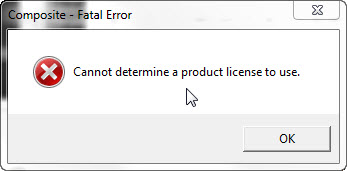
The last time I saw this error, it turned out to be a problem with the ProductInformation.pit file. However, this time it turned out to literally what the error message says: Composite couldn’t figure out what license to use. The tricky part was figuring out why.
First we tried a couple of configuration “tricks”, but those didn’t help in this case.
toxik::deployment::licenseType                Standalone
toxik::deployment::softimagelocation          C:\Program Files\Autodesk\Softimage 2013
Note that alternatively, instead of setting toxik::deployment::softimagelocation in the INI file, you could set the environment variable SI_HOME.
And unfortunately, Composite wasn’t logging any license-related information or errors.
Fortunately I’m the curious type, so I’d been using Process Monitor to see what composite.exe was doing at startup, and I had a pretty good hunch what was wrong. And when I got a Process Monitor log from the customer, it only took a minute to spot the problem: a missing registry key.
When ADSK_COMPOSITE_LICENSE is set to SOFTIMAGE, composite.exe uses the registry key HKEY_LOCAL_MACHINE\SOFTWARE\Autodesk\Softimage\InstallPaths\2013 to find Softimage. The customer’s machine was missing that registry key, so composite.exe couldn’t find Softimage and therefore couldn’t figure out what license to use.
Why was the registry key missing? I don’t know.
Here’s a little Python snippet that shows how to write to the DataArray of an ICE attribute.
from siutils import si
si = si()					# win32com.client.Dispatch('XSI.Application')
from siutils import log		# LogMessage
from siutils import disp	# win32com.client.Dispatch
from siutils import C		# win32com.client.constants

pc = si.GetPrim("PointCloud", "", "", "")
a = pc.ActivePrimitive.AddICEAttribute("MyScalarArray", C.siICENodeDataFloat, C.siICENodeStructureArray, C.siICENodeContextSingleton  )
a.DataArray = [[ 0.03, 3.33, 2.22, 3.333 ]]

a = pc.ActivePrimitive.AddICEAttribute("MyLong", C.siICENodeDataLong, C.siICENodeStructureSingle, C.siICENodeContextSingleton  )
a.DataArray = [3.1416*1000]

a = pc.ActivePrimitive.AddICEAttribute("MyScalar", C.siICENodeDataFloat, C.siICENodeStructureSingle, C.siICENodeContextSingleton  )
a.DataArray = [3.1416]

#
# Add some Attribute Display properties
# to show the attribute values
#

p = pc.AddProperty( "AttributeDisplay", False, "" )
p.Parameters( "attrname" ).Value = "MyScalar"

p = pc.AddProperty( "AttributeDisplay", False, "" )
p.Parameters( "attrname" ).Value = "MyLong"
p.Parameters( "offsety" ).Value = 16

p = pc.AddProperty( "AttributeDisplay", False, "" )
p.Parameters( "attrname" ).Value = "MyScalarArray"
p.Parameters( "offsety" ).Value = 32
I tried to do the same thing in JScript, but I couldn’t get it to work for arrays. Very frustrating.
pc = GetPrim("PointCloud", "", "", "");

a = pc.ActivePrimitive.AddICEAttribute("MyScalarArray", siICENodeDataFloat, siICENodeStructureArray, siICENodeContextSingleton  )

a.DataArray = [[ 0.03, 3.33, 2.22, 3.333 ]]
// WARNING : 3390 - This ICEAttribute doesn't refer to a 2D array: <Attribute: MyScalarArray>
//

a.DataArray = [ 0.03, 3.33, 2.22, 3.333 ]
// WARNING : 3392 - Invalid offset specified while extracting data from this attribute: <Attribute: MyScalarArray>
// <Offset: 108384008>
//


// But this does works
a = pc.ActivePrimitive.AddICEAttribute("MyLong", siICENodeDataLong, siICENodeStructureSingle, siICENodeContextSingleton  )
a.DataArray = [3000]
PS You can find some usage of DataArray in the CrowdFX plugin (in the Softimage install dir).
 Umm…not quite. The Autodesk end-user license agreement (hereafter referred to as the “EULA”) restricts license usage to the country or territory of purchase.
Section 2.1.3 of the EULA says:
2.1.3 Territory. Except as otherwise authorized in writing by Autodesk, the licenses granted in this Agreement are granted only for the Territory. Nothing in this Agreement permits Licensee (including, without limitation, Licensee’s Personnel, if any) to Install or Access the Licensed Materials outside of the Territory.
Extra-territory usage is a subscription benefit:
Extra Territory Rights – Allows usage of a license outside of the country of purchase for up to 90 days per a year. This benefit can be used by End Users. No companion license would be needed, however if installing outside the country of purchase and requiring a manual install, explanation of benefit may be needed.
So, what’s a territory? Again, from the EULA:
From the EULA:
33. “Territory” (a) means the country, countries or jurisdiction(s) specified in the License Identification, or (b) if there is no such License Identification, or no country or jurisdiction is specified in the License Identification, means the country in which Licensee acquires a license to the Autodesk Materials. If the License Identification specifies, or Licensee acquires the Autodesk Materials in, a member country of the European Union or the European Free Trade Association, Territory means all the countries of the European Union and the European Free Trade Association.
But what if you’re not in Europe? What’s your territory? The EULA says you can find your territory in the License Identification:
14. “License Identification” means one or more designations by Autodesk that set forth the License Type (among other things) for Licensee’s license of the Licensed Materials. The License Identification may be (a) located (i) in the Licensed Materials (e.g., in an “About” box, license information dialog box, or text file of Software), (ii) on or with Autodesk packaging, or (iii) in a written confirmation or other notice issued to Licensee by Autodesk and transmitted via email, facsimile, physical delivery, or otherwise, or (b) obtained from Autodesk on request. For clarification, License Identification does not include a designation, confirmation, packaging or other document provided by a Reseller or other third party.
I couldn’t find the license identification for my Maya ECSP license, which was purchased in Canada from the North American store. However, I did find this on the store help page:
If I purchase a product from one country’s store, can I use it in another country?
No. Software products purchased on this Store must be used in accordance with the terms of the Autodesk License agreement accompanying them; such terms include a restriction that the products may not be used outside of the country of purchase. For this site, the Territory for sale of software products is the US, Canada, Puerto Rico and Guam. Please see the Digital River Terms and Conditions.
Finally, via google, I found this “Ancillary Service Description for Use Outside Territory” document.
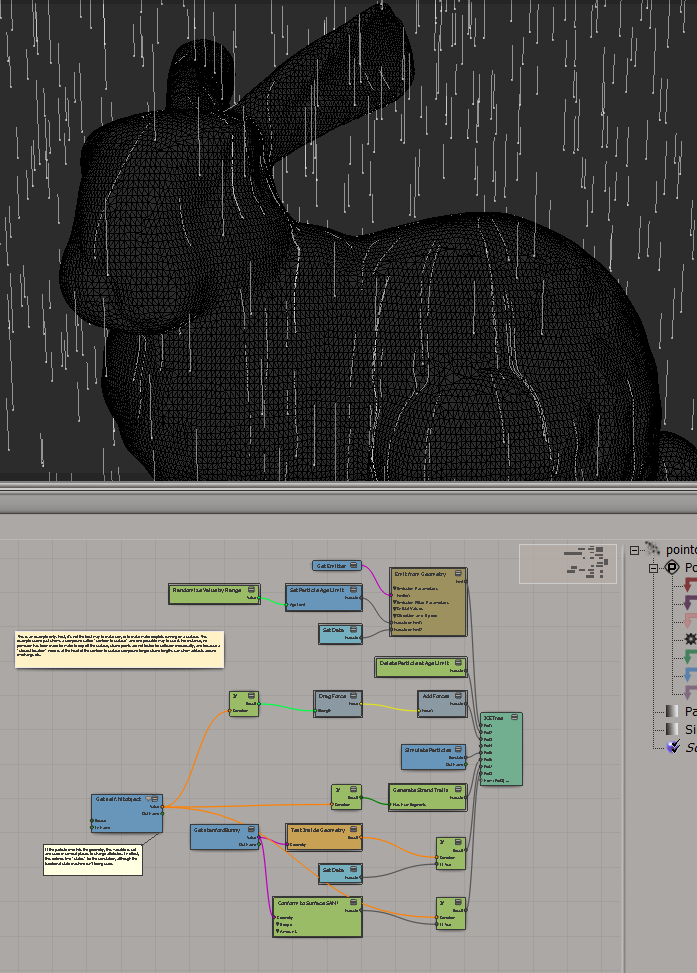
Wet Bunny
by Andy Moorer
Ice Topo+Kine
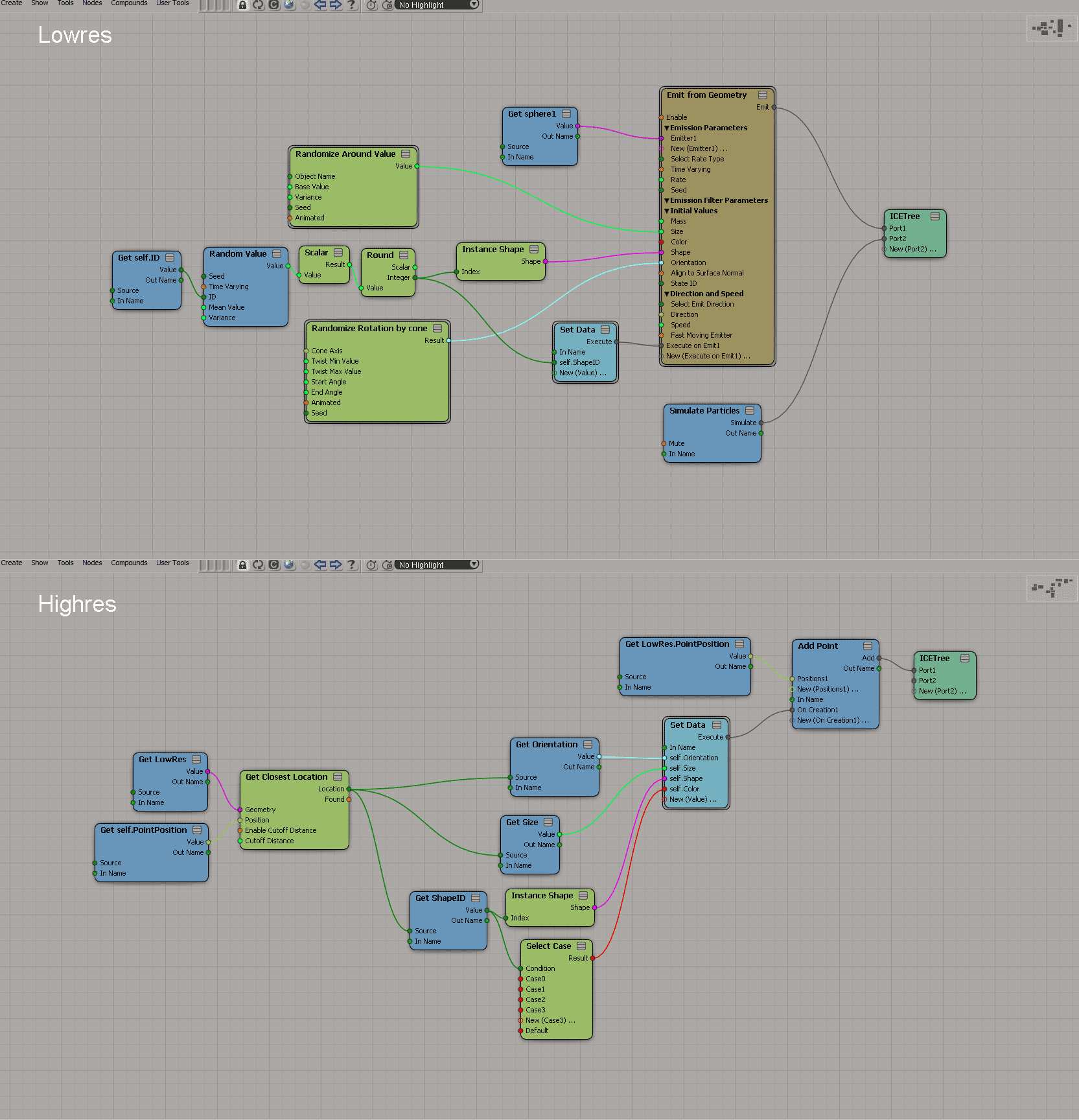
replacing particles instances by high res versions at render
by face
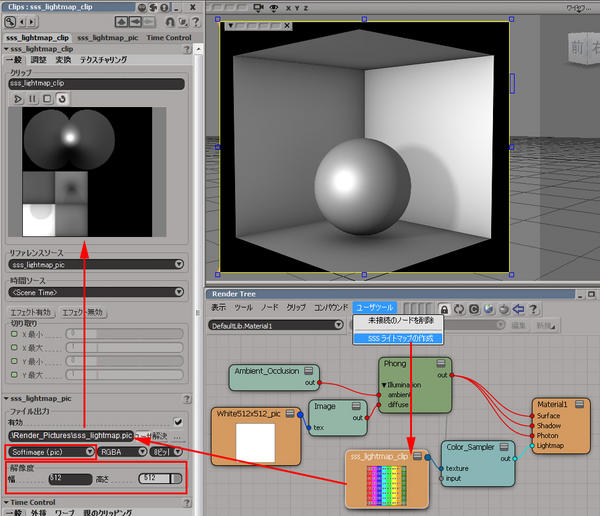
LightMap create using ColorSampler
by SI_UserNotes
Dead ICE tree after scene recovery
by druite
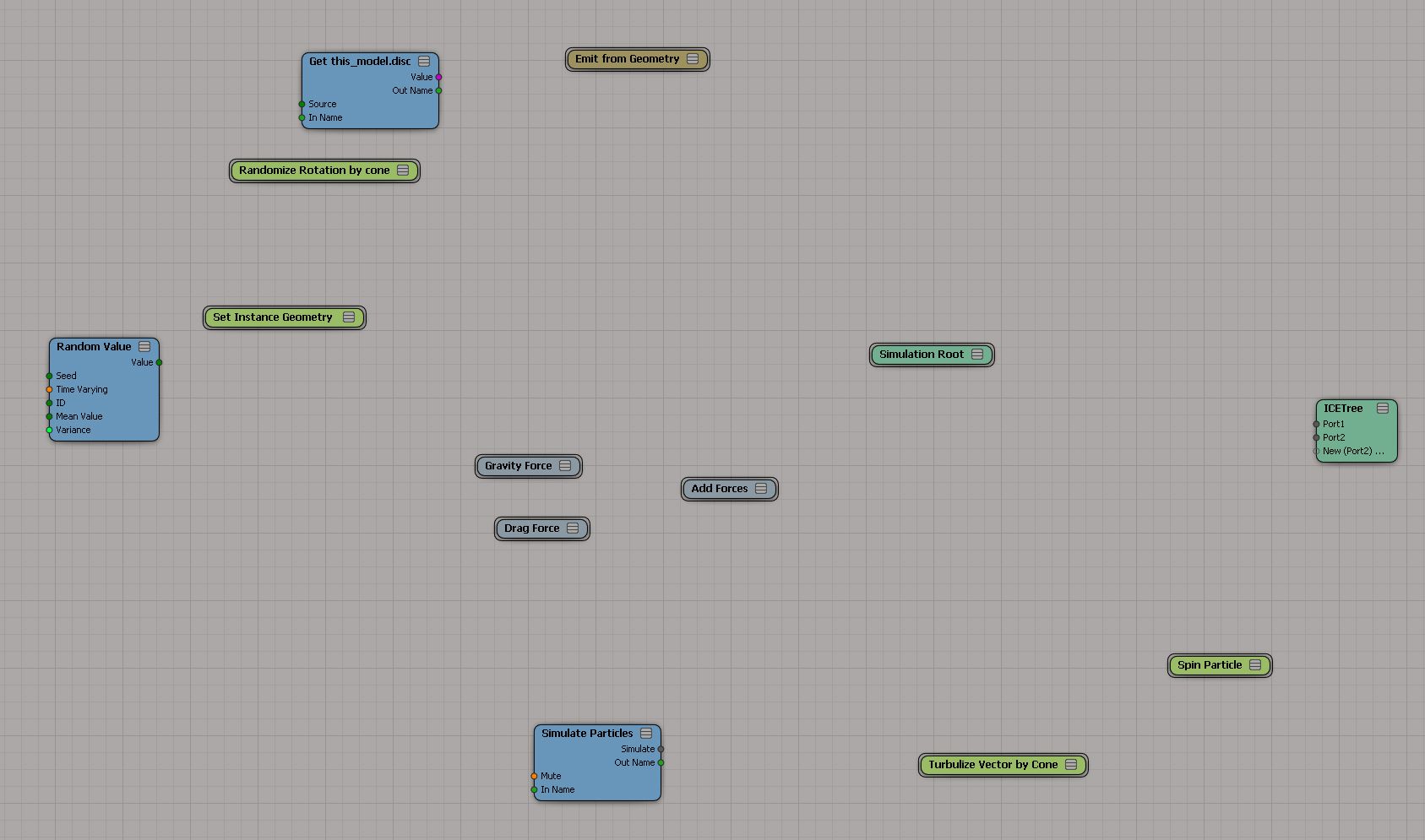
ICE L-Strands
Cell duplication
http://vimeo.com/52920070
Generate Strand Filled Object Node FeaturesOlder video that showed up in my RSS feed this week.
http://vimeo.com/24575360
Mia_Material_Advanced
Another older video that showed up in the Vimeo ICE Tutorials feed this week.
I’m “on the road” for two weeks, visiting Solid Angle London for a week, and then Solid Angle Madrid for another week. I hope the weather’s good over there: the forecast for Monday here in Montreal is sunny and 16 degrees…maybe the last warm day for cycling.
While in London, I hope to check out the Softimage Creatives user group meeting.
I’ll be back on 25 Nov. Until then, I’ve pre-written and scheduled my daily blog postings, just in case I’m too busy 🙂
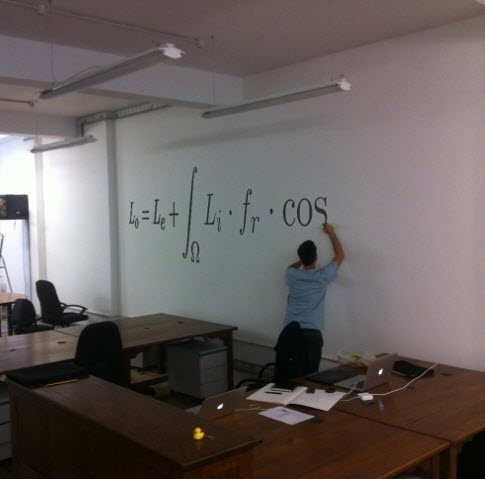
The Solid Angle offices in London
1999
MANEX SHINES IN “THE MATRIX”
Without SOFTIMAGE|3D and mental ray, specifically, those phenomenal bullet time backgrounds just wouldn’t have been possible.

 If you don’t see any of the Arnold render channels (like Arnold_Alpha or Arnold_Opacity), open up the script editor (press ALT+4) and run the SITOA_CreateRenderChannels() command.
Tip – You can avoid this by making Arnold the default scene renderer. The SITOA plugin will then make sure the Arnold render channels exist (by calling SITO_CreateRenderChannels from OnNewScene and OnStartup events).
hat tip to Francois Lord for pointing this out
# Python
Application.SITOA_CreateRenderChannels()
// JScript
SITOA_CreateRenderChannels();
In this video, I take a quick look at the different gamma correction settings used by Arnold. I don’t tell you how to set up a linear workflow; my goal is to help you understand what the gamma correction settings mean.
You can use the Arnold_Point AOV to create a world position pass (an AOV is the Arnold equivalent of a render channel). Here’s the Arnold_Point render channel in the render region:
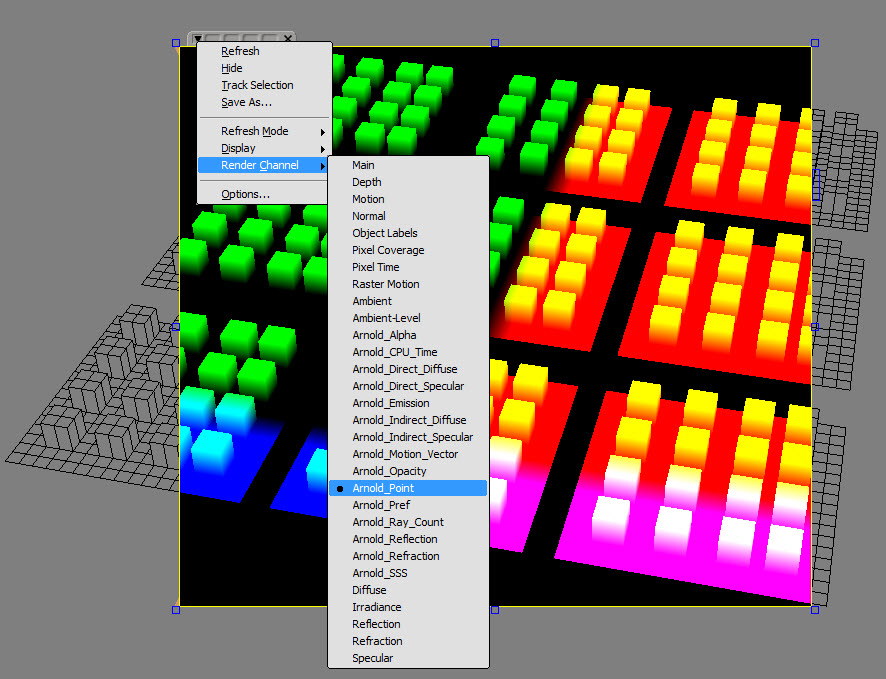
A world position pass (aka a position map), is an image where each pixel’s R, G, B colour values represent the x, y, z coordinates of the corresponding vertex, in 3D world space.
If you loaded the rendered position map into the FxTree, or Composite, you can see that the RGB values correspond to the XYZ position coordinates:
FxTree:

Composite:

 eX-SI
eX-SI 