For reference, here’s the Visual Studio compiler versions used for the different versions of Softimage.
| Softimage version | Visual C++ version |
|---|---|
| 2013 and up | VC++ 2010 SP1 |
| 2012 | VC++ 2008 SP1 |
| 2011 | |
| 2010 | VC++ 2005 |
| 7.5 | |
| 7.01 |

For reference, here’s the Visual Studio compiler versions used for the different versions of Softimage.
| Softimage version | Visual C++ version |
|---|---|
| 2013 and up | VC++ 2010 SP1 |
| 2012 | VC++ 2008 SP1 |
| 2011 | |
| 2010 | VC++ 2005 |
| 7.5 | |
| 7.01 |
Getting user-defiend attributes
by Stephan Woermann

motion tools tutorial spheres
by Angel Negron 5 days ago
Animation storing in ICE
by Paul smith
Writing to weightmaps
by csaez

Bookshelf
by origin
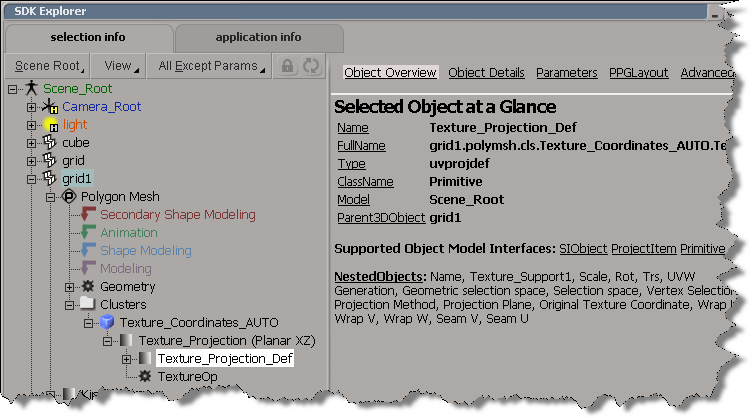
Here’s a simple Python snippet that shows how to traverse the object hierarchy to get at a Texture Projection Definition. Note that I’m not looping over any of the collections, I just get the first element with “(0)” on lines 25, 28, and 31.
#
# 2013 SP1 shortcuts
#
#from sipyutils import si			# win32com.client.Dispatch('XSI.Application')
#from sipyutils import siut		# win32com.client.Dispatch('XSI.Utils')
#from sipyutils import siui		# win32com.client.Dispatch('XSI.UIToolkit')
#from sipyutils import simath	# win32com.client.Dispatch('XSI.Math')
#from sipyutils import log		# LogMessage
#from sipyutils import disp		# win32com.client.Dispatch
#from sipyutils import C			# win32com.client.constants
#si=si()


si=Application
dict=si.Dictionary

def dispFix( badDispatch ):
	import win32com.client.dynamic
	# Re-Wraps a bad dispatch into a working one:
	return win32com.client.dynamic.Dispatch(badDispatch)

o = dict.GetObject( "grid1" )

# Get the texture coordinates (aka the Sample cluster)
c = o.ActivePrimitive.Geometry.Clusters.Filter( "sample" )(0)

# Get  the Texture Projection
uv = c.Properties.Filter( "uvspace" )(0)

# Get  the Texture Projection Definition
uvdef = uv.NestedObjects.Filter( "uvprojdef" )(0)
print si.ClassName(uvdef)

# Get a texture projection parameter (in this example, the U translation)
x = dispFix(uvdef)
projtrsu = x.Parameters("projtrsu")

print si.ClassName( projtrsu )
print projtrsu.FullName
Here’s what the hierarchy looks like in the SDK explorer:
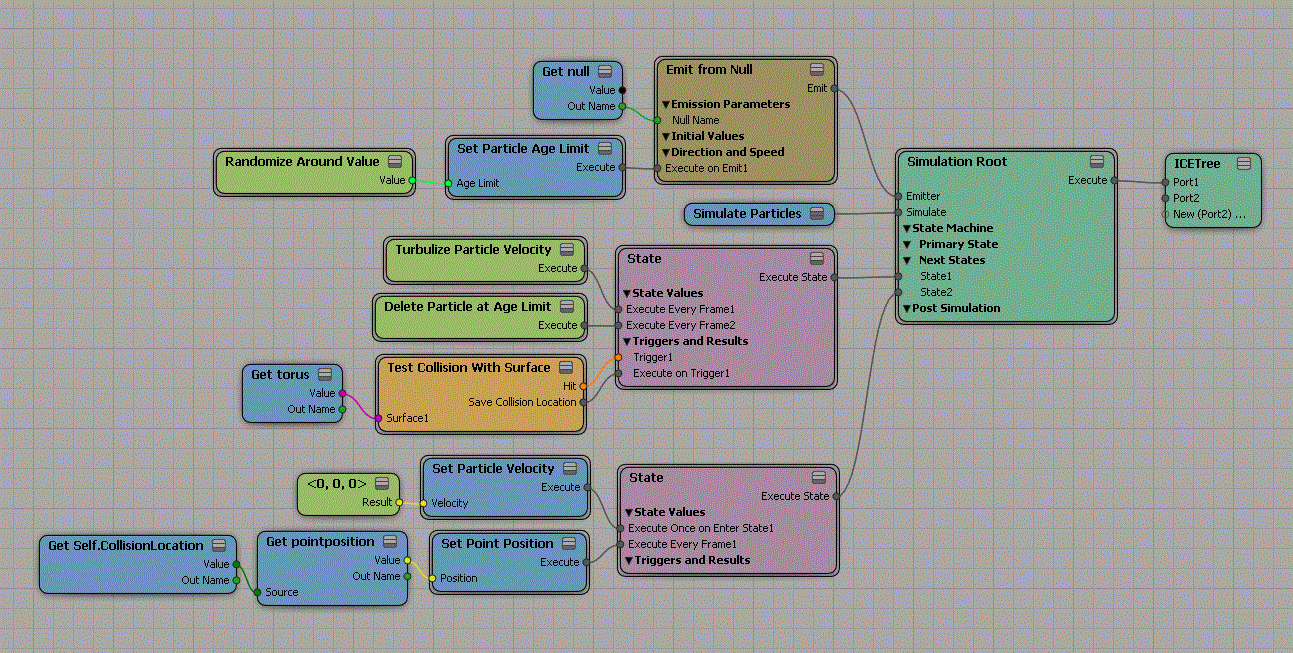
SOFTIMAGE|3D schematic view from the 1999 Tekkon Kinkreet project.

Over on the AREA Mr Entertainment blog, the Softimage Program Manager has posted a short video that goes over how the CIP progam helps product planning.
On the Softimage list, someone mentioned that they wouldn’t mind turning on CIP, as long as it doesn’t use too many CPU cycles. Now, I don’t know exactly how CPU-intensive the CIP instrumentation is (I don’t think it is all that intensive), but I do remember reading a few things about CIP:
Interestingly, while poking around on my own system a few weeks ago, I disabled CIP, either by editing a .MC3 file or changing a registry setting. Now I cannot enable CIP from inside Softimage, and I don’t remember what I changed 🙂
In ICE, we often work with point or particle positions, and these positions are 3D Vectors.

Now, in general, a vector is something that has both value and direction (for example, any cyclist knows that the wind has both a magnitude and a direction, and together they really define the wind 🙂
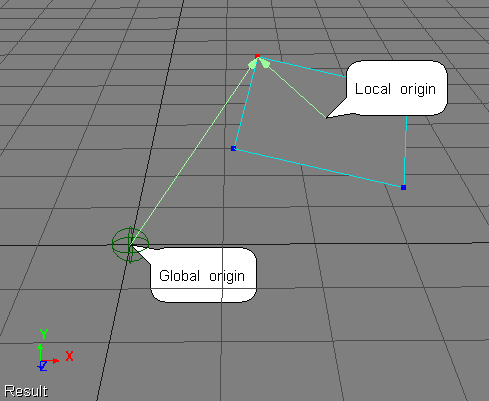
When you’re working with point/particle positions, you’re really working with position vectors that specify a unique position in space. You’re not really interested in the magnitude of the vector, just the head and tail of the vector.
For any position vector, the tail is the origin: the point (0, 0, 0).
The head of the vector is the position in space.
When you’re working with position vectors in ICE, it’s important to understand what coordinate system you are working in, because that determines the origin. For example, here’s two different position vectors for the same point:
Autodesk applications like Softimage use senddmp.exe to send CER reports to an Autodesk server, where the CER reports are automatically processed and entered into a CER system. senddmp.exe is installed with Softimage, in %XSI_BINDIR%.
You cannot submit CER reports by email; the system is not set up to handle that. The CERs have to be submitted to the Web service that does all the grunt work. For example, the Web service takes care of extracting the crash dump and matching it up against the symbols for that version of Softimage.
If you do want to collect the CER data yourself, click View Report Details in the Error Report dialog. That will generate the dmpuserinfo.xml file, and create a dumpdata.zip archive that contains:

You will find dumpuserinfo.xml and dumpdata.zip in the XSI Temp folder (for example, %TEMP%\XSI_Temp_7558, where 7588 is the process ID of xsi.exe).
The .dmp and .ScriptLog.txt files actually exist in your Softimage user folder; senddmp.exe just takes a copy of them and puts them in a .zip archive. When I left Autodesk, I had 253 crash dump files (90MB worth) lying around under different C:\users\blairs\Autodesk\SoftimageXXX folders.
I suppose you might be able to run senddmp.exe yourself, but the command line is rather complicated. Here’s the senddmp command line for a recent crash I had. Note that I formatted it for readability. Also note that I didn’t actually try to run it myself, I just dug up the details (using my old friend Process Monitor).
"C:\Program Files\Autodesk\Softimage 2013\Application\bin\senddmp.exe"

/APPXML "<ProductInformation name=\"Autodesk Softimage 2013\" build_version=\"SI2013RC2\" registry_version=\"11\" registry_localeID=\"1033\" uptime=\"105591217359\" session_start_count=\"111\" session_clean_close_count=\"42\" current_session_length=\"183\" />" /APPLOCALEID 1033

/DMP "C:\Users\blairs\Autodesk\Softimage_2013\MTL2UA0150CWY4fdae16a6f4c4e93603f470.dmp"

/UPITOKEN "C:\Program Files\Autodesk\Softimage 2013\UPI\upiconfig.xml"

/CADSETTINGSPATH SOFTWARE\Autodesk\Autodesk Softimage 2013\2013\CadManagerControl\CustomerErrorReport

/SERIALNUM 399-99999999

/SAMPLEDESCALTPATH "C:\Program Files\Autodesk\Softimage 2013\Application\bin\CER\exampleDesc.htm "

/CALUPTIME 151026979918

/COUNT 24

/EXTRA "C:\Users\blairs\Autodesk\Softimage_2013\MTL2UA0150CWY4fdae16a6f4c4e93603f470.ScriptLog.txt"

/ALTRESPATH "(null)"

/ALTTYPGPATH "(null)"
You can get the /APPXML and /CALUMPTIME from dumpuserinfo.xml.
I think /COUNT is the crash count.
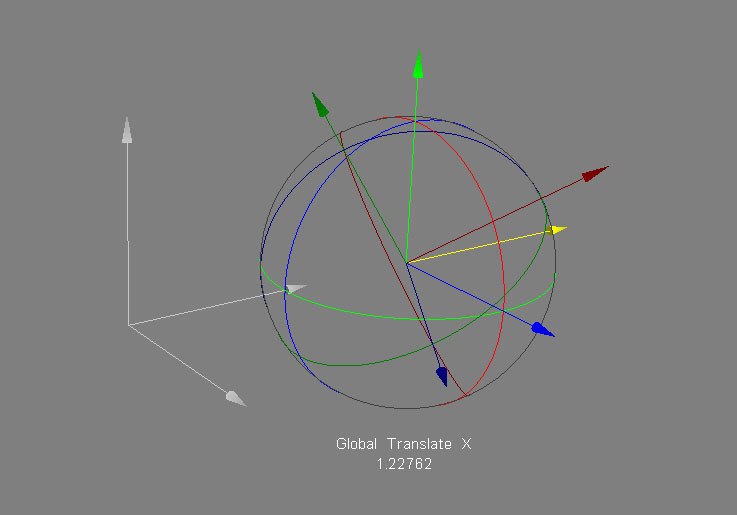
In this video I take a quick look at how Rotate Vector works, but more importantly, I dive into some issues related to different coordinate systems. In many scenarios where you use Rotate Vector (eg to rotate polygons), you have to understand what coordinates you’re working with.
Hopefully, this will be the first in a series of vids.
Entertainment Creation Suites Digital Magazine, Issue One: Productivity
In case you missed it, this screenshot from the digital magazine sparked a lively discussion on the Softimage mailing list.

Bookshelf
by origin

Animation Manipulator
by taro
Create copies from polygon mesh
by iamVFX
Hair vector flow
by Paul Smith
kCS IceRuler 0.91
by Zoltán Ócsai
2 years. 2066 forum & mailing list posts. 829 blog posts.
Yes, I know quantity is not quality, but I tend to stick to posting facts and answers, so I claim that most of my posts are substantive.

 eX-SI
eX-SI 