A procedure couldn’t be found in library


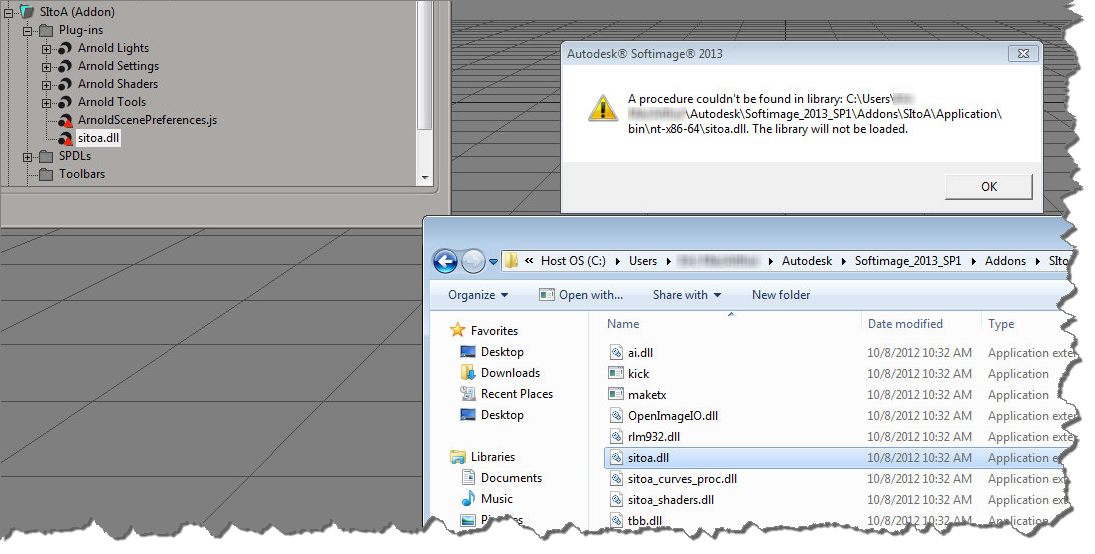
When you get an error like this

A procedure couldn’t be found in library Addons\SItoA\Application\bin\nt-x86-64\sitoa.dll. The library will not be loaded.

it usually doesn’t mean that Softimage couldn’t find the DLL (sitoa.dll in this case).

Typically, this error is caused by a missing DLL dependency, or the wrong version of a dependent DLL. You can use Dependency Walker and Process Monitor to track down what’s going wrong. A “DLL dependency” or “dependent DLL” is another file that sitoa.dll depends on. When Softimage loads sitoa.dll, that other DLL isn’t found, or if it is, it’s the wrong version. And so you get the error.

Saturday snippet: short-circuit evaluation


If you’re new[ish] to scripting, here’s a Python snippet that illustrates short-circuit evaluation of boolean expressions.

In this snippet, short-circuit evaluation is used to avoid errors. For example, if there is no such ICE attribute (nb is not None) then there is no attempt to try and use the ICE attribute methods like IsDefined.

The expression in the print statement also relies on operator precedence (not has higher precedence than and, so everything works as expected).

# Assume a polymesh is selected...
o = Application.Selection(0)

# Check the intrinsic ICE attribute
nb =  o.ActivePrimitive.ICEAttributes("NbPoints")
print nb is not None and nb.IsDefined and nb.DataArray[0] <= 0

The above snippet also relies on operator precedence (not has higher precedence than and, so everything works as expected).

Since or has higher precedence than and, you could write something like this:

nb.IsDefined and nb.DataArray[0] <= 0 or o.ActivePrimitive.Geometry.Polygons.Count <= 0

But I’d probably put in the parentheses just to be clear:

(nb.IsDefined and nb.DataArray[0] <= 0) or o.ActivePrimitive.Geometry.Polygons.Count <= 0

Finding empty polygon meshes


Now that there are intrinsic ICE attributes like NbPoints and NbPolygons, there a couple of ways you can check for an empty mesh:

# Assume a polymesh is selected...
o = Application.Selection(0)

# Check the intrinsic ICE attribute
nb =  o.ActivePrimitive.ICEAttributes("NbPoints")
print nb.IsDefined and nb.DataArray[0] <= 0

# Check using the object model
print o.ActivePrimitive.Geometry.Points.Count <= 0

The typical way to package this up for users it to define a filter. Then a user just has to select the filter and press CTRL+A. Here’s the Match callback for a filter that finds empty polygon meshes. Note that I switched to checking the number of polygons. That way, if somehow there was something weird like a mesh with just one point, you’d still find it.

The intrinsic attribute NbPolygons should always exist, but just to be sure I check IsDefined, and if that is False, I fall back to checking Geometry.Polygons.Count.

# Match callback for the EmptyPolygonMesh custom filter.
def EmptyPolygonMesh_Match( in_ctxt ):
	Application.LogMessage("EmptyPolygonMesh_Match called",constants.siVerbose)

	o = in_ctxt.GetAttribute( 'Input' )
	if o.type == 'polymsh':
		nb =  o.ActivePrimitive.ICEAttributes("NbPolygons")
		return (nb.IsDefined and nb.DataArray[0] <= 0) or o.ActivePrimitive.Geometry.Polygons.Count <= 0
	else:
		return False

I packaged the filter as an addon. Get it here.

Tip – UI color widgets have a visual cue for gamma correction


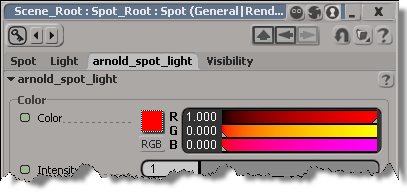
In the Display > Color Management preferences, you can turn on gamma correction for UI widgets like the color chip. On the PPG, there’s a visual cue (a “dotted highlight”) that tells you whether gamma correction is on.

Gamma-corrected color widget:

Image

Regular color widget (no gamma correction):

Image

Also, you can right-click the color chip to toggle gamma correction on and off for that specific widget.

This is all in the docs, but I have to admit I found that out only after I noticed this on my own. Too bad, because if I had known this, I would have figured out sooner why my color chips looked so “faded”:

Image

(because at some unknown point in time I had enabled the display of gamma correction for UI widgets, and then set the Profile Source to “From LUT File”)

Importing multiple FBX files with drag-and-drop


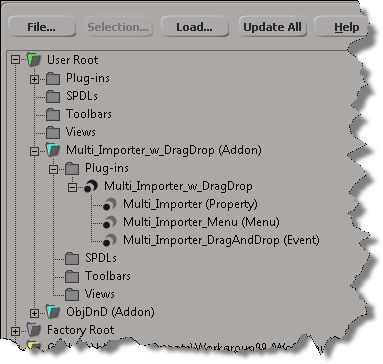
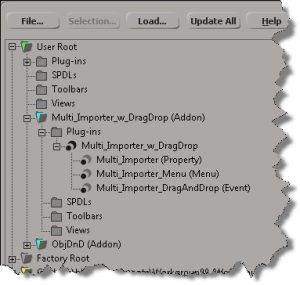
As an exercise, I updated Tim Crowson’s Multi_ImporterPPG addon with a DragAndDrop event, so you can import multiple files with a single drag-and-drop. You can download the modified version here.

Here’s the DragAndDrop event handler. The doit() function is also used by the Import menu command; I just had to generalize it a bit to work in either case (menu or drag-and-drop).

def Multi_Importer_DragAndDrop_OnEvent( in_ctxt ):

	action = in_ctxt.GetAttribute( "DragAndDropAction" )
	source = in_ctxt.GetAttribute( "DragSource" )

	if action == constants.siSourceDragAction:
		if re.search( r"\obj$", source, re.I ):
			in_ctxt.SetAttribute( "DragSourceSupported", True )
		elif re.search( r"fbx$", source, re.I ): 
			in_ctxt.SetAttribute( "DragSourceSupported", True )
		elif re.search( r"emdl$", source, re.I ): 
			in_ctxt.SetAttribute( "DragSourceSupported", True )
		elif re.search( r"lwo$", source, re.I ): 
			in_ctxt.SetAttribute( "DragSourceSupported", True )
		else:
			in_ctxt.SetAttribute( "DragSourceSupported", False )
		
	
	if action == constants.siSourceDropAction:

		Application.SetValue('preferences.Interaction.autoinspect', False, '')

		if not Application.ActiveSceneRoot.Properties( 'Multi_Importer' ):
			vtcol = Application.AddProp('Multi_Importer','Scene_Root')
			p = Application.Dictionary.GetObject( vtcol.Value("Value") )

			# Set the flag that hides certain parts of the PPG layout
			p.Parameters("bMenuCommand").Value = False

			# Inspect the PPG in modal mode
			Application.InspectObj( vtcol.Value("Value"), "", "", 4 )

			p.Parameters("bMenuCommand").Value = True
			
		p = Application.ActiveSceneRoot.Properties('Multi_Importer')

		options = { 
			'OBJgrouping' : p.Parameters('importOBJgrouping').Value,
			'OBJhrc' : p.Parameters('importOBJhrc').Value,
			'importOBJnormals' : p.Parameters('importOBJNormals').Value,
			'includeOBJmat' : p.Parameters('includeOBJMaterial').Value,
			'includeOBJuv' : p.Parameters('includeOBJUV').Value,
			'includeOBJwrap' : p.Parameters('includeOBJUVWrap').Value,
			'fbxScale' : p.Parameters('fbxScale').Value,
			'importEMDLasRef' : p.Parameters('importEMDLasRef').Value,
			'lwoScaleFactor' : p.Parameters('lwoScaleFactor').Value
			}
		
		doit( source, options )
	
	return True

Using the Select Case node to make multi-way decisions


Here’s my addendum to Manny’s nice video on CrowdFX and goals. I use a CrowdFX setup with multiple emitters and multiple goal groups to illustrate the usage of the Select Case node. If you’re already familiar with scripting or programming, the Select Case is nothing new, it’s just like the switch statement in C/C++. But if you’re not a programmer, this will [I hope] help you understand when and how to use Select Case.

http://vimeo.com/50758123