You, ICE, and position vectors


In ICE, we often work with point or particle positions, and these positions are 3D Vectors.

Now, in general, a vector is something that has both value and direction (for example, any cyclist knows that the wind has both a magnitude and a direction, and together they really define the wind 🙂

When you’re working with point/particle positions, you’re really working with position vectors that specify a unique position in space. You’re not really interested in the magnitude of the vector, just the head and tail of the vector.

For any position vector, the tail is the origin: the point (0, 0, 0).
The head of the vector is the position in space.

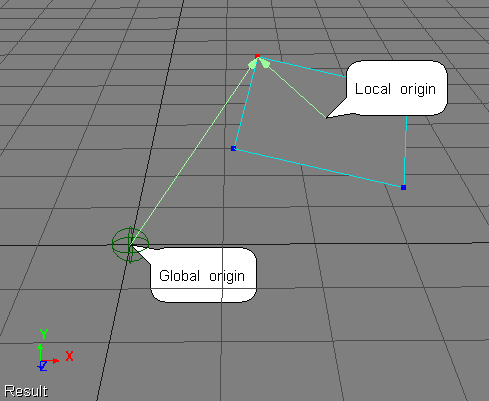
When you’re working with position vectors in ICE, it’s important to understand what coordinate system you are working in, because that determines the origin. For example, here’s two different position vectors for the same point:

Sending Customer Error Reports (CERs)


Autodesk applications like Softimage use senddmp.exe to send CER reports to an Autodesk server, where the CER reports are automatically processed and entered into a CER system. senddmp.exe is installed with Softimage, in %XSI_BINDIR%.

You cannot submit CER reports by email; the system is not set up to handle that. The CERs have to be submitted to the Web service that does all the grunt work. For example, the Web service takes care of extracting the crash dump and matching it up against the symbols for that version of Softimage.

If you do want to collect the CER data yourself, click View Report Details in the Error Report dialog. That will generate the dmpuserinfo.xml file, and create a dumpdata.zip archive that contains:

  • Contact data and system information (dmpuserinfo.xml)
  • The crash dump (a .dmp file)
  • The Softimage script history (.ScriptLog.txt)

You will find dumpuserinfo.xml and dumpdata.zip in the XSI Temp folder (for example, %TEMP%\XSI_Temp_7558, where 7588 is the process ID of xsi.exe).

The .dmp and .ScriptLog.txt files actually exist in your Softimage user folder; senddmp.exe just takes a copy of them and puts them in a .zip archive. When I left Autodesk, I had 253 crash dump files (90MB worth) lying around under different C:\users\blairs\Autodesk\SoftimageXXX folders.

I suppose you might be able to run senddmp.exe yourself, but the command line is rather complicated. Here’s the senddmp command line for a recent crash I had. Note that I formatted it for readability. Also note that I didn’t actually try to run it myself, I just dug up the details (using my old friend Process Monitor).

"C:\Program Files\Autodesk\Softimage 2013\Application\bin\senddmp.exe" 

/APPXML "<ProductInformation name=\"Autodesk Softimage 2013\" build_version=\"SI2013RC2\" registry_version=\"11\" registry_localeID=\"1033\" uptime=\"105591217359\" session_start_count=\"111\" session_clean_close_count=\"42\" current_session_length=\"183\" />" /APPLOCALEID 1033 

/DMP "C:\Users\blairs\Autodesk\Softimage_2013\MTL2UA0150CWY4fdae16a6f4c4e93603f470.dmp" 

/UPITOKEN "C:\Program Files\Autodesk\Softimage 2013\UPI\upiconfig.xml" 

/CADSETTINGSPATH SOFTWARE\Autodesk\Autodesk Softimage 2013\2013\CadManagerControl\CustomerErrorReport 

/SERIALNUM 399-99999999 

/SAMPLEDESCALTPATH "C:\Program Files\Autodesk\Softimage 2013\Application\bin\CER\exampleDesc.htm " 

/CALUPTIME 151026979918 

/COUNT 24 

/EXTRA "C:\Users\blairs\Autodesk\Softimage_2013\MTL2UA0150CWY4fdae16a6f4c4e93603f470.ScriptLog.txt" 

/ALTRESPATH "(null)" 

/ALTTYPGPATH "(null)"

You can get the /APPXML and /CALUMPTIME from dumpuserinfo.xml.
I think /COUNT is the crash count.

Intro to rotating vectors in ICE


In this video I take a quick look at how Rotate Vector works, but more importantly, I dive into some issues related to different coordinate systems. In many scenarios where you use Rotate Vector (eg to rotate polygons), you have to understand what coordinates you’re working with.

http://vimeo.com/49603426

Hopefully, this will be the first in a series of vids.

Tip – Matching multiple regular expressions in a search


You can use the braces {} to match two or more regular expressions. For example, in the Preset Manager, {*vector*,*matrix*} will filter for all nodes/compounds that contain “vector” or “matrix”.

That’s a lot of regex typing to filter the ICE presets.

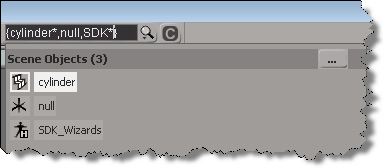
You can also use the braces in the scene search. There seems to be one little gotcha, you’ve got to use some wildcard character otherwise you won’t get a match. For example, {cylinder,null} doesn’t match anything, but {cylinder*,null} or {cylinder,null*} does.

See also:
Tip – Use wildcards to find the logic ICE nodes
Tip – Using the * wildcard for filtering in the ICE preset manager

Copying the global transform into a 4×4 Matrix ICE node


I saw–via an email notification–the question “how do I use the Global Transform of an object to create a 4×4 Matrix” posted on xsibase (sorry, I don’t go to xsibase anymore because of the “attack site” and “malware” warnings).

One way to do this is to add a “Copy Global Transform” command to the ICE node context menu. After you install this plugin, right click a 4×4 matrix node in an ICE tree, and it will copy the Global Transform from the first object in the selection list.

Note: error checking and stuff like that is left as an exercise for the reader (or for another blog post).

Here’s the plugin code for 2013. For 2012 or earlier, you have to change the AddCallbackItem2 call to AddCallbackItem.

si = Application
import win32com.client
from win32com.client import constants as C

null = None
false = 0
true = 1

def XSILoadPlugin( in_reg ):
	in_reg.Author = "blairs"
	in_reg.Name = "CopyTransfo2MatrixNodePlugin"
	in_reg.Major = 1
	in_reg.Minor = 0

	in_reg.RegisterMenu(C.siMenuICENodeContextID,"CopyTransfo2MatrixNode_Menu",false,false)

	return true

def XSIUnloadPlugin( in_reg ):
	strPluginName = in_reg.Name
	Application.LogMessage(str(strPluginName) + str(" has been unloaded."),C.siVerbose)
	return true

def CopyTransfo2MatrixNode_Init( in_ctxt ):
	oCmd = in_ctxt.Source
	oCmd.Description = ""
	oCmd.ReturnValue = true

	oArgs = oCmd.Arguments
	oArgs.AddWithHandler("Arg0","Collection")
	return true

def CopyTransfo2MatrixNode_Menu_Init( in_ctxt ):
	oMenu = in_ctxt.Source
	oMenu.AddCallbackItem2("Copy Global Transform","CopyTransfo2MatrixNode")
	return true
	
def CopyTransfo2MatrixNode( in_ctxt ):
	oNodeName = in_ctxt.GetAttribute("Target")

	o = si.Selection(0)
	t = o.Kinematics.Global.GetTransform2( None )
	m = t.Matrix4.Get2()

	# Get a matrix node
	n = si.Dictionary.GetObject( oNodeName )
	
	n.Parameters( "value_00" ).Value = m[0]
	n.Parameters( "value_01" ).Value = m[1]
	n.Parameters( "value_02" ).Value = m[2]
	n.Parameters( "value_03" ).Value = m[3]

	n.Parameters( "value_10" ).Value = m[4]
	n.Parameters( "value_11" ).Value = m[5]
	n.Parameters( "value_12" ).Value = m[6]
	n.Parameters( "value_13" ).Value = m[7]

	n.Parameters( "value_20" ).Value = m[8]
	n.Parameters( "value_21" ).Value = m[9]
	n.Parameters( "value_22" ).Value = m[10]
	n.Parameters( "value_23" ).Value = m[11]

	n.Parameters( "value_30" ).Value = m[12]
	n.Parameters( "value_31" ).Value = m[13]
	n.Parameters( "value_32" ).Value = m[14]
	n.Parameters( "value_33" ).Value = m[15]

CER uptime and session count stats


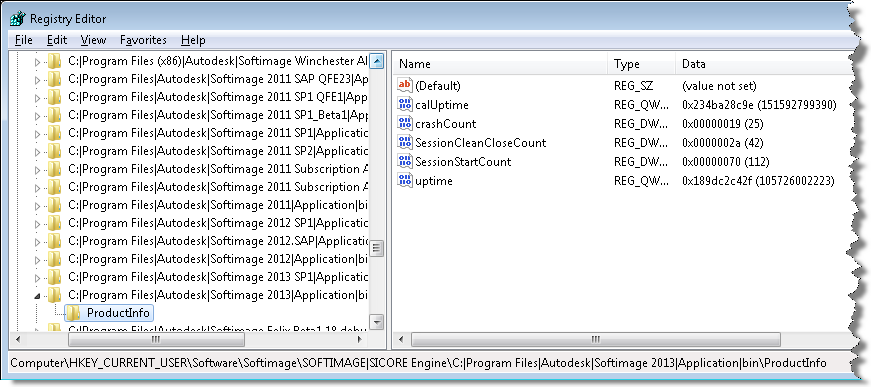
You can always find interesting stuff if you poke around in the registry. For example, the Customer Error Report (CER) mechanism logs some basic usage stats into the registry, under the keys like

HKEY_CURRENT_USER\Software\Softimage\SOFTIMAGE|SICORE Engine\C:|Program Files|Autodesk|Softimage 2013|Application|bin\ProductInfo

  • calUptime is the cumulative amount of time that Softimage has been open. By cumulative, I mean it is the total uptime for all Softimage sessions, ever.
  • upTime is the process uptime (not including any idle time). Again, this is a cumulative total.
  • crashCount is the number of crashes caught by CER.
  • SessionStartCount is the total number of Softimage sessions.
  • SessionCleanCloseCount is the total number of clean exits with no crash. You’ll notice in my case that the crashCount + SessionCleanCloseCount doesn’t equal the total number of sessions. That’s because CER doesn’t catch all crashes, and CER doesn’t catch things like the XSI.exe process being ended in the Task Manager.

* I believe that the uptime totals are in 100-nanosecond intervals.

Tip – Using the * wildcard for filtering in the ICE preset manager


[see also this tip: Using the ? wildcard]

While typing part or all of a word is often enough to narrow down the possibilities, sometimes you may want to search for all compounds that start with one string and end with another. For that, you use the asterisk (*) regex wildcard.

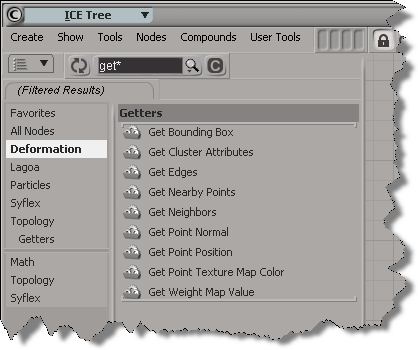
After you use a wildcard once, there’s no more automatic partial word matching. “G*P” won’t find anything, you need to add another * at the end.

“G*P*” is a little broad, so you might want to be more specific:

Note that you can categories to further filter down the results. Here, I selected just one category (Deformation), but I could have CTRL selected two or more categories.

Entering the right product key during installation


Ever wonder how the installer validates the product key?

No? Well I did, because that’s the kind of thing you wonder about in tech support, because sometimes cases come in about “the installer won’t accept the product key”.

I did a little checking with Process Monitor, and I found that the Setup includes a SoftimageConfig.pit file, and that pit file contains the valid product keys. During installation, setup will extract Setup\SoftimageConfig.pit, write it out to the %TEMP% folder, and use it to validate the product key entered in the installer.

During the actual installation, SoftimageConfig.pit will be added the ProductInformation.pit file on the local system.

The pit file contains product information like the product key and the license feature names (read more about the .pit file here and here).

For Softimage there is the regular product key 590E1, as well as all the different Suite product keys.

Putting a customized setenv.bat in a deployment


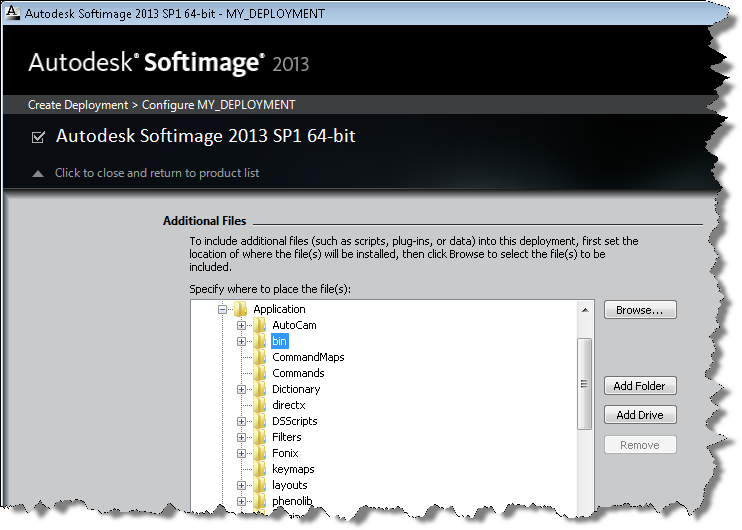
You can’t actually customize setenv.bat (or any of the other files in the distribution) when you create a deployment, but you add a SiteDeploy.bat file to the install. setenv.bat is set up to call SiteDeploy.bat:

rem Verify the existence of the SiteDeploy.bat file
if exist "%XSI_BINDIR%\SiteDeploy.bat" call "%XSI_BINDIR%\SiteDeploy.bat"

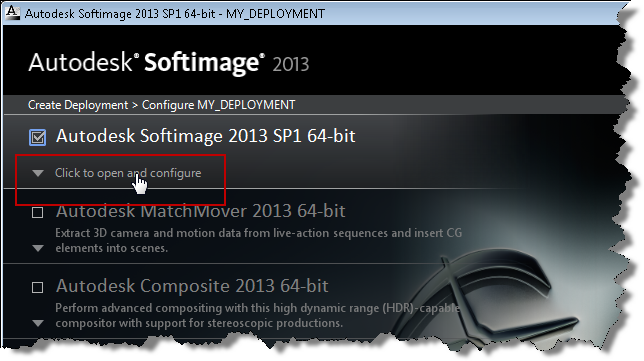
To add a SiteDeploy.bat file to a deployment, you need to configure the Softimage deployment:

In the Additional Files section, expand Application\bin, and then click Browse to locate the SiteDeploy.bat file (which must exist somewhere already):