Friday Flashback #63


Microsoft buys Softimage – the press release and some news clippings about the 14 Feb 1994 acquisition
The press release:

Microsoft Corporation to Acquire SOFTIMAGE Inc.

REDMOND, Washington Ð February 14, 1994 Ð Microsoft Corporation today announced that the company has signed a definitive agreement to acquire SOFTIMAGE, a leading developer of high performance 2D and 3D computer animation and visualisation software. The $130 million stock transaction has been approved by the Board of Directors of both Microsoft and SOFTIMAGE.

“The market for digital media is growing rapidly and SOFTIMAGE is a technology leader in this area. We are committed to continuing this development of leading-edge professional authoring tools which accelerate the creation of high-quality digital content,” said Bill Gates, Chairman and Chief Executive Officer of Microsoft. “We are very excited at the prospect of combining their expertise with ours,” said Gates.

“We share with Microsoft a common vision of the role that authoring tools will play as the digital media marketplace unfolds. Microsoft has a wealth of experience in supporting open operating systems and building great software tools, and we will provide specialised expertise and experience in professional quality digital media tools. We believe that as a part of Microsoft we can more quickly realise our vision,” said Daniel Langlois, Chairman, Chief Executive Officer and founder of SOFTIMAGE. Langlois will continue to head the development organisation located in Montreal, Quebec, which will operate as a part of the Advanced Technology division which directs Microsoft’s long- term technology vision.
Under the terms and conditions of the combination plan, each share of SOFTIMAGE stock will be exchangeable for 0.279 of a share of Microsoft stock, with an adjustment factor designed to provide not less than $21 and not more than $24 of value per SOFTIMAGE share. The agreement is subject to the approval of the shareholders of SOFTIMAGE, and the directors of SOFTIMAGE have unanimously agreed to vote the shares they own, which represent approximately 30% of the outstanding shares, in favour of the transaction.

SOFTIMAGE (Nasdaq-NMS: SFTIF), founded in 1986, is an innovative developer of high-performance 2D and 3D animation and simulation software. The company markets its sophisticated flagship product for 3D animation, the Creative Environmentª and a complete line of high-end 2D applications, including post- production editing and the integration of visual images, text, sound and special effects technology. SOFTIMAGE products are used by loading film studios, animation houses, broadcasters, graphic artists, product designers and engineers around the world.

Founded in 1975, Microsoft (Nasdaq-NMS: MSFT) is the world leader in software for personal computers. The company offers a wide range of products and services for business and personal use, each designed with the mission of making it easier and more enjoyable for people to take advantage of the full power of personal computing every day.

Commentary on the acquisition of Softimage by Microsoft
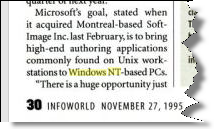
Seattle Times: Microsoft To Purchase Softimage — Software Giant Gains Access To Graphics For Interactive TV

“You don’t just hire folks that have this stuff [Jurassic Park-type graphics technology],” said Dain Bosworth analyst Glenn Powers. “It’s the type of thing where there are 100 people that are good. If you want to get a bunch of them at once, this is the way you grab them.”

Nathan Myhrvold, Microsoft senior vice president, said yesterday that the acquisition will give Microsoft a tool to create sophisticated computer-generated graphics that are going into movies, video games and commercials. Also, he said, “This kind of technology is the minimum (needed) to create effective CD-ROM titles.”


Microsoft Buying Maker of Animation Software

In a move underscoring its commitment to digital multimedia, Microsoft Corp said it has agreed to acquire Montreal-based Softimage Inc, a developer of computer animation software, in a $130-million stock deal. The acquisition, the software giant’s second biggest ever, increases by nearly 50% the size of the Microsoft’s 18-month-old Advanced Consumer Technology division, which is leading its efforts to help shape the information highway.

Software Industry Report, 21 Feb 1994

The buy is considered very important for Microsoft, which to date has not made any significant inroads in the emerging market for interactive television and multimedia production. Daniel Langlois, the Softimage founder and CEO, will continue to head the development organization, which will operate as part of the Microsoft advanced technology division.

In a recent press interview, Microsoft Chairman Bill Gates said his Redmond, Wash., software company will vigorously pursue opportunities in the multimedia field. How the Softimage buy will play out remains to be seen. Softimage makes tools for Silicon Graphics Inc. workstations, and its software was used in the special effects for the movie “Jurassic Park.”

http://www.immersence.com/publications/1996/1996-PLunenfeld.html

Davies is the director of visual research at SoftImage, a high-end computer graphics software group that was recently purchased by Bill Gates in his quest to have Microsoft own everything in North America that the Disney Company does not.

Microsoft Morphs into a Media Company –
Mr. Bill makes a billion-dollar bet on interactive entertainment

Wired 1994
Microsoft has been gradually creating or acquiring crucial pieces of media technology, which alone or in combination with others have the potential to spawn powerful new forms of media. Softimage 3-D animation and product tools now being ported to the PC, for example,

Excerpted from the book, “Becoming a Computer Animator” by Michael Morrison

ADVANCES OF THE 1990s In February 1994, Microsoft Corporation acquired Softimage for 130 million dollars. Microsoft’s initial use of TDI technology will be internal, to enhance their multimedia CD-ROM products and interactive TV programs. Microsoft also plans to port the Softimage software over to its Windows NT operating system. This may be the first move in starting a trend for the shifting of high-end graphics software from workstations to personal computers.

Commentary on the release of Softimage 3D for Windows NT

Graphics and Windows NT 4.0 – A Diamond Multimedia White Paper

Microsoft helped to pave the way to Windows NT for many applications by porting the highly regarded Softimage animation studio from Silicon Graphics workstations to Windows NT. For many creators of digital content in the highly competitive worlds of advertising and film, the existence of Softimage on Windows NT has proven the PC is ready for the big time.

1996: Microsoft delivers high-end 3-D animation software for Microsoft Windows NT; Softimage 3D for Windows NT provides workstation-class capabilities and performance at approximately half the system cost

“Today marks an important milestone in making high-end 3-D animation capabilities widely available,” said Daniel Langlois, senior director at Microsoft and founder of Softimage. “Because Windows NT offers the same high-performance graphics capabilities as UNIX(r)-based workstations and all of the benefits of a highly competitive ‘PC economy,’ many more content creators will be able to take advantage of high-end 3-D animation software. And these compelling price/performance figures will get even better over time.”


MICROSOFT’S SOFTIMAGE STRESSES LOW-COST HARDWARE AS IT LAUNCHES SOFTIMAGE 3D FOR WINDOWS NT

Published 06 February 1996

Microsoft Corp’s SoftImage Inc has opened up the market for its three-dimensional modeling and animation software, Microsoft SoftImage 3D, by launching a version for Windows NT (CI No 2,831). The software, which traditionally ran on Silicon Graphics Inc workstations under the Irix Unix operating system, will now run on any personal computer supporting NT.

Montreal-based SoftImage founder Daniel Langolois said the NT system has all the functionality of the Unix-based system, but enables users to choose much lower cost hardware as an option. He insisted that his aim was not to knock Silicon Graphics, but simply to open up choice for the users, and to enable more animators to use SoftImage’s three-dimensional animation software.

Scripting – Finding all cameras in a scene


In scripting, there’s several ways to find all the cameras in a scene.

I put together a little script to do some timing of the different ways of finding cameras.
Here’s a quick summary (using a scene with about 10k 3d objects). YMMV.

See this related thread on the XSI list. If you need to find scenes cameras frequently, then one suggestion (from Matt Lind) was to tag the scene cameras with a custom property, and then use FindObjects/FindObjects2 on that.

import time
si = Application
log = si.LogMessage
from win32com.client import constants as C

import win32com.client
oCameraColl = win32com.client.Dispatch( "XSI.Collection" )

si.SetValue("preferences.scripting.cmdlog", False, "")

#
# From http://www.softimageblog.com/archives/357
#
def timeExecution(func):
    def closure(*args, **kwargs):
        startTime = time.time()
        try:
            ret = func(*args, **kwargs)
        except Exception, e:
            delta = time.time() - startTime
            log('Failed in %f seconds' % delta)
            raise
        delta = time.time() - startTime
        log('%s finished in %f seconds' % (func.__name__, delta))
        return ret
    return closure 

@timeExecution
def getCameras_Application_FindObjects2():
	c = si.FindObjects2( C.siCameraID )
	return c.Count

@timeExecution
def getCameras_Application_FindObjects2_w_Filter():
	cams = si.FindObjects2( C.siCameraID )
	oCameraColl.Items = cams
	oCameraColl.RemoveItems( cams.Filter( "", "", "CopyPaste*" ) )
	oCameraColl.RemoveItems( cams.Filter( "", "", "View*" ) )

	return oCameraColl.Count


@timeExecution
def getCameras_FindChildren2():
	cams = si.ActiveSceneRoot.FindChildren2("", "camera")
	return cams.Count

@timeExecution
def getCameras_SelectAllUsingFilter():
	cams = si.SelectAllUsingFilter("Camera", "siIgnoreComponentVisibility", False, "")
	return cams.Count

@timeExecution
def getCameras_FindObjects():
	cams = Application.FindObjects( "", "{5FC0CCAE-3DC8-11D0-9449-00AA006D3165}" )

	# That GUID returns lots of other objects besides cameras
	cams = si.SIFilter( cams, 'camera' )

	# Unfortunately, XSICollection doesn't have a Filter method
#	oCameraColl.Items = cams
#	oCameraColl.RemoveItems( cams.Filter( "", "", "CopyPaste*" ) )
#	oCameraColl.RemoveItems( cams.Filter( "", "", "View*" ) )
	return cams.Count

# This finds cameras directly under a model only
@timeExecution
def getCameras_Model_FindObjects():
	cams = si.ActiveSceneRoot.FindObjects( C.siCameraID )
	return cams.Count


log( 'Found %d cameras' % getCameras_FindObjects() )
log( 'Found %d cameras' % getCameras_Application_FindObjects2() )
log( 'Found %d cameras' % getCameras_Application_FindObjects2_w_Filter() )
log( 'Found %d cameras' % getCameras_FindChildren2() )
log( 'Found %d cameras' % getCameras_SelectAllUsingFilter() )

Here’s some numbers from a scene with 9857 objects

# INFO : getCameras_FindObjects finished in 0.034000 seconds
# INFO : Found 68 cameras

# INFO : getCameras_FindObjects2 finished in 0.002000 seconds
# INFO : Found 68 cameras

# INFO : getCameras_FindObjects2_w_Filter finished in 0.005000 seconds
# INFO : Found 24 cameras

# INFO : getCameras_FindChildren2 finished in 0.153000 seconds
# INFO : Found 24 cameras

# INFO : getCameras_SelectAllUsingFilter finished in 0.034000 seconds
# INFO : Found 24 cameras

Changing the default startup layout


To have Softimage start up with a certain layout, you don’t really have to do anything. When you exit Softimage, it writes the current layout to your preferences file, so that the next time you start Softimage it starts up with that same layout.

For example, if I change to the Tools Development Environment layout and exit Softimage, then my %XSI_USERHOME%\Data\Preferences\default.xsipref file will include this line:

xsiprivate.UI_LAYOUT_DEFAULT	= Tools Development Environment

So when I start Softimage again, it will start up in the Tools Development Environment.

Here’s how to access that preference in scripting:

# Python
from win32com.client import Dispatch as disp
from win32com.client import constants as C
si = disp('XSI.Application' )
log = si.LogMessage


log( C.siUILayoutDefault )
log( si.GetUserPref( C.siUILayoutDefault ) )
log( si.Preferences.GetPreferenceValue( "xsiprivate.UI_LAYOUT_DEFAULT" ) )

# INFO : UI_LAYOUT_DEFAULT
# INFO : Compositing

OO AddPointToNull in Python


Someone posted Olivier Ozoux’s 11-year-old AddNulltoPoints script to xisbase the other day. You can see from the install instructions that this script is old-school.

'################################################################################
'NAME: Add Null To Point v2.0
'AUTHOR: Olivier Ozoux <oliviero@softimage.com>
'LAST MODIFIED: 2001-05-22
'
'v2.0 is a complete rewrite using the Object Model where possible
'
'INSTALL
'
'1. Copy the SPDL file:
'	{5CD342AD-2FB1-4646-9D14-3E82C805177D}.spdl
'	to the spdl directory of XSI (for example):
'	C:\Softimage\XSI_1.5\Application\spdl
'
'2. Copy the Preset file:
'	AddNullToPointDialog.Preset
'	to the Preset Property directory of XSI (for example):
'	D:\Softimage\XSI_1.5\DSPresets\Properties
'
'3. Restart XSI
'
'4. Run the Script or Create a Command/Button on a toolbar
'	
'
'This tool will create a single Null for each point of the selected object(s).
'(you can also select a point cluster, or tag points). Then based on the dialog
'choice, it will either Constrain the Null to the Point using Object to Cluster
'constraint, or Deform the point to the Null with a Cluster Center operator.
'
'-Olivier Ozoux
'###############################################################################

To get rid of the SPDL and preset, I took a few minutes and updated it to Python.

#
# Softimage 2013 and later
#
from sipyutils import si			# win32com.client.Dispatch('XSI.Application')
from sipyutils import log		# LogMessage
from sipyutils import C			# win32com.client.constants
si = si()


#
# Softimage 2012
#
#from siutils import si		# Application
#from siutils import log		# LogMessage
#from siutils import disp	# win32com.client.Dispatch
#from siutils import C		# win32com.client.constants

#
# For Softimage 2011
# 
#from win32com.client import Dispatch as disp
#from win32com.client import constants as C
#si = disp('XSI.Application')
#log = si.LogMessage

def CreateUIDialog():

	oDialog = si.ActiveSceneRoot.Properties( 'AddNullToPoint' )
	
	if oDialog is None:
		oDialog = si.ActiveSceneRoot.AddProperty( 'CustomProperty', False, 'AddNullToPoint' )
		oDialog.AddParameter2("CnsType",C.siInt4,0,0,100,0,100,C.siClassifUnknown,C.siPersistable + C.siKeyable)
		oDialog.AddParameter2("NullName",C.siString,"",None,None,None,None,C.siClassifUnknown,C.siPersistable + C.siKeyable)
		oDialog.AddParameter2("ParentObj",C.siBool,True,None,None,None,None,C.siClassifUnknown,C.siPersistable + C.siKeyable)

		oLayout = oDialog.PPGLayout
		oLayout.Clear()
		oLayout.AddEnumControl( 'CnsType', [ 'Null to Point (Object to Cluster)', 0, 'Point to Null (Cluster Center)', 1 ], 'Constraint Type', C.siControlRadio )
		oLayout.AddGroup( 'Options' )
		oLayout.AddItem( 'NullName' )
		oLayout.AddItem( 'ParentObj' )
		oLayout.EndGroup()
		
		oDialog.Parameters( 'NullName' ).Value = '<obj>_pnt'
	
	return oDialog
	

def addNullToPoint( oSel, Mode, Name, Parent ):
	oRoot = si.ActiveSceneRoot
	if oSel.Type in [ 'polymsh', 'crvlist', 'surfmsh' ]:
		aIndex = [x for x in range( oSel.ActivePrimitive.Geometry.Points.Count ) ]
		oGeom = oSel.ActivePrimitive.Geometry
		oPoints = oGeom.Points
	elif oSel.Type == 'pntSubComponent':
		aIndex = oSel.SubElements
		oSel = oSel.SubComponent.Parent3DObject
		if oSel.Type in [ 'polymsh', 'crvlist', 'surfmsh' ]:
			oGeom = oSel.ActivePrimitive.Geometry
			oPoints = oGeom.Points
		else:
			log( 'Not a geometric object' )
			return
	elif oSel.Type == 'pnt':
		aIndex = oSel.Elements.Array
		oGeom = oSel.Parent
		oPoints = oGeom.Points
		oSel = oSel.Parent3DObject
	else:
		log( 'Not a geometric object' )
		return

	pntName = Name.replace( '<obj>', oSel.Name )

	for i in aIndex:
		oCls = oGeom.AddCluster( 'pnt', 'pnt' + str( i ), [i] )
		oNull = oSel.AddNull( 'pntName' + str( i ) )
		#TODO

		if Mode == 0:
			# Constrain the Null to the Cluster
			oNull.Kinematics.AddConstraint( "ObjectToCluster", oCls, False )
		elif Mode == 1:
			#Move the Null in position
			oNull.Kinematics.Local.Parameters("posx").Value = oPoints(i).Position.X
			oNull.Kinematics.Local.Parameters("posy").Value = oPoints(i).Position.Y
			oNull.Kinematics.Local.Parameters("posz").Value = oPoints(i).Position.Z

			# Create ClusterCenter
			si.ApplyOperator( "ClusterCenter", str(oCls) + ";" + str(oNull), 0 )

		#Cut The Null if needed
		if Parent == False:
			si.CutObj( oNull )

def AddNullToPointProc():
	oDialog = CreateUIDialog()
	retval = si.InspectObj( oDialog, "", "", C.siModal )

	mode = oDialog.Parameters("CnsType").Value
	name = oDialog.Parameters("NullName").Value
	parent = oDialog.Parameters("ParentObj").Value
	
	for oSel in si.Selection:
			addNullToPoint( oSel, mode, name, parent )


AddNullToPointProc()

Setting up Softimage for network rendering


I get asked this question from time to time. It’s actually pretty straightforward to set up…it’s managing the render jobs that may take more effort.

  1. On each render node, install a network-licensed version of Softimage.
  2. During the install, on the Product Information page:

    • Choose Network License.
    • Enter your serial number and the product key 590D1.
    • Enter the name of the license server computer.

Done. It’s all set up now, but there’s a few things you should check/consider:

  • Check that you can run xsibatch on the render nodes and get a license.
    If you have any problems, here’s some troubleshooting tips for xsibatch licensing.
  • Xsibatch needs to have read/write access to wherever you store your Softimage scene files and projects, and wherever you decided to output the rendered images.
    For example, you could have a separate file server for scenes and render output, or it could be the local workstation where you run Softimage.
  • Third-party addons, plugins, and shaders need to be available to the render nodes, either via a shared workstation or by installing them on the render node.
    Note that the user account used to run xsibatch will have a Softimage user folder on the render node.
  • You need a way to manage the render jobs that run on the render nodes. There are a range of possible ways to do this:
    • Manually starting xsibatch on each render node.
      You could either specify specific framesets to render, or use the –skip flag to tell xsibatch to skip frames that are already rendered [by other render nodes]
      For example:

      xsibatch –render “//server/project/scenes/Example.scn” –frames 1-10
      xsibatch –render “//server/project/scenes/Example.scn” –skip
    • Hand-rolling your own tools/scripts to start render jobs (for example, using pstools to start xsibatch jobs on the render nodes, or generating batch files to kick off render jobs)
    • Purchasing render management software (such as Royal Render—you may want to try the demo version)