zaps mental ray tips: 2012 and Unified Sampling
3

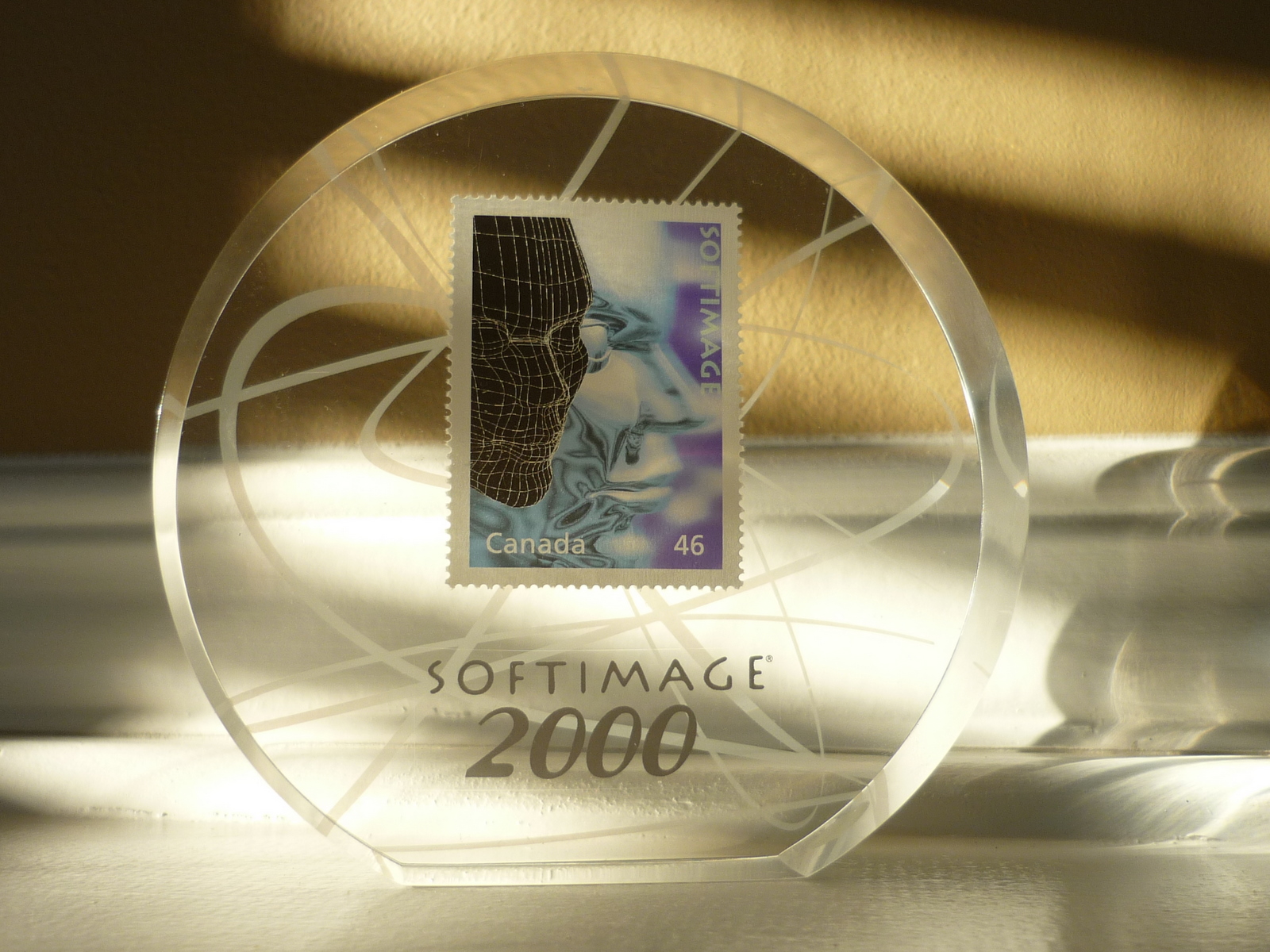
In late 1999 and early 2000, Canada Post issued a series of Millennium souvenir stamps, including a Softimage stamp. The Softimage stamp was part of a Media Technologies souvenir sheet, which included Imax, Softimage, Ted Roger Sr, Sir William Stephenson.

Softimage: From the Computer Age to the Dinosaur Age
As a Softimage employee, I received a copy of the stamp as a memento:
A quick overview of how to build strands by building your own StrandPosition and StrandSize arrays.
If you’ve looked into the Modeling_Columns_from_Strands sample scene, you’ve seen that there’s a Create Spiral Strands compound that creates the strands used for the extrusion. In this video, I go through the basics of creating strands that you can use for extrusions. There’s some small gotchas to watch out for.
Here’s a video “how to” for adding a search provider to Internet Explorer.
I’m using the Softimage 2012 custom search engine created by Hirazi Blue (Thanks!).
If you downloaded a local version of the help files, avoid using the
SI_HELP_PROGRAM_ENV environment variable. If you set that environment variable, the browser doesn’t find the help files.
If necessary, unset SI_HELP_PROGRAM_ENV and set your default browser to Firefox, Chrome, or Internet Explorer.
Then, in the General preferences, set Help Location to Local Computer/ Network.
If that doesn’t work, then set Help Location to Custom and use the file:// protocol:
file:///C:\Program Files (x86)\Autodesk\Help\softimage2012\en_us
|
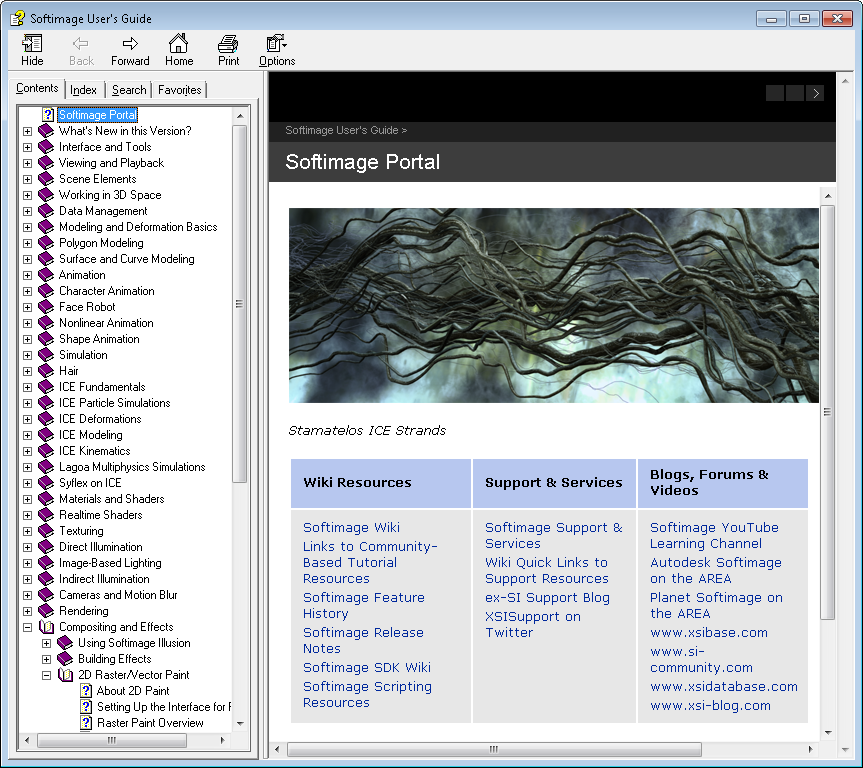
If you’re jonesing for the CHM version of the Softimage User Guide, it’s available as a documentation extra on the wiki. Here’s the direct download link. Softimage won’t use this version, but you can use it for your reading and browsing pleasure. |
To open the CHM from scripting:
# Python
import subprocess
sCHM = "C:\\Users\\blairs\\Downloads\\xsidocs_2012\\xsidocs_2012.chm";
subprocess.Popen( "hh.exe " + sCHM )
// JScript
var oShell = new ActiveXObject("WScript.Shell");
var sCHM = "C:\\Users\\blairs\\Downloads\\xsidocs_2012\\xsidocs_2012.chm";
oShell.run( "hh.exe " + sCHM );
' VBScript
set oShell = CreateObject("WScript.Shell")
oShell.run "hh.exe C:\\Users\\blairs\\Downloads\\xsidocs_2012\\xsidocs_2012.chm"
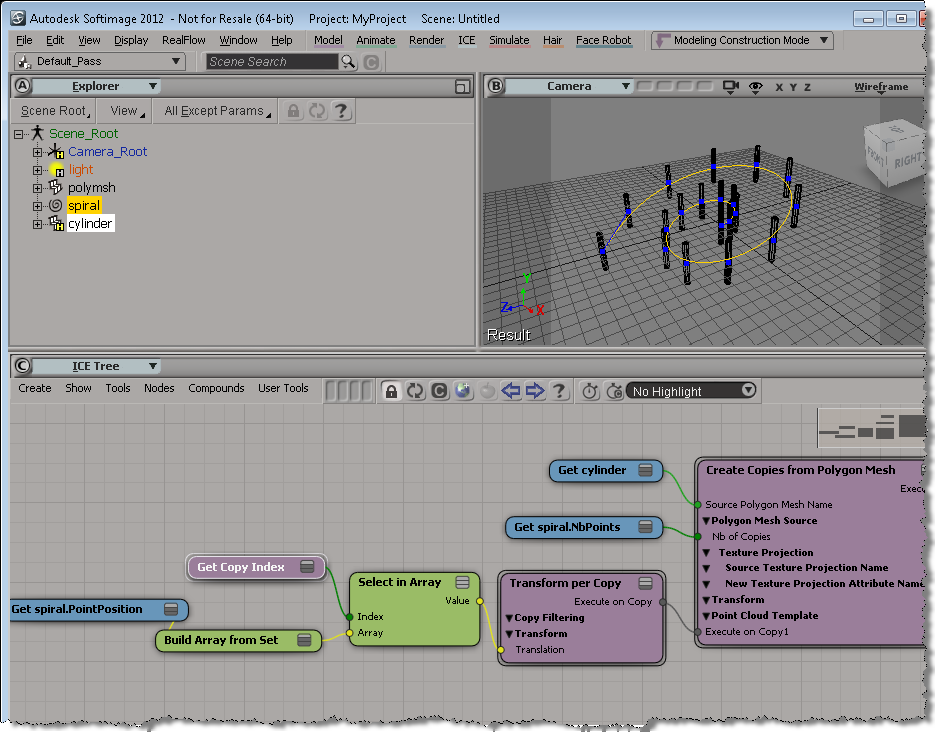
In my auto-fence videos, I showed how to use a curve to position the copies made by Create Copies from Polygon Mesh. In brief, you use the Transform per Copy and Get Copy Index nodes. Note that you need to freeze the transforms on the source mesh, if you scale or translate or rotate it.
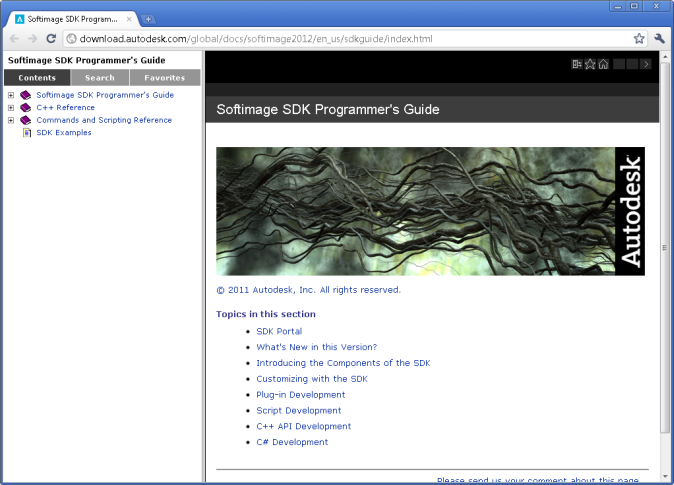
On Windows, Softimage uses the default Web browser to display help.
On Linux, the default is Mozilla, and if that is not available, then Firefox.
You can use the SI_HELP_PROGRAM_ENV environment variable to override the default help browser.
If the folder containing the executable program is not in your system PATH environment variable, you must include the full path to the executable in this variable.
When you’ve done all the usual startup troubleshooting (running runonce.bat, resetting your preferences, and testing the display driver), but you still crash, it’s a good idea to test whether xsibatch can run. Sometimes this will give us a different error message, or another clue as to what’s going wrong.
echo LogMessage "Hello" > %TEMP%\test.vbs
xsibatch -processing -script %TEMP%\test.vbs
=======================================================
 Autodesk Softimage 10.0.422.0
=======================================================

License information: using [Processing]
COMMAND: -processing -script C:\Users\blairs\AppData\Local\Temp\test.vbs
' INFO : Hello
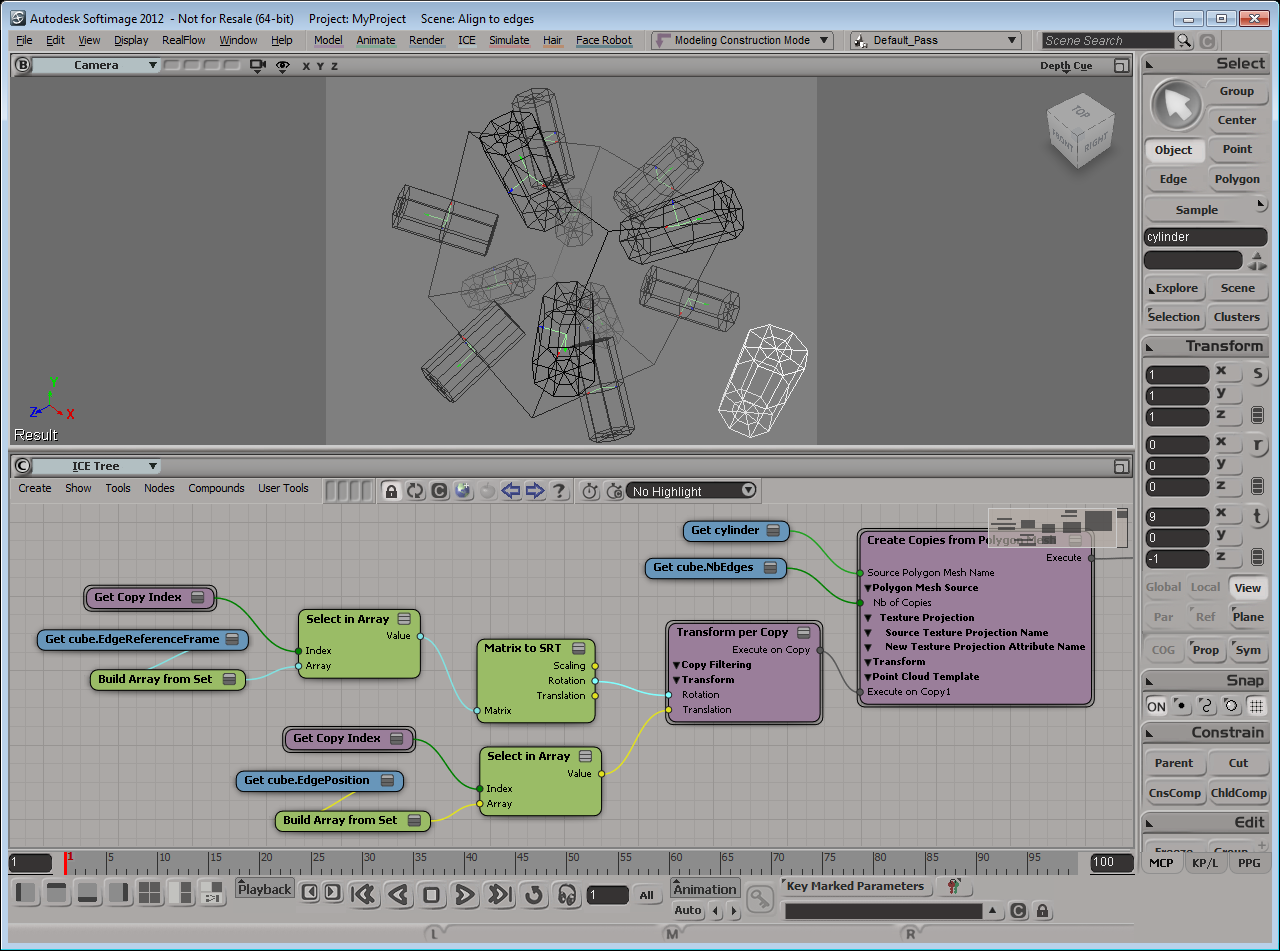
Here’s my first try. I used the EdgePosition attribute to position the copies of the cylinder on the edges of a cube. Notice how the cylinder is aligned along the Y axis of the EdgeReferenceFrame.
If I rotate the cylinder center by 90 degrees in Z, I get this:

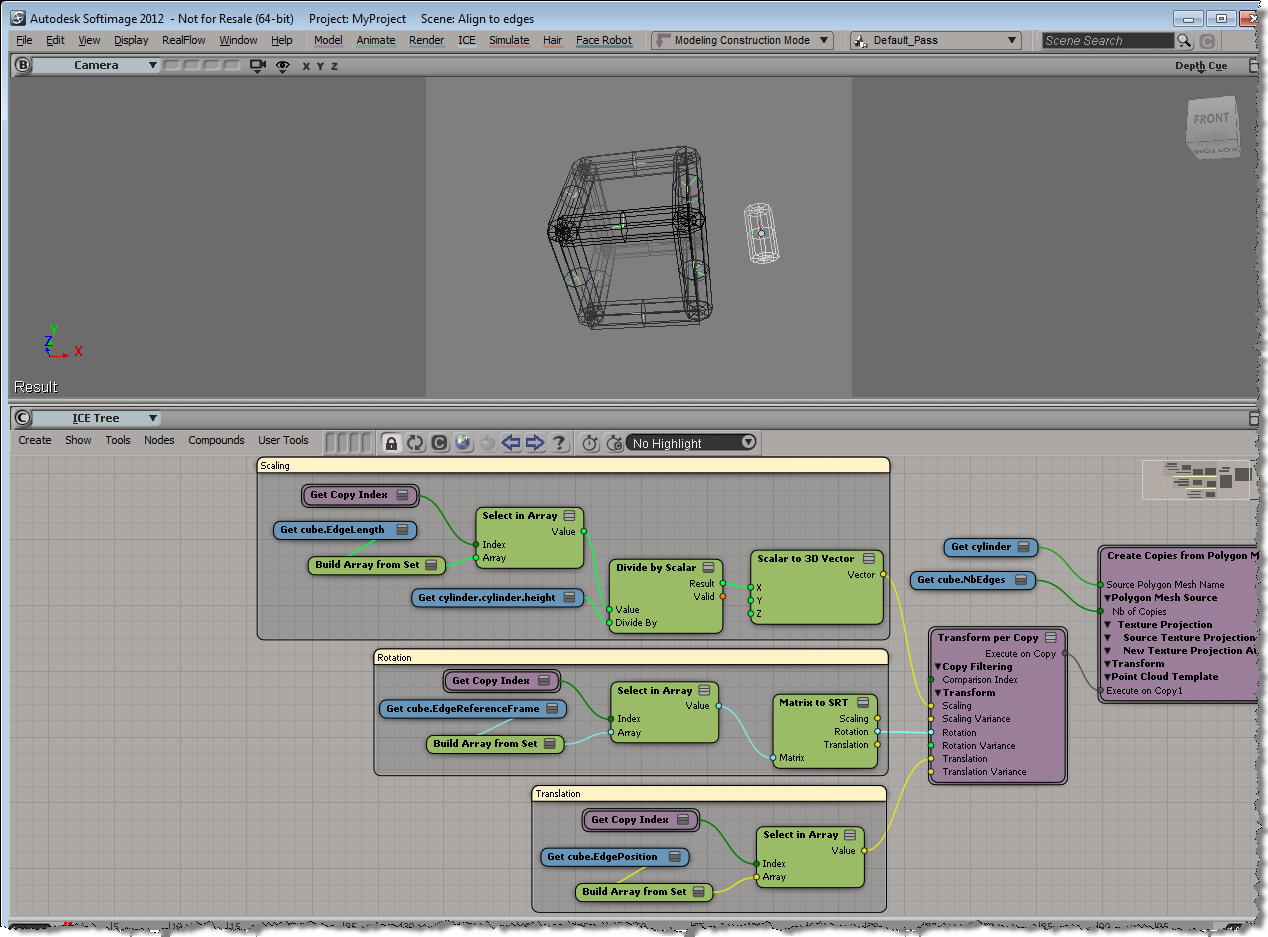
Finally, I can use the EdgeLength to scale the cylinder copies:
 eX-SI
eX-SI 