Friday Flashback #69


1999 wireframe for the Blue Sky “Bunny”. “Nearly all the animation” in Bunny was done in SOFTIMAGE|3D.

  • While its moving story line has certainly contributed to the popularity of “Bunny,” in CG circles what makes this piece so special is the fact that it is the first computer-animated film whose environments were rendered entirely using radiosity. Radiosity is an advanced rendering technique that mimics the subtlest properties of natural light. For “Bunny,” the use of radiosity created an unparalleled dimensionality and organic realism never before attempted in a computer-animated film. Helping the Blue Sky team accomplish this feat was CGI Studio, the company’s proprietary lighting software.
  • …it took the Blue Sky crew 14.75 hours to render each frame of the animation (rendering was done on 14 Compaq AlphaServer RenderPlex systems, with a total of 164 processors)
  • Bunny’s fur was quite complex. There were more than 14,000 clumps of hair on Bunny’s body. Each clump consisting of approximately 50 hairs—were actually invisible cones that were texture-mapped with a mixture of short and long hairs. In total, there were 5640 long-hair cones, 8524 short-hair cones, and 269 shaggy-hair cones. Adobe Photoshop and Interactive Effects’ Amazon 3D Paint were used for texture-map creation.
  • Work on the models in “Bunny” began long before the NURBS modeling method was developed…nearly all of the models were built using an old modeling method called Constructive Solid Geometry (CSG).
  • Nearly all of the animation was done in Softimage. To make the CSG models animate in Softimage, Blue Sky wrote a program that converted the CSG models into polygonal representations that Softimage could understand. Because Amazon 3D Paint works with polygonal models, the team had to texture the CSG models using a combination of Photoshop and proprietary tools.
  • The only animation in “Bunny” that was done in CGI Studio is the scene at the end of the film in which 100 or so moths are flying around the afterlife environment. To animate the moths in that sequence, Blue Sky animator Rhett Collier wrote procedural animation code implemented through CGI Studio. “He figured out through math formulas how a moth would flap its wings. Then he transferred that over to his procedural program, which controlled how the moths came into the scene, making sure they didn’t interpenetrate each other, and varying the way each one flapped,” says Doug Dooley, one of the lead animators on the project. “It was a brilliant program, and very sophisticated procedural animation.”
  • All modeling and animation were done on Silicon Graphics workstations.
New product support offerings from Autodesk


Autodesk recently unveiled its new support offerings. What does this mean for a Softimage customer?

  • Advanced support is basically Gold support renamed. You don’t lose any Subscription benefits that you already have.
  • Basic support is not available for Softimage and a handful of products, such as MotionBuilder, Showcase, Alias, and Simulation. In general, the reason why these products don’t have Basic are 1) they are acquisitions and we are maintaining the same level of support as they had before, and 2) they are complex products that require a high-level (eg expertise level) of support that our partners cannot provide.
  • Up & Ready support is available for 90 days (it was previously 30). So if you buy Softimage but not Subscription, you get 90 days of Up & Ready support for install and licensing problems.
  • Per-incident support is available for Softimage (it wasn’t before). Again, this is good for non-Subscription customers only. I believe it costs something like $150US.

Overall, the purpose of these new support offerings is to let the [majority of] customers choose the support that is right for them.

Crosswalk, Common Files, and the PATH environment variable


Anytime you have problems with Crosswalk not showing up in Softimage or Crosswalk missing or dotXSI liberaries missing, it’s probably because the Common Files location is missing from your PATH environment variable.

Now, setenv.bat does add the Common Files location to the PATH:

rem Adding folder(s) to the Path
set SOFTIMAGE_COMMONFILES=C:\Program Files\Common Files\Softimage
if not "%XSI_SetenvDone%"=="" goto Done_Path
set Path=%XSI_BINDIR%\%XSI_CPU%%_CPU_REVISION%;%XSI_BINDIR%;%SOFTIMAGE_COMMONFILES%;%Path%
:Done_Path

but strangely, this doesn’t [always] help.

  • If you start Softimage from the Start menu, this Softimage still can’t find the common file Crosswalk_2013.0.64.dll (which is installed in C:\Program Files\Common Files\Softimage).
  • But if you start Softimage from a command prompt with XSI.bat, Softimage does find Crosswalk_2013.0.64.dll.

I stumbled on this when I wrote a little script to check whether or not Common Files was in the PATH. Because setenv.bat prepends the Common Files location to PATH, I need to check whether there is more than one occurrence in the PATH. If there’s just one, then that’s a problem because Crosswalk won’t be found when you start Softimage from the Start menu.

from siutils import si

if Application.Version().split('.')[0]>= "11":
	si = si()					# win32com.client.Dispatch('XSI.Application')
	
from siutils import log		# LogMessage
from siutils import disp	# win32com.client.Dispatch
from siutils import C		# win32com.client.constants


path = XSIUtils.Environment( 'PATH' )
cf = "".join( [XSIUtils.Environment( 'CommonProgramFiles' ), '\Softimage'] )
#cfx86 = "".join( [XSIUtils.Environment( 'CommonProgramFiles(x86)' ), '\Softimage'] )

# Check Common Files

# Log number of times Common Files is found in PATH
# log( path.split(';').count(cf) )

if path.split(';').count(cf) > 1:
	log( "'%s' is in PATH" % cf )
else:
	log( "'%s' is missing from PATH" % cf, C.siError )

The case of the missing dotXSI.dll (NT) or libdotxsi.so (IRIX)


A customer reported that he couldn’t import or export dotXSI, and that he got this message in the history log:

# INFO : 4011 - Import/Export .xsi: The dotXSI.dll (NT) or libdotxsi.so (IRIX) is missing or the class is not registered.

From past experience I was pretty sure this was a PATH problem, but just in case I also suggested running runonce.bat to make sure everything was registered:

  • Check that “C:\Program Files\Common Files\Softimage” is included in your system PATH environment variable.
  • In a Softimage command prompt, run runonce.bat, to make sure all DLLs are registered.

It turns out the problem was indeed the PATH environment variable: it was missing C:\Program Files\Common Files\Softimage.

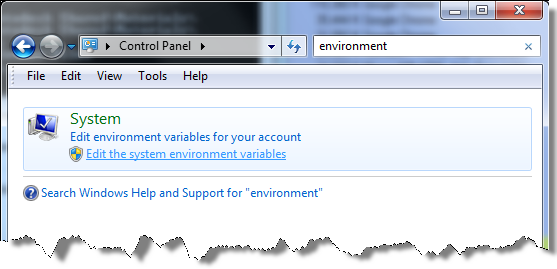
To check the PATH, click Start and open the Control Panel. In the Control Panel window, type “environment” in the Search box, and then click Edit the system environment variables

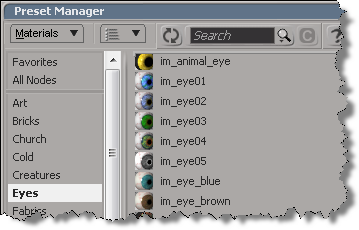
Preset Manager and custom material presets


Just in case you were wondering how to add new material presets to the Preset Manager, because I was and I spent a bunch of time trying…

The Preset Manager won’t pick up presets from anywhere else but the factory location (%XSI_HOME%\Data\DSPresets\Materials).

At first I thought I was doing something wrong. Then I used Process Manager to confirm that Softimage wasn’t loading presets from my User location. Then I checked for old bug reports/feature requests, and I double-checked the actual code for the preset manager.

There’s an environment variable XSI_DSPRESETS that specifies the location of the material presets, but you cannot use it to override the factory location. Even if you change that environment variable, Softimage reads only the factory Data\DSPresets\Materials folder.

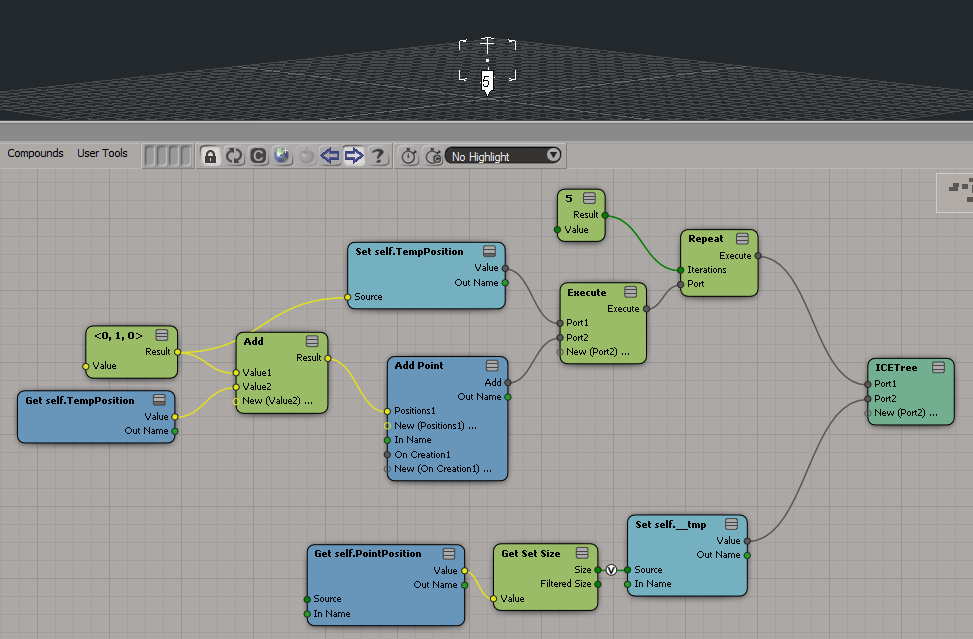
ICE Modeling – Extruding a random polygon


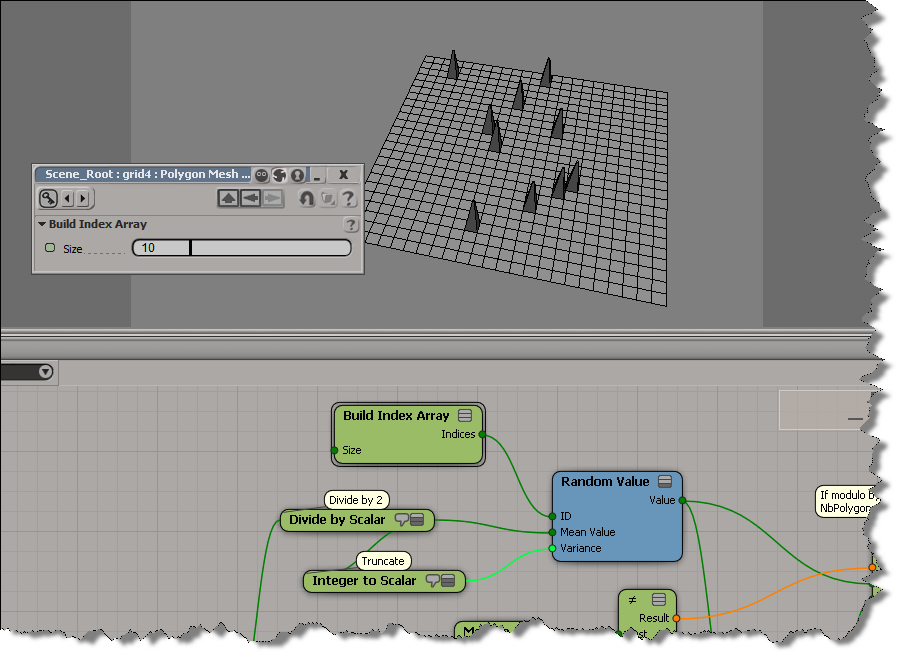
All you have to do is plug a Random Value node into the Polygon Index port, and then set the Mean Value and Variance. If you then play around with the ID (of the Random Value), you’ll get a different polygon extrusion.

Most of this tree is for setting the Mean and Variance. If I have an odd number of polygons, say 81, then a mean of 40 and a variance of 40 will cover the range of polygon indices (0-80). But if I have an even number of polygons, say 80, then a mean of 40 and variance of 40 might give me an index of 80, which is out of range.

To randomly extrude more than one polygon, just feed a bunch of IDs into the Random Value node, like this:

I increased the number of polygons to avoid getting the same random number multiple times.

Python print statement in Softimage 2013


If you’re using an external install of Python, you’ll probably notice that the print statement doesn’t work in Softimage 2013. That’s because Softimage 2013 was compiled with Visual C++ 2010, and Python wasn’t.

We recompiled the built-in Python that ships with Softimage 2012, so if you use that Python, the print statement works.

Workaround courtesy of Jo benayoun:

import sys
class STDOutHook(object):
	def __init__(self):
		pass
	def write(self, data):
		# py engine adds a newline at the end of the data except if
		# the statement was ended by a comma.
		data = "" if data == "\n" else data

		if data != "":
			Application.LogMessage(data)
		return None

sys.stdout = STDOutHook()

print "Hello"
print "\n"       # wont work due to the workaround
print "World",

I found this same workaround by googling “python print redirect stdout”. For example, here.