A little case study of how I used the install logs, together with Process Monitor, to figure out why an install was silently failing.
Troubleshooting install failures with install logs and Process Monitor
Reply

A little case study of how I used the install logs, together with Process Monitor, to figure out why an install was silently failing.
Chris Gardner explains how to use an ICE attribute to control instancing when you send a Softimage ICE simulation over to Maya.
Some related discussions from the Softimage mailing list:
Last month, Guillaume Laforge posted a Random Extrusion compound that can extrude polygons with random lengths and insets.
Guillaume noted that this compound was for Softimage 2013 only, but it appears that [with a tweak] you can get it to work in 2012 SAP.
When you import the compound into 2012, you’ll see a warning in the status bar/script history:
// WARNING : 3000-EDIT-AddICECompoundNode - Could not find node : BuildArrayFromSetNode
All you have to do is put back the missing Build Array from Set node, then the compound appears to work in 2012 SAP.

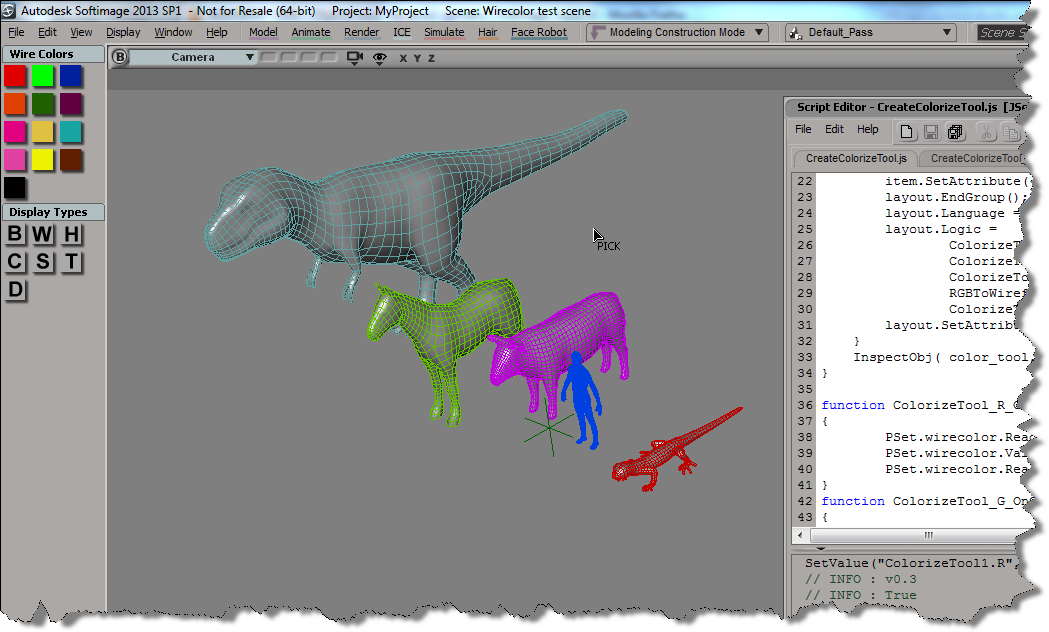
Here’s some updates to the wire frame color script I posted last week. See that post for info on how to add a button to the color palette.
First, I wanted to be able to pick multiple objects, one after the other. So I simplified the script by replacing most of the code with a single call to ColorizeObject, which does let you pick a sequence of objects.
CreateColorizeTool();
function CreateColorizeTool()
{
		var color_tool = XSIFactory.CreateObject( "CustomProperty" )
        if (color_tool)
        {
			var r = color_tool.AddParameter( "R", siDouble );
			var g = color_tool.AddParameter( "G", siDouble );
			var b = color_tool.AddParameter( "B", siDouble );
			var a = color_tool.AddParameter( "A", siDouble );

			var layout = color_tool.PPGLayout ;

			layout.AddGroup( "Color" );
			item = layout.AddColor( "R", "",true );
			item.SetAttribute( "NoLabel", true );
			layout.EndGroup();

			layout.AddRow();
			layout.AddButton( "ColorizeObject", "Colorize object" );
			layout.EndRow();

			layout.Language = "JScript" ;
			layout.Logic = ColorizeTool_ColorizeObject_OnClicked.toString();

			layout.SetAttribute( "LogicPrefix", "ColorizeTool_" ) ;
        }
        InspectObj( color_tool, "Colorize Tool", "", siLock );
}
function ColorizeTool_ColorizeObject_OnClicked()
{
		LogMessage( "v0.5" );
		ColorizeObject( PSet.R.Value,PSet.G.Value,PSet.B.Value );
}
But this code doesn’t let you change the color in-between picks. So I modified the original example script and put a while loop around the call to PickObject (line 62), and I changed the script to get the colors directly from the color widget (line 78). That way, you can set the wire color, pick an object to apply the wire color, set another wire color, pick another object, and so on…
CreateColorizeTool();
function CreateColorizeTool()
{
	var color_tool = XSIFactory.CreateObject( "CustomProperty" )
    if (color_tool)
    {
		var color_tool = ActiveSceneRoot.AddCustomProperty( "ColorizeTool" );
		var wirecolor = color_tool.AddParameter( "wirecolor", siInt4 );
		wirecolor.ReadOnly = true;
		var r = color_tool.AddParameter( "R", siDouble );
		var g = color_tool.AddParameter( "G", siDouble );
		var b = color_tool.AddParameter( "B", siDouble );
		var a = color_tool.AddParameter( "A", siDouble );
		var layout = color_tool.PPGLayout ;
		layout.AddRow();
		var item = layout.AddItem( "wirecolor", "wirecolor" );
		item.SetAttribute( "NoSlider", true );
		layout.AddButton( "ColorizeObject", "Colorize object" );
		layout.EndRow();
		layout.AddGroup( "Color" );
		item = layout.AddColor( "R", "",true );
		item.SetAttribute( "NoLabel", true );
		layout.EndGroup();
		layout.Language = "JScript" ;
		layout.Logic =
				ColorizeTool_R_OnChanged.toString() +
				ColorizeTool_G_OnChanged.toString() +
				ColorizeTool_B_OnChanged.toString() +
				RGBToWireframeColor.toString() +
				ColorizeTool_ColorizeObject_OnClicked.toString();
		layout.SetAttribute( "LogicPrefix", "ColorizeTool_" ) ;
	}
	InspectObj( color_tool, "Colorize Tool", "", siLock );
}

function ColorizeTool_R_OnChanged()
{
        PSet.wirecolor.ReadOnly = false;
        PSet.wirecolor.Value = RGBToWireframeColor(PSet.R.Value,PSet.G.Value,PSet.B.Value);
        PSet.wirecolor.ReadOnly = true;
}
function ColorizeTool_G_OnChanged()
{
        PSet.wirecolor.ReadOnly = false;
        PSet.wirecolor.Value = RGBToWireframeColor(PSet.R.Value,PSet.G.Value,PSet.B.Value);
        PSet.wirecolor.ReadOnly = true;
}
function ColorizeTool_B_OnChanged()
{
        PSet.wirecolor.ReadOnly = false;
        PSet.wirecolor.Value = RGBToWireframeColor(PSet.R.Value,PSet.G.Value,PSet.B.Value);
        PSet.wirecolor.ReadOnly = true;
		PSet.Refresh();
}
function ColorizeTool_ColorizeObject_OnClicked()
{
		LogMessage( "v0.3" );
        var color = PSet.wirecolor.Value;
        var o = null;
        var siRMB = 0;
        var button = -1, modifier;
        while (button != siRMB )
        {
				LogMessage( button != siRMB );
                Application.StatusBar ="Pick object to colorize";
                var rtn = PickObject( "Select object", "");
				button = rtn.Value("ButtonPressed");
				modifier = rtn.Value("ModifierPressed");
				o = rtn.Value("PickedElement");

				if ( o != null )
				{
					var display = o.Properties("Display");
					if (display.isa(siSharedPSet))
					{
							display = MakeLocal( display, siNodePropagation )(0);
					}
					display.wirecol.Value = RGBToWireframeColor(PSet.R.Value,PSet.G.Value,PSet.B.Value);
				}
        }
        if ( button == siRMB )
                return;

        return color;
}
// Convert wireframe color index to double-precision RGB color
function WireframeColorToRGB(lWireframeColor)
{
        var aColor = new Array(3);
        aColor[0] = ((lWireframeColor >>> 1) & 0x7)/7;
        aColor[1] = ((lWireframeColor >>> 4) & 0x7)/7;
        aColor[2] = ((lWireframeColor >>> 7) & 0x7)/7;
        return aColor;
}
// Convert double-precision RGB color to wireframe color index
function RGBToWireframeColor(dR,dG,dB)
{
        // Convert RGB to wirecolor
        var wirecolR, wirecolG, wirecolB;
        wirecolR = (Math.round(dR * 7)) << 1
        wirecolG = (Math.round(dG * 7)) << 4
        wirecolB = (Math.round(dB * 7)) << 7
        return wirecolR | wirecolG | wirecolB;
}
Dynamically assigning Materials to particles
by Vincent Ullmann

Cumulative sum of distances between an array element and all preceding array elements
by Fabricio Chamon

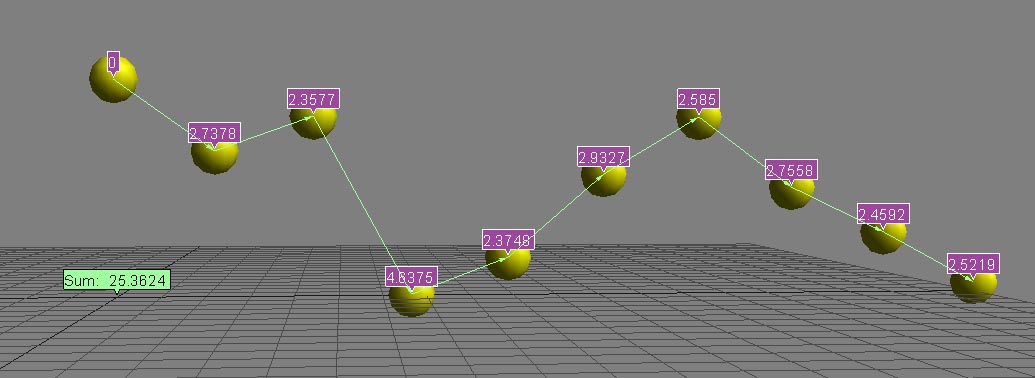
Cumulative sum of distances between an array element and all preceding array elements
by Vincent Ullmann

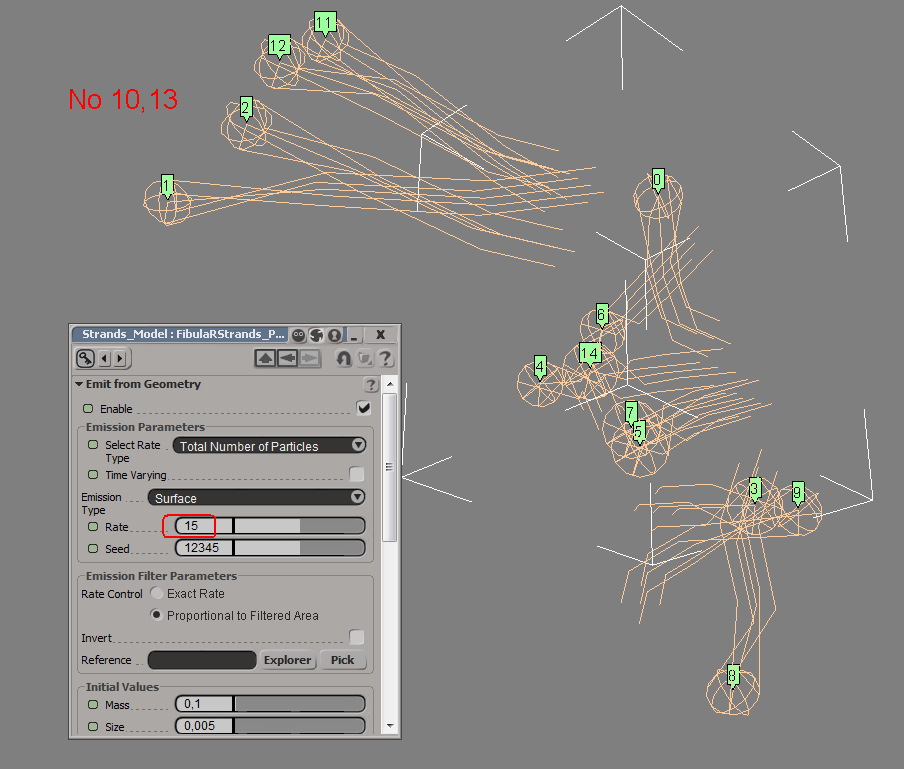
ICE | Arnold Render Errors With Strands
by Mitchell Lotierzo
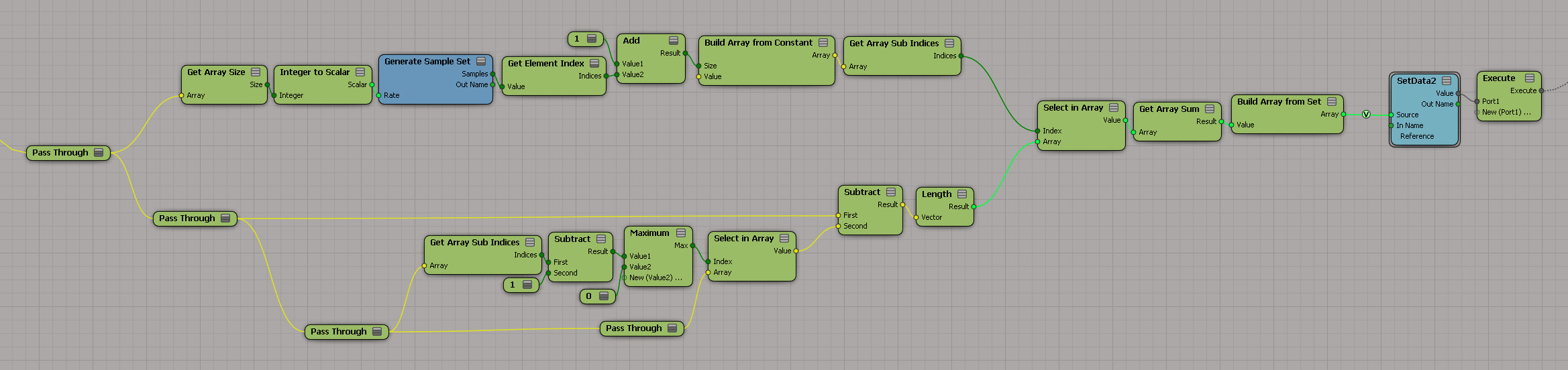
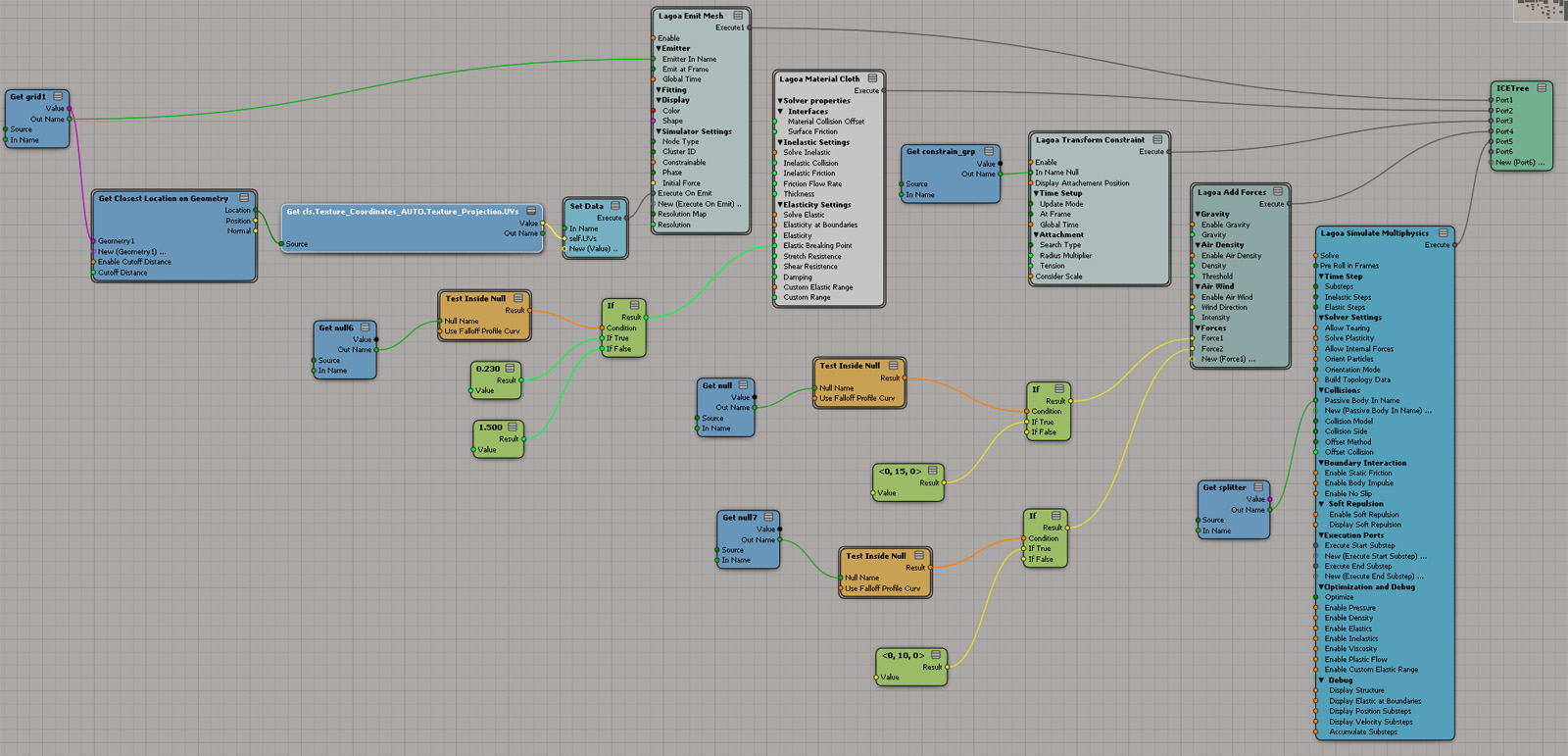
Lagoa cloth ICE tree
by Matt Morris
Delete polygons by area
by Vincent Ullmann

A round-up of some of the Softimage videos posted this past week.
emTools 1.33 – Walk Through New Stuff
ICE Node for reading images at given UV coordinates
compositing images in ICE!
Manipulating colour in images
Psyop Softimage ICE Workshops
ICE-Rope-Rig (with Dynamic Controler Count and nice SubdivisionInterpolation)
Secondary deformations in Ice
http://vimeo.com/45047412
Maxscript Modifiers VS Softimage Ice
Softimage – A guide to better reflections
The answer: SOFTIMAGE Plug-in Description Language
The question: What does SPDL stand for?
Cover page from the original SPDL specification:
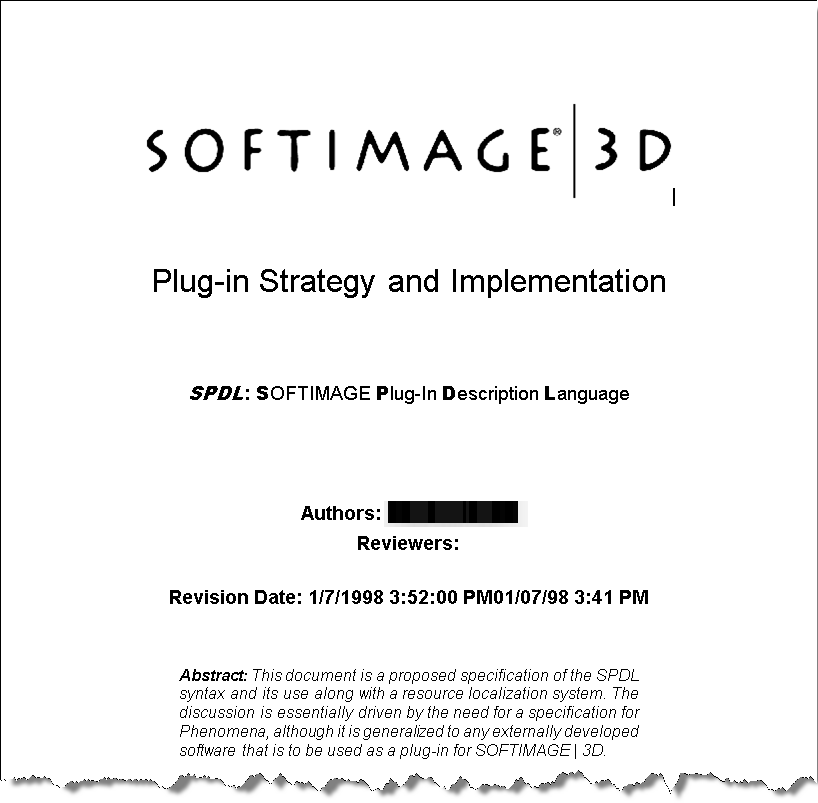
The origins of SPDL go back to at least 1997. The original SPDL parser was written with BISON and FLEX (GNU versions of yacc and lex), and at one point I think there where three different parsers, two based on BISON/FLEX, and one C++/COM (that was back in the early Twister/Sumatra/DS days). I remember going through the BISON/FLEX files in order to write up a SPDL syntax doc…fun times!
FUN FACT: There are 1,511 spdl files in the Softimage 2013 SP1 installation folder.
In this case, a customer was trying to install Softimage 2013 using SIDeploy -i, but the install silently failed.
What’s SIDeploy you may ask?
To use SIDeploy, you’d download the setup, extract the contents, and then do something like this:
set SIDEPLOYPATH=C:\Autodesk\Autodesk_Softimage_2013_English_Japanese_Win_64bit\x64\Softimage
%SIDEPLOYPATH%\SIDeploy.exe -i -f %SIDEPLOYPATH%\SIDeploy.ini
So why did SIDeploy fail?
Softimage 2013 switched up to Visual C++ 2010, so you need to have those prereqs installed already for SIDeploy to work.
You can find a list of prerequisites in C:\Autodesk\Autodesk_Softimage_2013_English_Japanese_Win_64bit\setup.ini.
(C:\Autodesk is where the installer extracts itself by default.)
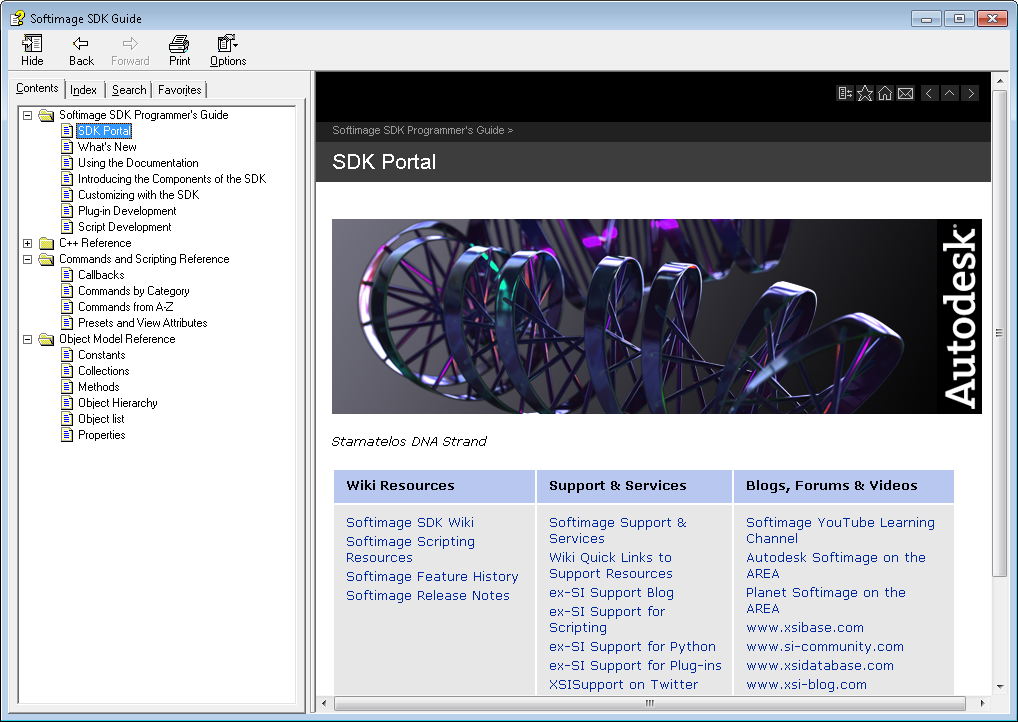
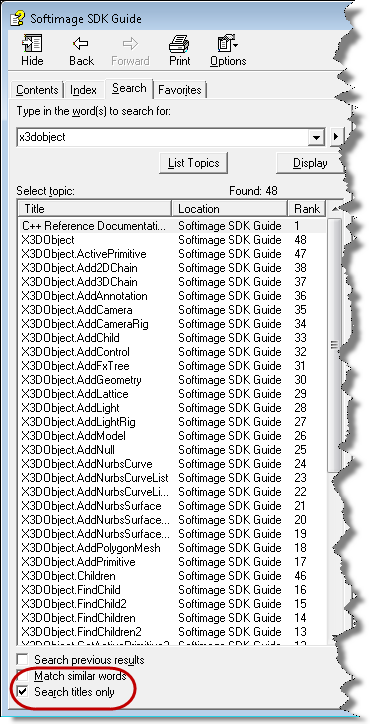
The other day, somebody asked whether there was a CHM version of the SDK help. There isn’t. So I downloaded a copy of the [aging and neglected] HTML Help workshop, installed the local version of the Softimage 2013 documentation, and compiled the SDK help into a CHM file.
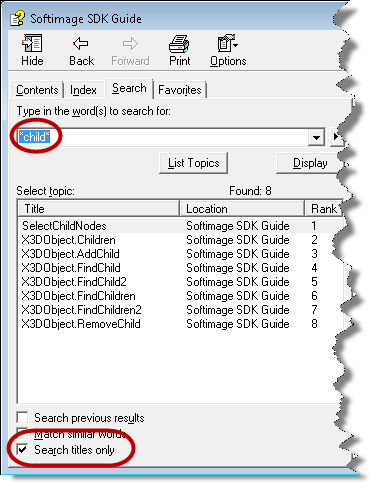
I almost didn’t bother with the index, because I think you can usually get the same thing with the Search, as long as you enable Search titles only. It’s always bothered me that there’s no index entries like “children, adding” or “polygon meshes, creating” and that you have to somehow know the verb part of the method or command name if you want to find it in the index.
Here’s a few examples of using Search titles only:
A quick-and-dirty way to get a custom color chooser in the Palette:
http://vimeo.com/45148964
 eX-SI
eX-SI 