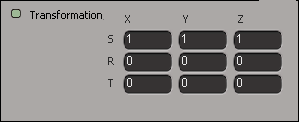
Turn on Collapse Points For Snapping/Absolute Translation to move all the selected points to the same absolute location when translating with Snap, or typing values into the Transform panel. When this option is off, points keep their relative distances to each other and are never collapsed even when COG is off and Snap is on.
Author Archives: xsisupport
Friday Flashback #57 SOFTIMAGE|3D custom dialogs
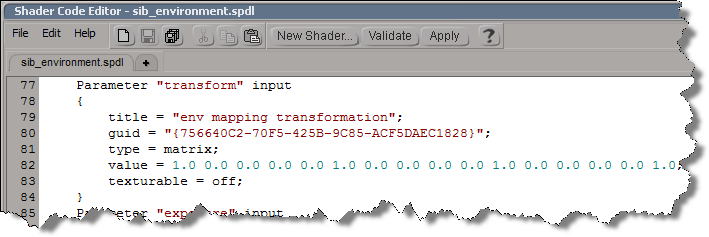
Back in 1999, you would use this dialog editor to build custom dialogs for SOFTIMAGE|3D shaders and plugins:

The dialog editor would generate the .cus file that specified the layout of the custom dialog. For example, this simple dialog box:

was defined by this .cus file:
Dialog 1200, "Breakup", 12, 1, -1, 442, 385, 836, 638 1, 2, "Ok", 700, 459, 790, 496, 0 2, 2, "Cancel", 593, 459, 683, 496, 0 3, 0, "", 697, 459, 697, 459, 0 4, 0, "", 697, 459, 697, 459, 0 5, 0, "", 697, 459, 697, 459, 0 6, 0, "", 697, 459, 697, 459, 0 7, 0, "", 697, 459, 697, 459, 0 8, 0, "", 697, 459, 697, 459, 0 9, 0, "", 697, 459, 697, 459, 0 10, 0, "", 697, 459, 697, 459, 0 11, 0, "", 697, 459, 697, 459, 0 12, 3, "Tagged Points Only",590, 565, 772, 580, 0 _SYMBOLS TAG 12 _END
Using the Schematic view to understand ICE scene setups
The Schematic view can show you the ICE scene references that “connect” different objects in a scene.
In this example:
- ICETree on pointcloud has a scene reference to grid
- Transform_From_Array on null has a scene reference to xform_container_pointcloud.
- Get_Particles_Transform on xform_container_pointcloud has a scene reference to pointcloud.
Here’s a slightly more complicated schematic, for the Modeling_Basic_Shattering sample scene:
Scripting – Getting reference model Resolutions

You can get at the Resolutions through scripting (via NestedObjects or Dictionary.GetObject), but you can get the resolution name and file only.
from siutils import si # Application
from siutils import sidict # Dictionary
from siutils import sisel # Selection
from siutils import log # LogMessage
def getResolutionFileName( m, res ):
if ( m.Type == "#model" and m.Parameters("referenced_model").Value==True):
return sidict.GetObject( m.FullName + ".resolutions." + res + ".file" ).Value
log( getResolutionFileName( sisel(0), 'res1' ) )
log( getResolutionFileName( sisel(0), 'res2' ) )
log( getResolutionFileName( sisel(0), 'res3' ) )
# INFO : Models\Octa-Low.emdl
# INFO : Models\Octa-Med.emdl
# INFO : Models\Octa-High.emdl
Going through NestedObjects is a bit more of a hassle:
from siutils import si # Application
from siutils import sidict # Dictionary
from siutils import sisel # Selection
from siutils import log # LogMessage
import win32com.client.dynamic
def getResolutions( m ):
if ( m.Type == "#model" and m.Parameters("referenced_model").Value==True):
return m.NestedObjects( "Resolutions" ).NestedObjects
resolutions = getResolutions( sisel(0) )
for r in resolutions:
name = sidict.GetObject( r.FullName + ".name" ).Value
file = sidict.GetObject( r.FullName + ".file" ).Value
log( name )
log( file )
# This errors out with the dynamic dispatch fix:
name = r.NestedObjects( "name" )
log( si.ClassName( name ) )
log( win32com.client.dynamic.Dispatch(name).Value )
Moving the timeline pointer back to frame 1 with xsibatch
UPDATE: In the comments, Vladimir suggests a better way to do this: use the scntoc. That way, the scene will always open at frame 1.
Use a text editor to add Application.SetValue(“PlayControl.Current”, 1) to the onload script. This script will run when you open the scene, and move the timeline pointer back to frame 1 to avoid the re-simulation.
<PostLoadScript>
<Language>Python</Language>
<Function>postLoad</Function>
<Script_Content>
<![CDATA[
Application.SetValue("PlayControl.Current", 1)
]]></Script_Content>
</PostLoadScript>
After you save the scene, Softimage will write out the scntoc without the CDATA section (Softimage will replace special characters like < and ” with entities).
<PostLoadScript>
<Language>Python</Language>
<Function></Function>
<Script_Content>
Application.SetValue("PlayControl.Current", 1)</Script_Content>
</PostLoadScript>

So you have a heavy simulation, and you saved the scene with the timeline pointer at frame 1000. Now when you open the scene, you have to sit and wait while the scene re-simulates.
You can fix this by using xsibatch to move the timeline pointer back to frame 1.
It’s probably a good idea to save heavy sim scenes with the timeline pointer at frame 1 😉
- Save this JScript in a .js file.
var sScene = "C:\\Users\\blairs\\Support\\Scenes\\Test.scn" OpenScene(sScene, null, null); SetValue("PlayControl.Current", 1, null); SaveScene(); - In a command prompt, use xsibatch -processing -script to run the script:
xsibatch -processing -script C:\Users\blairs\Documents\resetPlayControlCurrent.js
Now you can open your scene without it resimulating.
Tip for using Show Values with the Filter node
Use the SKip Default Values During Display or Show Values Computed at Current Frame options when you do a Show Values on the output of a Filter node.
With the default Show Values settings, you’ll see default values for the elements that didn’t pass the filter condition:

If you enable SKip Default Values During Display or Show Values Computed at Current Frame , then you see values for the filtered elements only:

Screenshots of the week
Using a chain of Filters instead of And
by gustavoeb

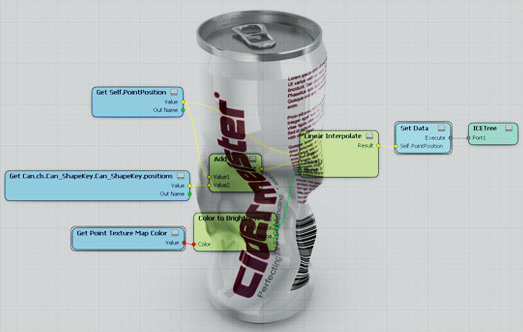
Combining RealFlow point clouds and transferring colors
by Mr.Core

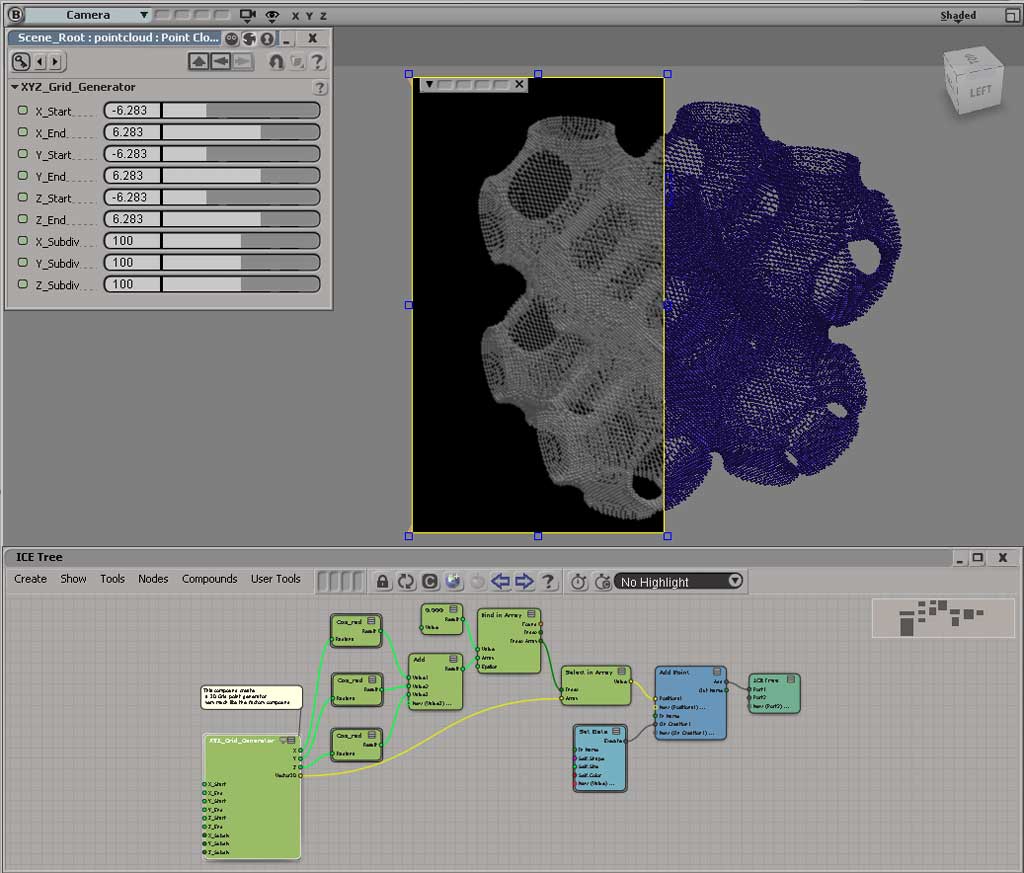
Building swirling patterns
by Chris Marshall

DOF in FxTree
by Oaklet

Create Points using UV Data
by Gustavo Eggert Boehs

Rotate and scale polygons in local space
by César Sáez

Texture map lookup
by Leonard

Pop quiz: Troubleshooting mip shader errors
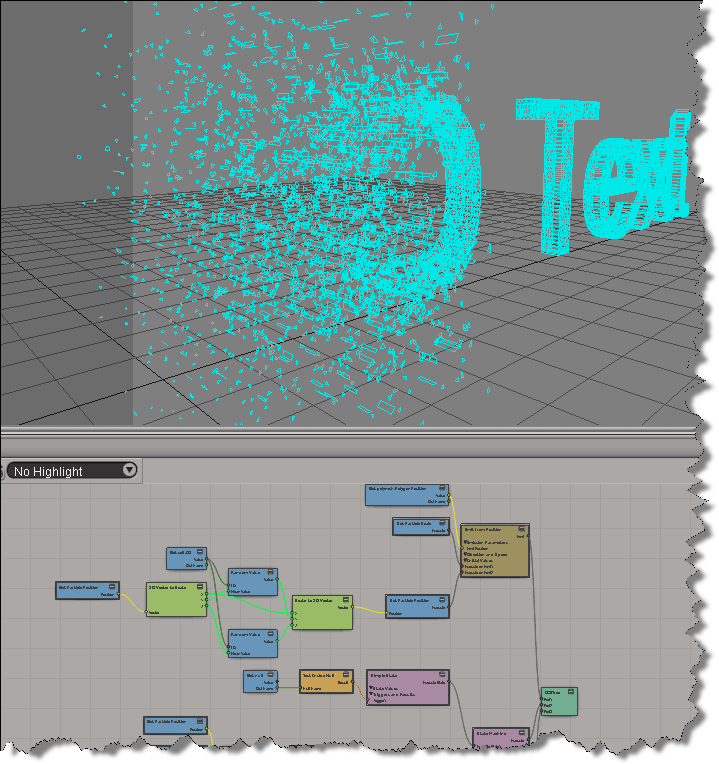
Friday Flashback #56: Moondust, a visual-programming approach to building FX
Making circles on the surface of a mesh
Taking a cluster of points and moving them on to a circle turned it to be easier than I thought… At first it seemed more complicated to get at the points, because sometimes the Show Values on the output of a Filter node is, let’s face it, misleading. Based on what a certain Show Values showed me, I started off using arrays instead of Filters, and that made the graph a little messier.
First, I calculate the point I want to use as the center of the circle. That gives me the first vector I need.

Subtracting the CC (circle center) vector from the PP (Point Position) vectors gives me a set of vectors that take me from the circle center to the points.

I just resize the PP-CC vectors to get point positions that fit on a circle: