ICE Modeling – placing copies on another object


Part 1 of 2. A video walkthrough of how to use ICE modeling to create copies of an object and place them at specific positions on another object (in this case, on the polygon centers).
http://vimeo.com/33667035
Uses: Create Copies from Polygon Mesh, Transform per Copy, Get Copy Index, Build Array from Set, NbPolygons, PolygonPositions

Tip: Getting links to specific help pages


The online help docs use framesets, which can make it tricky to get the right URL when you want to save or send a link to a certain page. Often you end up with a link to index.html, which is just the page that holds the HTML frameset.

Here’s a few different ways to get a link to a page:

In Firefox:

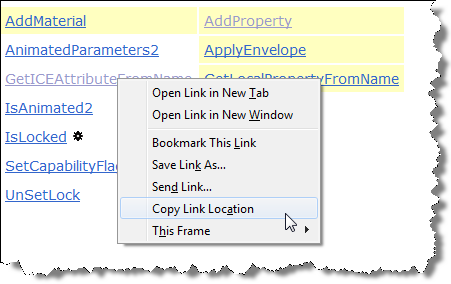
  • Click the Show in Contents icon (top-right) then right-click entry in TOC and click Copy Link Location .
  • Click the Up icon (top-right). This usually takes you to a page with a list of links to the topics in this section. Right-click the link and click Copy Link Location.
  • Click the Previous page icon (<), then right-click Next (>) and click Copy Link Location.
  • Right-click the page, click This Frame > Page Info, and copy the Address URL

The SDK docs don’t have the navigation buttons, so in general you have to get the link from This Frame > Page Info.

For something like an Object Model method or property, you can get the link from the object reference page (because it has a table of links to all methods and properties).

Filtering object selection by volume


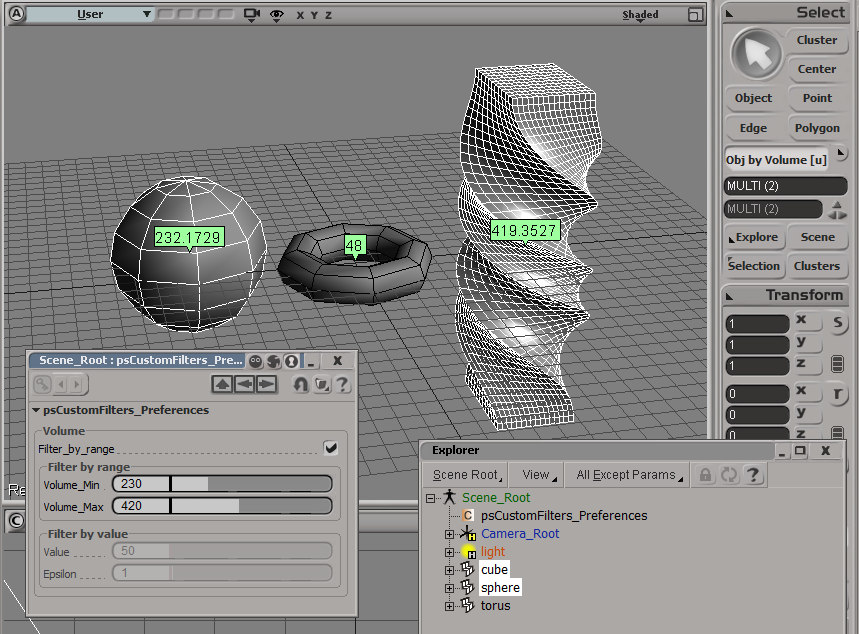
Here’s an addon that uses the ICE Volume attribute to filter object selections. The Volume attribute is always defined (so you don’t need to Show Values or anything for this filter to work).

Note that you have to freeze scaling to get the right volume for an object.

For simplicity, I’m using a custom property (on the scene root) to hold the preferences for the filter.

The filter itself is simple. It just gets the Volume attribute value and compares it to the range of values specified in the PPG.

# Match callback for the psCustomFilters custom filter.
def ObjbyVolume_Match( in_ctxt ):
	Application.LogMessage("ObjbyVolume_Match called",constants.siVerbose)

	in_object = in_ctxt.GetAttribute( "Input" );

	obj = Get3DObject( in_object );
	if ( Application.ClassName(obj) != "X3DObject" ):
		return false;
	
	v = obj.ActivePrimitive.ICEAttributes("Volume").DataArray[0]

	filterProp = GetFilterProp( )
	if filterProp.Filter_by_range.Value == True:
		bMatch = filterProp.Volume_Min.Value <= v <= filterProp.Volume_Max.Value
	else: # Filter by value with an epsilon
		min = filterProp.Value.Value - filterProp.Epsilon.Value
		max = filterProp.Value.Value + filterProp.Epsilon.Value
		bMatch = min <= v <= max
		
	return bMatch

Screenshots of the week


ICE Topology and parametric equations (Warning math here!)
by Daniel Brassard
All kinds of good stuff going on here…

Use Cross-product and dot product to test if particles inside curve
by Mathaeus

Flocking particles #Softimage

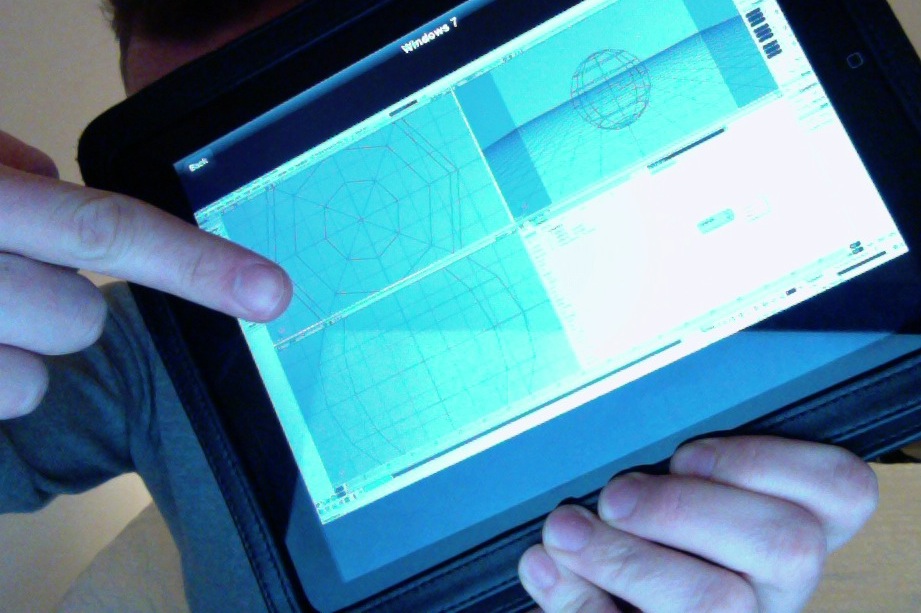
Softimage running on an iPad with the Parallels Mobile App
by andy_nicholas

Softimage running under Parallels Desktop on a Mac
Andy Nicholas

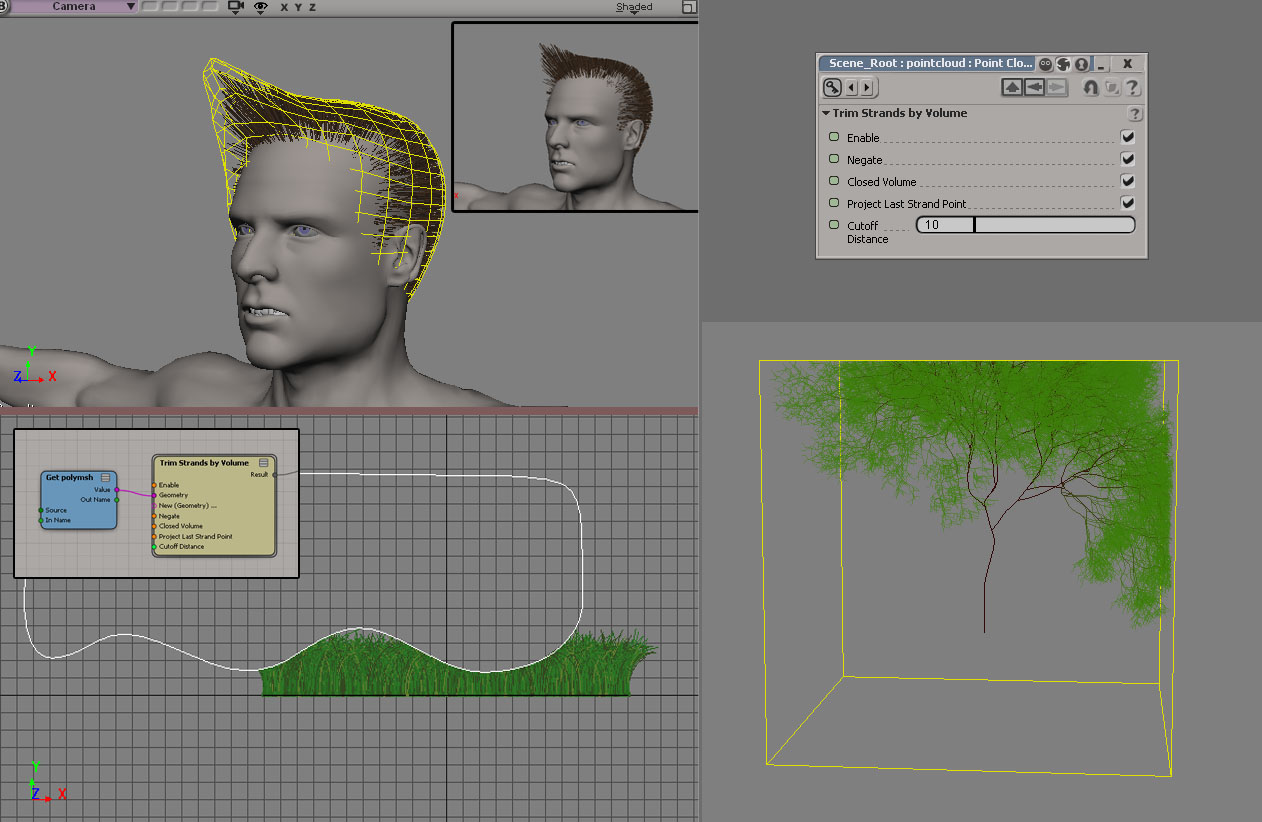
Strand alignment on deformed mesh

Scripting – Applying an ICE compound to multiple objects


UPDATE: Script updated to work in 2013

Here’s a script for applying an ICE compound to many objects in one go.

The script pops up a browser where you select a compound, and then the selected compound is applied to all selected objects (or, if a group is selected, to all members of the group.

I posted something similar before, but that was part of an add-on that adds new menu commands for applying ICE operators.


from siutils import si		# Application
if Application.Version().split('.')[0]>= "11":
	    si = si()                   # win32com.client.Dispatch('XSI.Application')

from siutils import log		# LogMessage
from siutils import C		# win32com.client.constants
from siutils import disp	# win32com.client.Dispatch

siut = disp('XSI.Utils')
sifact = disp('XSI.Factory')
siuitk = disp('XSI.UIToolkit')
sisel = si.Selection


#
# Pop up a browser to select a compound
#
def getCompound():
	initialDir = siut.BuildPath( si.InstallationPath( C.siUserPath ), "Data", "Compounds" )

	oFileBrowser = siuitk.FileBrowser
	oFileBrowser.DialogTitle = "Select compound to apply"
	oFileBrowser.InitialDirectory = initialDir
	oFileBrowser.Filter = "All Files (*.*)|*.*||"
	oFileBrowser.ShowOpen()

	return oFileBrowser.FilePathName

#
# Apply op to 
# - the selected objects
# OR
# - the members of a selected group
#
def getTargetObjects():
	objects = disp( "XSI.Collection" )

	if sisel.Count == 0:
		log( "Please select either some objects or a group" )
	elif sisel(0).IsClassOf( C.siGroupID ):
		objects = sisel(0).Members
	else:
		objects = sisel

	return objects

#
# Do it...
#
objects = getTargetObjects()	
sCompound = getCompound()

if sCompound != "" and objects.Count > 0:
	for o in objects:
		si.ApplyICEOp( sCompound, o.FullName )

Friday Flashback #47


The still-beating Softimage heart. This animated GIF was on the home page of the Softimage intranet, back in the Avid days before the Autodesk acquisition.

Didn’t Softimage have a marketing tag line like “from the heart” at one point? I seem to remember that, but I can’t find any reference to it.

Ah! It was “From the soul” that I was thinking of…

Tip: Inspecting compounds in a PPG


If you use ApplyICEOp to apply a compound, then you can open the compound PPG by clicking the ICE tree operator icon in the explorer. For example, in this screenshot, clicking the Bend operator icon opens the Bend PPG (Bend is an ICE compound).

If you create the ICE tree yourself and hook up the compound, you don’t get this behavior. That’s because ApplyICEOp knows what compound is being applied, so it can nest the compound node directly under the ICE operator node, and the operator PPG can inspect the compound parameters.

The case of Error 1603 and the corrupt PIT file


In a recent case, a customer reported error 1603” during installation. As I’ve mentioned many times in various places, error 1603 is a generic error code that doesn’t tell us much. So, you can either apply some generic troubleshooting (reboot, check download, disable UAC, reinstall VC++ manually, …) or check the detailed installation logs for more specific information.

The problem is this specific case was that the installer wasn’t able to update ProductInformation.pit. Without looking at the logs, I don’t know whether you would ever figure this out.

http://vimeo.com/33273288

While versus Repeat


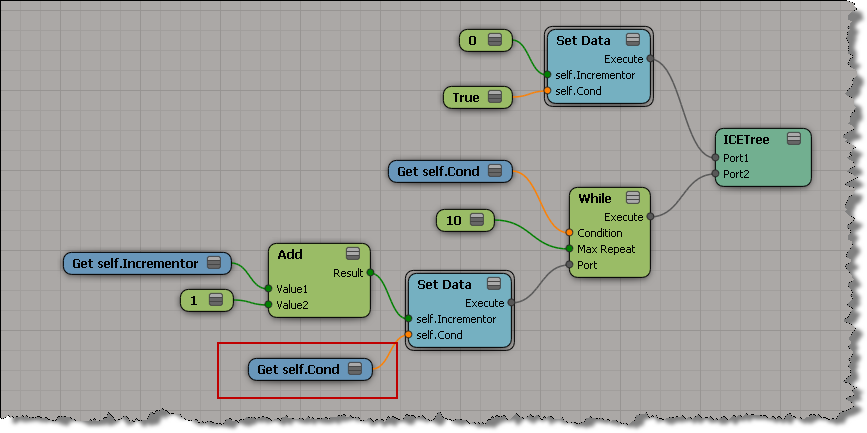
Just like in programming, Repeat can be considered a generalization of While (K&R: the for loop is a generalization of the while).

The difference between While with Counter and Repeat with Counter is that when you use While with Counter, the counter doesn’t necessarily control the number of loop iterations. Typically you would use some boolean condition (for example, number of polygons reduced by more than 50%) to control the number of loops, rather than an incremented counter. The counter is a convenience, there for you to use inside the while loop.

Here’s a rather artificial example of equivalent While and Repeat loops. The While loop uses a counter inside the loop, and also in the condition. Note that I had to subtract one for the While loop, because inside While with Counter, the counter is incremented after the loop is executed.

In this example, it would be simpler to just use the Max Repeats: