ICE Modeling – extruding polygons with random lengths


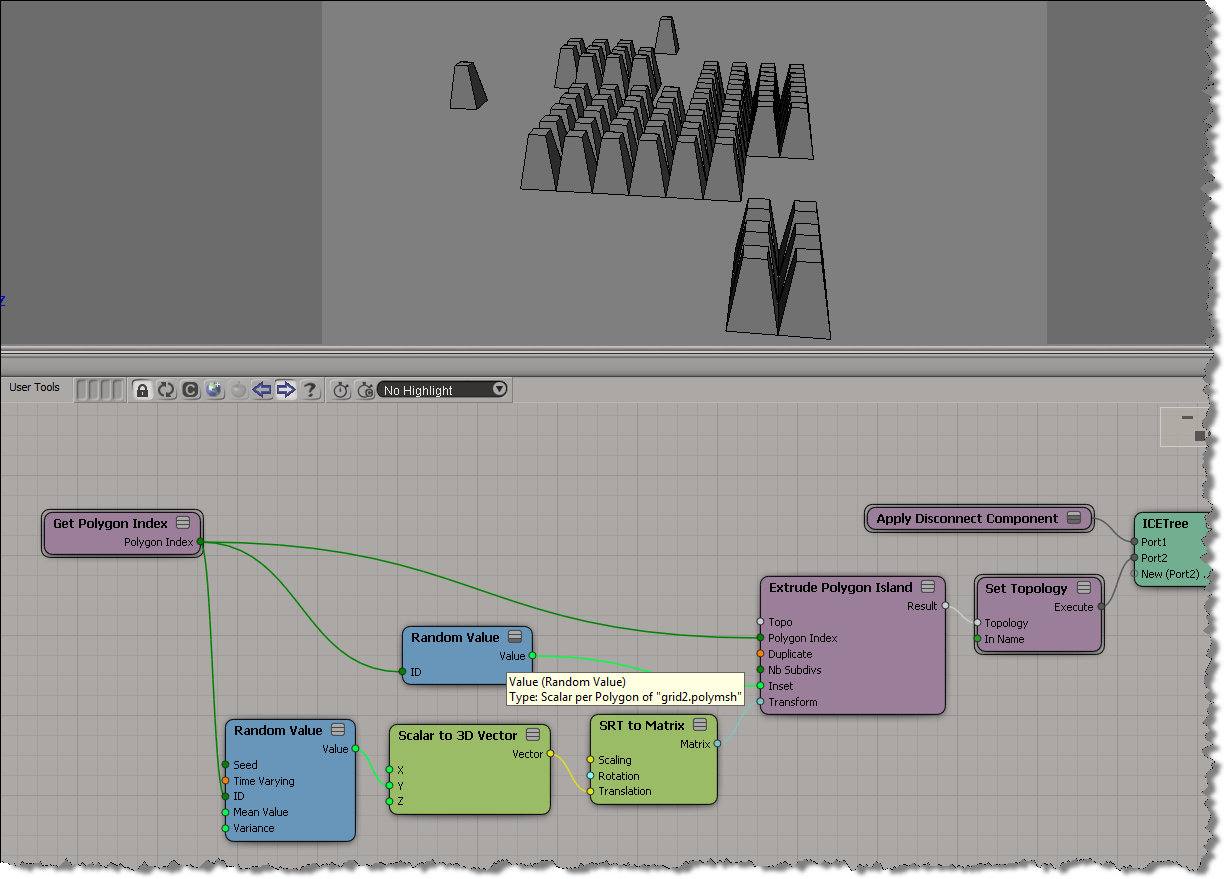
I didn’t look yet at the Random Extrusion compound Guillaume posted yesterday, because I wanted to work through the basics on my own (but do go get his compound, it’s sure to be pretty useful). Here’s a simple ICE tree that uses a different random length for each extruded polygon:

.

You can’t get different extrusion lengths for different polygons without using the Repeat node. That’s because the length, inset, and transform are basically per-object, even though you can plug seemingly per-poly values into those ports.

Gotcha! ApplyICEOp and embedded compounds


When you export a compound, you can choose to embed internal compounds.

It turns out that if a compound has embedded compounds, then calling ApplyICEOp like this:

sFile = 'Test Compound'
Application.ApplyICEOp(sFile, "Sphere1", "", "siUnspecified")

will give you this error if the compound is not located in the Data\Compounds folder of your User location.

# ERROR : 21000-EDIT-PrivateGetCompoundConstructionMode - Unspecified failure - [line 720 in C:\Program Files\Autodesk\Softimage 2013\Application\DSScripts\operators.vbs]
Application.ApplyICEOp("Test compound", "Sphere1.sphere", "", "siUnspecified")
# ERROR : Traceback (most recent call last):
#   File "<Script Block >", line 58, in <module>
#     si.ApplyICEOp( sCompound, o.FullName )
#   File "<COMObject XSI.Application>", line 2, in ApplyICEOp
# COM Error: Unspecified error (0x-7fffbffb) - [line 58]

I noticed something was up when Softimage kept using the a version of the compound from my User location instead of the “bad” version I had in my Downloads folder. A quick check with Process Monitor showed that yep, Softimage was always looking for C:\Users\blairs\Autodesk\Softimage_2013\Data\Compounds\Test Compound.xsicompound, even though I had selected C:\Downloads\Test Compound.xsicompound as the compound to apply.

The workaround is to specify the full path:

sFile = 'C:\\Users\\blairs\\Documents\\Workgroup2\\Data\\Compounds\\Test compound.xsicompound'
Application.ApplyICEOp(sFile, "Sphere1", "", "siUnspecified")

I’ve updated my Applying an ICE compound to multiple objects script accordingly…

Spawning particles into a different point cloud


Spawning into different point clouds is [supposed to be] easy to set up and allows you to use different shaders on different clouds, which gives you more control over the look of your particles.

Spawn on Collision, however, doesn’t seem to work with a different point cloud. As soon as you change Self to a different point cloud, everything goes red and there’s all kinds of errors and warnings. Look at the Show Messages for Spawn on Collision:

It’s like that all the way back to 7.01. If there’s a way to do it right, I don’t know it yet.

To spawn particles into a new point cloud, try using Spawn on Trigger instead.

Copying tangent data in a crowd


Here’s a video walkthrough that shows how to get tangent data on the source actor and copy it to the actor copies. It’s basically a two-step process: first, copy the tangent data to a custom attribute on the mesh proxy, and the copy the attribute from the proxy to the actor copies. That’s basically what CrowdFX does for you for the default Texture_Projection.

I did this video for a customer who wanted the tangent data for the normal maps on the actor copies.

http://vimeo.com/41905747

Copying tangent data with ICE modeling


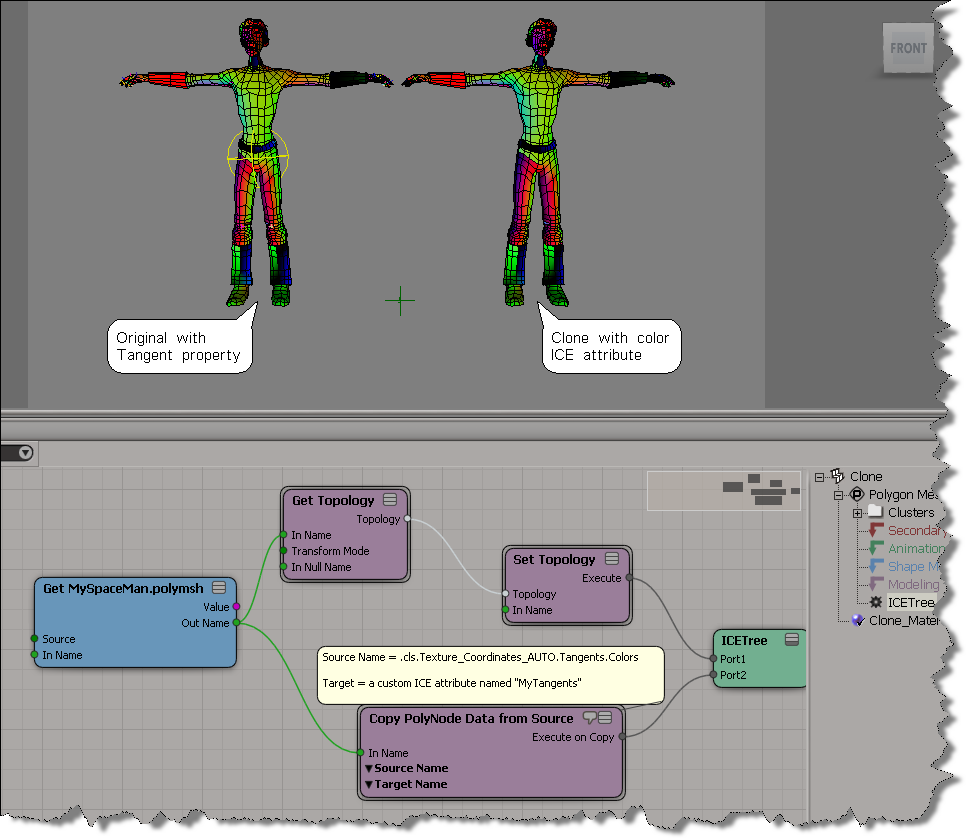
Here’s an example of using Copy PolyNode Data from Source to copy tangent data from a source mesh to a cloned mesh. Typically you would plug this into the Execute on Copy port of a Create Copies from Polygon Mesh or Clone Polygon Mesh, but here I’ve done something more basic.

To display the tangent data of the clone in the viewport, I’m using the Vertex Color Display Property setting (OpenGL Display tab of the material applied to the clone).

New Tool: ICE Tree Trace from Bradley Gabe


ICE Tree Trace is a new tool from Bradley Gabe. Download it here.

It’s a plugin, so you want to save it in the Application\Plugins folder of either your Softimage User location, or of a workgroup.

Or drag this addon to a viewport.

After you install the plugin, you’ll have a new menu in the ICE Tree view:

ICE_TraceRefString:
Tool for tracing instances of strings inside ICE Trees. Can be used, for example, to track down the number of times a specific attribute is called. Via filters, may also be used to determine how an attribute is called, whether by Get Data, Set Data, or other ICE nodes that handle string parameters.

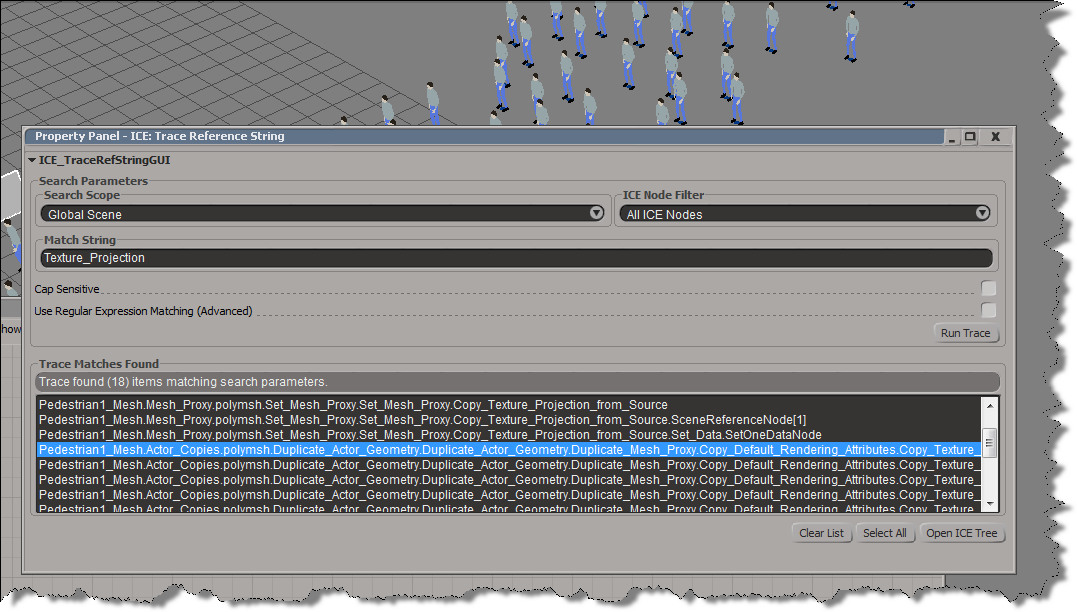
Here’s an example. I used Tree Trace to find all references to the Texture_Projection attribute in a CrowdFX scene:
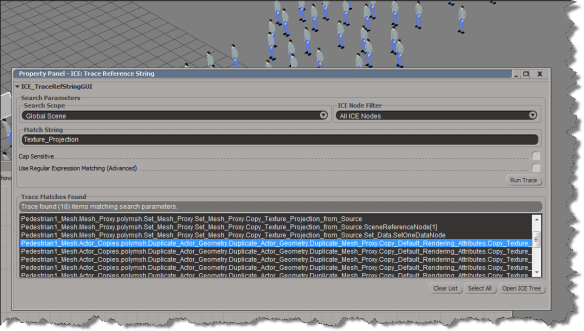
Usage:
Specify search options, enter a Match String, then press the trace button. If matches are found, the address of the ICE Nodes are listed in the Match List at the bottom of the GUI. If items are selected in the Match List, their corresponding nodes are selected in the scene

NOTE: At present, there is no access in the SDK to directly select nodes inside an ICE Tree node graph interface. ICE nodes are selected in the scene, and may be accessed via the explorer.

GUI Parameters:
Search Scope:
• Selected ICE Nodes – Search only within currently selected nodes in ICE Tree
• Local ICE Tree – Search all nodes in the currently open ICE Tree
• ICE Trees on Sel Scene Items – Any ICE Tree on selected scene items
• Global Scene – All ICE Trees in the scene

ICE Node Filter:
• All ICE Nodes – No filter
• Get Data only – Search for string matches only in Get Data nodes
• Set Data only – Search for string matches only in Set Data nodes
• Other Nodes – Search for string matches in nodes that are not Get Data or Set Data (Shape Instance, String nodes, etc)

Match String: String to be searched for inside ICE Tree

Cap Sensitive: Consider capitalization in search string (Overridden by RegExpr matching)

Use Regular Expression Matching: Allows user to specify match strings using regular expression syntax

ICE Modeling – Extruding a random polygon


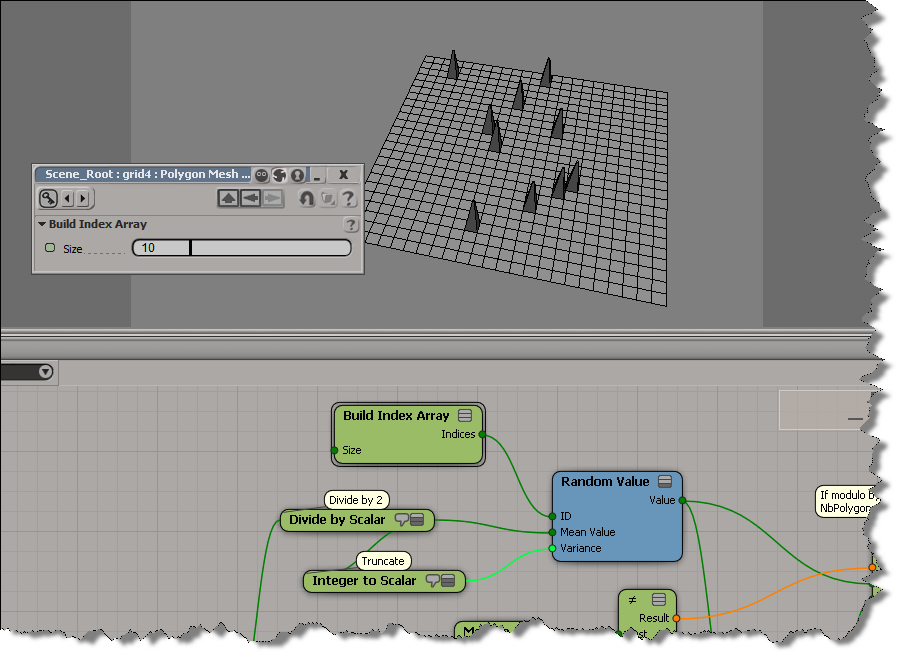
All you have to do is plug a Random Value node into the Polygon Index port, and then set the Mean Value and Variance. If you then play around with the ID (of the Random Value), you’ll get a different polygon extrusion.

Most of this tree is for setting the Mean and Variance. If I have an odd number of polygons, say 81, then a mean of 40 and a variance of 40 will cover the range of polygon indices (0-80). But if I have an even number of polygons, say 80, then a mean of 40 and variance of 40 might give me an index of 80, which is out of range.

To randomly extrude more than one polygon, just feed a bunch of IDs into the Random Value node, like this:

I increased the number of polygons to avoid getting the same random number multiple times.