Changing the default values on a PPG


A colleague wanted to use Polygon Reduction on a heavy face mesh, but he didn’t want to apply the Polygon Reduction op with the default 50% Ratio. So he asked me how to change the default values in the Polygon Reduction ppg.

PPG default values come from the preset, so we changed the ratio default, backed up the factory default preset, and then saved a new default preset from the PPG. Not recommended practice, but it worked. Another, safer, way would be to save a preset in the User location and then apply that preset:

var o = ApplyTopoOp(“MyPolygonReduction2.Preset”, “face-mesh”, siUnspecified, siPersistentOperation, null);
InspectObj(o);

HT: luceric:

Default values in spdls are never used except for shaders. In the case of shaders, these default values are used when creating a preset with spdl2preset. For all other types of objects the default value is never even looked at. Softimage developpers have often mistakenly put a “default=” in spdls even though this value is ignored.
The default values for comes from the preset file. To change them, save the preset of the property page on top of the preset file used to create that primitive. These presets are found in the DSPreset folder of the XSi installation. However be aware that this may affect the result of scripts that create these primitives. So it’s best not to change them, and instead write a script that changes the values to what you want.
Bookmarking in the script editor


It’s documented in the SDK guide, but not in the User’s guide, so you may not know that the script editor supports bookmarks.

You can use Ctrl+F2 to set bookmarks in the script editor, and F2 and Shift+F2 to go to the next/previous bookmark. Ctrl+Shift+F2 clears all bookmarks.

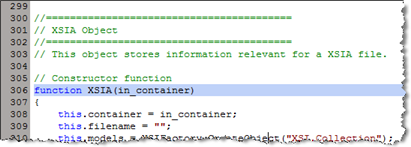
By default, bookmarked lines are highlighted in the editing pane:

If the Selection Margin preference is set, then bookmarked lines are indicated by an icon in the margin:

HT: Chinny

Editing a Character Key Set PPG


I was asked the other day “how to change the labels on a character key set PPG”.

A Character Key Set PPG is a custom property and some proxy parameters. So you can edit the proxy parameter definition:

  1. Open the character key set PPG.
  2. Mark a parameter.
  3. In the Animation panel, click Animation > Parameters > Edit Parameter Definition.
  4. Change the name of the parameter and click Ok.

Tip: Character key sets are implemented in %XSI_HOME%\Application\DSScripts\CharacterKeySets.vbs.

Face Robot workflow tips for combining heads with bodies


Courtesy of Mr Jeff Wilson, some tips on attaching Face Robot heads to characters:

“There are a few ways to go about it, depending on the pipeline that you are in.

If you just want to get the end result from Face Robot onto your character and are rendering frames, then the simplest way is to cache the face meshes from FR and bring those caches into your scene file containing the skeleton. This is the most accurate method for getting the animation across. FR ships with Point Oven, but we always used the KP_PointCache plugins from Kai Wolter in production. Kai’s tools write to the PC2 format which both Max and Maya understand. And they are free.

Continue reading

SUMATRAPATH


SUMATRAPATH is an environment variable that is defined only in Softimage. SUMATRAPATH points to the Application\bin folder in the Softimage folder, and the registry is full of Softimage entries that use SUMATRAPATH to specify the location of DLLs.

In XSI 7.01, you could check whether or not you were in Softimage with this Python code:

import os
app = Application
if os.getenv( ‘SUMATRAPATH’ ) != None :
        app.LogMessage( “you’re in XSI” )
else:
        app.LogMessage( “you’re not in XSI” )

However, in both Softimage 7.5 and 2010, os.getenv(“SUMATRAPATH”) returns None. At least for me it does.

XSIUtils.Environment.Item(“SUMATRAPATH”) does still return the Application\bin path, as does this Jscript:

var oShell = new ActiveXObject ("WScript.Shell");
var oProcessEnv = oShell.Environment("Process");
LogMessage( oProcessEnv( "SUMATRAPATH" ) );

Sumatra was the original code name for the product that eventually became known as Softimage XSI (the Softimage XSI name was unveiled back in March 2000).

Searching the XSI Mailing List Archive on Google groups


A month or so ago the Google groups search really went downhill. All of a sudden my search results starting coming back empty or near empty. And I’m not the only one to notice.

For example, searching the XSI Mailing List Archive for dual monitor finds 2 results, and I know there are others.

Searching Google Groups for dual monitor xsi_list gives better results.