The case of the FLEXnet Licensing error:-97,121


This was another case of the dreaded “No interactive network license available” message when you start Softimage. The customer was pretty savvy, so he set FLEXLM_DIAGNOSTICS=3 and tried to start Softimage again, and got this FLEXnet Licensing error:-97,121 error:

---------------------------
FLEXible License Manager
---------------------------
FLEXnet Licensing checkout error: The desired vendor daemon is down.
Check the lmgrd log file, or try lmreread.
Feature: 85934SFTIM_2013_0F
Vendor:Host: EXAMPLE
License path: @EXAMPLE;@127.0.0.1;EXAMPLE;@example;
FLEXnet Licensing error:-97,121
For further information, refer to the FLEXnet Licensing documentation,
available at "www.flexerasoftware.com".
---------------------------
OK
---------------------------

Now, this is not typical. -91,121 is almost always an error that happens on the license server, not on the workstation (it usually indicates a problem with the SERVER line in the license file).

The %TEMP%\SoftimageLicense.log had this:

4268	2012/07/27	07:38:23	Reason=Fatal error
4268	2012/07/27	07:38:23	ComputerName=MEGACORE
4268	2012/07/27	07:38:23	OS=6.1.7601.Service Pack 1
4268	2012/07/27	07:38:23	File=AdlmIntNWFBLicense.cpp,Line=769
4268	2012/07/27	07:38:23	VendorID=3 [FLEXLM-NW]
4268	2012/07/27	07:38:23	VendorError=-97 [The desired vendor daemon is down]
4268	2012/07/27	07:38:23	FLEXLM-NW=v11.10.0.0 build 95001 x64_n6
4268	2012/07/27	07:38:23	Reason=Fatal error
4268	2012/07/27	07:38:23	ComputerName=MEGACORE
4268	2012/07/27	07:38:23	OS=6.1.7601.Service Pack 1
4268	2012/07/27	07:38:23	File=AdlmIntNWFBLicense.cpp,Line=752
4268	2012/07/27	07:38:23	AdlmIntError=20 [License check out failed]

Note that both the FLEXLM_DIAGNOSTICS and the SoftimageLicense.log say that The desired vendor daemon is down. This was the real clue, and the problem turned out to be that LMTOOLS was running multiple vendor daemons from different vendors. Assigning a specific port to each vendor daemon solved the problem.

The case of the missing entry point


In this case, a Softimage user running Composite 2013 was getting the following error when he started Composite:

---------------------------
composite.exe - Entry Point Not Found
---------------------------
The procedure entry point 
?Initialize@CMLFacade@@SAXPEAVCMLWaypoint@@PEB_W11HI_J2_N1@Z 
could not be located in the dynamic link library MC3.dll. 
---------------------------
OK   
---------------------------

The short story is that 3ds Max 2010 was causing this problem with Composite 2013. Here’s the long story…

A “procedure entry point” is basically a function (or method) defined in the DLL. In this case, Composite is trying to call a certain Initialize function in MC3.dll, but that Initialize function isn’t there.

More specifically, Composite is trying to call the Initialize member function of a CMLFacade object. All the other stuff (@@SAXPEAVCMLWaypoint@@PEB_W11HI_J2_N1@Z) that you see in the error message is part of the decorated name generated by the C++ compiler. Different versions of a DLL will have different decorated names for entry points, so it’s reasonable to assume that this error probably means that Composite is loading the wrong version of MC3.dll.

Using Dependency Walker, I verified that the MC3.DLL that ships with Composite 2013 does not include the entry point specified in the error message. You can see that the 2013 version of MC3.dll has a different entry point name for Initialize:

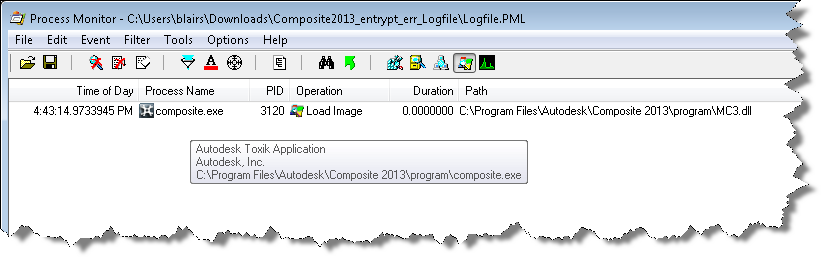
However, I got a Process Monitor log from the customer, and it showed that Composite 2013 was loading right version of MC3.dll.

So, right DLL but wrong entry point. Using Dependency Walker again on older versions of MC3.dll, I found that the Composite was looking for an entry point that was in an older version of MC3.dll. But why???

I spent an hour or two looking over the Process Monitor logs, but everything looked normal…except for one thing: Composite 2013 was loading lots of 3ds Max 2010 files. So I renamed the 3ds Max install folder (so Composite wouldn’t find it) and the entry point error went away. My guess is that one of those older Max DLLs was bringing in a reference to the old MC3 entry point, and that was what was causing the problem in Composite.

Renaming the 3ds Max 2010 install folder just to run Composite is pretty hacky, so I tried to find another way. The best I came up with was this:

  1. In the registry editor, find the key HKEY_LOCAL_MACHINE\SOFTWARE\Autodesk\UPI
  2. Under that key, there is a value for 3ds Max 2010. This value holds the install path for 3ds Max 2010. Edit the value and change it, for example, like this:
     
    Value Name: C:\Program Files\Autodesk\3ds Max 2010\UPI\upiconfig.xml
    Value Data: C:\Program Files\Autodesk\3ds Max 2010xxx\UPI\UPI.dll
    

After I did that, I didn’t get the entry point error in Composite, and 3ds Max 2010 still ran ok (well, it started ok, I didn’t really exercise Max after that).

Adventures with Composite 2013


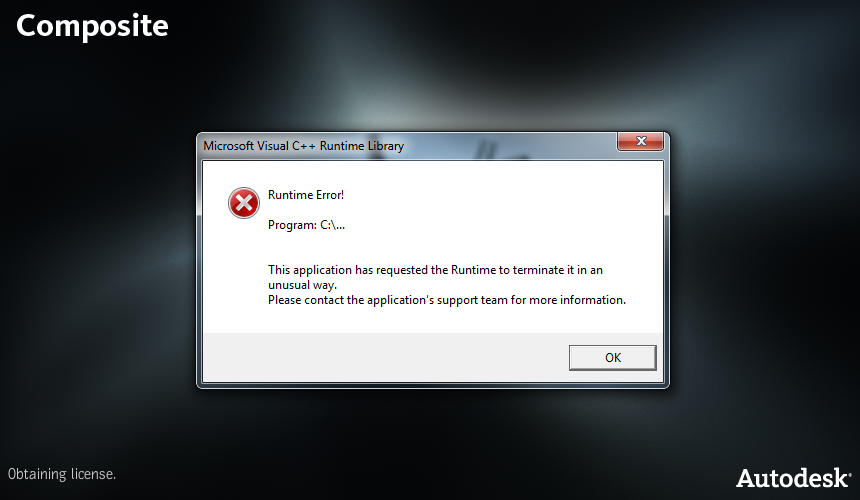
My version of Composite 2013 never did start. It always gave me a Runtime Error at startup:

So I removed it and installed Composite 2013 SP1. That version silently failed: in fact, I wasn’t sure it was even running until I used Process Monitor to watch composite.exe. Process Monitor showed me that Composite was writing log files in %LOCALAPPDATA%\Temp\toxik\logs, and I found this in the stdout.log:

Exception encountered: Cannot determine a product license to use.

This suggested to me that I needed to set the environment variable ADSK_COMPOSITE_LICENSE to Softimage, and that did the trick (when I checked, that environment variable was set to 3DSMAXDESIGN, and that’s why Composite was silently failing).

As a bonus, I also found the Composite Licensing log file %LOCALAPPDATA%\Temp\toxik\adlm.Composite.2013.log. The log entries make me think that my Runtime Error was caused by a Product Information (PIT) file problem. That’s why installing Composite 2013 SP1 fixed the problem.

584	2012/07/06	11:19:44	Reason=Fatal error
584	2012/07/06	11:19:44	ComputerName=MTL2UA0150CWY
584	2012/07/06	11:19:44	OS=6.1.7600.
584	2012/07/06	11:19:44	File=AdlmIntLicense.cpp,Line=584
584	2012/07/06	11:19:44	VendorID=6 [ADLMPIT]
584	2012/07/06	11:19:44	VendorError=12 [The root information in Product Information Table XML file is missing]
584	2012/07/06	11:19:44	Reason=Fatal error
584	2012/07/06	11:19:44	ComputerName=MTL2UA0150CWY
584	2012/07/06	11:19:44	OS=6.1.7600.
584	2012/07/06	11:19:44	File=AdlmIntLicense.cpp,Line=585
584	2012/07/06	11:19:44	AdlmIntError=25 [The product key was not found]
9448	2012/07/06	11:23:17	Reason=Fatal error
9448	2012/07/06	11:23:17	ComputerName=MTL2UA0150CWY
9448	2012/07/06	11:23:17	OS=6.1.7600.
9448	2012/07/06	11:23:17	File=AdlmIntLicense.cpp,Line=584
9448	2012/07/06	11:23:17	VendorID=6 [ADLMPIT]
9448	2012/07/06	11:23:17	VendorError=12 [The root information in Product Information Table XML file is missing]
9448	2012/07/06	11:23:18	Reason=Fatal error
9448	2012/07/06	11:23:18	ComputerName=MTL2UA0150CWY
9448	2012/07/06	11:23:18	OS=6.1.7600.
9448	2012/07/06	11:23:18	File=AdlmIntLicense.cpp,Line=585
9448	2012/07/06	11:23:18	AdlmIntError=25 [The product key was not found]
13860	2012/07/10	16:03:29	Reason=Fatal error
13860	2012/07/10	16:03:29	ComputerName=MTL2UA0150CWY
13860	2012/07/10	16:03:29	OS=6.1.7600.
13860	2012/07/10	16:03:29	File=AdlmIntLicense.cpp,Line=584
13860	2012/07/10	16:03:29	VendorID=6 [ADLMPIT]
13860	2012/07/10	16:03:29	VendorError=12 [The root information in Product Information Table XML file is missing]
13860	2012/07/10	16:03:29	Reason=Fatal error
13860	2012/07/10	16:03:29	ComputerName=MTL2UA0150CWY
13860	2012/07/10	16:03:29	OS=6.1.7600.
13860	2012/07/10	16:03:29	File=AdlmIntLicense.cpp,Line=585
13860	2012/07/10	16:03:29	AdlmIntError=25 [The product key was not found]
8368	2012/07/17	09:50:58	Reason=Fatal error
8368	2012/07/17	09:50:58	ComputerName=MTL2UA0150CWY
8368	2012/07/17	09:50:58	OS=6.1.7600.
8368	2012/07/17	09:50:58	File=AdlmIntLicense.cpp,Line=584
8368	2012/07/17	09:50:58	VendorID=6 [ADLMPIT]
8368	2012/07/17	09:50:58	VendorError=12 [The root information in Product Information Table XML file is missing]
8368	2012/07/17	09:50:58	Reason=Fatal error
8368	2012/07/17	09:50:58	ComputerName=MTL2UA0150CWY
8368	2012/07/17	09:50:58	OS=6.1.7600.
8368	2012/07/17	09:50:58	File=AdlmIntLicense.cpp,Line=585
8368	2012/07/17	09:50:58	AdlmIntError=25 [The product key was not found]

The case of the SIDeploy install that silently fails


In this case, a customer was trying to install Softimage 2013 using SIDeploy -i, but the install silently failed.

What’s SIDeploy you may ask?

It’s an [unsupported backdoor] way to install Softimage without running the full installer (the real installer does a lot of other stuff, plus it runs SIDeploy). People use it to do things like:

  • Set a custom install path by editing SIDeploy.ini
  • Work around the file path length limitation that can stop a network deployment.
  • Avoid using network deployments to install on many machines

To use SIDeploy, you’d download the setup, extract the contents, and then do something like this:

set SIDEPLOYPATH=C:\Autodesk\Autodesk_Softimage_2013_English_Japanese_Win_64bit\x64\Softimage
%SIDEPLOYPATH%\SIDeploy.exe -i -f %SIDEPLOYPATH%\SIDeploy.ini

So why did SIDeploy fail?

Because it’s unsupported 🙂 Seriously, the problem was that SIDeploy doesn’t install any prerequisites, like the Visual C++ 2010 runtimes.

Softimage 2013 switched up to Visual C++ 2010, so you need to have those prereqs installed already for SIDeploy to work.

You can find a list of prerequisites in C:\Autodesk\Autodesk_Softimage_2013_English_Japanese_Win_64bit\setup.ini.

(C:\Autodesk is where the installer extracts itself by default.)

Unable to create object[CLSID\{A8BF89CA-1025-11D2-006094EB029C}] : %SUMATRAPATH%\moaudio.dll, Cleanup will be performed


After all these years, this one still pops up from time to time: most recently from an XSI 7.0 user who emailed the old Softimage Licensing inbox.

The solution: run runonce.bat. And, just don’t use registry cleaners unless you like having to run runonce.bat to fix up Softimage or XSI.

The case of the scene that wouldn’t Undo


In this case, a customer sent me a scene where Undo didn’t work. As soon as you opened the scene, nothing you did could be undone, and Undo wouldn’t start working again until you loaded some other scene.

I thought it might be something in the scene, so I deleted practically everything under the Scene_Root, but Undo still didn’t work. Then I noticed that the .scn file was still pretty big (18MB) so I poked around a bit more in the scene and found thousands and thousands of materials (14K of materials, to be exact).

There were over 13 thousand AutoCAD_Color_Index materials. Just opening the Material Manager took minutes, and deleting 13 thousand materials wasn’t as easy as you might think.
I first tried with the DeleteAllUnusedMaterials command, but that took so long that I figured that Softimage was hung and I killed it.

In the end, I deleted some manually (a hundred at a time) and then the rest with the Material Manager > Delete Unused Materials. But I could also have done it like this:

import time

start = time.clock()

import win32com.client
oObj = win32com.client.Dispatch( "XSI.Collection" )
oObj.Items = 'Sources.Materials.DefaultLib.AutoCAD_Color_Index_*'
print oObj.count
# 13782

Application.SetValue("preferences.General.undo", 0, "")

for mat in oObj:
	Application.DeleteObj(mat)

Application.SetValue("preferences.General.undo", 50, "")

end = time.clock()

Application.LogMessage( round( end - start, 3) )
# INFO : 264.117

The case where there was no way to disable Face Robot


I’ve seen a few cases where a user couldn’t disable Face Robot, because there was no Face Robot module or menu.

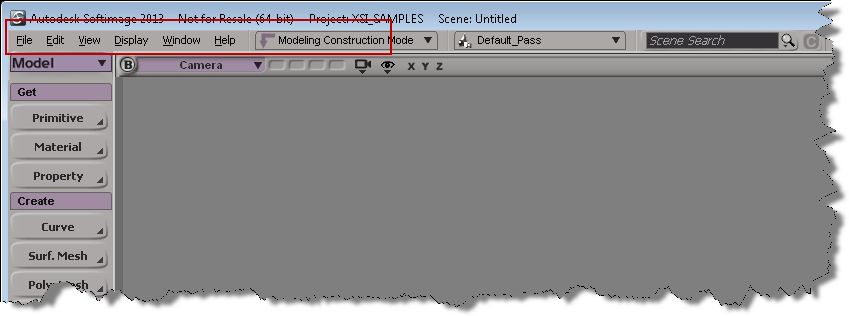
That’s because the module menus were hidden. To show the module menus, right click and empty area on the Softimage menu bar, and click Module Menus.\

Then you can click Face Robot > Disable Face Robot.

Crosswalk, Common Files, and the PATH environment variable


Anytime you have problems with Crosswalk not showing up in Softimage or Crosswalk missing or dotXSI liberaries missing, it’s probably because the Common Files location is missing from your PATH environment variable.

Now, setenv.bat does add the Common Files location to the PATH:

rem Adding folder(s) to the Path
set SOFTIMAGE_COMMONFILES=C:\Program Files\Common Files\Softimage
if not "%XSI_SetenvDone%"=="" goto Done_Path
set Path=%XSI_BINDIR%\%XSI_CPU%%_CPU_REVISION%;%XSI_BINDIR%;%SOFTIMAGE_COMMONFILES%;%Path%
:Done_Path

but strangely, this doesn’t [always] help.

  • If you start Softimage from the Start menu, this Softimage still can’t find the common file Crosswalk_2013.0.64.dll (which is installed in C:\Program Files\Common Files\Softimage).
  • But if you start Softimage from a command prompt with XSI.bat, Softimage does find Crosswalk_2013.0.64.dll.

I stumbled on this when I wrote a little script to check whether or not Common Files was in the PATH. Because setenv.bat prepends the Common Files location to PATH, I need to check whether there is more than one occurrence in the PATH. If there’s just one, then that’s a problem because Crosswalk won’t be found when you start Softimage from the Start menu.

from siutils import si

if Application.Version().split('.')[0]>= "11":
	si = si()					# win32com.client.Dispatch('XSI.Application')
	
from siutils import log		# LogMessage
from siutils import disp	# win32com.client.Dispatch
from siutils import C		# win32com.client.constants


path = XSIUtils.Environment( 'PATH' )
cf = "".join( [XSIUtils.Environment( 'CommonProgramFiles' ), '\Softimage'] )
#cfx86 = "".join( [XSIUtils.Environment( 'CommonProgramFiles(x86)' ), '\Softimage'] )

# Check Common Files

# Log number of times Common Files is found in PATH
# log( path.split(';').count(cf) )

if path.split(';').count(cf) > 1:
	log( "'%s' is in PATH" % cf )
else:
	log( "'%s' is missing from PATH" % cf, C.siError )

The case of the missing dotXSI.dll (NT) or libdotxsi.so (IRIX)


A customer reported that he couldn’t import or export dotXSI, and that he got this message in the history log:

# INFO : 4011 - Import/Export .xsi: The dotXSI.dll (NT) or libdotxsi.so (IRIX) is missing or the class is not registered.

From past experience I was pretty sure this was a PATH problem, but just in case I also suggested running runonce.bat to make sure everything was registered:

  • Check that “C:\Program Files\Common Files\Softimage” is included in your system PATH environment variable.
  • In a Softimage command prompt, run runonce.bat, to make sure all DLLs are registered.

It turns out the problem was indeed the PATH environment variable: it was missing C:\Program Files\Common Files\Softimage.

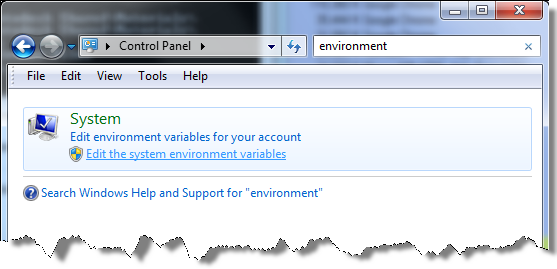
To check the PATH, click Start and open the Control Panel. In the Control Panel window, type “environment” in the Search box, and then click Edit the system environment variables