The case of the Softimage 2011 that stopped working after Softimage 2012 was installed


In this case, after the customer installed Softimage 2012, he couldn’t start Softimage 2011 anymore, and he got the famous “No interactive network license available” error.

In general, installing one version of Softimage shouldn’t cause any problems with any other versions.
The Softimage installation doesn’t touch the license server, and it updates only the setenv.bat file of the version being installed (setenv.bat sets the licensing-related environment variables).
Also, for Subscription customers, Softimage 2012 licenses include 2011, 2010, and 7.5 licenses, so the new license file can still run older versions.

However, there are some common configuration files that can be corrupted and cause problems.
In this case, the answer was in %TEMP%\SoftimageLicense.log:

2848    2011/04/14    19:59:34    Reason=Fatal error
2848    2011/04/14    19:59:34    ComputerName=EXAMPLE
2848    2011/04/14    19:59:34    OS=5.2.3790.Service Pack 2
2848    2011/04/14    19:59:34    File=AdlmIntLicense.cpp,Line=614
2848    2011/04/14    19:59:34    AdlmIntError=25 [The product key was not found]
1792    2011/04/15    20:10:57    Reason=Fatal error
1792    2011/04/15    20:10:57    ComputerName=EXAMPLE
1792    2011/04/15    20:10:57    OS=5.2.3790.Service Pack 2
1792    2011/04/15    20:10:57    File=AdlmIntLicense.cpp,Line=613
1792    2011/04/15    20:10:57    VendorID=6 [ADLMPIT]
1792    2011/04/15    20:10:57    VendorError=12 [The root information in Product Information Table XML file is missing]
1792    2011/04/15    20:10:57    Reason=Fatal error
1792    2011/04/15    20:10:57    ComputerName=EXAMPLE
1792    2011/04/15    20:10:57    OS=5.2.3790.Service Pack 2
1792    2011/04/15    20:10:57    File=AdlmIntLicense.cpp,Line=614
1792    2011/04/15    20:10:57    AdlmIntError=25 [The product key was not found]

The errors [The product key was not found] and [The root information in Product Information Table XML file is missing] mean that the ProductInformation.pit file is missing information or corrupted. ProductInformation.pit contains information for every Autodesk product installed on the system. You can find ProductInformation.pit here:

Windows XP:
C:\Documents and settings\All Users\Application Data\Autodesk\AdlM

Windows Vista:
C:\ProgramData\Autodesk\AdlM

By default, the AdlM folder is hidden. In Explorer, click Tools > Folder Options, and go to the View tab. Select the Show hidden files and folders option. You should now be able to see that folder.

There are two ways to fix the ProductInformation.pit file.

The hard way:

  1. Remove all Autodesk products.
  2. Rename the AdlM folder (for example, rename Adlm to Backup)
  3. Reinstall your Autodesk products.

Note that when you install your Autodesk products, you may get the error “1: 5 2 adlmPITRemoveProductInformation failed 3: 12”.
That is another symptom of ProductInformation.pit problems.

The easy way:
Copy the ProductInformation.pit file from another system.
This works as long as the other system has the same Autodesk software installed.

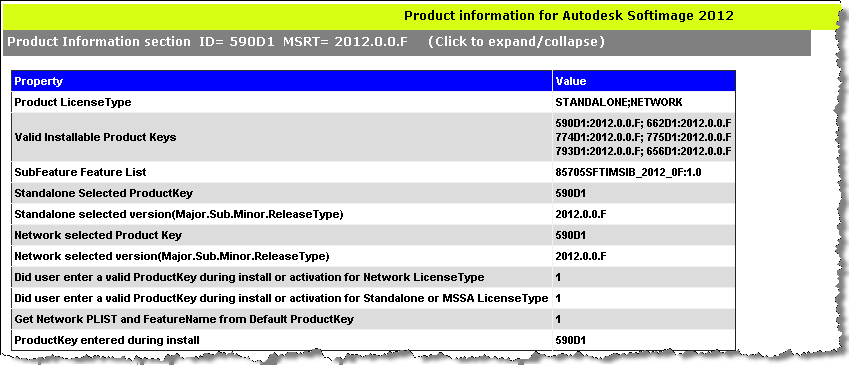
We have an internal PIT file viewer, which shows what product information is stored in a PIT file:
Importing, exporting, and restoring preferences


You can create a backup copy of your preferences by exporting them: just click File > Preferences, right-click Preferences (Application) and click Export. You can then restore your personalized settings by importing the backup copy (for example, if someone else sits at your desk can changes everything, you can easily get back your settings).

Or, if you suspect that some preference setting is causing Softimage to mis-behave, you can export your current settings before you restore the defaults.

Note that you can also import, export, and restore defaults for specific categories:

Using local help with different browsers


If you downloaded a local version of the help files, avoid using the
SI_HELP_PROGRAM_ENV environment variable. If you set that environment variable, the browser doesn’t find the help files.

If necessary, unset SI_HELP_PROGRAM_ENV and set your default browser to Firefox, Chrome, or Internet Explorer.

Then, in the General preferences, set Help Location to Local Computer/ Network.

If that doesn’t work, then set Help Location to Custom and use the file:// protocol:

file:///C:\Program Files (x86)\Autodesk\Help\softimage2012\en_us

Diagnosing startup crashes: testing xsibatch


When you’ve done all the usual startup troubleshooting (running runonce.bat, resetting your preferences, and testing the display driver), but you still crash, it’s a good idea to test whether xsibatch can run. Sometimes this will give us a different error message, or another clue as to what’s going wrong.

  1. Open a Softimage command prompt
  2. In the command prompt, run these commands:
  3. echo LogMessage "Hello" > %TEMP%\test.vbs
    xsibatch -processing -script %TEMP%\test.vbs
    
  4. You should see something like this:
    =======================================================
     Autodesk Softimage 10.0.422.0
    =======================================================
    
    License information: using [Processing]
    COMMAND: -processing -script C:\Users\blairs\AppData\Local\Temp\test.vbs
    ' INFO : Hello
    

ERROR : 2000 – Unable to create object [CLSID\{XXXXXXXX-XXXX-XXXX-XXXX-XXXXXXXXXXXX}], Cleanup will be performed.


If you get an error that looks like this when you load a scene or import a model

ERROR : 2000 - Unable to create object [CLSID\{XXXXXXXX-XXXX-XXXX-XXXX-XXXXXXXXXXXX}],  Cleanup will be performed.

it’s often because you’re missing a shader or plugin (usually an older version that used spdl for registration).

Softimage prints this error message when it cannot create an instance of some object that was persisted in the scene file. In some cases, Softimage will know which DLL it was looking for, and you’ll get a message like this:

ERROR : 2000 - Unable to create object [CLSID\{A8BF89CA-1025-11D2-B5FD-006094EB029C}] : %SUMATRAPATH%\moaudio.dll,  Cleanup will be performed.

In the moaudio.dll case, you can run runonce.bat to fix the problem. Otherwise, the error may indicate a corruption of the object.

Using dotXSI to clean up a material library


If you’re still having problems with disconnected shaders, even with HotFix2, you could try using dotXSI to remove any corrupt materials from your material library.

Here’s the basic procedure. You may want to create a temporary copy of your material library, and then use the explorer to copy all the materials into the temporary material library.

  1. Load the original asset (scene or model).
  2. In the explorer, switch to Materials scope, and click the icon for the material library.
  3. In the library PPG, change the storage to External (dotxsi text) and click Export Library.
  4. Save the scene.
  5. Close and restart Softimage.
  6. Open the scene.
  7. In the explorer, right-click the material library and click Locks > Unlock All Levels.
  8. In the material library PPG, change the storage back to Internal.
  9. Save or export the asset.

Disconnected shaders and HotFix2 redux


HotFix2 cannot fix render trees that are already broken. You’ll have to repair those materials after you remove the corruption.

Here’s how to recover a scene and remove the material corruption with HotFix2.

It is critical to restart Softimage during this procedure.

  1. Load the corrupted scene into Softimage 2011 (with HotFix2).
  2. Save the scene.
  3. Restart Softimage.
  4. Load the scene again.
  5. Now you can start repairing your materials.

The connections of corrupted materials are broken upon initial load, but corrupted shaders themselves still remain. After saving, restarting XSI.exe, and reloading the scene, corrupted shaders that are not salvageable have been removed and whatever shaders remain can be used to reconstruct materials.

The case of the missing scripting engines


In this case, the customer reported that 64-bit Softimage abruptly shut down just after the splash screen appeared, with no errors and no sign of the actual UI. 32-bit Softimage, however, worked just fine.

This didn’t sound like the usual runonce/rename user folder/reinstall graphic driver case, so I asked him to try to run a script with xsibatch, to see if 1) xsibatch also crashes and 2) whether there is a problem with VBScript (because Softimage cannot run without VBScript).

echo LogMessage "Hello" > %TEMP%\test.vbs
xsibatch -processing -script %TEMP%\test.vbs

It turned out that there were problems with both JScript and VBScript on his system:

=======================================================
Autodesk Softimage 9.5.184.0
=======================================================

' ERROR : 2000 - Failed creating scripting engine: VBScript.
' ERROR : 2000 - Failed creating scripting engine: JScript.

To show that this was system problem, not just a Softimage problem, we tried using wscript to run a VBscript:

echo wscript.echo "Hello" > hello.vbs
wscript hello.vbs

We tried re-registering the VBScript and JScript DLLs with regsvr32, with no luck.

After some googling and experimentation on my own system, I narrowed it down to the specific registry keys:

  • HKCR\CLSID\B54F3741-5B07-11cf-A4B0-00AA004A55E8 (VBscript)
  • HKCR\CLSID\F414C260-6AC0-11CF-B6D1-00AA00BBBB58 (JScript)

So I exported those keys from my registry and sent them to the customer.
And after he imported them, Softimage worked!

I would have preferred to get it working without doing that (manually importing reg values), but it beats reinstalling windows. I guess.

Note that on Windows 7, you may need to change the ownership and permissions on the registry key HKEY_CLASSES_ROOT\CLSID\ before you can edit any keys.

JPGs that won’t load into Softimage


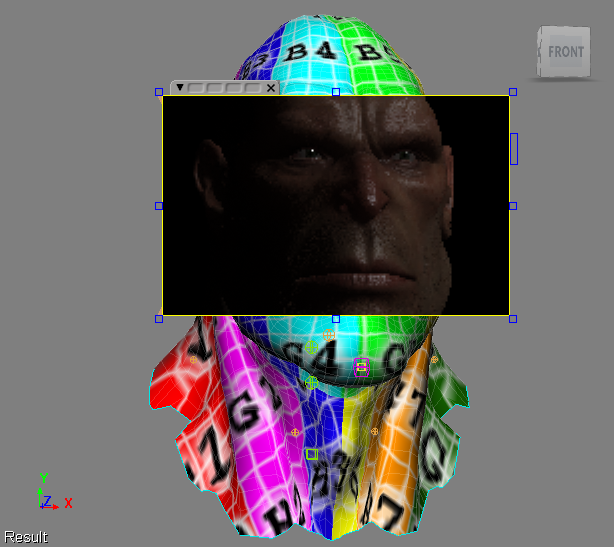
I sometimes wondered why Rock Falcon always had a noIcon texture in my viewport, even though if I did a render region, I could see the texture was really there.
I assumed it was something about the software on my system, because Manny didn’t have the same problem even though he has the exact same hardware.

Then I read this post from Luc-Eric on the mailing list:

I discovered a bug in the standard jpeg library that causes a problem
with some formats of jpeg — probably progressive.
It uses a temp file to decompress them and in Windows that ends up
being a temp file in the root of the drive. If you’re under Vista or
some account with limited privileges that prevent writing to the root
of the drive, the jpegs won’t load.
via JPG Baseline / Progressive – Google Groups.

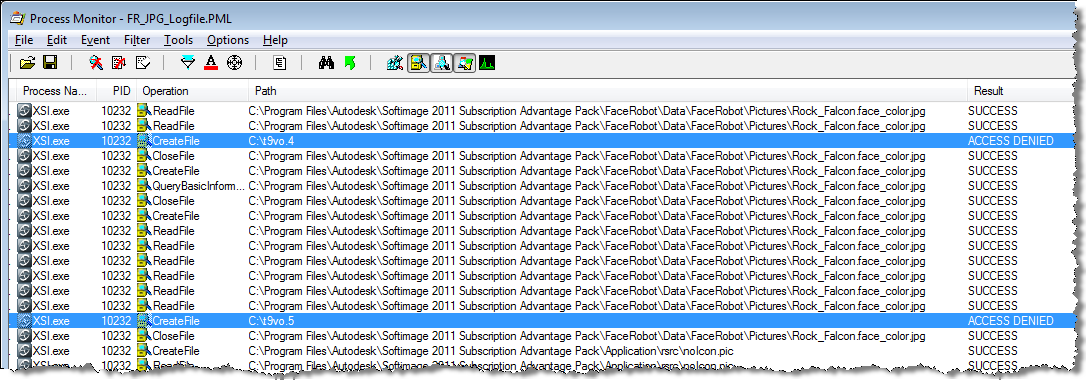
I did a quick check with Process Monitor, and I saw that Softimage was indeed trying to create a file in my C:\ driver, and getting ACCESS DENIED.
I checked Manny’s machine, and he can write to the C:\ drive because he has UAC disabled.

runonce.bat cannot start because Crosswalk is missing


If you get this error when you try to run runonce.bat:

sireg.exe – System Error
The program can’t start because Crosswalk_2-11.5.64.dll is missing
from your computer. Try reinstalling the program to fix this problem.

it’s probably because your PATH environment variable is missing the Softimage Common Files:

  • C:\Program Files (x86)\Common Files\Softimage;
  • C:\Program Files\Common Files\Softimage;