This week in video


A round-up of some of the Softimage videos posted this past week.

emTools 1.33 – Walk Through New Stuff

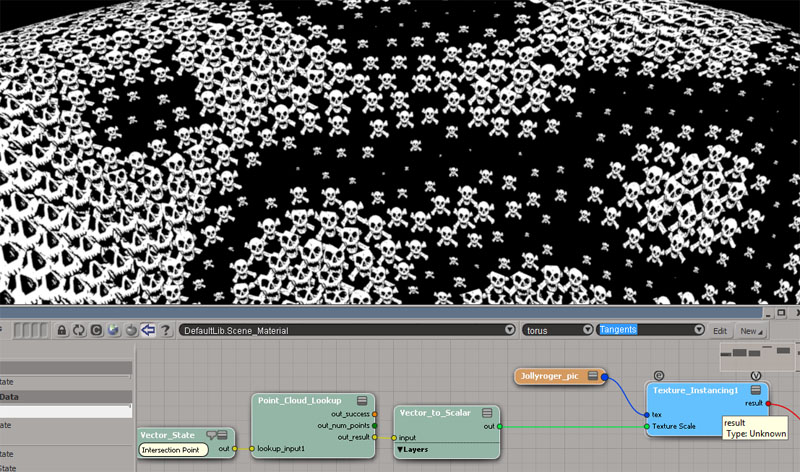
ICE Node for reading images at given UV coordinates

compositing images in ICE!

Manipulating colour in images

Psyop Softimage ICE Workshops

ICE-Rope-Rig (with Dynamic Controler Count and nice SubdivisionInterpolation)

Secondary deformations in Ice
http://vimeo.com/45047412

Maxscript Modifiers VS Softimage Ice

Softimage – A guide to better reflections

Friday Flashback #77


The answer: SOFTIMAGE Plug-in Description Language

The question: What does SPDL stand for?

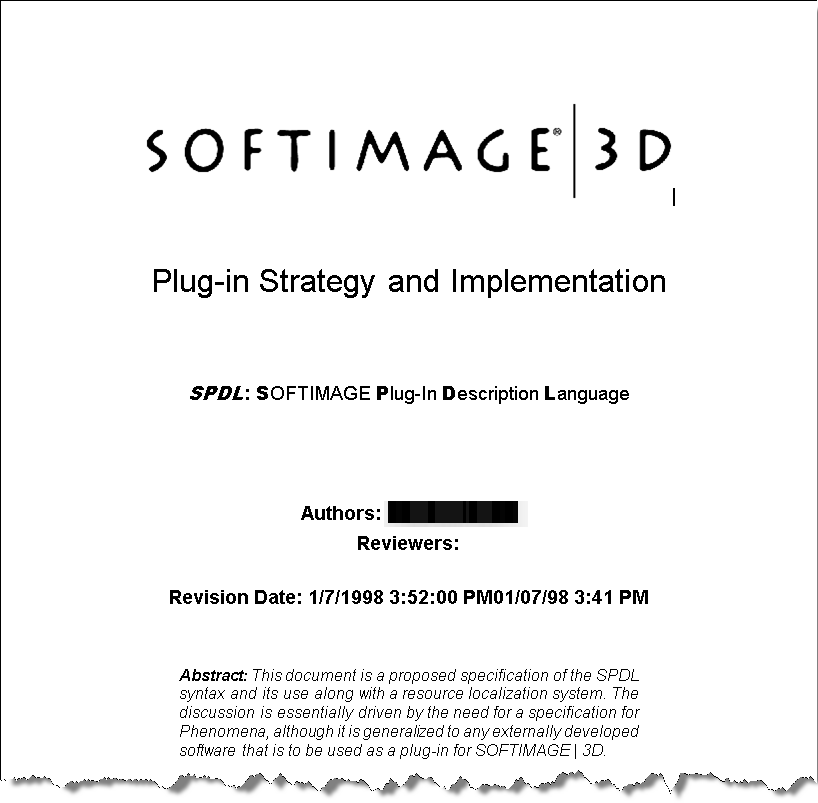
Cover page from the original SPDL specification:

The origins of SPDL go back to at least 1997. The original SPDL parser was written with BISON and FLEX (GNU versions of yacc and lex), and at one point I think there where three different parsers, two based on BISON/FLEX, and one C++/COM (that was back in the early Twister/Sumatra/DS days). I remember going through the BISON/FLEX files in order to write up a SPDL syntax doc…fun times!

FUN FACT: There are 1,511 spdl files in the Softimage 2013 SP1 installation folder.

The case of the SIDeploy install that silently fails


In this case, a customer was trying to install Softimage 2013 using SIDeploy -i, but the install silently failed.

What’s SIDeploy you may ask?

It’s an [unsupported backdoor] way to install Softimage without running the full installer (the real installer does a lot of other stuff, plus it runs SIDeploy). People use it to do things like:

  • Set a custom install path by editing SIDeploy.ini
  • Work around the file path length limitation that can stop a network deployment.
  • Avoid using network deployments to install on many machines

To use SIDeploy, you’d download the setup, extract the contents, and then do something like this:

set SIDEPLOYPATH=C:\Autodesk\Autodesk_Softimage_2013_English_Japanese_Win_64bit\x64\Softimage
%SIDEPLOYPATH%\SIDeploy.exe -i -f %SIDEPLOYPATH%\SIDeploy.ini

So why did SIDeploy fail?

Because it’s unsupported 🙂 Seriously, the problem was that SIDeploy doesn’t install any prerequisites, like the Visual C++ 2010 runtimes.

Softimage 2013 switched up to Visual C++ 2010, so you need to have those prereqs installed already for SIDeploy to work.

You can find a list of prerequisites in C:\Autodesk\Autodesk_Softimage_2013_English_Japanese_Win_64bit\setup.ini.

(C:\Autodesk is where the installer extracts itself by default.)

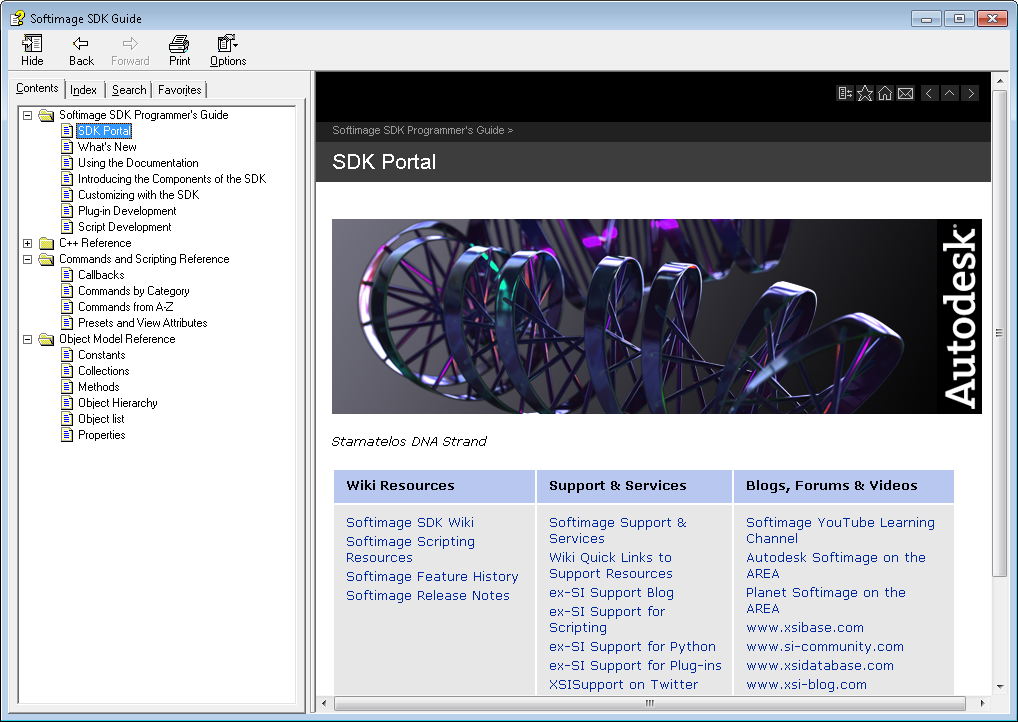
Compiled CHM version of the Softimage 2013 SDK guide


The other day, somebody asked whether there was a CHM version of the SDK help. There isn’t. So I downloaded a copy of the [aging and neglected] HTML Help workshop, installed the local version of the Softimage 2013 documentation, and compiled the SDK help into a CHM file.

Get the xsisdk.chm file here

  • You get full-text search.
  • I created the TOC manually, so it has only two levels. But clicking one of the sub-levels (like “Customizing with the SDK” or “Objects A to Z”) takes you to a page with more links.
  • I even added an index, but it has entries only for the commands, objects, methods, and properties. No C++. (I used a Python script to generate the index from some HTML pages in the help.)
  • Some pages will give a script error (because they have an apostrophe in the page title, and that title is used in a script). You can ignore those errors and continue on.
  • Some of the icons at the top of pages, like Home and Add to Favorites will pop up a browser page. I didn’t take the time to update every page to get rid of them.

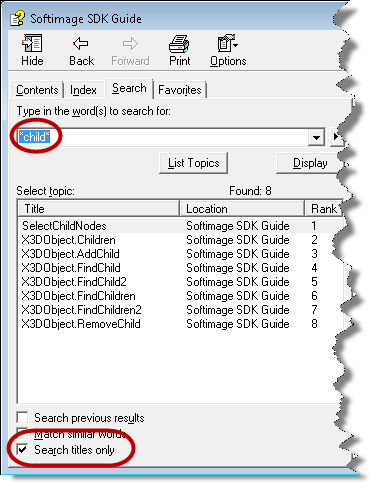
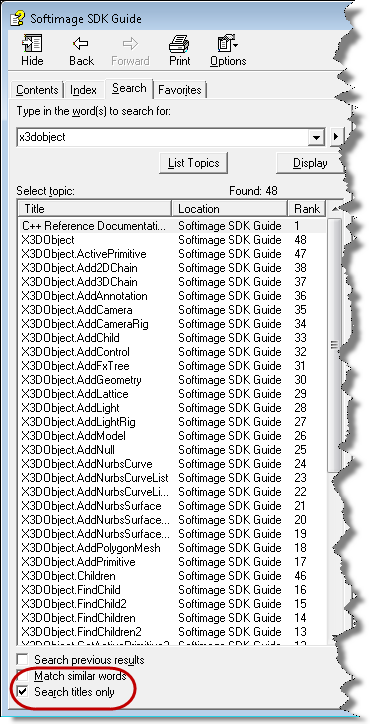
I almost didn’t bother with the index, because I think you can usually get the same thing with the Search, as long as you enable Search titles only. It’s always bothered me that there’s no index entries like “children, adding” or “polygon meshes, creating” and that you have to somehow know the verb part of the method or command name if you want to find it in the index.

Here’s a few examples of using Search titles only:

Checking if an optional panel is open


The View > Optional Panels menu lists the optional panels of the current layout. In the default layout, this includes the main command panel (MCP), the timeline, time range slider, and the Main Shelf.

To check if a panel is open, get the panel from the ActiveLayout.Views collection and check whether it’s visible:

LogMessage( Application.Desktop.ActiveLayout.Views("main_shelf").Visible );