I don’t know how I missed the Boolean/Scalar conversion nodes, but they provide a much easier way to convert the Test Inside Geometry results from per point to per object:


I don’t know how I missed the Boolean/Scalar conversion nodes, but they provide a much easier way to convert the Test Inside Geometry results from per point to per object:
Troubleshooting doesn’t have to be fancy. Sometimes you just have to focus in on a specific part of an ICE Tree, and use Show Values to understand what is going on.
For example, as part of a larger ICE tree, I was using Test in Geometry and Get Set Sum as described by gray on xsibase (reply #8). But I wasn’t getting the result I expected.
So I broke out the Test in Geometry and Get Set Sum branch into a simple test scene, and used Show Values to help understand what was going on. As you can see in these screenshots, Get Set Sum is giving me different results based on the set I feed into it.
If I start with a set of Bools per Point and use an If node to map those boolean to integer values, I don’t get the result I expect.

Troubleshooting with Show Values

Simplified tree for testing
You can use scriptXSI.bat in %XSI_HOME%\Application\bin to create a desktop shortcut for batch rendering. When you drag and drop a scene file on that batch file, that starts a batch render.
To create a desktop shortcut, right-click scriptXSI.bat and click Send To > Desktop (create shortcut).
If you want to drag and drop multiple scenes:
@echo off
call "C:\Program Files\Autodesk\Softimage 2011 Subscription Advantage Pack\Application\bin\setenv.bat"
:next
if "%1"=="" goto end
set SCN=%1
"C:\Program Files\Autodesk\Softimage 2011 Subscription Advantage Pack\Application\bin\XSIBatch.exe" -render %SCN%
shift
goto next
:end
We still get the occasional support request about importing SOFTIMAGE|3D scenes (.dsc) and models (.hrc) into Softimage 2011.
The SOFTIMAGE|3D importer was removed in the Softimage 2011 release. From the What’s New section of the documentation:
SI3D Loader Is Gone
The SOFTIMAGE|3D importer, also known as the SI3D Loader, has been removed from Softimage. The workaround is to import your SOFTIMAGE|3D scene or model into Softimage as dotXSI (*.xsi).
As suggested in the documentation, you could use export dotXSI 3.0 from SOFTIMAGE|3D and then import that into Softimage 2011.
Or you could use 32-bit Softimage 2010, which includes the Import > SI|3D Scene/Model command. If you’re on Subscription, your Softimage 2011 license will run Softimage 2010, and you can download Softimage 2010 from the Subscription Center.
If you have a lot of hrc/dsc files to import, you can write a script to automate the process.
Here’s a relatively crude example (JScript):
var fso = new ActiveXObject( "Scripting.FileSystemObject" );

var sSourceDir = "C:\\Softimage\\SOFT3D_4.0\\3D\\rsrc\\";
var sTargetDir = "C:\\Documents and Settings\\blairs\\Local Settings\\Temp\\HRC\\Scenes\\";

var srcFolder = fso.GetFolder( sSourceDir );

var files = new Enumerator( srcFolder.files );
// Loop through files

var re = /\.hrc$/;
for(; !files.atEnd(); files.moveNext() )
{
	var sName = files.item().Name;

	if ( sName.match(re) )
	{
		NewScene(null, null);

		//LogMessage( "Importing " + sSourceDir + sName );
		ImportFromSI3D( sSourceDir + sName, null, null);

		// Strip off the ".hrc"
		var sTmp = sName.substr(0,sName.lastIndexOf( "." ));

		//LogMessage( "Saving " + sTargetDir + sTmp + ".scn" );
		SaveSceneAs( sTargetDir + sTmp + ".scn" );

	}
}
The state of the buttons on the Transform panel are saved in the 3D_TRANSFO_REFERENTIAL_CHANGED preference, which is a bitfield.

So, for example, to enable the Ref manipulation mode, you would do this:
SetUserPref(
	"3D_TRANSFO_REFERENTIAL_CHANGED",
	GetUserPref("3D_TRANSFO_REFERENTIAL_CHANGED") | 3 );
This would turn on the Ref mode, and leave the COG, Prop, and Sym options untouched.
If you simply did this:
SetUserPref( "3D_TRANSFO_REFERENTIAL_CHANGED", 3 );
that would reset the COG and Sym options.
Turn on COG:
SetUserPref(
 	"3D_TRANSFO_REFERENTIAL_CHANGED",
 	GetUserPref("3D_TRANSFO_REFERENTIAL_CHANGED") | 16 );
Turn off COG:
SetUserPref(
 	"3D_TRANSFO_REFERENTIAL_CHANGED",
 	GetUserPref("3D_TRANSFO_REFERENTIAL_CHANGED") & ~16 );
Another example:
// Turn off all
SetUserPref( "3D_TRANSFO_REFERENTIAL_CHANGED", 0 );

// Turn on Local and COG
SetUserPref(
 	"3D_TRANSFO_REFERENTIAL_CHANGED",
 	GetUserPref("3D_TRANSFO_REFERENTIAL_CHANGED") | (16 | 2) );
You can use Alt+NumPad numbers to see what gets logged when the different buttons are selected.
The SDK documentation also includes a page for the Manipulation Mode Values.
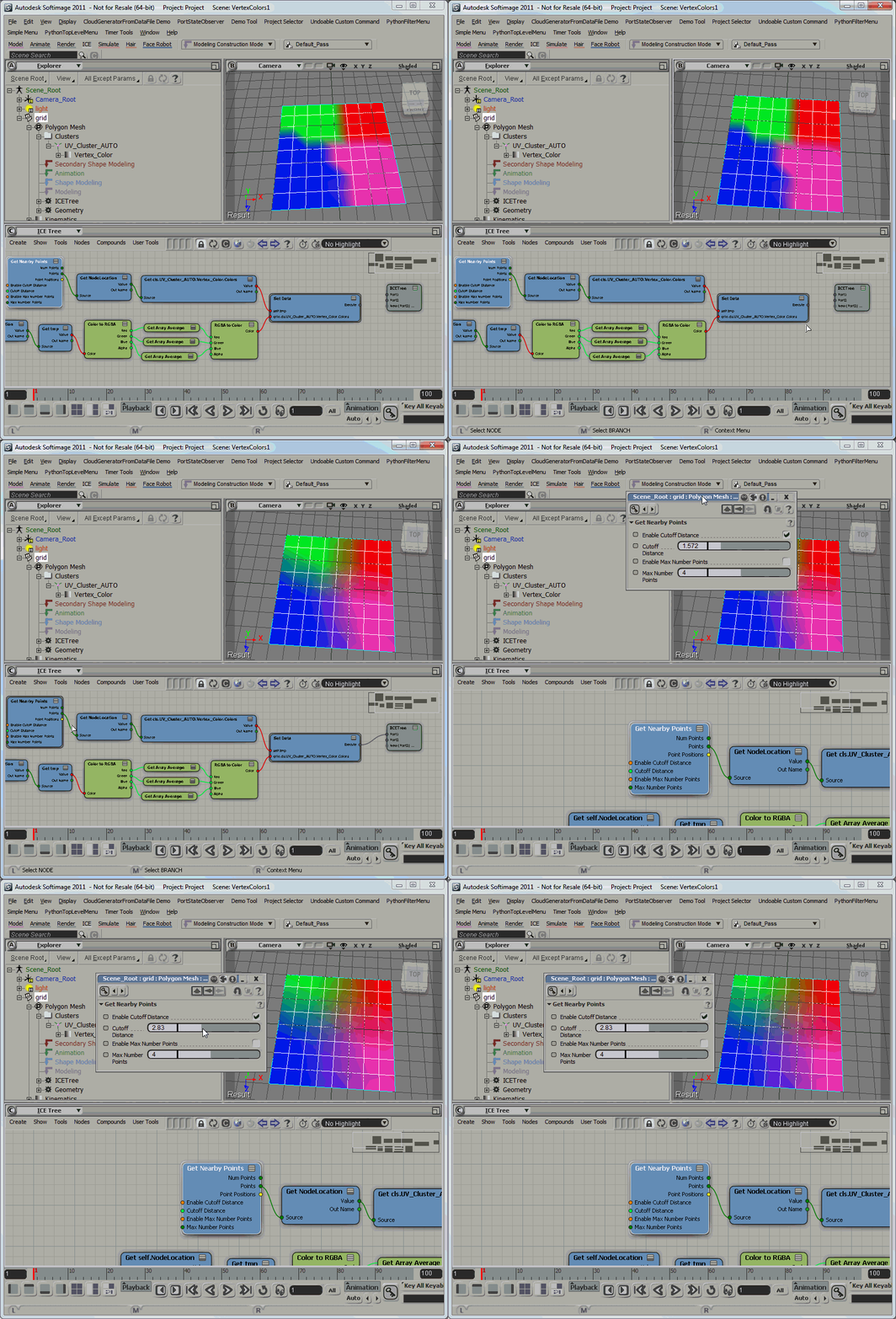
Using Get Nearby Points to average vertex colors
Here’s a screenshot of the ICE tree.
In the first branch, I get the vertex colors (via the NodeLocation attribute) of the nearby points, and store them in an attribute.
Then I get the saved vertex colors and do a simple Array Average on the RGB components, to give me a Color per Sample value that I can put back into the Color at Vertices (CAV) property.

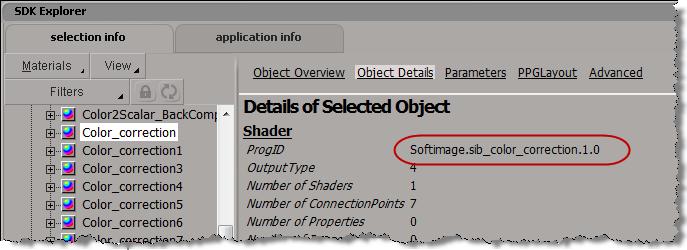
Before Softimage 2011, we used to use FindObjects() with a shader CLSID to find all instances of a shader. But as of Softimage 2011, all shaders have the same CLSID, so you have to use the ProgID to find all instances of a certain type of shader.
// Find all Color_correction shader nodes

var sProgID = "Softimage.sib_color_correction.1.0"

var oShaderDef = Application.GetShaderDef( sProgID ) ;
oEnum = new Enumerator( oShaderDef.ShaderInstances ) ;
for (;!oEnum.atEnd();oEnum.moveNext() )
{
	var oShaderInstance = oEnum.item() ;
	LogMessage( oShaderInstance.fullname );
}
You can find the ProgID of a shader using the SDK Explorer:
Personally, whether it is ICE or scripting or C++, I’ll focus on specific pieces of the puzzle before I put everything together.
For example, for a simple bulge effect in ICE, I started by making sure I knew how to get the distance between a null and a mesh, and provide some sort of distance fall-off.
As has been noted by many others in many other [more detailed] videos, ICE is pretty good at giving you ways to visualize and debug:
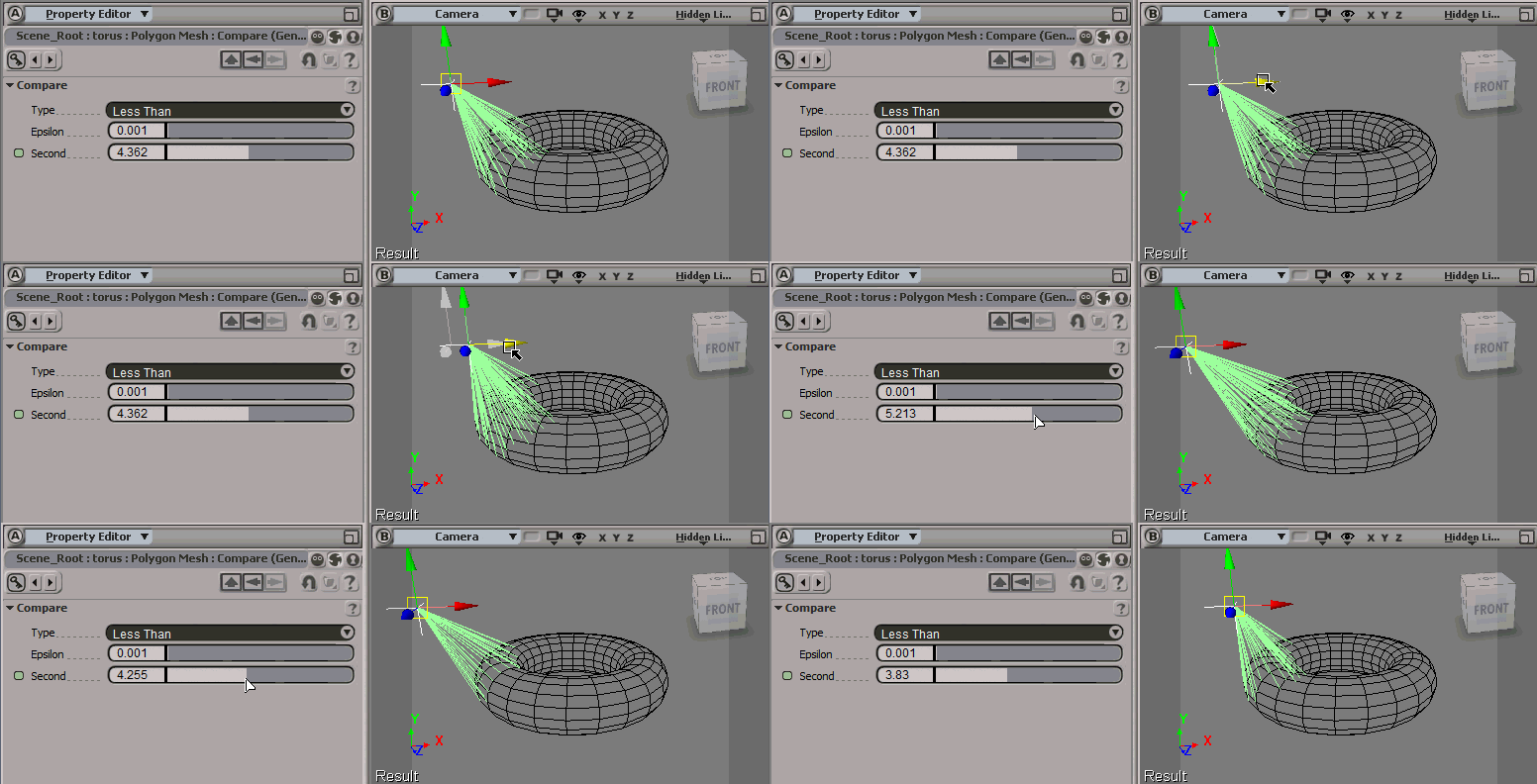
In this case, to help me visualize how many points would be “bulged”, I just had show some vectors:
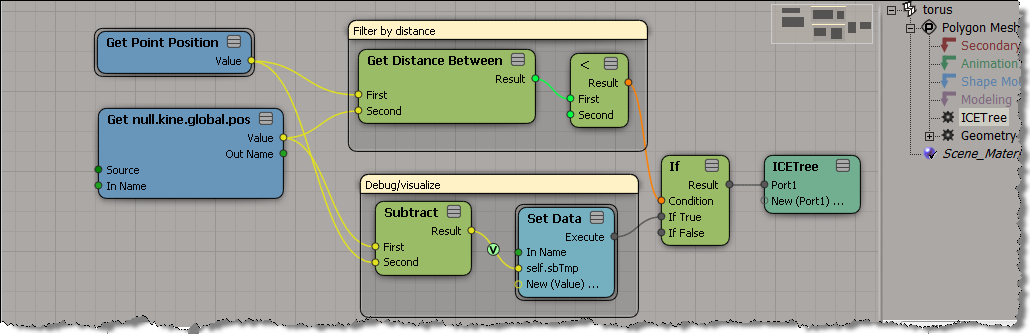
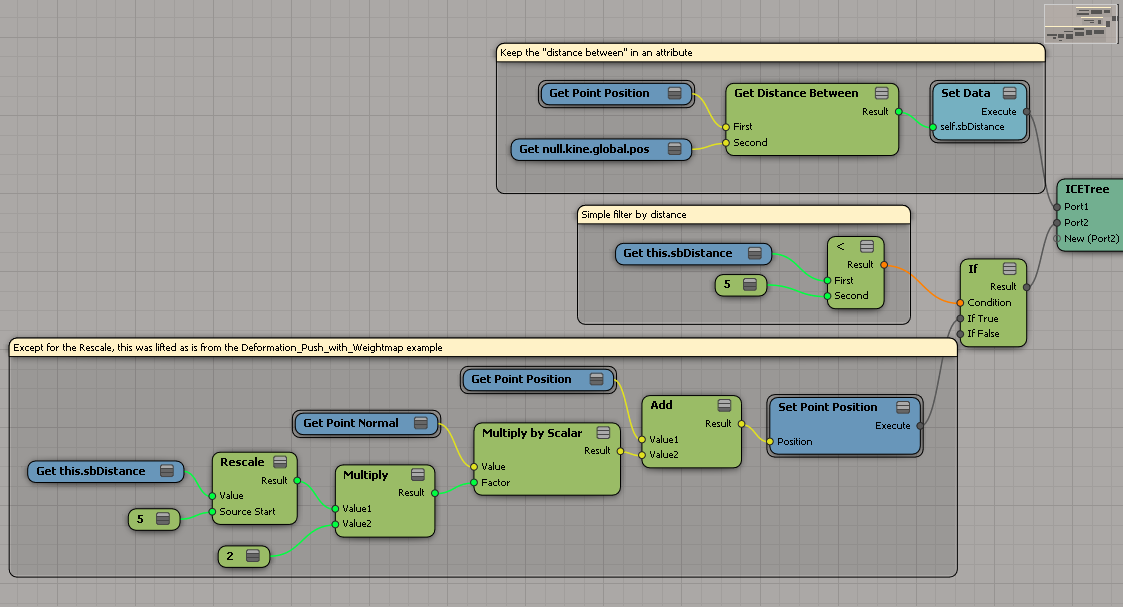
After a little fiddling around, I patched together a simple bulge operator with ICE:

Here’s the ICE tree, which is in the Modeling stack on the torus.
Right now, this works properly only when the torus is at the global origin (because Get Point Position returns local coordinates).
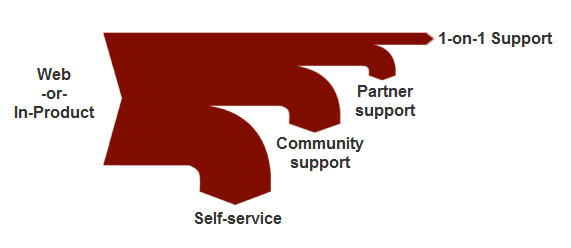
A company’s product support model can be visualized as a funnel.

For every N customers who need help, only a subset will require direct one-on-one support
Now, the funnel analogy is not “correct” in the literal sense. In a real funnel, everything that comes in eventually flows through the bottom of the funnel. In the support funnel model, the number of customers decreases as you move down the funnel. A more accurate diagram of the support model would be a sankey diagram, which shows the proportionate number of customers served by each level of support:
 eX-SI
eX-SI 