The script editor now has tabs. Just click the plus sign (+) or press CTRL+T to open a new tab.
Some other tab-related features:
- MMB or control+W to close tab
- RMB on tab to open containing folder
- New File menu options including “save all tabs”


The script editor now has tabs. Just click the plus sign (+) or press CTRL+T to open a new tab.
Some other tab-related features:
To install the network version of Softimage, you have to click the Configure button.
By default, Setup installs the Standalone version Softimage.

Want to use Python to implement an RV_Init callback in an .xsivw file? Here’s how:
<script language="Python"><![CDATA[
def RV_Init( in_rv ):
	Application.LogMessage( "RV_Init" )

	# COM programming ( in_rv is pointer to IUnknown )
	import pythoncom
	oRV = in_rv.QueryInterface( pythoncom.IID_IDispatch )

	import win32com.client.dynamic
	oRV = win32com.client.dynamic.Dispatch( oRV )

	Application.LogMessage( Application.Classname(oRV) )

	for i in range(0,oRV.Views.Count):
		oView = oRV.Views(i)
		Application.LogMessage( oView.Name + " " + oView.type 	)

]]></script>
The XSI and Softimage installers have never allowed you to use folder names that include spaces.
But starting with Softimage 2011, you’ll now be able to install Softimage 2011 in folders like C:\Program Files (which is the default, by the way).
Pretty exciting, eh?
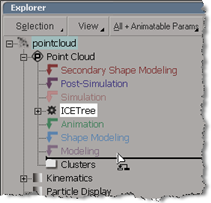 While I was writing the KB article TS14853090, I noticed that if I held down Shift+Alt, I could drag an operator to an empty Modeling stack.
On Windows, Python 2.6.4 is automatically installed with Softimage 2011. You don’t need to install Python or pywin32 yourself, unless you need to use a different version of Python.
If you need to use a different version of Python, then you can turn off the Use Python installed with Softimage preference.

This is what you’ll see in SoftimageLicense.log if Softimage cannot connect to the license server.
For example, if ADSKFLEX_LICENSE_FILE is pointing to the wrong server, you’ll see this sequence of errors in the log:
6016	2010/03/15	12:40:22	Reason=Fatal error
6016	2010/03/15	12:40:22	ComputerName=MTL-EXAMPLE
6016	2010/03/15	12:40:22	OS=6.0.6001.Service Pack 1
6016	2010/03/15	12:40:22	File=AdlmIntNWFBLicense.cpp,Line=684
6016	2010/03/15	12:40:22	VendorID=3 [FLEXLM-NW]
6016	2010/03/15	12:40:22	VendorError=-15 [Cannot connect to server]
6016	2010/03/15	12:40:22	FLEXLM-NW=v11.6.1.3 build 72149 x64_n6
6016	2010/03/15	12:40:22	Reason=Fatal error
6016	2010/03/15	12:40:22	ComputerName=MTL-EXAMPLE
6016	2010/03/15	12:40:22	OS=6.0.6001.Service Pack 1
6016	2010/03/15	12:40:22	File=AdlmIntNWFBLicense.cpp,Line=667
6016	2010/03/15	12:40:22	AdlmIntError=20 [License check out failed]
6016	2010/03/15	12:40:41	Reason=Fatal error
6016	2010/03/15	12:40:41	ComputerName=MTL-EXAMPLE
6016	2010/03/15	12:40:41	OS=6.0.6001.Service Pack 1
6016	2010/03/15	12:40:41	File=AdlmIntNWFBLicense.cpp,Line=684
6016	2010/03/15	12:40:41	VendorID=3 [FLEXLM-NW]
6016	2010/03/15	12:40:41	VendorError=-97 [The desired vendor daemon is down]
6016	2010/03/15	12:40:41	FLEXLM-NW=v11.6.1.3 build 72149 x64_n6
6016	2010/03/15	12:40:41	Reason=Fatal error
6016	2010/03/15	12:40:41	ComputerName=MTL-EXAMPLE
6016	2010/03/15	12:40:41	OS=6.0.6001.Service Pack 1
6016	2010/03/15	12:40:41	File=AdlmIntNWFBLicense.cpp,Line=667
6016	2010/03/15	12:40:41	AdlmIntError=20 [License check out failed]
 The SoftimageLicense.log file is located in the %TEMP% folder. To find or open the log file, you can simply type %TEMP% in the Windows Search box, in File > Open dialogs, or in the Windows Explorer address bar. The environment variable is automatically expanded to its full value (which is something like “C:\Users\blairs\AppData\Local\Temp”) when you press ENTER.
For example, click the Windows button, type %TEMP%\SoftimageLicense.log in the search box, and then press Enter (or click SoftimageLicense.log in the search results).

This weekend, the Sub Center and related sites such as registeronce will be down for a maintenance upgrade.
The scheduled downtime is from 12 Friday 4PM PDT to 14 Sunday 5PM PDT.
In EST, that’s from 7PM Friday till 8PM Sunday.
The new Create Service Request form will include several changes. First, when you fill in the form, you’ll be asked to pick your Issue from a drop-down list. For example, the Issue might be “Software won’t Start, Crashes or Hangs” or “Need technical assistance with Licensing” or “Suggesting a Change in the product”.
Next, and more interesting (at least to me), is that when you submit your SR (service request), the system will automatically search the autodesk.com KB for the answer to your question. Whatever you type in the Summary box will be used as the search text.

As many Softimage customers now know, when you install both Softimage and the license server on the same Vista or Windows 7 computer, you cannot use the computer name to specify the location of the license server. In previous posts, I said that in this case, you had to either use the IP address, or install the IPv6 update. But it turns our there is a simpler way: use the IP address 127.0.01. There’s no need to install the IPv6 update. |
To update your setenv.bat to use 127.0.0.1:
Start the User Tool (click Start > All Programs > Autodesk > Autodesk Softimage 2010_SP1 x64 > UserTools).
In the list of Configuration Files, click Setenv.bat (Environment Script).
Click Edit File.
Scroll down and edit the line that sets _ADSK_LicServers:
rem License servers specified from the setup. Format: [port1]@host1[;[port2]@host2]...
set _ADSK_LicServers=@127.0.0.1
Click Save and Close.
 eX-SI
eX-SI 