Installing shaders with just the .mi and .dll files


Hirazi Blue beat me to it, but I did have this post in draft form for awhile. Really, I did.

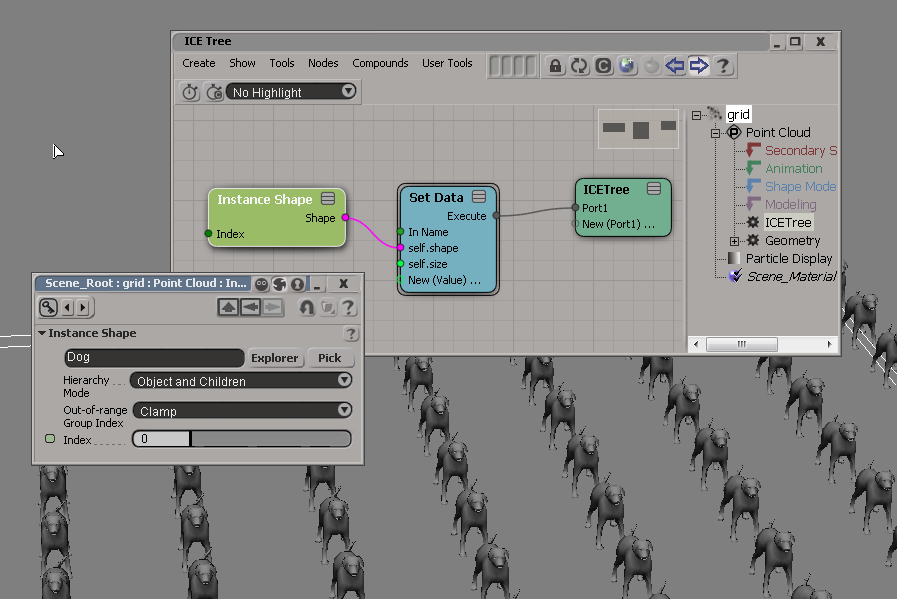
Given a .mi file and a dll, Softimage 2011 can automatically load and register a shader. For example, in the screenshot you can see I have the JS_fisheye and ctrl_studio .mi files in a workgroup.

In your workgroup, create the following folders:

  • Application\mi
  • Application\bin\nt-x86-32
  • Application\bin\nt-x86-64

And then drop the .mi and .dll files into the corresponding folders.

I used the Plug-in Manager to create my workgroup, and on 32-bit it created a Application\bin\nt-x86 folder. But Softimage didn’t load the DLL from that folder. According to Process Monitor, Softimage looked everywhere but Application\bin\nt-x86:

  • Application\bin\nt-x86-32
  • bin\nt-x86-32
  • Plugins
  • mi\bin\nt-x86-32
  • mi\bin\nt-x86
  • bin\nt-x86

Note that I didn’t get the JS_fisheye shader to work in 64-bit Softimage 2011. Even though Softimage loaded the DLL, I still got the error “// ERROR : PHEN 0.4 error 051011: shader “JS_fisheye” not found”. Dependency Walker didn’t show any problems with JS_fisheye.dll.

Installing your Softimage 2011 network license


To get your 2011 license, get your 2011 serial number and then go to http://registeronce.autodesk.com.

  1. Save your 2011 license file in C:\Program Files\Autodesk Network License Manager.
  2. Start LMTOOLS.
  3. On the Start/Stop/Reread tab, click Stop Server.
  4. On the Config Services tab, change the Path to license file to point to the 2011 license file.
  5. Click Save Service.
  6. On the Start/Stop/Reread tab, click Start Server.
  7. Now double-check that the 2011 license is installed. On the Server Status tab, click Perform Status Enquiry.

    First, check that LMTOOLS is using the new license file. Look for this info:

    License server status: 27000@MTL-EXAMPLE
    License file(s) on MTL-EXAMPLE: C:\Program Files\Autodesk Network License Manager\SFTIM_2011.lic:
    

    Under “Feature usage info”, you should see a list of features like 85563SFTIM_2011_0F, 84000SFTIM_2010_0F, and 78600SFTIM_7_5F.
    The features with B1, B2, B3, B4, and B5 are your batch licenses.

Tip – If LMTOOLS is still using your 2010 license:

– Go to the Start/Stop/Reread tab.
– Select the “Force Server Shutdown” check box.
– Click Stop Server.
– Click Start Server.

Combining multiple Softimage 2011 serial numbers


If you had a combination of Softimage 2010 and Softimage Advanced 2010 licenses, you will be getting two separate serial numbers for Softimage 2011.

You’ll get one Softimage 2011 serial number for your Softimage 2010 license, and another Softimage 2011 serial number for your Softimage Advanced 2010 license.

Unfortunately, you cannot combine the two Softimage 2011 licenses into a single license (.lic) file.
Softimage and Softimage Advanced were separate products, that is why it was possible to combine the two licenses.

What to do? Contact your reseller or the Business Center and ask them to combine your two serial numbers into one master serial number for all your Softimage 2011 seats.

All Softimage 2011 network licenses include five Batch


As of the 2011 release, there is no longer separate “Softimage” and “Softimage Advanced” products. There is just one “Softimage” product:

  • A network license of Softimage 2011 includes five Batch licenses.
  • A standalone licenses of Softimage 2011 does not include any Batch licenses.

So, for example, if you had a network license of Softimage 2010 under Subscription, then your Softimage 2011 network license now includes five Batch licenses.

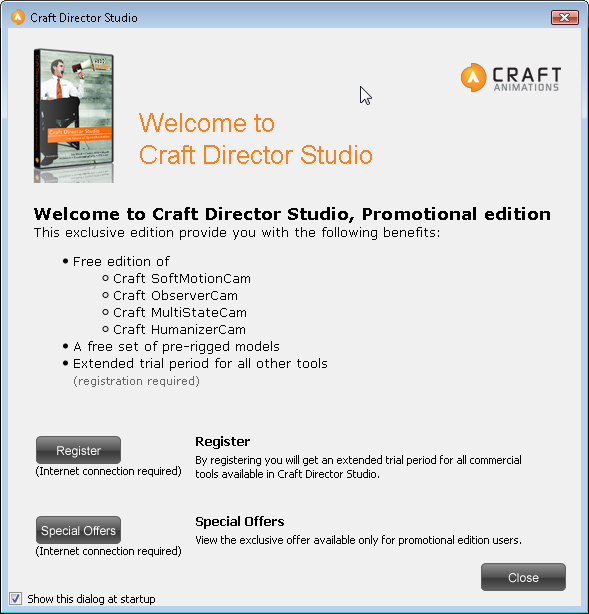
Craft Animation Studio bundled with Softimage 2011


Craft Director Studio from Craft Animations is bundled with Softimage 2011 as a plug-in. You can install the plug-in from the Install Tools and Utilities section of the Softimage 2011 setup.

Craft Director Studio uses high-end artificial intelligence and autonomous control systems to streamline traditional animation processes, allowing you to spend more time on creating rather than on more tedious tasks.

Craft Director Studio includes:

• Craft Camera Tools: real-time camera control for immediate, professional-quality cinematic results.

• Craft Vehicle Tools: create the most realistic and accurate simulations for in-motion vehicles.

• Craft Accessory Tools: add the finishing touches to action-packed productions by simulating and animating props such as missiles, trailers, cog wheels, and other moving parts.

• Craft Freeware Tools: a free-to-use extended toolbox for Craft Director Studio allowing real-time recording, interaction, and depth orientation.

See beneath the fold for more details on which Craft tools are included.
Continue reading

Not all numbers are exactly representable as floats


Representable numbers

The number of digits (or bits) of precision also limits the set of rational numbers that can be represented exactly. For example, the number 123456789 clearly cannot be exactly represented if only eight decimal digits of precision are available.

Inexactness

Floating-point arithmetic on digital computers is inherently inexact. The 24 bits (including the hidden bit) of mantissa in a 32-bit floating-point number represent approximately 7 significant decimal digits. Unlike the real number system, which is continuous, a floating-point system has gaps between each number. If a number is not exactly representable, then it must be approximated by one of the nearest representable values.

In Softimage, you can see the inexactness of floating point numbers with a floating point parameter on a PPG, or with the Scalar node in an ICE tree. In either case, try entering the value 123456789: you’ll end up with the value 123456792.

If you run this Python snippet in a script editor, you can try this out:

import win32com.client
from win32com.client import constants

xsi = Application

oCustomProperty = xsi.ActiveSceneRoot.AddProperty( "CustomProperty", False, "Test" )
oCustomProperty.AddParameter2("Int",constants.siInt4,0,None,None,0,None,constants.siClassifUnknown,constants.siPersistable + constants.siKeyable)
oCustomProperty.AddParameter2("Float",constants.siFloat,0,None,None,0,None,constants.siClassifUnknown,constants.siPersistable + constants.siKeyable)
oCustomProperty.AddParameter2("Double",constants.siDouble,0,None,None,0,None,constants.siClassifUnknown,constants.siPersistable + constants.siKeyable)

xsi.InspectObj( oCustomProperty )

xsi.SetValue("Test.Float", 123456789)
x = xsi.GetValue( "Test.Float" )

xsi.LogMessage( x )
# INFO : 123456792.0