Getting the ID of a new edge from the AddEdgeOp


The other week I posted a KB article that showed how to run a VBScript snippet to get the ID of a new edge added by the AddEdge command. I did it that way because the new edge ID is an output argument to AddEdge, and JScript and Python don’t support output arguments.

Now, however, I found a way to get the new edge ID directly from the AddEdgeOp:

// Get the AddEdgeOp
var oOp = Dictionary.GetObject( "grid.polymsh.addedgeop[2]" );

// Now get the new Edge ID and the new Point ID
var sNewptid = GetValue(oOp + ".newptid") ;
var sNewedgeid = GetValue(oOp + ".newedgeid") ;

LogMessage( "Edge["+sNewedgeid+"] : PointID=" + sNewptid );

Upgrading to Windows 7


What happens to your Softimage license when you upgrade to Windows 7?

If you have a Standalone license, you can use the License Transfer Utility to transfer the license. Export the license, upgrade, and then import the license on the new machine/upgraded machine.

If you have a network license, the same license will work, as long as the Ethernet address of the computer does not changes. Network licenses are tied to the Ethernet address (aka MAC address or Physical address). If the Ethernet address changes (for example, if you get a brand new computer) then you need to contact the Business Center for a new license.

If you need to contact the Business Center, you can log a service request from the Subscription Center (don’t log a technical support request, log a business service request: there is a separate tab for that).

Moving from XP to Windows 7 means you will be dealing with User Account Control (UAC) for the first time. For some users, this means they have to Run as administrator to use the Softimage command prompt or the UserTools utility.

Also, when you install the Autodesk Network License Manager, most likely the folder C:\Program Files\Autodesk Network License Manager will be read-only, so you won’t be able to save your license file in that folder. In some cases, LMTOOLS won’t be able to write to its log file in that folder, which prevents the license server from starting.

If Softimage and the license server are installed on the same Windows 7 (or Vista) computer, then you have to do one of the following:

Also, if you cannot get a license, check that the ports 2080 and 27000-27009 are open in the Windows firewall.

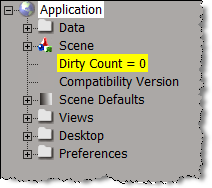
The dirty count


You can read more about the dirty count in the Softimage KB article Scripting – Understanding the dirty count parameter.

This example JScript uses the dirty count to determine whether or not the current scene has been saved.

function IsSceneSaved()
{
	var dirtycount = Dictionary.GetObject( "Project.dirtycount" ).Value;
	var models = FindObjects( null, "{0496EAB0-0ECF-11d1-ABF1-00A02485CECB}" )
	 
	oEnum = new Enumerator( models ) ;
	for (;!oEnum.atEnd();oEnum.moveNext() )
	{
		var model = oEnum.item() ;
		dirtycount += Dictionary.GetObject( model.FullName + ".dirty_count" ).Value
	}

	LogMessage( dirtycount );
	return( dirtycount );
}
LogMessage( IsSceneSaved() == 0 ? "Scene is clean" : "Scene is dirty" );

Yahoo pipe for aggregating Softimage RSS feeds


http://pipes.yahoo.com/softimage

I created a Yahoo pipe to aggregate the following feeds:

  • Posts on the product support blog
  • New KB articles at autodesk.com/softimage-support
  • AdskSoftimage tweets
  • New tutorials, tips, plugins, and scripts on the Area

You can go directly to the pipe here: http://pipes.yahoo.com/softimage/info. I prefer the List view myself.

You can even get an RSS feed for the pipe:
http://pipes.yahoo.com/pipes/pipe.run?_id=f262500e7930b67bb97e91f36c8dfbdc&_render=rss

Note: the pipe filters the RSS feeds from the Area looking for the keyword “Softimage” and “xsi” in the title and description. This works pretty well for tutorials, tips, and plugins, but not so well for scripts. Most of the scripts posted on the Area don’t use the words “Softimage” or “xsi” in either the title or description.

Adding a password field to a PPG


You can use the Edit styles defined in WinUser.h with siUIStyle to get a password-entry text box. The ES_PASSWORD style displays all characters typed by the user as asterisks (*).

var oCustomProperty = XSIFactory.CreateObject( "CustomProperty" );
oCustomProperty.AddParameter( "password", siString, siClassifUnknown, siSilent, "", "", "", "", 0, 1, 0, 1 );

oLayout = oCustomProperty.PPGLayout;
oLayout.Clear();

var oItem = oLayout.AddItem( "password", "Password", siControlEdit );
oItem.SetAttribute( siUIStyle, 32 ); // #define ES_PASSWORD         0x0020L

InspectObj( oCustomProperty );

On the XSI list, see the thread PPG with star password input?

Changing the default values on a PPG


A colleague wanted to use Polygon Reduction on a heavy face mesh, but he didn’t want to apply the Polygon Reduction op with the default 50% Ratio. So he asked me how to change the default values in the Polygon Reduction ppg.

PPG default values come from the preset, so we changed the ratio default, backed up the factory default preset, and then saved a new default preset from the PPG. Not recommended practice, but it worked. Another, safer, way would be to save a preset in the User location and then apply that preset:

var o = ApplyTopoOp(“MyPolygonReduction2.Preset”, “face-mesh”, siUnspecified, siPersistentOperation, null);
InspectObj(o);

HT: luceric:

Default values in spdls are never used except for shaders. In the case of shaders, these default values are used when creating a preset with spdl2preset. For all other types of objects the default value is never even looked at. Softimage developpers have often mistakenly put a “default=” in spdls even though this value is ignored.
The default values for comes from the preset file. To change them, save the preset of the property page on top of the preset file used to create that primitive. These presets are found in the DSPreset folder of the XSi installation. However be aware that this may affect the result of scripts that create these primitives. So it’s best not to change them, and instead write a script that changes the values to what you want.

Finding hidden ICE attributes


In ICE, hidden attributes have names that start with two underscores (__). Hidden attributes don’t show up in the attribute explorers, but you can use scripting to find the hidden attributes:

var pc = Dictionary.GetObject( “PointCloud” );
var oPointCloudGeometry = pc.ActivePrimitive.Geometry;

oEnum = new Enumerator( oPointCloudGeometry.ICEAttributes.Filter( “”, “”, “__*” ) ) ;
for (;!oEnum.atEnd();oEnum.moveNext() )
{
var oSelItem = oEnum.item() ;
LogMessage( oSelItem.fullname );
}