Scripting: Replacing nodes in the render tree


To get this script to work in 2011 and later, you need to do this to find the Blinn shaders:

// Get a collection of all Blinn nodes
var sProgID = "Softimage.material-blinn.1.0" 
var oShaderDef = Application.GetShaderDef( sProgID ) ;  

var oBlinnCollection =  oShaderDef.ShaderInstances ;  
if (debug) LogMessage( "Found " + oBlinnCollection.Count + " Blinn shaders" );


The rest of the script can stay the same.
Note: I split the script into two parts below, for the purposes of this blog post. Just combine them to get the full script.

Here’s a script that shows how to replace every Blinn shader in a scene with a Phong shader.
There’s other ways to do it, but I used the connection stack.

var debug = 0;

// Class ID of the Blinn shader in XSI
var sClassID = "{8FAC63AC-E392-11D1-804C-00A0C906835D}";
SetValue("preferences.scripting.cmdlog", false, null);

// Get a collection of all Blinn nodes
var oBlinnCollection = FindObjects( null, sClassID );
if (debug) LogMessage( "Found " + oBlinnCollection.Count + " Blinn shaders" );

// Loop over the Blinn collection and replace all Blinn nodes with Phongs
var s = new Date();
oEnum = new Enumerator( oBlinnCollection ) ;
for (;!oEnum.atEnd();oEnum.moveNext() )
{
	var oBlinn = oEnum.item() ;

	// try catch will skip over any TransientObjectContainer.Blinn shaders we find
	try
	{
		var oMaterial = oBlinn.Owners(0);
	}
	catch(e)
	{
		LogMessage( "Skipping " + oBlinn );
		continue;
	}
	LogMessage( "Replacing " + oBlinn );
	blinn2phong( oMaterial, oBlinn );
}
var e = new Date();
LogMessage( "Finished replacing Blinn shaders. Elapsed time: " + (e-s)/1000 + "s" );


function blinn2phong( oMaterial, oBlinn )
{
	// Create a new Phong node
	var oPhong = CreateShaderFromPreset("$XSI_DSPRESETS\\Shaders\\Material\\Phong.Preset", oMaterial, null);

	// Get the node connections from the ConnectionStack
	// And then insert the Phong node

	var oDR = XSIUtils.DataRepository ;
	var strOpInfo = oDR.GetConnectionStackInfo( oBlinn );

	var oTopNode = ParseXML( strOpInfo ) ;
	var oConnections = oTopNode.childNodes ;

	if ( oConnections.length == 0 )
	{
		LogMessage( "Cannot replace the Blinn node " + oBlinn + " .It has no connections." );
	}
	else
	{

		for ( var i = 0 ; i < oConnections.length ; i++ )
		{
			var oConnection = oConnections(i) ;
							
			strtype = SafeGetNodeValue( oConnection, "type", "Unknown" ) ;
			strobj = SafeGetNodeValue( oConnection, "object", "Not Connected" ) ; 
			localparam = SafeGetNodeValue( oConnection, "localparameter", "&nbsp;" ) ;  
			destparam = SafeGetNodeValue( oConnection, "remoteparameter", "&nbsp;" ) ;  				
			
			if ( strtype == "in" )
			{
				var oParam = oPhong.Parameters( localparam );
				if ( oParam == null )
				{
					LogMessage( "Cannot connect " + strobj + " to Phong." + localparam + ". That parameter does not exist.", siWarning );
				}
				else
				{
					//SIConnectShaderToCnxPoint("Sources.Materials.Proteus_Body_MatLib_Proteus.MAT_Brass11.Image5", oPhong + ".ambient", false);
					SIConnectShaderToCnxPoint( strobj, oParam );
					if( debug ) LogMessage( "IN: " + strobj + ", " + oParam );
				}
			}
			if ( strtype == "out" )
			{
				var oTarget = Dictionary.GetObject( strobj );
				var oParam = oTarget.Parameters( destparam );
				//SIConnectShaderToCnxPoint("Sources.Materials.Proteus_Body_MatLib_Proteus.MAT_Brass11.Phong1", "Sources.Materials.Proteus_Body_MatLib_Proteus.MAT_Brass11.Mix_2colors.base_color", false);
				SIConnectShaderToCnxPoint( oPhong, oParam );
				if( debug ) LogMessage( "OUT: " + oPhong + ", " + oParam );
			}
		}	
	}
}

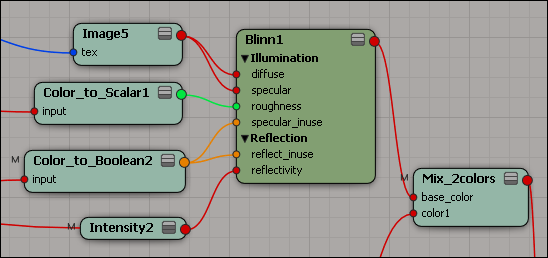
The bling2phong() function is based on the code that builds this HTML page in the SDK Explorer:

Notice how the Connection Stack Details give you everything you need to replace a Blinn node with some other node in the render tree:
See below the cut for the code for the helper functions ParseXML() and SafeGetNodeValue().
Continue reading →

Saving the size and position of the render tree


If you use a custom layout, you can save the size and position of floating views such as the Render Tree.
In the online User’s Guide, look up windows:setting default size and position.

You could also use a toolbar button to run a script that opens the render tree with the desired size and position. For example:

var layout = Application.Desktop.ActiveLayout;
var v = layout.CreateView( "Render Tree", "Render Tree" );
v.Move( 10, 10 );
v.Resize( 1000,1000 );

Crosswalk not available in Maya


You installed the latest Crosswalk, but you don’t see it anywhere in Maya when you try to export.

Usually, this is all you have to do to make Crosswalk available in Maya:

  1. In Maya, click Window > Settings/Preferences > Plug-in Manager.
  2. Find the dotXSISceneConverter plug-in and select the Loaded and Auto load check boxes.
  3. Now when you export, you will see the Autodesk Crosswalk Exporter (.xsi) option in the Files of Type list.

The case of the Softimage startup freeze and the Wacom driver


Click to watch videoTroubleshooting a startup crash with Process Monitor
A customer called to report that his Softimage crashed/froze at startup when it tried to display the OpenGL viewports. This is the classic symptom of a display driver problem, and the hide-the-OpenGL-viewports test seemed to confirm this. But reinstalling the display driver didn’t help (Softimage was working just the other day, so the same driver should work).

Using Process Monitor, I was quickly able to track down the problem to the Wacom driver. After he reinstalled the Wacom driver and restarted, Softimage started up again. Watch the video to see how to quickly find a possible problem in a 200MB log file with 845,000 log entries 😉

Looping over an XSICollection


This is a beginner-level walkthrough of a VBScript snippet.

set oColl = CreateObject( "XSI.Collection" )
oColl.Items = "*_face_crv?"

for each oObj in oColl
	LogMessage oObj.fullname 
next

Line 01: We use the VBScript function CreateObject to create an instance of the ActiveX object XSICollection. XSICollection is a part of the XSI SDK, and is available only inside Softimage.

Line 02: Softimage uses string expressions to reference scene elements. For example, the expression “*_face_crv?” expands to “lf_face_crv1,lf_face_crv2,rf_face_crv1,rf_face_crv2” if you have objects with those names in the scene. The [undocumented] XSICollection.Items property takes a string expression and puts the corresponding objects into the XSICollection.

Line 04: We use the VBScript for each nextstatement to loop over the XSICollection.

Line 05: LogMessage is a method of the Application object, which is part the XSI SDK. FullName is a property available on most objects in Softimage.

Here’s the JScript equivalent, with an additional line of code that uses regex to update the object names.

var oColl = new ActiveXObject( "XSI.Collection" );
oColl.Items = "*_face_crv";

oEnum = new Enumerator( oColl ) ;
for (;!oEnum.atEnd();oEnum.moveNext() )
{
	var oSelItem = oEnum.item() ;
	LogMessage( oSelItem.fullname );
	oSelItem.Name = oSelItem.Name.replace( /crv/, "loc" );
	LogMessage( oSelItem.fullname );

}

Further reading:

ADSKFLEX_LICENSE_FILE value in the registry


Softimage saves the location of the license server in the registry. On Vista, the location is saved in the ADSKFLEX_LICENSE_FILE value:

HKEY_CURRENT_USER\Software\FLEXlm License Manager

On my XP system, the value is saved under HKEY_LOCAL_MACHINE.

Over time, you may end up with some obsolete license server locations saved in the registry. For example, if you replace your license server, the location of the old server is still in the registry.

So whenever you cannot get a license, and everything else seems to check out ok, open up regedit and clear the ADSKFLEX_LICENSE_FILE value, to make sure Softimage is connecting to the right license server.

I had a support case the other week where the customer wrote

xsibatch cannot get a license, even though setenv.bat an exact copy of the setenv.bat from a machine where xsibatch can get a license.

It turned out the problem was because of ADSKFLEX_LICENSE_FILE. After he deleted that value, xsibatch connected to the license server specified by setenv.bat and got a license.

Transferring your license to a new license server


You will have to contact the Business Center to transfer your license to the new license server.

A network license is tied to the Ethernet address (aka MAC address or physical address) of a network adapter on the license server computer. So you need a new license if you move your license server to a different computer.

After you set up the new license server, update the setenv.bat files on your workstations to point to the new license server.

Note that on the workstations, the location of the old license server persists in the registry value HKEY_CURRENT_USER\Software\FLEXlm License Manager\ADSKFLEX_LICENSE_FILE. It’s a good idea to clear that value, to make sure XSI.exe and xsibatch.exe don’t try to use the old server.