Editing a Character Key Set PPG


I was asked the other day “how to change the labels on a character key set PPG”.

A Character Key Set PPG is a custom property and some proxy parameters. So you can edit the proxy parameter definition:

  1. Open the character key set PPG.
  2. Mark a parameter.
  3. In the Animation panel, click Animation > Parameters > Edit Parameter Definition.
  4. Change the name of the parameter and click Ok.

Tip: Character key sets are implemented in %XSI_HOME%\Application\DSScripts\CharacterKeySets.vbs.

Recent Webex cases…


Last week I used Webex to resolve a number of licensing/startup cases. I find Webex a handly tool, because I don’t have to get my information second hand 😉 I can see it with my own eyes.

License Manager won’t start
This was on Windows 7. The folder C:\Program Files\Autodesk Network License Manager folder was read-only, so LMTOOLS could not write the log file. Unfortunately, the license server won’t start if the log is not writeable. The strange thing was that the customer had been able to save the .lic file in the folder, and LMTOOLS had written to the log file before. But now the folder was read-only, so somehow the permissions changed.

Ping general failure
Everything seemed set up properly, until I tried to ping the local machine and got “General Failure”. Not good. We could ping the outside world, but not the local machine. I tried resetting winsock and the TCP/IP stack, booting in Safe Mode, Safe Mode with Networking, to no avail.

Unable To Locate Component
At startup, XSI.exe reported “This application has failed to start because adlmint.dll was not found”. Sure enough, adlmint.dll was missing from Application\bin. This was a bit surprising, because all required files should be installed no matter what licensing method you choose during Setup. So I had to reinstall Softimage for the customer.

The preset(s) could not be applied to this selection


After reinstalling his OS and Softimage, a user could no longer apply textures with Texture > Image. He kept getting “The preset(s) could not be applied to this selection”.

The solution: rename the User folder, which forces Softimage to use the factory-default preferences.

See the Softimage KB for more info:

  • TS14104789 Resetting user preferences and customizations

Combining license files


This keeps coming up in the support queue, often in this form: “I have 12 licenses but I can only run Softimage on 3 machines at a time”. This happens because somebody tried to combine license files.

You cannot combine license files of the same product. For example, if you have one Softimage Advanced license for 9 seats, and another Advanced license for 3 seats, you cannot put them together in one .lic file. You’ll end up either with 9 or 3 licenses, depending on the order of the licenses in the .lic. The last license in the file supersedes the others.

You can combine licenses of different products. For example, Max 2010 and Softimage 2010. Or Softimage and Softimage Advanced.

Add points to cloud at geometry vertices


Suppose you have several objects, and you want to use ICE to add a point at each vertex of each object. If all your objects had the same number of vertices, you could do it by plugging Get Group.PointPositions into Add Point:

Group_AddPoint

But this works only if all the objects have the same number of vertices. Otherwise you won’t get points at all vertices of all objects.

Note that you have to either freeze the transforms on the objects or, as shown above, convert from local coordinates to global coordinates.

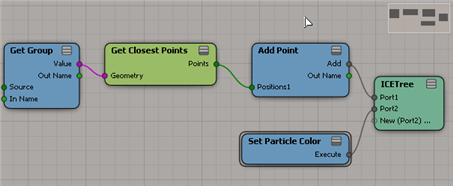
To add points on the vertices of any group of objects, you can use Get Closest Points. Just adjust the cutoff distance until you get all the points on the objects.

Group_AddPoint_GetClosestPoints

UPDATE: You can also use Generate Sample Set.

Hat tip: CiaranM

Home Use licenses


Home Use is a Subscription benefit that allows you to install a second copy of Softimage. For example, you could install Softimage at home, either for work or for personal education and training. A Home Use license is a standalone license.

To get a Home Use license, you can fill out a request form on the Subscription Center. Login, click Contract Administration, and then click Request Home Use.

Note To request a Home Use license, you must be the Contract Administrator for your account. If you are not the Contract Administrator, you won’t see the Request Home Use form.

If you have problems with the request form, log a Business Service Request and tell them you want to apply for a Home Use license of Softimage.

  1. Go to the Support Request page
  2. Click Subscription Help, and then click New.

Getting the selected nodes in an ICE Tree


You can get the selected ICE nodes through the selection view attribute.

First, you have to get the ICE Tree view. You could try to get the view by name:

var oLayout = Application.Desktop.ActiveLayout;
var oICETreeView = oLayout.Views( "ICE Tree" );

but if the ICE Tree view is part of a layout (like the ICE layout) that won’t work, because the view has a different name (for example, in the ICE layout, the view name is “lower_panel”). To be sure you get the ICE Tree view, whether it is floating or embedded, filter by the Views by type.

// Get the ICE Tree views
var oLayout = Application.Desktop.ActiveLayout;
var oICETreeViews = oLayout.Views.Filter( "ICE Tree" );

// Now get the selected nodes 
// and log the names of the selected nodes
var x = oICETreeViews(0);
var a = x.GetAttributeValue( "selection" ).split(",");
LogMessage( a.length );

for ( var i in a )
{
	var oNode = Dictionary.GetObject( a[i] );
//	LogMessage( classname(oNode) );
	LogMessage( oNode.Name );
}

FLEXnet Licensing error:-1,359. System Error: 2 “No such file or directory”


This FLEXLM_DIAGNOSTIC error indicates that the @ symbol is missing. For example, you will see this error if setenv.bat has this:

set _ADSK_LicServers=mtl-licserver

instead of this;

set _ADSK_LicServers=@mtl-licserver

When there is no @ symbol, “mtl-licserver” is interpreted as a file path, not as the name of a computer. Softimage 7.5 used this syntax to specify that the file C:\Softimage\Softimage_7.5_x64\adlm\licenses\Autodesk.lic contained the location of the license server.

Here’s the actual FLEXLM_DIAGNOSTIC message. Notice how it lists “Filename” and “License path”, which indicate that Softimage is trying to find a file.

—————————
FLEXible License Manager
—————————
FLEXnet Licensing checkout error: Cannot find license file.
The license files (or license server system network addresses) attempted are
listed below. Use LM_LICENSE_FILE to use a different license file,
or contact your software provider for a license file.
Feature: 84000SFTIM_2010_0F
Filename: mtl-server
License path: mtl-server;
FLEXnet Licensing error:-1,359. System Error: 2 “No such file or directory”
For further information, refer to the FLEXnet Licensing documentation,
available at “www.acresso.com”.
—————————
OK
—————————

Getting ICE attributes through scripting


You can get at the ICE attributes of a point cloud through PointCloudGeometry.ICEAttributes or PointCloudGeometry.GetICEAttributeFromName.

To get the attribute values for every point in a point cloud, you get the DataArray of the attribute.

Here’s some sample JScript that shows how to get ICE attributes. Run it once, and then randomize the initial shapes of the particles and run the script again. See the difference? (Look at the difference in IsConstant and the contents of DataArray for the Shape attribute).

Remember that in the script editor you can double-click a method or property name (like “DataArray”) and press F1 to go to the SDK reference page.

var pc = Dictionary.GetObject( "PointCloud" );
var oPointCloudGeometry = pc.ActivePrimitive.Geometry;

// Get the NbPoints attribute
var oIceAttrib = oPointCloudGeometry.GetICEAttributeFromName( "NbPoints" );
logAttributeInfo( oIceAttrib );
logDataArray( oIceAttrib.DataArray );

// Get the Shape attribute
var oIceAttrib = oPointCloudGeometry.GetICEAttributeFromName( "Shape" );
logAttributeInfo( oIceAttrib );
logDataArray( oIceAttrib.DataArray );

// Utility functions
function logAttributeInfo( oIceAttrib )
{
    LogMessage( oIceAttrib.Name + "ICE attribute");
    LogMessage( "\tIsConstant=" + oIceAttrib.IsConstant );
    LogMessage( "\tContextType=" + oIceAttrib.ContextType );
    LogMessage( "\tDataType=" + oIceAttrib.DataType );
}

function logDataArray( dataArray )
{
    // DataArray is a safe array
    // So, convert it to a JScript array
    var a = new VBArray( dataArray ).toArray();
    LogMessage( "\tDataArray.length=" + a.length );
    for ( var i in a )
    {
        if ( typeof(a[i])=="object" )
        {
            LogMessage( "\tDataArray["+i+"].Type=" + a[i].Type );
			LogMessage( ClassName( a[i] ) );	// Shape
        }
        else
        {
            LogMessage( "\tDataArray["+i+"]=" + a[i] );
        }
    }
}