Smoothing Strands Deformation
by Christian Keller

ICE refit rig
by Paul Smith
Storing animation in ICE #2
by Paul Smith

Smoothing Strands Deformation
by Christian Keller
ICE refit rig
by Paul Smith
Storing animation in ICE #2
by Paul Smith
#
# Softimage 2013 SP1 Python snippet
#
from sipyutils import si			# win32com.client.Dispatch('XSI.Application')
from sipyutils import siut		# win32com.client.Dispatch('XSI.Utils')
from sipyutils import siui		# win32com.client.Dispatch('XSI.UIToolkit')
from sipyutils import simath	# win32com.client.Dispatch('XSI.Math')
from sipyutils import log		# LogMessage
from sipyutils import disp		# win32com.client.Dispatch
from sipyutils import C			# win32com.client.constants

si=si()
siut=siut()
from xml.etree import ElementTree as ET

def getExpressionsDrivenByLocalParameter( obj, param="posx" ):
	stack = siut.DataRepository.GetConnectionStackInfo( obj.Parameters(param) )
#	print stack

	expressions = XSIFactory.CreateObject("XSI.Collection")
	expressions.Unique = True
	xmlRoot = ET.fromstring(stack)
	for xmlCnx in xmlRoot.findall('connection'):
		if xmlCnx.find('type').text == 'out' and xmlCnx.find('localparameter') is not None and xmlCnx.find('localparameter').text == param:
			item = xmlCnx.find('object').text
			if item.endswith('.Expression'):
				expressions.AddItems(item)

	return expressions


# Create an expression where the Scene Material diffuse red drives the diffuse red of a Lambert shader
Application.SetExpr("Sources.Materials.DefaultLib.Lambert.Lambert.diffuse.red", "Sources.Materials.DefaultLib.Scene_Material.Phong.diffuse.red")

x = getExpressionsDrivenByLocalParameter( si.Dictionary.GetObject("Sources.Materials.DefaultLib.Scene_Material.Phong.diffuse"), param="red" )
log( x )
# INFO : Sources.Materials.DefaultLib.Lambert.Lambert.diffuse.red.Expression
Reference and credits:
Courtesy of Ed Harriss, here’s some pics of the old SOFTIMAGE Creative Environment boxes. I haven’t seen one of these boxes since we moved out of the Softimage offices on St Laurent; if you went down to the doc team area, you’d see these Creative Environment docs on the bookshelves.


The Softimage product was known as “Creative Environment” until 1995, when it became SOFTIMAGE|3D. Here’s a version history of the SOFTIMAGE Creative Environment (CE) and SOFTIMAGE|3D (SI3D) products.
| 1988 | CE v0.8 |
| 1989 | CE v1.5 |
| Sep-90 | CE v2.1 |
| 1991 | CE v2.5 |
| CE v2.51 | |
| CE v2.52 | |
| CE v2.65 | |
| CE v2.66 | |
| 1995 | SI3D v3.0 (NT) |
| 1996 | SI3D v3.5 |
| SI3D v3.51 | |
| 1997 | SI3D v3.7 |
| SI3D v3.7 SP1 | |
| Jul-98 | SI3D v3.8 |
| Jan-99 | SI3D v3.8 SP1 |
| Aug-99 | SI3D v3.8 SP2 |
| Mar-00 | SI3D v3.9 |
| May-00 | SI3D v3.9.1 |
| Dec-00 | SI3D v3.9.2 |
| Mar-01 | SI3D v3.9.2.1 |
| May-01 | SI3D v3.9.2.2 |
| Feb-02 | SI3D v4.0 |
As I mentioned last year around this time, it is possible to end up with passes that don’t show up in the explorer. This happens when you Duplicate a pass, and the Hierarchy option “preferences.duplicate.hierarchy” is set to None. So your new pass has no parent, and is disconnected from the rest of the scene (aka floating).
These phantom passes have names like “#Pass”, and you can select them if you know how.
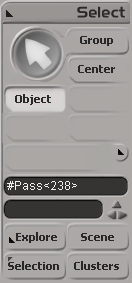
Here’s how, in Python, with the 2013 SP1 Python shortcuts.
from sipyutils import si			# win32com.client.Dispatch('XSI.Application')
from sipyutils import siut		# win32com.client.Dispatch('XSI.Utils')
from sipyutils import siui		# win32com.client.Dispatch('XSI.UIToolkit')
from sipyutils import simath	# win32com.client.Dispatch('XSI.Math')
from sipyutils import log		# LogMessage
from sipyutils import disp		# win32com.client.Dispatch
from sipyutils import C			# win32com.client.constants

si=si()

sClassID = siut().DataRepository.GetIdentifier( si.ActiveProject.ActiveScene.Passes(0), C.siObjectCLSID )
passes = si.FindObjects( None, sClassID ).Filter( "", None, "#Pass*" )
print passes.Count
print passes.GetAsText()

#
# The following don't work! At least not all the time 😦
#
si.DeleteObj( passes )

#si.ParentObj( "FloatingPasses.Passes", "#Pass<61>" )
#si.CopyPaste( passes(0), "", si.Dictionary.GetObject("FloatingPasses.Passes") )

si.SelectObj( passes )
When I was testing this, sometimes I was able to delete those phantom passes, and sometimes I wasn’t.
Sometimes those passes disappeared when I saved the scene, did New Scene, and then reloaded the scene. Sometimes they didn’t (disappear that is).
When DeleteObj didn’t work, I’d use the explorer to view the phantom passes (since I called SelectObj on them, I could just show selected in the explorer).
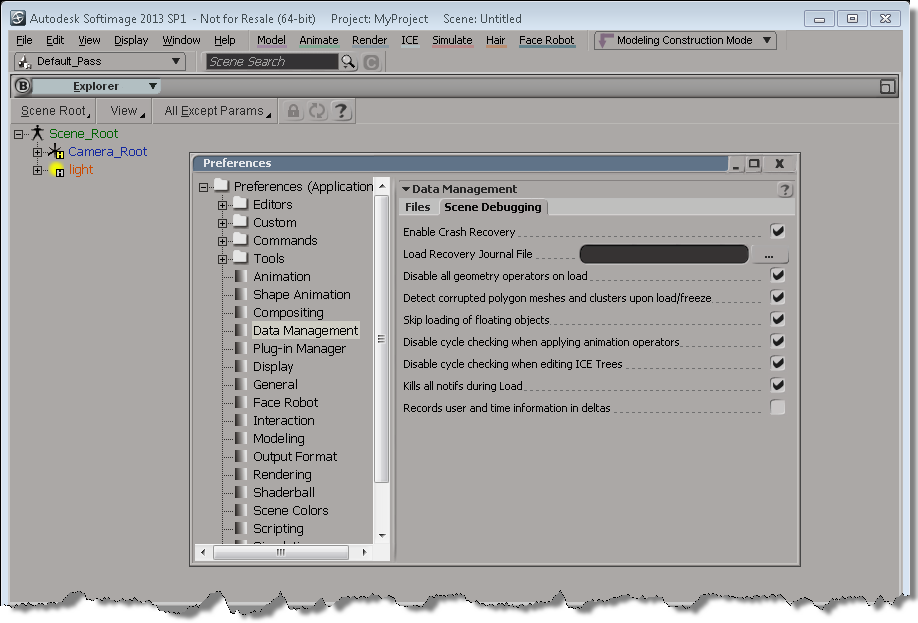
Here’s a few things you can try when you need to rescue a scene (or model) that crashes Softimage when you try to load it.
Setting up Softimage before you merge in a corrupted scene:
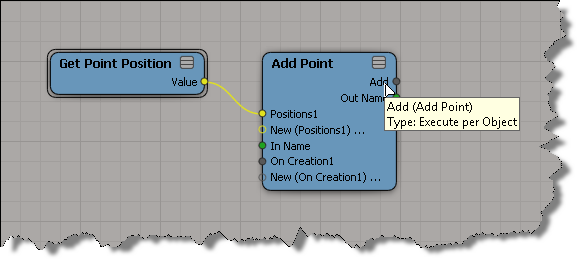
Unlike Clone Point, the output context of Add Point is always per-object, no matter what you plug into its input ports. So, for example, you cannot plug Add Point into an Execute on Emit port (which is a per-point port). Making Add Point per-object makes sense to me, because typically you want to add N points to a point cloud, not add N points for every point that is already in the target point cloud (that already sounds confusing).
One consequence of Add Point being per object is that you cannot use an If node to copy over some subset of points to the target point cloud. For example, if your If node is already plugged into something that makes it per-point then you’ll get a context error:
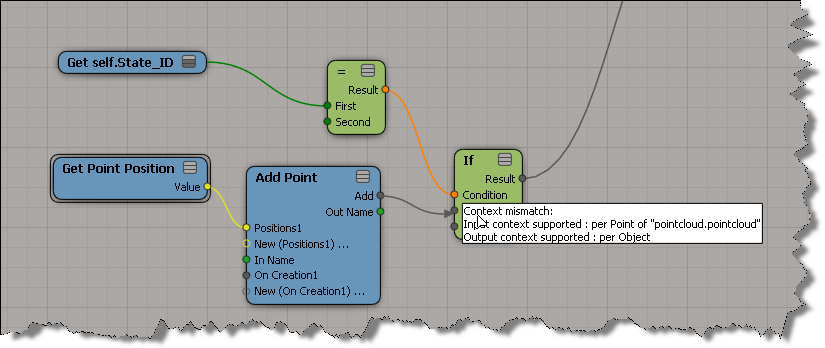
If your If node wasn’t plugged in yet, you’d get some red nodes like this:

The solution is to use a Filter on the other side [upstream] of the Add Point:
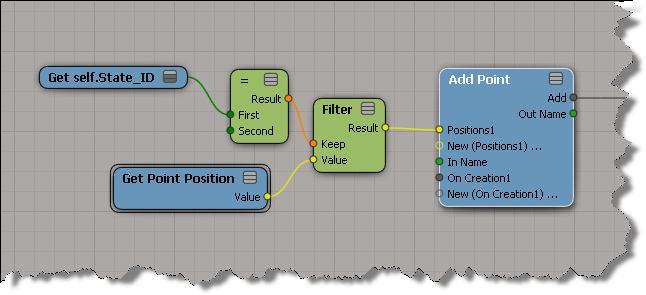
hat tips to Gray and Julian
For reference, here’s the Visual Studio compiler versions used for the different versions of Softimage.
| Softimage version | Visual C++ version |
|---|---|
| 2013 and up | VC++ 2010 SP1 |
| 2012 | VC++ 2008 SP1 |
| 2011 | |
| 2010 | VC++ 2005 |
| 7.5 | |
| 7.01 |
Getting user-defiend attributes
by Stephan Woermann

motion tools tutorial spheres
by Angel Negron 5 days ago
Animation storing in ICE
by Paul smith
Writing to weightmaps
by csaez

Bookshelf
by origin
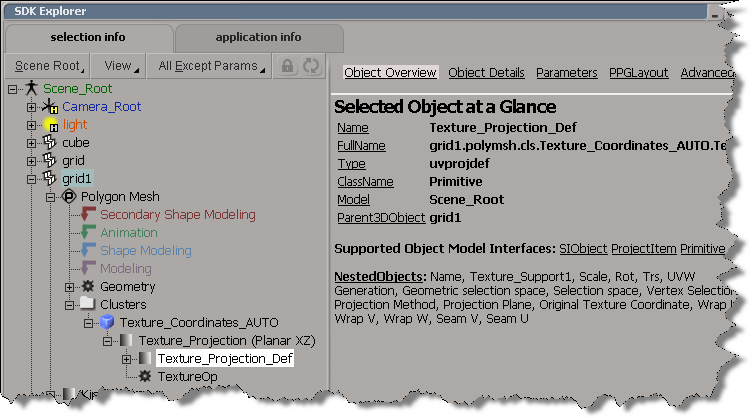
Here’s a simple Python snippet that shows how to traverse the object hierarchy to get at a Texture Projection Definition. Note that I’m not looping over any of the collections, I just get the first element with “(0)” on lines 25, 28, and 31.
#
# 2013 SP1 shortcuts
#
#from sipyutils import si			# win32com.client.Dispatch('XSI.Application')
#from sipyutils import siut		# win32com.client.Dispatch('XSI.Utils')
#from sipyutils import siui		# win32com.client.Dispatch('XSI.UIToolkit')
#from sipyutils import simath	# win32com.client.Dispatch('XSI.Math')
#from sipyutils import log		# LogMessage
#from sipyutils import disp		# win32com.client.Dispatch
#from sipyutils import C			# win32com.client.constants
#si=si()


si=Application
dict=si.Dictionary

def dispFix( badDispatch ):
	import win32com.client.dynamic
	# Re-Wraps a bad dispatch into a working one:
	return win32com.client.dynamic.Dispatch(badDispatch)

o = dict.GetObject( "grid1" )

# Get the texture coordinates (aka the Sample cluster)
c = o.ActivePrimitive.Geometry.Clusters.Filter( "sample" )(0)

# Get  the Texture Projection
uv = c.Properties.Filter( "uvspace" )(0)

# Get  the Texture Projection Definition
uvdef = uv.NestedObjects.Filter( "uvprojdef" )(0)
print si.ClassName(uvdef)

# Get a texture projection parameter (in this example, the U translation)
x = dispFix(uvdef)
projtrsu = x.Parameters("projtrsu")

print si.ClassName( projtrsu )
print projtrsu.FullName
Here’s what the hierarchy looks like in the SDK explorer:
SOFTIMAGE|3D schematic view from the 1999 Tekkon Kinkreet project.

 eX-SI
eX-SI 