From Manny at Autodesk, here’s a video walkthrough of setting up multiple crowd emitters, and giving each emitter a different goal.
CrowdFX with multiple emitters and different goals
2

From Manny at Autodesk, here’s a video walkthrough of setting up multiple crowd emitters, and giving each emitter a different goal.
For the purposes of ICE, the Boolean value True is always the integer value 1, and False is always 0.
But like most (all?) programming languages, any non-zero value corresponds to True, and only zero is False.

Note that negative values are also True; I could stick a Negate node inbetween Get Point ID and Integer to Boolean and get the same set of booleans.
However, in ICE you cannot plug an integer into an If node, so this point is rather moot. In programming, you can do things like “if ( !n )”, where !n evaluates to true if n=0. Or you can do something like “if ( NbPoints )” instead of “if ( NbPoints > 0 )”.
Unlike Clone Point, the output context of Add Point is always per-object, no matter what you plug into its input ports. So, for example, you cannot plug Add Point into an Execute on Emit port (which is a per-point port). Making Add Point per-object makes sense to me, because typically you want to add N points to a point cloud, not add N points for every point that is already in the target point cloud (that already sounds confusing).
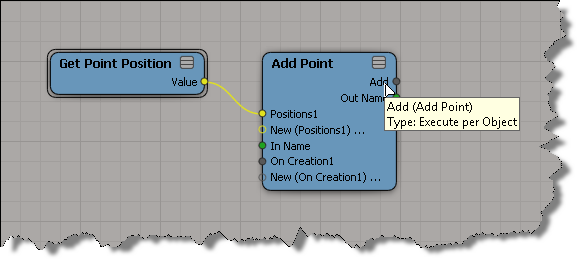
One consequence of Add Point being per object is that you cannot use an If node to copy over some subset of points to the target point cloud. For example, if your If node is already plugged into something that makes it per-point then you’ll get a context error:
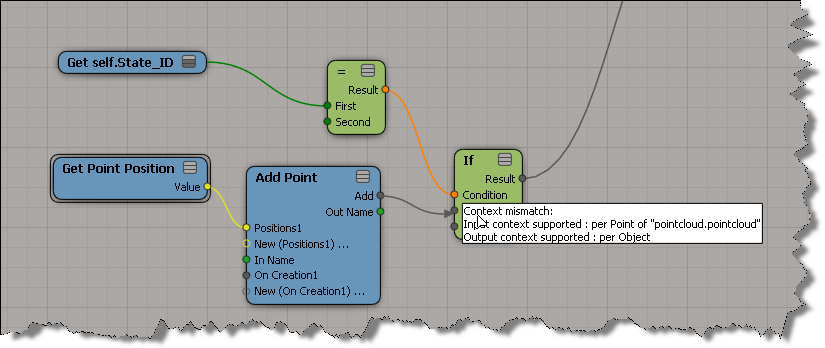
If your If node wasn’t plugged in yet, you’d get some red nodes like this:

The solution is to use a Filter on the other side [upstream] of the Add Point:
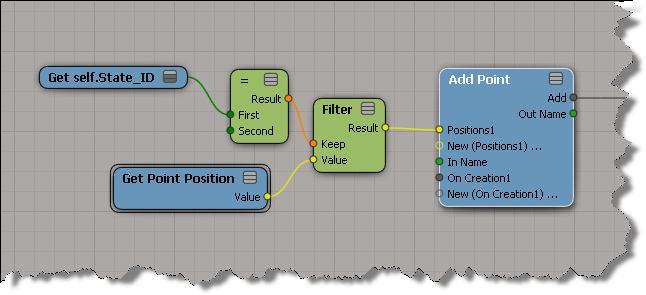
hat tips to Gray and Julian
In ICE, we often work with point or particle positions, and these positions are 3D Vectors.

Now, in general, a vector is something that has both value and direction (for example, any cyclist knows that the wind has both a magnitude and a direction, and together they really define the wind 🙂
When you’re working with point/particle positions, you’re really working with position vectors that specify a unique position in space. You’re not really interested in the magnitude of the vector, just the head and tail of the vector.
For any position vector, the tail is the origin: the point (0, 0, 0).
The head of the vector is the position in space.
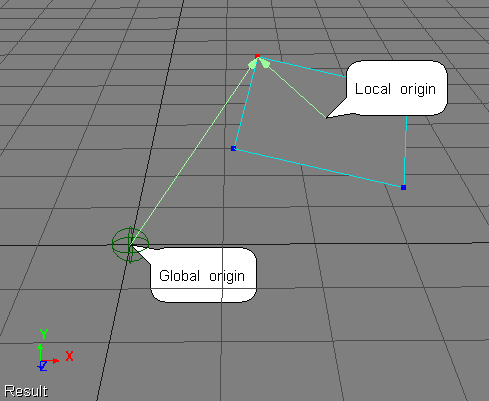
When you’re working with position vectors in ICE, it’s important to understand what coordinate system you are working in, because that determines the origin. For example, here’s two different position vectors for the same point:
In this video I take a quick look at how Rotate Vector works, but more importantly, I dive into some issues related to different coordinate systems. In many scenarios where you use Rotate Vector (eg to rotate polygons), you have to understand what coordinates you’re working with.
Hopefully, this will be the first in a series of vids.
I saw–via an email notification–the question “how do I use the Global Transform of an object to create a 4×4 Matrix” posted on xsibase (sorry, I don’t go to xsibase anymore because of the “attack site” and “malware” warnings).
One way to do this is to add a “Copy Global Transform” command to the ICE node context menu. After you install this plugin, right click a 4×4 matrix node in an ICE tree, and it will copy the Global Transform from the first object in the selection list.
Note: error checking and stuff like that is left as an exercise for the reader (or for another blog post).
Here’s the plugin code for 2013. For 2012 or earlier, you have to change the AddCallbackItem2 call to AddCallbackItem.
si = Application
import win32com.client
from win32com.client import constants as C

null = None
false = 0
true = 1

def XSILoadPlugin( in_reg ):
	in_reg.Author = "blairs"
	in_reg.Name = "CopyTransfo2MatrixNodePlugin"
	in_reg.Major = 1
	in_reg.Minor = 0

	in_reg.RegisterMenu(C.siMenuICENodeContextID,"CopyTransfo2MatrixNode_Menu",false,false)

	return true

def XSIUnloadPlugin( in_reg ):
	strPluginName = in_reg.Name
	Application.LogMessage(str(strPluginName) + str(" has been unloaded."),C.siVerbose)
	return true

def CopyTransfo2MatrixNode_Init( in_ctxt ):
	oCmd = in_ctxt.Source
	oCmd.Description = ""
	oCmd.ReturnValue = true

	oArgs = oCmd.Arguments
	oArgs.AddWithHandler("Arg0","Collection")
	return true

def CopyTransfo2MatrixNode_Menu_Init( in_ctxt ):
	oMenu = in_ctxt.Source
	oMenu.AddCallbackItem2("Copy Global Transform","CopyTransfo2MatrixNode")
	return true

def CopyTransfo2MatrixNode( in_ctxt ):
	oNodeName = in_ctxt.GetAttribute("Target")

	o = si.Selection(0)
	t = o.Kinematics.Global.GetTransform2( None )
	m = t.Matrix4.Get2()

	# Get a matrix node
	n = si.Dictionary.GetObject( oNodeName )

	n.Parameters( "value_00" ).Value = m[0]
	n.Parameters( "value_01" ).Value = m[1]
	n.Parameters( "value_02" ).Value = m[2]
	n.Parameters( "value_03" ).Value = m[3]

	n.Parameters( "value_10" ).Value = m[4]
	n.Parameters( "value_11" ).Value = m[5]
	n.Parameters( "value_12" ).Value = m[6]
	n.Parameters( "value_13" ).Value = m[7]

	n.Parameters( "value_20" ).Value = m[8]
	n.Parameters( "value_21" ).Value = m[9]
	n.Parameters( "value_22" ).Value = m[10]
	n.Parameters( "value_23" ).Value = m[11]

	n.Parameters( "value_30" ).Value = m[12]
	n.Parameters( "value_31" ).Value = m[13]
	n.Parameters( "value_32" ).Value = m[14]
	n.Parameters( "value_33" ).Value = m[15]
[see also this tip: Using the ? wildcard]
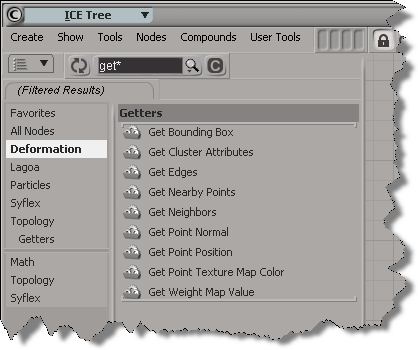
While typing part or all of a word is often enough to narrow down the possibilities, sometimes you may want to search for all compounds that start with one string and end with another. For that, you use the asterisk (*) regex wildcard.

After you use a wildcard once, there’s no more automatic partial word matching. “G*P” won’t find anything, you need to add another * at the end.

“G*P*” is a little broad, so you might want to be more specific:

Note that you can categories to further filter down the results. Here, I selected just one category (Deformation), but I could have CTRL selected two or more categories.
Let’s say you want to delete–oh, I don’t know–let’s say a random 7% of all particles, and you want to do that every N frames. Here’s one way to do it. You won’t get exactly 7%, but you’ll get close (eg I got numbers like 6.8%, 7.2%, and 7.25% when I tested it).

The Every Nth Frame compound is a custom compound that uses modulo:

CrowdFX
by Mark Schoennagal
UI display problems that can be fixed by updating graphic driver
by Maximus

Quick Muscle
by Paul Smith
Bend Paper
by Ендукъ

Making rotational shapes
by Paul Smith
Here’s a little ICE modeling example that chains together a few basic polygon operations:
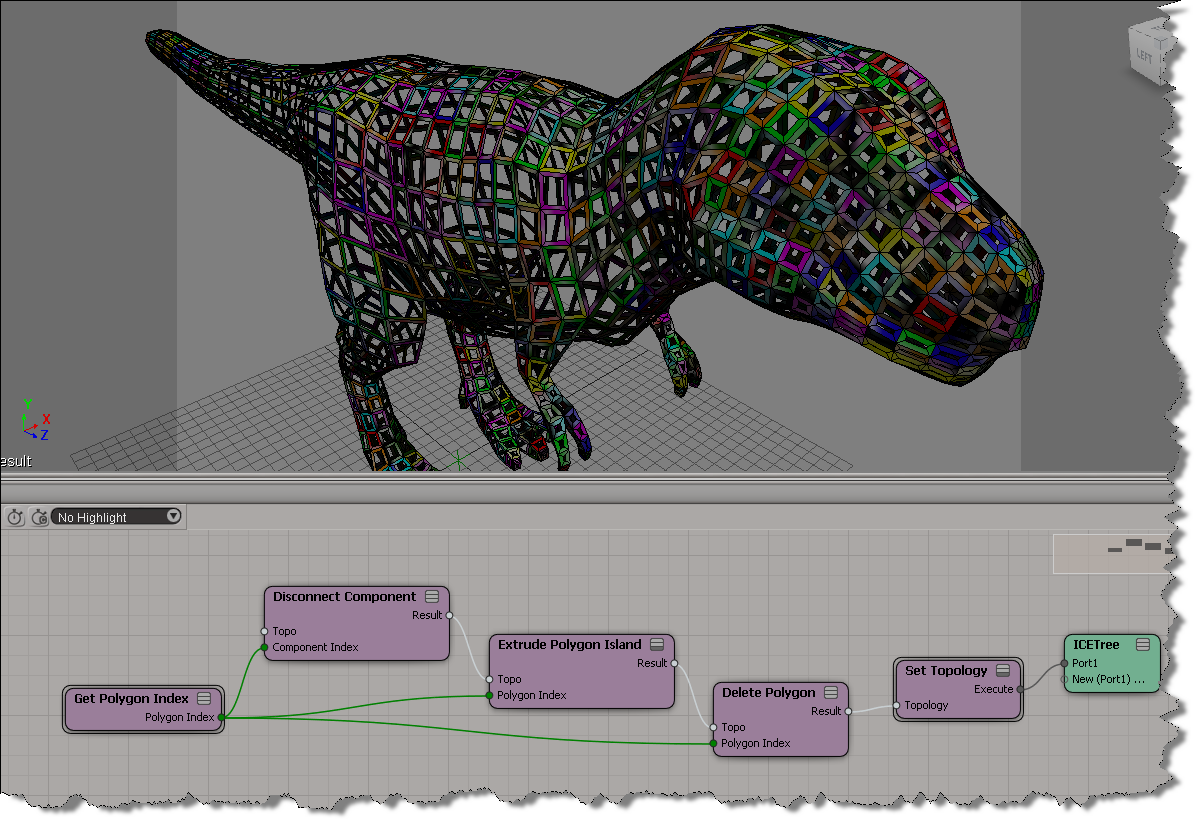
And here’s the same thing, but with no ICE:

 eX-SI
eX-SI 