Adding a named section to a menu


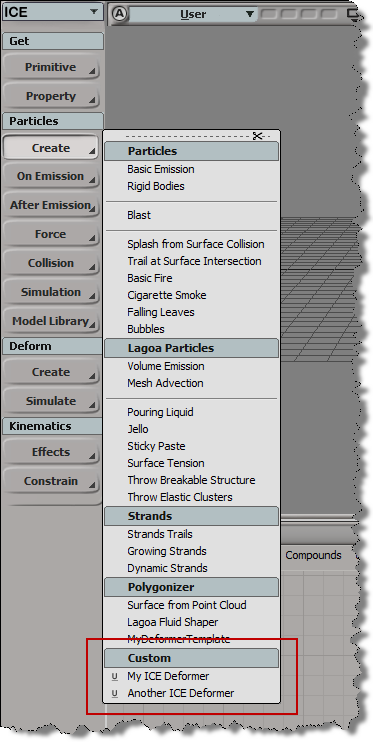
Here’s a Python snippet that shows how to add a section to a menu like the ICE > Particles > Create menu:
import win32com.client
from win32com.client import constants

null = None
false = 0
true = 1

def XSILoadPlugin( in_reg ):
	in_reg.Author = "blairs"
	in_reg.Name = "NewCommandPlugin"
	in_reg.Major = 1
	in_reg.Minor = 0

	in_reg.RegisterCommand("NewCommand","NewCommand")
	in_reg.RegisterMenu(constants.siMenuTbICEParticlesCreateID,"ICEParticlesCreateCustom_Menu",false,true)
	
	#RegistrationInsertionPoint - do not remove this line

	return true

def XSIUnloadPlugin( in_reg ):
	strPluginName = in_reg.Name
	return true

def ICEParticlesCreateCustom_Menu_Init( in_ctxt ):
	oMenu = in_ctxt.Source
	
	# Add section divider
	oItem = oMenu.AddItem( "Custom", constants.siMenuItemSection )
	oItem.SetBackgroundColor(178,191,194)
	
	# Add custom menu items
	oMenu.AddCommandItem("My ICE Deformer","NewCommand")
	oMenu.AddCommandItem("Another ICE Deformer","NewCommand1")
	return true
Select in Array and the structure type of the Index port


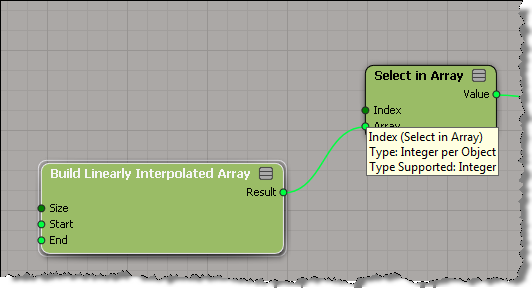
In general, the Index port of Select in Array can take either a single value or an array of values.

It doesn’t say that on the reference page, but if you dig into the user guide, you’ll find that info. Or, like many people, you’ll find that out by just trying it, or seeing it in someone else’s ICE tree.

The Index port is an example of a port that can change its structure type. The structure of a port is either single or array.

By default, (or if you plug an integer into the Index port), the Index port structure type is “single”.

If you plug an array into the Index port, then the structure type changes to “array”.

Sometimes, what’s downstream from Select in Array will determine the structure of the Index port. For example, if you plug Select in Array into the Distance Value of Curve Distance to Curve Location, then Index must be a single value (because Distance Value is a single value).

Troubleshooting Softimage on Linux


On Windows, I use Process Monitor, Process Explorer, and Dependency Walker.

On Linux, the primary troubleshooting tool is strace. strace is a tool that traces all the system calls that a running process makes. When a program is experiencing problems associated with I/O, strace can often help in quickly isolating the problem, since (almost) all I/O happens through system calls.

Here’s the basic syntax:

strace -o /tmp/out -f XSI 

-o writes the output to a log file
-f tells strace to follow forks, and trace all child processes
-p can be used to attach to an already running process

As well as system calls, strace also tracks signals that were thrown in the process. If a process is crashing due to a segmentation fault, it is worth investigating what was happening before the fault occurred; you can find where the fault occurred by searching for — SIGSEGV in the strace output.

strace output has been added as an XSI history log client under Linux. If you search the output of strace for the string write(-1, you should see all the scripting commands as they are executed. This is useful for associating system calls with the commands that caused them to execute.

There’s also ltrace ltrace is a tool that traces all the calls to shared library functions. It can be extremely useful with XSI because almost all of the XSI code lies in shared libraries. Note that calls from a given library to itself are generally not traced because the call is address-relative. Some useful options to ltrace are:

-C: remove leading underscores from C-linkage symbols and demangle C++-linkage symbols
-o and -f: same as for strace

20 Linux System Monitoring Tools Every SysAdmin Should Know

Mouse’s XGen to Autodesk


Walt Disney Animation Studios has licensed its XGen visual effects and animation software, used for Rapunzel’s hair in “Tangled” as well as fur, feathers and foliage, to software giant Autodesk.

Under the exclusive five-year license, Autodesk will turn XGen into commercial software available to animation and vfx professionals and to students. Announcement came at the Siggraph computer graphics conference.

via Mouse’s XGen to Autodesk – Entertainment News, Siggraph, Media – Variety.

Server is unreachable. Marked as invalid for the next 300 seconds


By default, any network drive that times out is “marked as invalid” for 5 minutes (300 seconds), and you’ll see a message like this in the script log:

# INFO : 4000 - Server '\\server' is unreachable. Marked as invalid for the next 300 seconds

The timeout interval is controlled by the environment variable SI_FILEPATH_ACCESSRETRYDELAY.

Setting SI_FILEPATH_ACCESSRETRYDELAY to 0 will force Softimage to always try to access the files on the network drive. That might be useful if your network has extremely poor reliability.

From an XSI mailing list thread about this message, here’s a bit more info about how Softimage resolves paths:

XSI first checks the last path that an image has been found. This
might be offline drive X:. If a drive times out, we don’t try to
check that location for a while because otherwise it’d be really slow.
At this point, XSI resort to searching for the file from the user
path, using its search logic.
So that warning isn’t a problem – unless your “user path” was really
set to X:, in which case, go fix the path in the external file list.
The path where XSI finds the image is called the “resolved path”.

–Luc-Eric