Merging objects without creating a new object
by Chris_TC

ICE Ruler
by SreckoM

VRay displacement
by AT on softimage.ru


Merging objects without creating a new object
by Chris_TC
ICE Ruler
by SreckoM
VRay displacement
by AT on softimage.ru
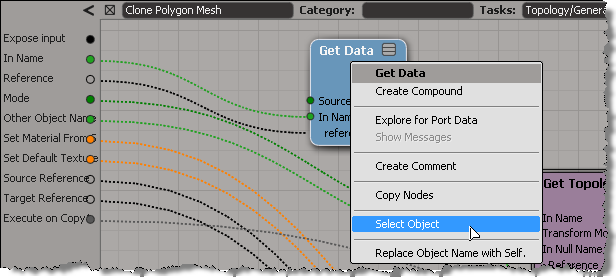
ICE tree views are typically locked, so that they don’t constantly update while you’re working with a scene and selecting different objects. But what do you do if you want to select an object referenced in the ICE tree? Do you have to hunt down the object in the explorer?
Nope. As of 2011.5, you can right-click a Get Data node to select the referenced object.

This works with the self, this_model and this_parent tokens too.
It also works on an Get Data inside a compound, if the Get Data In Name is connected to a valid reference. So, you don’t need to exit a compound just to select an input object.
hat tip: Guillaume Laforge

Thanks to Hirazi Blue for suggesting this flashback.
The initial goal of project MoonDust was to develop a new particle simulation system for XSI. The existing particle system, which had been in XSI since v1.0, had reached its limits. It was a monolithic system that wasn’t flexible or customizable enough (eg available events and attributes hard coded into the system).
I never had to learn the old particle system. There weren’t that many support cases about it, and MoonDust was always just around the corner. I just remember the old particles as a jumbled forest of PPGs and parameters. See for yourself…here’s some screenshots of the old particle system:
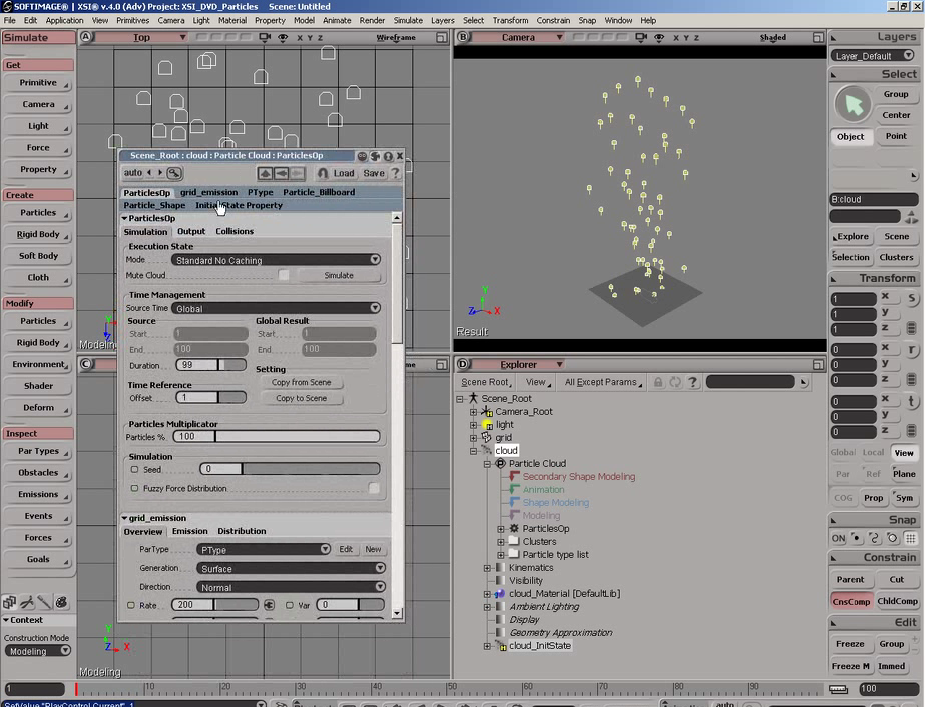

It’s interesting to compare how things worked before:

and after:
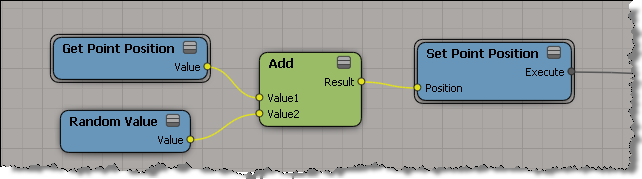
However, the scope of the project eventually grew into the development of a procedural graph system.
Looking back, I find this error popping up in my case notes once or twice every year.
Sometimes we’re able to help fix the problem, sometimes not, because it’s a problem with their system, not with Softimage itself.
Typically, a user will report seeing errors like this at start up:
// ERROR : Automation server can't create object - [line 22 in c:\Program Files\Autodesk\Softimage 2012 SP1\Addons\ICEFlowBuilder\Application\Plugins\ICEFlowCreateParticlesPlugin.js]
// ERROR : Automation server can't create object - [line 70 in c:\Program Files\Autodesk\Softimage 2012 SP1\Addons\sdkui\Application\Plugins\AddonDoc.js]
// ERROR : Automation server can't create object - [line 141 in c:\Program Files\Autodesk\Softimage 2012 SP1\Application\Commands\GlobalVarPlugin.js]
// ERROR : 2006-SetGlobal - Unexpected failure.
// ERROR : Automation server can't create object - [line 141 in c:\Program Files\Autodesk\Softimage 2012 SP1\Application\Commands\GlobalVarPlugin.js]
// ERROR : 2006-GetGlobal - Unexpected failure.
// ERROR : Automation server can't create object - [line 141 in c:\Program Files\Autodesk\Softimage 2012 SP1\Application\Commands\GlobalVarPlugin.js]
// ERROR : 2006-GetGlobal - Unexpected failure.
// ERROR : Automation server can't create object - [line 141 in c:\Program Files\Autodesk\Softimage 2012 SP1\Application\Commands\GlobalVarPlugin.js]
// ERROR : 2006-GetGlobal - Unexpected failure.
Sometimes users miss the startup errors and report seeing the error when they try to do something in Softimage, such as import dotXSI.
// ERROR : ActiveX component can't create object: 'Scripting.FileSystemObject' - [line 352 in c:\Program Files\Autodesk\Softimage 2012 SP1\Application\DSScripts\Model.vbs]
ImportDotXSI(null, null);
Note that the errors all give a line number in a specific file. If you check any of these, you’ll see that all the errors happen when Softimage tries to create an ActiveX object like
Scripting.Dictionary or Scripting.FileSystemObject. These are standard objects in the Microsoft Windows Script runtime, so these errors indicate that something’s wrong with Windows.
If you’re lucky, you can fix this by re-registering C:\windows\system32\scrrun.dll with regsvr32.
If that doesn’t work, then my guess would be that it’s some kind of registry or permissions problem. In the past (on XP systems), I’ve seen cases where it was specific to a user profile, and where it was because the Scripting.FileSystemObject registry key didn’t have an owner assigned.
If you don’t believe it’s a general Windows problem, try this. It should give the same error.
set fso = CreateObject("Scripting.FileSystemObject")
set fout = fso.CreateTextFile("c:\Test.txt", true)
fout.WriteLine Now
fout.Close
WScript.Echo "Testing"
In this video, I show how to package a collection of ICE compounds as an addon (.xsiaddon).
The compounds I use are by Piotrekm.
http://vimeo.com/30782703
Courtesy of Vladimir Jankijevic, here’s ” a really handy way of showing
arbitrary colors on a polygon mesh in the viewport, without having to create
a vertex property.”
Screenshot by Vladimir Jankijevic:

Another screenshot of the same thing:

This came up last week on the XSI mailing list. The goal, as I understand it, was this: for each polygon, build an array that contains the indices of all polygon neighbors.
So, to start, you can get an array of vertex locations for each polygon:

But when try to use those locations to get VertexToPolygons, that’s when you hit a problem:
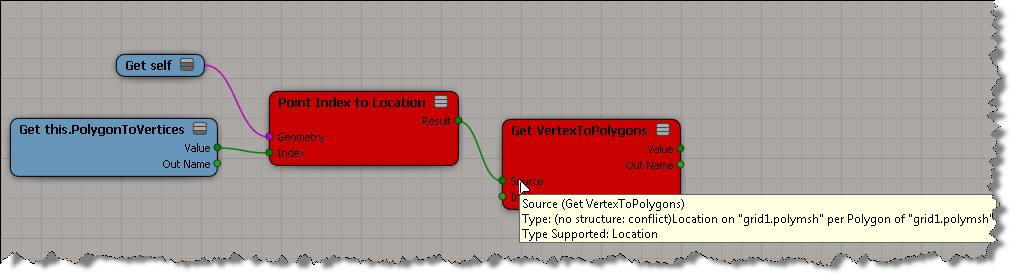
Usually if it’s a context mismatch, you won’t be able to plug in the connection. In this situation, you can plug the result of Point Index to Location into the Get VertexToPolygons, but as soon as you do, both nodes go red. The tooltip indicates that ICE cannot figure out the structure of the data, that is, is this a single value or an array of values? The error goes back up to the Index port on Point Index to Location (if you right-click Point Index to Location and click Show Messages, you’ll get “ERROR: The type of port ‘Index’ is not defined.”).
If you unplug Get PolygonToVertex, then things are ok:

So, it is possible to use a Repeat node to build the per-polygon array of neighbor polygons.

An infographic is the graphic visual representation of information, data or knowledge. In this example, from Doctor Steam, we have a color-coded map of the Softimage hotkeys.

use a mix node for mixing multiple store_in_channel nodes
by Kzin
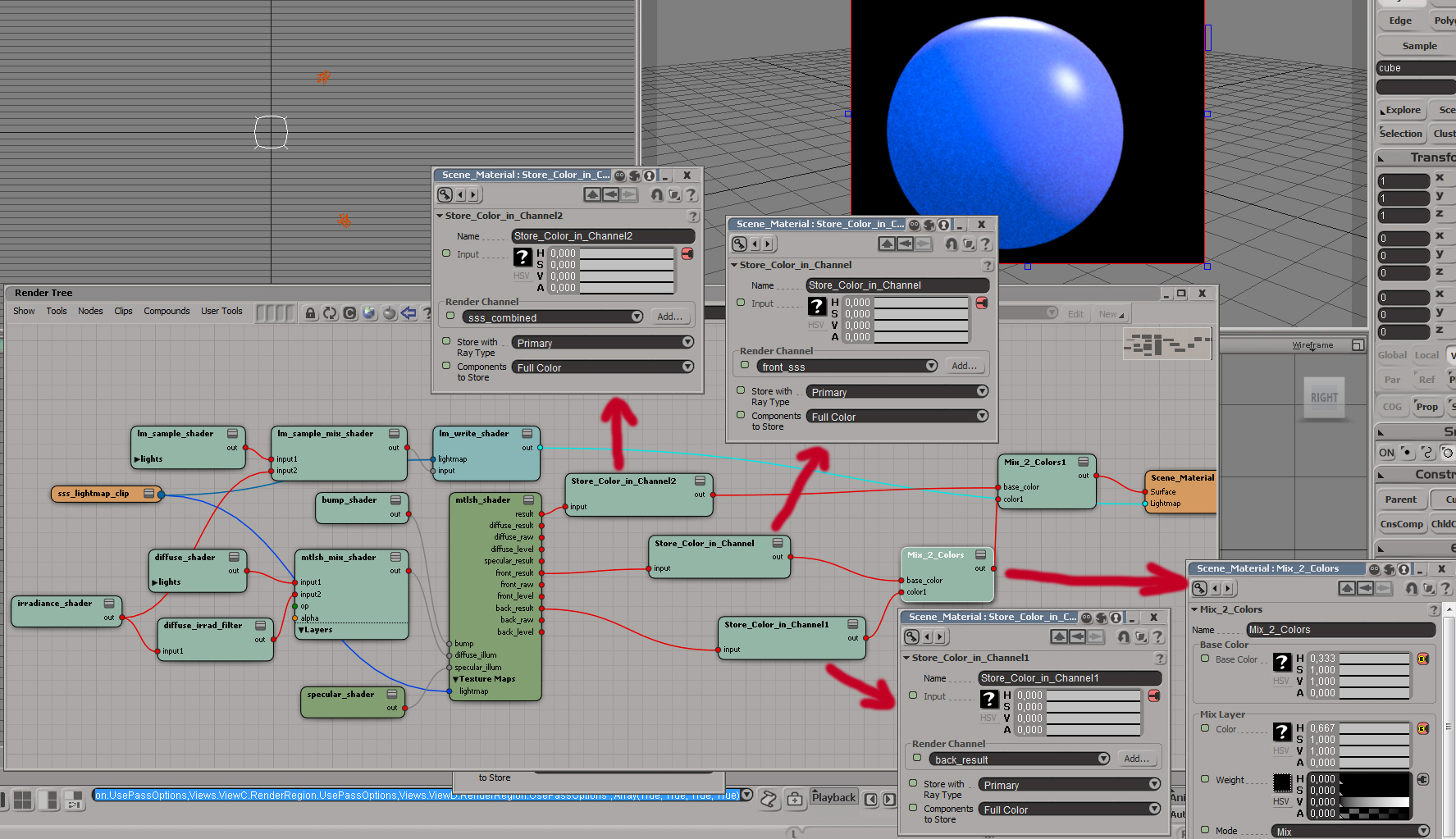
Node: Store Color in Channel, Mix 2 Colors
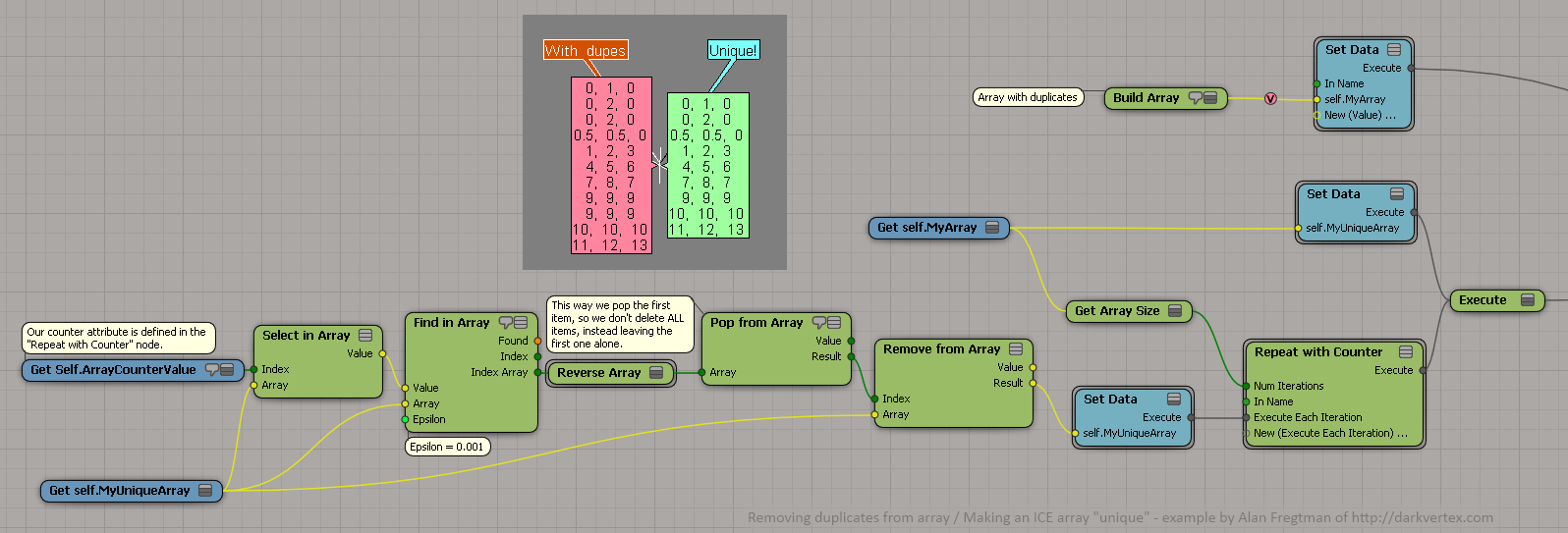
a way to make an ICE array unique
by Alan Fregtman
bezier patch in ICE
by Daniel Brassard

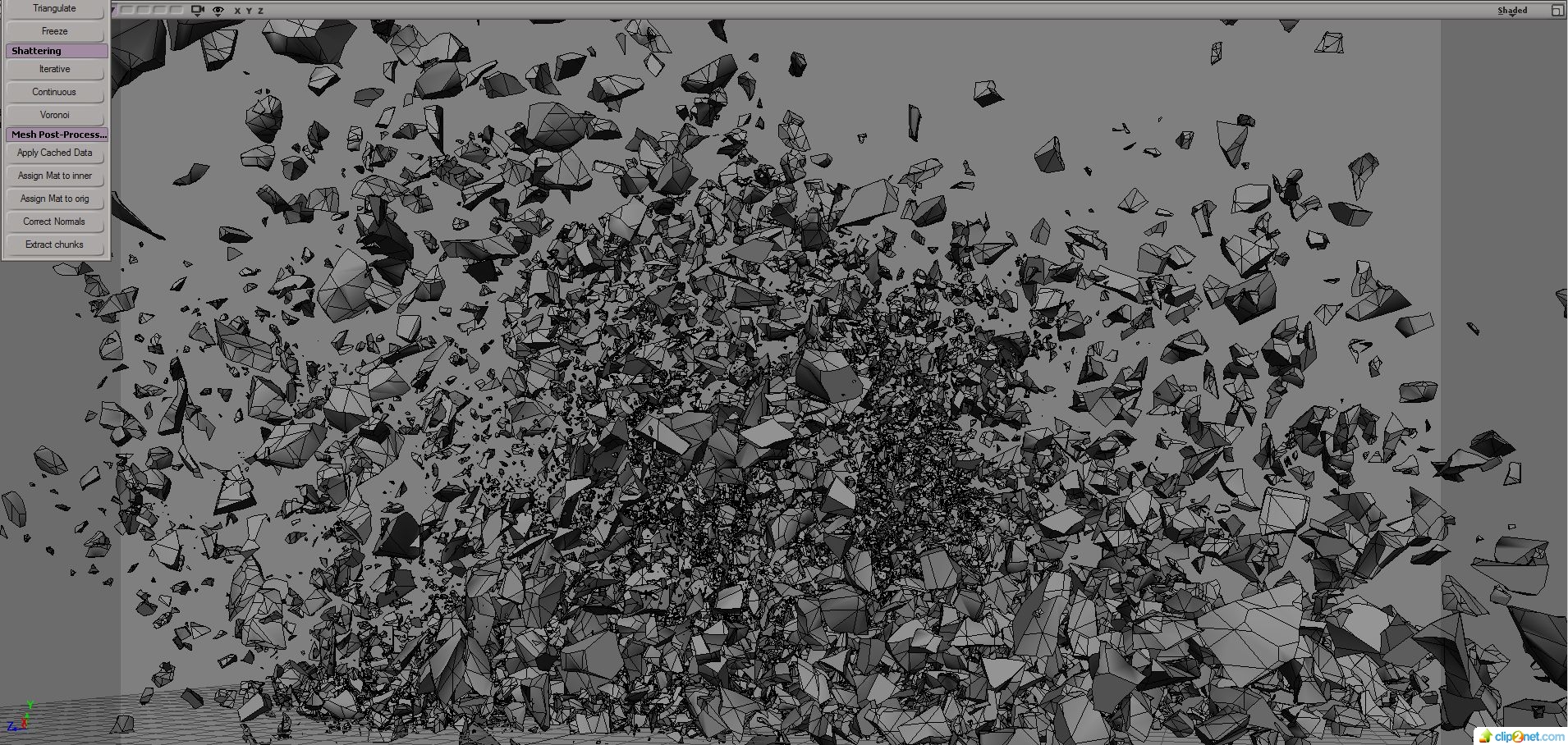
ICE Based shatter
by Mr Core
subdivide by texture
by denisVFX on softimage.ru:

Successfully saved scene before system failure
When Softimage crashes, it tries to save a crash recovery file. When you start up Softimage again, it asks you if you want to recover (“Improper exit detected. Do you want to recover?”)

If the crash recovery file isn’t usable, Softimage will try to load an AutoSave file, if there are any available (see this softimage-blog article on AutoSave).
Crash recovery files (and auto save files) are located in the [hidden] system\USER folder of the active project. For example:
C:\Users\blairs\Documents\Support_Project\system\blairs
where
Crash recover creates:
NOTE There’s a Scene Debugging preference for turning Crash Recovery on or off.
 eX-SI
eX-SI 